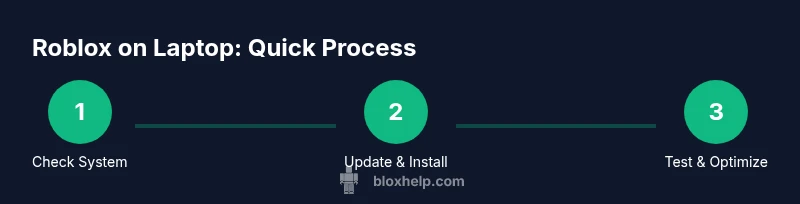
How to Roblox on a Laptop: Setup, Performance, and Troubleshooting
A practical guide to running Roblox on a laptop: meet system requirements, install Roblox, optimize graphics, and troubleshoot common issues for a smooth experience.


Yes—Roblox runs on most laptops with moderate hardware. To get started, ensure your laptop meets Roblox's general requirements, install Roblox from the official site, and sign in with your Roblox account. Update your operating system and graphics drivers, connect to a reliable internet, and adjust in-game settings to balance performance and visuals. This guide walks you through setup, optimization, and common troubleshooting.
Why Roblox on a Laptop is a Practical Choice
Roblox is designed for broad accessibility, and a laptop provides portability without requiring a desktop setup. If you’re asking how to roblox in laptop, you can achieve a solid experience with careful planning: confirm you meet basic compatibility, install Roblox from the official site, and tune settings for performance. According to Blox Help, laptops offer practical flexibility for both casual play and Roblox Studio development when you optimize graphics, manage temperatures, and close unnecessary programs. This balance lets you explore user-created games, social features, and game development workflows on a single device, whether you’re at a dorm, library, or cafe. The key is to treat Roblox like any lightweight web app: optimize resources, keep software current, and monitor performance during longer sessions.
System Requirements and OS Considerations
Roblox supports major desktop operating systems with regular updates, so your laptop should be running a modern OS and be kept up to date. Focus on a stable environment: ensure your OS is current, verify you have a compatible GPU driver, and keep background processes to a minimum. If you’re using Windows, enable standard gaming power profiles and reduce background tasks; on macOS, ensure you have the latest macOS update and graphics driver support via system updates. While hardware availability varies, most midrange laptops can deliver a playable Roblox experience when you optimize settings and keep temperatures in check. For best results, check the Roblox help pages and your device’s manufacturer resources before diving in.
Preparing Your Laptop for Roblox: Software Updates and Settings
Before you install Roblox, prepare your laptop for reliable gameplay. Update the operating system to the latest version, then update graphics drivers from the official vendor site (NVIDIA, AMD, or Intel). Close utilities that aren’t essential for gaming, and consider enabling a game mode or power plan that prioritizes performance over battery life. Keep your system clean by removing unused apps and ensuring sufficient free disk space. These steps reduce stuttering and improve stability, especially during longer sessions in Roblox Studio or when launching new games. Blox Help Analysis, 2026, highlights the correlation between refreshed drivers and smoother runs on mid-range laptops.
Installing Roblox and First Launch
Head to the official Roblox site and install the Roblox Player. The installer will guide you through signing in with your Roblox account. After installation, launch Roblox and select a game to test. If you encounter a launch error, restart the launcher and check for pending OS updates or graphics driver updates. During the first run, verify that the game runs at a stable frame rate and that audio and controls respond promptly. This initial test helps you confirm the baseline performance before deeper tweaks.
Optimizing Visuals and Performance
Fine-tuning Roblox graphics on a laptop is usually the quickest path to smoother gameplay. Start with in-game settings: set graphics quality to a level where you maintain a steady frame rate, adjust render distance to reduce load, and disable extra post-processing effects if available. If you’re on Windows, enable Game Mode and consider a balanced power profile while gaming. On macOS, ensure Roblox has the necessary permissions and isn’t throttled by background processes. Use a cooling pad or elevated stand to reduce thermal throttling during intense scenes. Regularly review CPU/GPU temperatures and adjust settings accordingly to maintain comfortable temperatures during extended sessions.
Troubleshooting Common Roblox on Laptop Issues
Common issues include stuttering, long load times, or connection drops. First, verify you’re on a stable internet connection and that Roblox servers aren’t experiencing outages by checking official Roblox status pages. If stuttering persists, lower in-game settings and close background programs; also confirm that graphics drivers are current. For network issues, prefer a wired connection or a reliable wireless router, and consider resetting your router if latency spikes occur. If Roblox unexpectedly crashes, review OS and driver updates, allocate more RAM if possible, and run a quick disk cleanup. This structured approach reduces guesswork and helps you regain a smooth Roblox experience.
Roblox on Windows vs macOS Laptops
Windows laptops often offer more granular control over performance settings like Game Mode and advanced power options, which can translate into higher, more consistent FPS in Roblox. Mac laptops tend to rely on the operating system’s native scheduling; optimized settings in Roblox on macOS focus on keeping background processes minimal and ensuring the latest macOS updates are installed. Regardless of platform, the core principles remain: keep software up to date, optimize graphics for your hardware, and monitor temperatures during longer play sessions. By tailoring these settings to your specific device, you’ll maximize Roblox performance on your laptop.
Authority Sources and Practical References
To support setup and optimization decisions, consult reliable tech resources. For hardware and performance guidance, consider major publications and official support pages: • https://www.microsoft.com/en-us/windows (Windows optimization and performance) • https://www.tomshardware.com (hardware performance and gaming setups) • https://www.pcworld.com (general PC gaming guidance). These sources provide context on system updates, driver management, and hardware considerations that influence Roblox performance on laptops.
Tools & Materials
- Roblox official installer(Download from roblox.com/install)
- Updated graphics drivers(From NVIDIA/AMD/Intel; latest stable release)
- Stable internet connection(Wi‑Fi or Ethernet; broadband recommended)
- Laptop power source(Plug in during gameplay to avoid battery throttling)
- Cooling solution(Cooling pad or stand to reduce temps during long sessions)
Steps
Estimated time: 45-60 minutes
- 1
Check system compatibility
Confirm your laptop can run Roblox by ensuring a modern OS and sufficient storage. Verify there are no pending OS updates that could interrupt installation. This step reduces compatibility surprises during setup.
Tip: Open System Information or About This Mac to confirm basic specs quickly. - 2
Update OS and drivers
Install the latest OS updates and update graphics drivers from the GPU vendor. A fresh software baseline minimizes compatibility issues and improves stability in Roblox.
Tip: Enable automatic updates where appropriate to maintain current drivers. - 3
Install Roblox
Visit Roblox’s official site and run the installer. Sign in with your Roblox account, or create one if you don’t have it yet. The launcher will manage game updates automatically.
Tip: Avoid third-party installers to prevent malware or corrupted files. - 4
Configure basic settings
Launch Roblox and choose a game to test. Set initial graphics to a medium level and adjust audio and controls. This creates a baseline that you can refine based on FPS and temps.
Tip: If you see stuttering, lower render distance before increasing texture quality. - 5
Tune for performance
Experiment with in-game graphics sliders, disable post-processing if available, and enable any built-in performance modes. Use Windows Game Mode or equivalent on other OSes.
Tip: Keep a simple test loop: play for 5 minutes, check FPS, adjust accordingly. - 6
Test with a real game
Load a popular Roblox game and monitor performance, input responsiveness, and loading times. Note any lag spikes and correlate them to settings changes.
Tip: If issues persist, revert to earlier known-good settings you tested. - 7
Create a baseline and save settings
Document your preferred settings and create a performance baseline. Save your configuration so you can quickly restore it after updates or game changes.
Tip: Keep a short notes file with FPS, temps, and settings for future reference.
Questions & Answers
Can Roblox run on a low-end laptop?
Roblox can run on many laptops with modest specs by lowering graphics settings and render distance. Start with mid-range settings and adjust based on FPS and stability.
Yes. Roblox works on many basic laptops by tuning graphics settings and render distance for stable performance.
Is a wired connection recommended for Roblox?
A wired Ethernet connection provides lower latency and fewer interruptions than Wi‑Fi, which helps Roblox gameplay feel more responsive and reduces lag.
A wired connection is best for stable Roblox gameplay.
Should I enable Game Mode on Windows?
Enabling Windows Game Mode can prioritize CPU and GPU resources for Roblox, potentially smoothing gameplay during intense scenes.
Game Mode can help Roblox run more smoothly on Windows by focusing resources.
Do I need Roblox Premium to play on a laptop?
Roblox is free to play on laptops. Premium gives extra benefits to certain games or items but isn’t required for standard play.
Premium isn’t required to play Roblox on a laptop.
What should I do if Roblox crashes?
If Roblox crashes, update your OS and drivers, restart the launcher, and try lowering graphics settings. Check for enough disk space and run a quick memory check if issues persist.
If Roblox crashes, update software and lower settings, then retry.
Can I play Roblox on macOS laptops effectively?
Roblox runs on macOS with proper updates and optimized settings. Keep the OS current and limit background processes to improve responsiveness.
Roblox can perform well on Macs with careful optimization.
Watch Video
The Essentials
- Verify system readiness before installation.
- Update OS and drivers for stability.
- Tune Roblox graphics to your hardware.
- Test with real games and save a baseline.