Where to Download Roblox on a Laptop: A Practical Guide
Discover where to download Roblox on a laptop from the official site, with Windows and Mac setup steps, safety tips, and troubleshooting to avoid scams.


Why official downloads matter
Downloading Roblox from the official site reduces the risk of malware and guarantees you receive the latest, most compatible version. According to Blox Help, the official installer performs automatic checks for your system configuration and guides you through each step, lowering the chance of incomplete installs and post-install errors. On first launch, you’ll encounter a straightforward login flow and a clean launcher experience. When you stick to roblox.com, you also benefit from timely security fixes and official updates, which can be sporadic or delayed when using third-party sources. This section explains why official channels reduce risk and how to spot counterfeit pages that mimic Roblox visuals.
- Always verify the URL and look for a secure connection (https).
- Avoid unsolicited download prompts unrelated to Roblox.
- If a page asks for admin access or unusual permissions, pause and re-check the source.
OS compatibility and hardware expectations
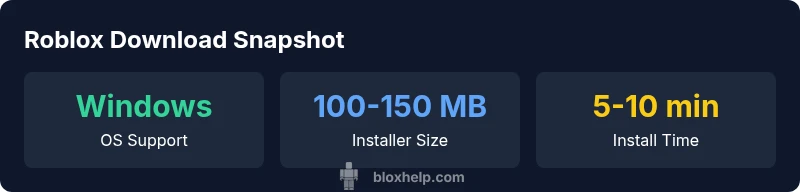
A modern laptop running Windows 10/11 or macOS is well within Roblox’s target. The platform is designed to install on typical consumer hardware without specialized GPUs, though performance will depend on graphics settings and RAM. If you’re on a mid-range machine, you’ll benefit from lowering texture quality during first-time runs to reduce load times. For Windows users, ensure that the DirectX runtime is up to date, and for macOS users, check that Metal is enabled in system preferences. Battery life is also a consideration; gaming tends to reduce runtime, so plan for plugged-in use when possible. In all cases, keep your system driver and security software current to avoid conflicts during installation.
- Confirm your OS version is supported.
- Update your graphics drivers prior to install.
- Close other intensive programs during setup for smoother installs.
Windows installation: step-by-step
- Open a browser and go to roblox.com.
- Click the Download Roblox button to begin the Windows installer download.
- Run the downloaded .exe file and follow on-screen prompts.
- When prompted, log in with your Roblox account or create one.
- Finish the setup wizard, then launch Roblox from your desktop or Start menu.
Notes:
- You may be asked to install a helper runtime; accept it if you trust the source.
- Allow the installer to make changes to your device only if you trust the source.
- After installation, check for updates to ensure compatibility with your OS.
macOS installation: step-by-step
- Visit roblox.com and click the Download Roblox button.
- Open the downloaded .dmg file and drag the Roblox app to the Applications folder.
- Launch Roblox; you may be prompted to sign in.
- If Gatekeeper prompts for permission, confirm that you trust the app from Roblox.
- Sign in to access your games and settings.
Tips:
- You may need to adjust security settings to allow apps from identified developers.
- Ensure your macOS version is supported and up to date for best results.
Common issues and troubleshooting
If the installer fails to start, verify the download completed, the file isn’t blocked by your OS, and you’re not behind a proxy that alters downloads. For Windows, run the installer as an administrator if possible. If Roblox launches but won’t connect, check your internet connection and firewall settings. If you encounter graphic glitches, update your GPU drivers and lower in-game graphics to the recommended baseline. Reboot after any driver update to ensure changes take effect. If problems persist, reinstall from the official site to reset corrupted components.
- Installer won’t download? Clear browser cache and retry.
- Connection errors? Test another network or disable VPNs temporarily.
Safety, scams, and security best practices
Stick to the official Roblox site (roblox.com) to avoid malware, phishing, or altered installers. Be skeptical of download links in emails or forums that promise ‘instant access’ to restricted content. Before installing, run a quick virus scan on the downloaded file and verify the file name matches the Roblox installer. Keep your antivirus up to date and enable Windows Defender or macOS Gatekeeper features. If you ever doubt a page, compare the site’s certificate details or reach out to Roblox Support for verification.
- Never enter your password on third-party pages.
- Use two-factor authentication where available.
Performance tips and optimization after install
After you’ve installed Roblox, tuning settings can improve frame rates on modest hardware. Start with the in-game Graphics Quality set to the lowest acceptable level and adjust until you’re comfortable with frame times. Ensure your laptop is plugged in during gaming to maintain performance, as CPU/GPU throttling can occur on battery power. Disable any background programs that consume CPU or network bandwidth, and set Roblox to a higher priority in Task Manager (Windows) or Activity Monitor (macOS) if you’re comfortable with system tuning. Regular driver updates also help maintain smooth gameplay.
- Use in-game presets to reach stable frame rates.
- Keep your drivers current for best results.
- Monitor temperatures to avoid throttling on long sessions.
Next steps: account management and cross-device play
Once installed, link your Roblox account to access saved outfits, inventory, and progress across devices. If you play on multiple devices, enable cloud saves where available and ensure you’re signed into the same account on each device. Update your password regularly and enable two-factor authentication for account security. For family devices, consider enabling parental controls and setting screen-time limits if needed. Finally, review your privacy settings to determine who can join your games and how you share content.