Play Online Roblox: A Beginner's Step-by-Step Guide
Learn how to play Roblox online with a beginner-friendly, step-by-step guide. Prepare your account, choose a platform, join multiplayer games safely, and optimize performance for smooth, enjoyable online play.


You will be able to play Roblox online by creating or logging into your Roblox account, choosing a device, and joining multiplayer games. You’ll need a stable internet connection, a supported platform (PC, console, or mobile), and the Roblox app or website. This guide covers setup, safety, and optimization. Follow the steps to start quickly and safely.
What does it mean to play online Roblox?
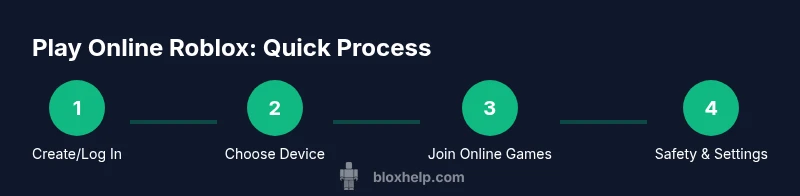
Playing Roblox online means joining multiplayer worlds and games hosted on Roblox servers. You can play with friends or players worldwide in a shared space, collaborate on adventures, or compete in mini-games. Roblox is cross‑platform, so you can start on a PC and continue on a mobile device. For a smooth experience, you should understand how accounts, devices, networks, and safety settings interact in online play. This section lays the foundation for the rest of the guide and helps you set realistic expectations for latency, matchmaking, and in-game communication. If you’d like a quick visual summary, see our process diagram later in the infographic section.
Prerequisites: Account, Device, and Internet
To play online, you need a Roblox account, a device with a supported operating system, and a stable internet connection. Start by registering or signing in, then choose a platform (PC, Mac, iOS, Android, Xbox, or Roblox-supported browser). A wired Ethernet connection or 5 GHz Wi‑Fi will generally reduce lag. Make sure you have the Roblox app installed or you’re ready to access Roblox via the official website. Keep your login credentials secure and enable two-step verification where available to protect your account.
Platform Considerations: PC, Console, Mobile
Roblox supports a variety of platforms, each with its own advantages. PC and Mac typically offer larger screens and more precise controls, while mobile devices provide on‑the‑go access. Consoles like Xbox allow easy social play with friends who also own a console. Regardless of platform, you’ll access the same game library, but input methods and performance can vary. If you’re unsure which platform to use, start with the device you already own and test a short game to gauge performance and comfort.
Creating or Logging into Your Roblox Account
If you’re new, create a Roblox account by providing a username, password, and date of birth, then verify your email if prompted. For existing players, sign in with your credentials. After logging in, customize your avatar and privacy settings in the account menu. It’s wise to review who can chat with you, who can join your games, and what content is allowed for your account. These steps help ensure a safer online experience from the first session.
Accessing Online Games and Multiplayer Modes
From the Roblox home screen, explore the “Discover” tab to find games that match your interests. Use filters to sort by popularity, genre, or friends’ activity. Click a game to read its description, then press play to join a multiplayer session. Some games support party or squad modes—invite friends to join you for co‑op adventures. If a game won’t load, try refreshing, selecting a different server, or restarting the Roblox client.
Safety and Privacy While Playing Online
Safety is essential when playing online. Use Roblox’s built‑in safety features: enable account PINs or two‑step verification, restrict who can contact you, and review privacy settings regularly. Be mindful of sharing personal information and avoid clicking suspicious links in chat. If you’re a parent or guardian, explore parental controls to manage who can interact with the player, what games can be accessed, and how in‑game purchases work. Staying informed about safety helps you enjoy Roblox responsibly.
Performance Optimization for Online Play
To keep online play smooth, optimize your device and network. Use a wired Ethernet connection when possible, update graphics drivers, and close background apps that could steal bandwidth. In-game, set lower graphics quality if you notice lag, and choose servers closer to your location for shorter latency. If you’re playing on a mobile device, enable device power‑saving options only if they don’t degrade game performance. Regularly restart your router to refresh your connection.
Troubleshooting Common Online-Play Issues
If you encounter issues joining games, first check Roblox’s server status and your internet connection. Restart the Roblox app or browser, clear cache, and try a different server. If you’re blocked by parental controls or privacy settings, review those settings or contact a guardian for adjustments. For ongoing lag, switch networks or reduce the number of devices connected to the network. Document the issue with screenshots and note the time for faster support.
Advanced Tips and Smart Habits for Roblox Online
As you grow more comfortable playing online, create a routine that balances safety, performance, and social interaction. Use friends’ lists to coordinate sessions, join moderation‑friendly communities, and keep apps up to date to reduce compatibility issues. Learn keyboard or controller mappings for faster in‑game actions, and explore Roblox Studio to understand how games are built—this deepens your appreciation of online play and can inspire new ideas.
Tools & Materials
- Roblox account (new or existing)(Create an account or log in; enable two‑factor authentication if available)
- Device with internet access(PC, Mac, iOS, Android, Xbox, or browser-enabled device)
- Roblox app or supported web browser(Download the official app or access via the Roblox website)
- Stable internet connection(Wired Ethernet or strong Wi‑Fi; minimize congestion)
- Headphones or headset (optional)(Helps with voice chat in supported games)
- Parental controls (if needed)(Set limits on chats, messages, and purchases)
Steps
Estimated time: 1-2 hours
- 1
Create or sign in to Roblox
Open the Roblox app or website and complete the sign‑up flow if you’re new. Choose a username, set a strong password, and verify your email if prompted. This step establishes your unique identity in the online world and enables cross‑device play.
Tip: Tip: Use a unique password and enable two‑step verification for extra security. - 2
Choose your device and install Roblox
Select your preferred device and install the Roblox app or ensure your browser supports Roblox games. If you’re on a mobile device, grant necessary permissions for a smooth gaming experience. On PC, keep your system updated for best performance.
Tip: Pro tip: On slower networks, consider installing the lightweight Roblox client instead of full game bundles. - 3
Browse games and join online sessions
From the Discover tab, filter by genre, popularity, or friends’ activity. Tap a game to read its description, then click Play to enter a multiplayer session. If you run into server issues, switch to a different region or restart the client.
Tip: Pro tip: Join games with recent player counts to reduce matchmaking wait times. - 4
Set up safety and privacy controls
Visit the account settings to adjust who can contact you, who can join your games, and what microtransactions are allowed. Enable two‑step verification for security. Consider enabling chat filtering for younger players if applicable.
Tip: Warning: Review privacy settings regularly as platforms update policies. - 5
Optimize performance and controls
Lower in‑game graphics if you experience lag and ensure your device isn’t overheating during play. Map keyboard or controller inputs to your preferred layout and learn basic movement to improve reaction times.
Tip: Pro tip: Use a wired connection for the most stable online experience.
Questions & Answers
Do I have to pay to play Roblox online?
Roblox is free to play, with optional in‑game purchases and premium items. Some games may offer paid features, but you can enjoy a large library without spending money.
Roblox is free to start; some games sell extras, but many experiences are free to play.
Is online play safe for kids?
Roblox provides safety settings and parental controls. Parents can manage who can chat, who can join games, and what is visible. Always supervise younger players and discuss online etiquette.
Yes, with good safety settings and parental controls, online play can be safer for kids.
What should I do if I can’t join a game?
Check your internet connection and server status. Try a different server region, refresh the game, or restart the Roblox app. If problems persist, review firewall settings or contact support.
If you can’t join, check server status, try another server, and restart the app.
How can I improve game performance?
Lower graphics quality, close background apps, and use a wired internet connection when possible. Keeping drivers up to date also helps reduce lag.
Reduce graphics, close other apps, and use a wired connection for smoother play.
Which platforms support online Roblox play?
Roblox supports PC, Mac, iOS, Android, and Xbox. Availability may vary by game, but the core library is accessible across platforms.
Roblox runs on PC, Mac, mobile devices, and Xbox.
Can I play with friends across platforms?
Yes, many Roblox games support cross‑platform multiplayer. Ensure you and your friends are on compatible versions of Roblox and are allowed by game settings.
Many games let you play with friends on different platforms.
Watch Video
The Essentials
- Sign in or create an account and pick a device.
- Join online games safely with proper privacy controls.
- Optimize settings to minimize lag and maximize enjoyment.
- Be mindful of safety guidelines and in‑game purchases.