How to Install Roblox on Linux
Learn how to run Roblox on Linux using Lutris and Wine with step-by-step setup, troubleshooting tips, and performance tweaks. A practical guide from Blox Help for Linux gamers.


This guide shows you how to run Roblox on Linux using compatibility layers like Wine and Lutris. You’ll learn the best-supported methods, prerequisites, and common troubleshooting steps to get Roblox up and playing on Linux. By following these steps, you’ll have a reliable setup that minimizes glitches and maximizes performance. This article covers Linux environments from Ubuntu to Arch, with notes on compatibility and performance.
Understanding the Linux Challenge
Roblox does not offer an official Linux client, which means Linux users must rely on compatibility layers to run the game. This can introduce variables like driver compatibility, Wine prefixes, and launcher integration. The good news is that modern tools and community-driven scripts have significantly improved reliability. According to Blox Help, Linux gamers often achieve the best results when using Lutris as a launcher and Wine as the compatibility layer, since Lutris handles many backend configurations for you. If you’re new to Linux gaming, prepare for a few trial-and-error runs, but the payoff is a flexible, open operating system with robust customization options. The Linux ecosystem also provides detailed documentation on systemd services, graphics driver installations, and dependency management, which can help you stabilize Roblox on your distro of choice.
- Be prepared for distro-specific quirks (package names, repository availability, and graphics driver setup).
- A well-maintained Wine prefix reduces crashes and improves compatibility.
- Community scripts and guides are your best friends when navigating edge cases.
Prerequisites and Planning
Before you install Roblox on Linux, take stock of your system and environment. A clean, up-to-date Linux installation with 64-bit support is essential. You’ll want the latest graphics drivers for your GPU (NVIDIA, AMD, or Intel) to ensure the best frame rates and stability. Decide whether you’ll use Lutris as your primary launcher or a direct Wine setup. Lutris provides curated runners and script templates that simplify the installation process and handle dependencies for you. Also, create a Roblox account if you don’t already have one, since logging in is required to play. Finally, ensure you have a reliable internet connection for downloading installers, dependencies, and any optional components.
Key considerations include:
- Distros: Ubuntu-based, Fedora-based, Arch-based, or others all work with Lutris.
- Wine prefix strategy: A clean, 64-bit prefix is usually best for Roblox.
- Storage space: Roblox’s installation footprint and updates can grow over time.
Why Lutris and Wine Are Popular Choices
Lutris acts as a unifying launcher for Windows games on Linux, coordinating Wine, DXVK, and other components behind a simple interface. It offers community-run install scripts for Roblox, which lowers the barrier to entry and reduces troubleshooting time. Wine provides the compatibility layer that translates Windows API calls into Linux calls. Many users report smoother operation when Lutris handles the setup because it automatically configures essential options like the correct Wine version, DXVK for DirectX translation, and appropriate winetricks dependencies. While Proton from Steam can be used in some cases, Lutris remains the most consistently reliable path for Roblox on Linux due to its focused game-specific configurations.
From a reliability perspective, the combination of Lutris + Wine is widely recommended in community guides, with attention paid to performance tweaks and prefix management. Blox Help’s analysis emphasizes that a properly configured environment often yields more consistent input handling, better audio routing, and fewer crashes than a bare Wine installation. If you plan to tweak settings, keep notes of each change so you can revert if needed.
Step-by-step: Installing Roblox on Linux with Lutris
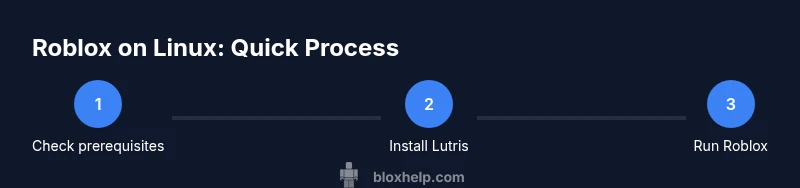
Lutris provides a streamlined workflow for Roblox through a dedicated script runner. This section explains the Lutris-based path in a practical, actionable way, focusing on the decisions you’ll make and the settings you’ll adjust. You’ll set up a Wine prefix, install Roblox, and tune DXVK-related options to improve DirectX emulation. Remember that these steps assume you’re starting from a fresh system state with Lutris installed and up to date. If you encounter issues, consult the troubleshooting section below and use Lutris’ logs to pinpoint failures. After following the Lutris method, you should be able to log in to Roblox and enter a game lobby with acceptable latency.
- Install Lutris from its official source and open the application.
- Use the Roblox runner/script to configure the Windows environment with a suitable Wine version.
- Enable DXVK or VKD3D in Lutris’ runner options for enhanced graphics compatibility.
- Launch Roblox through Lutris and log in to verify gameplay access.
Step-by-step: Running Roblox on Linux with Wine (no Lutris)
If you prefer not to use Lutris, you can set up Roblox with a manual Wine prefix. This route gives you granular control but requires more hands-on configuration. Start with a clean, 64-bit prefix and install the Roblox launcher via a Windows executable downloaded through your browser. You may need to install core dependencies via winetricks, including core fonts and Internet Explorer components for some Roblox features. This path is more error-prone but is valuable for users who want direct Wine control.
- Create a new Wine prefix in a dedicated directory.
- Install required winetricks components (fonts, media codecs, etc.).
- Run the Roblox installer inside the Wine prefix.
- Launch Roblox and troubleshoot input, audio, or rendering issues with Wine settings.
Troubleshooting Common Issues
Roblox on Linux via Lutris or Wine can present a range of problems, from audio glitches to black screens or login failures. Common fixes include updating graphics drivers, ensuring DXVK is enabled, and using a clean wineprefix. Logs from Lutris or Wine reveal clues about missing DLLs, failed dependencies, or permissions problems. If you encounter a crash on startup, try resetting the Wine prefix or reverting to a stable driver version. For audio problems, ensure your PulseAudio or PipeWire configuration is correct and that Roblox has permission to access sound devices. Community forums and the Lutris wiki are excellent resources for edge-case problems.
- Check the Lutris runner logs for error messages.
- Verify that you are using a supported Wine version for Roblox.
- Reinstall Roblox if the launcher acts unstable after updates.
Performance tweaks and best practices
To maximize Roblox performance on Linux, start with driver updates and a tuned graphics pipeline. DXVK is a critical component for translating DirectX calls to Vulkan efficiently; enabling it in Lutris or Wine can yield smoother frame times. Lowering in-game graphics quality can drastically improve stability on lower-end hardware. If you experience input lag, experiment with polling rates and windowed/fullscreen modes. Finally, consider closing background processes that consume CPU or GPU resources during gaming sessions to maintain consistent performance.
- Enable DXVK in Lutris settings for Roblox.
- Keep graphics drivers up to date and use Vulkan where possible.
- Adjust Roblox graphics to medium or high depending on hardware.
Safety, legality, and best practices
Running Roblox on Linux relies on community workarounds and third-party tools; it is not officially supported by Roblox. Always download installers from trusted sources and keep your system’s security posture, including up-to-date anti-malware and kernel patches. Back up your Wine prefixes before major updates to prevent data loss. Use a separate user account for gaming to limit security risks, and be mindful of potential privacy considerations when sharing logs or diagnostics with community forums.
- Use trusted sources for downloads and scripts.
- Back up configurations before upgrades.
- Consider a dedicated user account for gaming to reduce risk.
Community resources and ongoing updates
The Roblox Linux scene is active, with regular updates from Lutris, Wine, and Arch/Ubuntu communities. Following official project pages and community forums helps you stay informed about compatibility improvements, new scripts, and fix notes. Blox Help regularly reviews these developments and updates our guides accordingly. For ongoing improvements, check GitHub repositories that host Roblox-related scripts and keep an eye on distribution-specific forums for distro-tailored advice. Community-driven work often bridges gaps between compatibility and official support.
- Lutris and Wine release notes are essential reads for Roblox on Linux.
- ArchWiki and Distro forums provide distro-specific tips and fixes.
- Blox Help updates reflect the latest community guidance and testing insights.
Tools & Materials
- 64-bit Linux distribution (Ubuntu, Debian, Fedora, Arch)(Keep the system up-to-date; enable multiverse/repositories if needed)
- Lutris(Official installer from lutris.net; ensure latest version)
- Wine(Install via WineHQ or your distro package manager; aim for a stable branch)
- Winetricks(Used to install dependencies and components for Roblox)
- Graphics drivers (NVIDIA/AMD/Intel)(Open-source or proprietary drivers; ensure Vulkan support)
- Stable internet connection(For downloads, updates, and script fetches)
- A Roblox account(Needed to sign in and play; create one if you don’t have it)
Steps
Estimated time: 60-120 minutes
- 1
Prepare your Linux system
Update your package index, upgrade installed packages, and verify 64-bit support. Install any missing dependencies for Wine and DXVK. Create a backup of current configurations before making major changes.
Tip: Document your current setup so you can revert if needed. - 2
Install Lutris
Add the Lutris repository or use the official installer for your distro. Verify Lutris launches correctly and that it can access the GPU and audio devices.
Tip: Use Lutris’ own runner for Roblox to reduce configuration friction. - 3
Install Wine and Winetricks
Install a stable Wine version compatible with Roblox. Use Winetricks to install core components like fonts, mel libraries, and Internet Explorer components if required.
Tip: Start with a clean Wine prefix to avoid conflicts with existing prefixes. - 4
Set up a clean Wine prefix
Create a new 64-bit Wine prefix specifically for Roblox. Configure the prefix with recommended settings and ensure it is isolated from your daily driver setup.
Tip: Name the prefix something identifiable, like 'roblox-linux'. - 5
Install Roblox through Lutris
Use Lutris’ Roblox script to install the launcher. Let Lutris manage the Wine version, DXVK/VKD3D settings, and dependency installation.
Tip: Enable DXVK for better DirectX translation when prompted. - 6
Configure graphics and dependencies
In Lutris, adjust the runner options to enable DXVK, set appropriate environment variables, and assign GPU resources. Ensure the Roblox launcher can access audio and input devices.
Tip: Experiment with VKD3D if you run into DirectX-specific rendering issues. - 7
Launch Roblox and sign in
Run Roblox from Lutris, sign in, and attempt a quick game. If you encounter issues, check the logs in Lutris and the Wine console for clues.
Tip: If login fails, verify your network settings and firewall permissions. - 8
Troubleshoot and optimize
If Roblox misbehaves, review common fixes like driver updates, prefix resets, and log analysis. Reapply DXVK/VKD3D or revert to a previous stable setup as needed.
Tip: Keep notes of changes and outcomes to build a reliable baseline.
Questions & Answers
Is Roblox officially supported on Linux?
No, Roblox is not officially supported on Linux. You can run Roblox on Linux using Wine and Lutris, but you may encounter compatibility issues. Always check the latest community guides for updated steps.
Roblox isn’t officially supported on Linux, but you can run it with Wine and Lutris. Be prepared for occasional issues and follow current community guides.
What is the easiest method to install Roblox on Linux?
Using Lutris with a Roblox script runner is typically the easiest path. Lutris handles Wine versions, DXVK, and dependencies, reducing manual setup.
Lutris with the Roblox script is usually the easiest route on Linux.
Will Roblox run smoothly on all Linux distros?
Performance varies by distro, driver support, and Wine configuration. A well-maintained prefix and modern drivers greatly improve stability.
Performance depends on your distro and drivers; expect variation.
Do I need a Roblox account to install Roblox on Linux?
You need a Roblox account to sign in and play, but creating or using the account is separate from the installation process.
Yes, you’ll need a Roblox account to play; installation doesn’t require login.
Are there risks using Wine to run Roblox on Linux?
There are compatibility and security considerations when using Wine. Stick to trusted sources and keep your system updated.
There can be compatibility and security considerations; stay updated.
Can I use Steam Proton to run Roblox on Linux?
Roblox isn’t officially supported by Proton; some users report limited success. Lutris is generally more reliable for Roblox on Linux.
Proton may not work reliably for Roblox; Lutris is usually better.
Watch Video
The Essentials
- Use Lutris as the primary method for best compatibility.
- Keep GPU drivers and Wine prefixes up to date.
- Check logs when issues arise and adjust DXVK settings.
- Test performance after each configuration change.
- Community scripts bridge gaps in official support.