Roblox on Phone: The Complete Mobile Play Guide for 2026
Learn how to play Roblox on phone with this step-by-step mobile guide. Install the Roblox app, sign in, optimize touch controls, manage storage, and troubleshoot common issues for smooth Roblox on mobile in 2026.


Definition: This quick answer explains how to play Roblox on phone, covering app installation, account setup, touch controls, and troubleshooting. You’ll learn how to sign in, adjust settings for mobile gameplay, and navigate differences between iOS and Android. By the end, you can enjoy Roblox on phone with smooth performance and reliable access.
Why mobile Roblox matters
Roblox on phone has transformed how players access games, socialize, and explore user-created experiences without needing a computer. For many, the mobile version is the gateway to daily play, quick sessions, and constant updates from new releases. The ability to jump in from anywhere means accessibility and flexibility are at the core of Roblox on phone. According to Blox Help, the mobile experience emphasizes streamlined controls and responsive performance to keep you engaged during commutes, breaks, or downtime. As with any mobile platform, the goal is to balance convenience with performance, so you can enjoy Roblox on phone without dealing with frequent crashes or lag. This guide uses practical, beginner-friendly steps to help players arrive at a stable, enjoyable mobile experience with Roblox on phone.
What you need to play Roblox on phone
To start Roblox on phone, you need a few essentials. A compatible smartphone (iOS or Android) with an up-to-date operating system is key, along with a reliable internet connection. You’ll also need a Roblox account, sufficient storage space on your device, and enough battery life for longer play sessions. Optional accessories—like a Bluetooth controller or quality headphones—can improve control accuracy and immersion. The takeaway is simple: with the right device, a steady connection, and an active account, Roblox on phone becomes a smooth, accessible way to enjoy user-generated games and experiences. In many cases, players report that keeping background apps closed reduces lag and improves frame rates while playing Roblox on phone.
Getting the Roblox app on iOS and Android
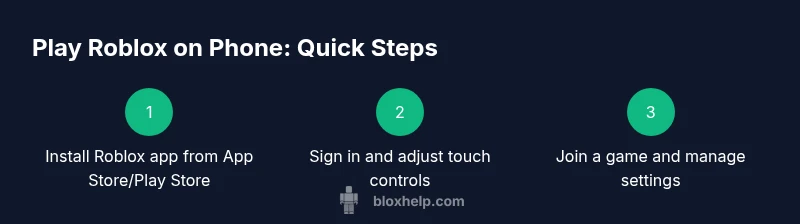
Installing Roblox on iOS or Android is straightforward. For iOS, open the App Store, search for Roblox, and install the app. For Android, open Google Play, search for Roblox, and press Install. After installation, open Roblox on your phone and sign in with your existing Roblox account or create a new one. If you encounter download issues, confirm you have enough storage and a stable internet connection, and ensure you’re logged into the correct app store region. The process is designed to be quick, so you can move from download to gameplay in minutes and begin your Roblox on phone journey.
Configuring controls for touch devices
Mobile players rely on touch controls, on-screen joysticks, and action buttons. Start by enabling the on-screen joystick if available and adjust the control layout to fit your hand size. Some games offer optional control schemes—experiment with default, classic, or simplified modes to find what feels most natural. Reducing the number of on-screen buttons can improve accuracy, while increasing button size may help with precision. The goal is to tailor the interface so Roblox on phone feels responsive rather than frustrating, especially in fast-paced games where rapid input matters.
Performance and graphics tuning for Roblox on phone
Performance varies by device, game, and network conditions. Lowering graphics quality can dramatically improve frame rate on mid-range phones, reducing stutter and heat buildup during long sessions. Enable low-latency mode if your device supports it, and close background apps to free up CPU power and memory for Roblox on phone. Use Wi‑Fi when possible to conserve mobile data and maintain stable latency. If Roblox on phone still runs hot, consider shorter play sessions with regular breaks to prevent thermal throttling and battery drain.
Data usage and storage management for mobile play
Roblox games can consume significant data and storage, especially for high-detail titles or frequent updates. Turn off automatic downloads for in-game assets if your data plan is limited, and reserve storage by deleting unused apps and media. Clearing the Roblox cache periodically can free space and improve loading times. Many players find it helpful to install Roblox on a microSD card if the device supports it, freeing main storage for larger games and updates. Practical planning helps sustain smooth Roblox on phone without frequent interruptions.
Safety, parental controls, and account security on mobile
Safety features are essential for younger players and families. Review Roblox privacy settings to control who can chat with you and who can follow your account. Enable two-factor authentication (2FA) where available to protect login credentials. On devices used by multiple people, use device-level parental controls to restrict purchases and manage screen time. Regularly review in-game chat settings and reporting tools to keep Roblox on phone a safe space for everyone.
Troubleshooting common mobile issues and quick fixes
Most Roblox on phone issues fall into network, storage, or configuration categories. If a game won’t load, check your internet connection, restart the app, and sign back in. For lag, try lowering graphics, closing other apps, and reconnecting to a stable network. If you encounter audio or UI glitches, clear the app cache or reinstall Roblox on phone. Persistent problems may require checking for updates for both the Roblox app and the phone’s OS. Remember, many fixes are quick and restore your Roblox on phone experience.
Roblox on phone vs tablet vs PC: what to expect
Playing Roblox on phone tracks closely with the PC and tablet experiences, but there are important differences. The mobile interface emphasizes touch controls and shorter sessions, while PCs offer precision input and larger displays. Tablets provide a middle ground with bigger screens but still lean on touch input. The core gameplay remains consistent across devices, so skills and in-game progress transfer across platforms when you sign in to your Roblox account. By understanding these distinctions, you can optimize your setup for Roblox on phone while knowing when to switch devices for a particular game or experience.
Next steps: exploring mobile features and communities
With Roblox on phone, you can explore social features, join groups, and discover new experiences tailored to mobile play. Look for games designed with mobile controls in mind, and participate in events or limited-time releases to maximize enjoying Roblox on phone. As you gain experience, you’ll learn which titles best fit your play style, and you’ll grow your network of friends who share your interests. The journey with Roblox on phone is ongoing, and you’ll continually encounter fresh experiences as developers release updates and new content.
Tools & Materials
- Smartphone (iOS or Android)(Must support Roblox mobile app (latest OS versions recommended))
- Stable internet connection(Wi‑Fi preferred for initial setup and downloads)
- Active Roblox account(Have your username and password ready)
- Sufficient storage space(At least 2 GB free is ideal for updates and games)
- Charger or power bank(Useful for long play sessions)
- Optional accessories(Bluetooth controller or headphones can enhance play)
Steps
Estimated time: 30-60 minutes
- 1
Check device compatibility
Confirm your phone can run the Roblox mobile app by checking OS version and available storage. This ensures Roblox on phone will install and run smoothly. If you’re unsure, visit Roblox’s official mobile requirements page.
Tip: If your device is older, free up storage and update the OS before attempting install. - 2
Install Roblox from the app store
Open the App Store (iOS) or Google Play (Android), search for Roblox, and tap Install. Allow required permissions so the app can run and save progress.
Tip: Install over a stable Wi‑Fi connection to speed up the process and avoid data issues. - 3
Sign in or create an account
Launch Roblox on your phone and sign in with an existing account or create a new one. Secure your password and consider enabling two-factor authentication.
Tip: If you forget your password, use the Roblox account recovery options in the app. - 4
Tune touch controls and graphics
Open settings and adjust input mode (on-screen joystick, tap-to-mose or dual-stick) and graphics quality. Lowering graphics can improve performance on mid-range devices.
Tip: Test a few games to find the balance between visuals and responsiveness. - 5
Join a game and test controls
Enter a Roblox game to verify controls respond quickly. If needed, pause and tweak settings to optimize gameplay for mobile.
Tip: Choose simple games first to build comfort with mobile controls. - 6
Manage storage and data usage
Monitor on-device storage and limit automatic downloads. Clear cache if you notice slowdowns or crashes.
Tip: Consider moving large assets off-device when possible and clearing cache regularly. - 7
Enhance safety and security
Review privacy settings, enable 2FA where available, and adjust chat and interaction settings to protect younger players.
Tip: Regularly review account security settings, especially after device changes.
Questions & Answers
How do I install Roblox on my phone?
Open the App Store (iOS) or Google Play (Android), search for Roblox, and install the app. After installation, open Roblox and sign in with your account.
To install Roblox on your phone, open the app store, search for Roblox, install it, then sign in.
Can I play Roblox on mobile without internet?
Roblox mobile requires an active internet connection to load games and sync progress. You cannot play Roblox on phone offline.
Roblox on mobile needs internet; you can't play offline.
Is Roblox free to play on mobile?
Yes, Roblox is free to download on mobile. Some games include in-game purchases or optional paid content.
Yes, it's free to download, with optional in-game purchases.
What are the minimum device requirements for Roblox on mobile?
Roblox runs on most modern iOS and Android devices. Performance varies with hardware and OS version. If you have a newer phone, you’ll likely have a smoother experience.
Most modern devices work, but performance depends on hardware and OS.
Can I use a controller with Roblox on mobile?
Some Roblox games support external controllers, but the core mobile experience uses on-screen controls. Check individual game pages for controller support.
Some games support controllers, but many use touch controls.
How do I transfer progress between phones?
Sign in with the same Roblox account on the new device. Your progress and purchases are cloud-synced across devices.
Sign into the same account on the new device to sync progress.
Watch Video
The Essentials
- Install the Roblox mobile app and sign in.
- Tune touch controls and graphics for best performance.
- Monitor storage and data usage to prevent slowdowns.
- Troubleshoot common issues with quick fixes.
- Protect your account with strong passwords and 2FA.