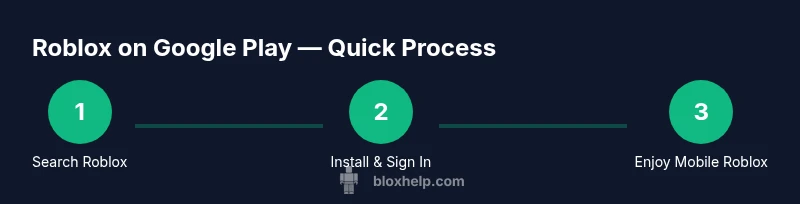
Roblox on Google Play: Install, Sign-In, and Play on Android
Learn how to get Roblox from Google Play on Android, sign in, adjust settings, and troubleshoot common issues. A practical, beginner-friendly guide from Blox Help for mobile Roblox fans.


With a supported Android device, you can install Roblox from Google Play in minutes. This guide walks you through finding Roblox on Google Play, installing the app, creating or signing into your Roblox account, and verifying your device meets system requirements. We'll also cover common setup quirks, parental controls, and quick fixes if the game won’t install or run smoothly. By the end, you’ll be ready to jump into Roblox on Google Play.
What Roblox on Google Play Means for Android Players
Roblox on Google Play opens up vast mobile experiences for Android users. For players, it's the most convenient way to access the Roblox ecosystem on a phone or tablet. The Blox Help team analyzed how this path affects installation ease, updates, and daily play. You’ll learn how to verify device compatibility, sign in, and start exploring worlds right from your handheld device. Whether you’re a casual gamer or an aspiring developer, Google Play provides a safe, centralized place to download Roblox and manage permissions across apps. This section covers the core implications and what to expect when migrating Roblox from a desktop or browser to Android. As always, the goal is clear: get you playing quickly and safely while keeping your data protected.
According to Blox Help, most Android devices supported by Roblox on Google Play run smoothly with a recent version of Google Play Services. If you encounter issues, it’s usually due to outdated software, insufficient storage, or restricted permissions. The team also highlights how mobile play changes the social dynamics of the platform—friends, groups, and in-game purchases still work, but some features may behave differently on a smaller screen. The takeaway is to prepare your device, sign in with a verified Roblox account, and approach in-app purchases with mindful spending.
System Requirements and Compatibility
To run Roblox on Google Play, you need at least Android 5.0 (Lollipop) or newer and a device with adequate RAM and storage. The exact requirements can vary by game and app updates, so always check the Roblox page in Google Play for the latest specs. In general, newer devices with recent versions of Google Play Services provide a smoother experience, better graphics, and fewer crashes. If your device barely meets the minimum, consider lowering the in-game graphics by opening Roblox’s settings after you sign in. This can dramatically improve frame rates and reduce overheating during long play sessions. The Blox Help analysis shows that memory constraints and background-app activity are the most common culprits for lag on mobile.
For players concerned with accessibility, Android offers built-in features like screen readers and magnification that work with Roblox supports. Always ensure your device isn’t in battery saver mode during gameplay, as aggressive power limits can throttle performance. If you’re on an older device, keep expectations aligned with graphics quality and loading times. The core idea is to confirm your device meets the minimum OS version, has sufficient storage, and can run Google Play safely while Roblox is installed.
Finding Roblox on Google Play
Finding Roblox on Google Play is straightforward when you know what to look for. Open the Google Play Store app, tap the search bar, and type “Roblox.” Look for the Roblox Corporation listing with the official Roblox logo. Pay attention to the developer name to avoid third-party imitators. If you’re in a region where the app isn’t readily visible, try adjusting your device region in the Google Play settings or use the official Roblox website link to re-route to the correct store listing. The goal is to confirm you’re downloading the legitimate Roblox app from the trusted source. The quick tip here is always double-check the developer and app permissions before hitting Install.
In some cases, you may need to clear Google Play’s cache or sign in to your Google account to refresh store results. This helps especially after a major store update. If you still can’t find Roblox, verify that your account region supports it and that you’re using a compatible Android version. With the right search, the store listing will display a clear Install button and a well-known Roblox branding.
Installing the Roblox App
Tap Install to begin downloading Roblox from Google Play. The process may take several minutes depending on your connection and device speed. You’ll be prompted to grant several permissions—location, storage, and media access are typical. Accepting these permissions ensures the game can save progress, download asset packs, and run smoothly. If you’re concerned about data usage, connect to Wi-Fi during the initial download to avoid unexpected charges. After installation finishes, tap Open to launch the app. If the install fails, retry with a fresh download or reboot your device and retry.
If you’re using a managed device (school or work), ensure Roblox is allowed in the device policy and that any app-pinning or kiosk modes aren’t blocking the installation. In most cases, the install completes without incident and Roblox launches immediately after you grant the required permissions.
Setting Up Your Roblox Account on Mobile
When Roblox opens for the first time, you’ll need to sign in or create an account. If you already have a Roblox account, enter your username and password. If you don’t, you can create a new account directly in the app using your email or phone number. Two-factor authentication adds a layer of security and is highly recommended. Once signed in, take a moment to customize your avatar, set your privacy limits, and review parental controls if you share the device with younger players. This setup helps protect your progress and ensures a safer mobile experience. The mobile interface mirrors the web experience, so you can switch between games, friends, and creator content with ease.
Managing Parental Controls and Safety
Roblox on Google Play supports parental controls that help limit who can interact with you, what content you can access, and how in-app purchases work. If you share your device with a child, enable Family Link or Google’s parental controls to set screen time limits, restrict mature content, and require approval for new purchases. In-app purchases on mobile can happen quickly, so configure a spending limit if needed. Always review privacy settings within Roblox: set account privacy to friends only, and disable chat features if desired. These steps reduce exposure to unsolicited messages and inappropriate content, which is especially important on mobile platforms where players may join games with strangers.
Troubleshooting Common Install and Run Issues
If Roblox won’t install or won’t run, start with basic checks: confirm you’re connected to stable Wi-Fi, ensure there’s adequate storage, and verify the device meets the minimum OS requirements. Clear the Google Play cache or reinstall the Roblox app if the update fails. If the game launches but runs poorly, lower the graphics settings, close background apps, and check for overheating during play. When multiplayer experiences stall, ensure your network upload/download speeds are sufficient and that your firewall or parental controls aren’t blocking Roblox traffic. If you encounter persistent errors, try signing out and back into your Roblox account, or consult Roblox Support for device-specific guidance.
These steps cover most mobile issues, from installation hiccups to performance problems, and follow best practices for a stable Android Roblox experience.
In-App Purchases, Safety, and Data Usage on Mobile
Mobile data usage can be surprising with Roblox’s asset downloads and frequent updates. Wherever possible, use a Wi‑Fi connection for game downloads and large updates to minimize data costs. In-app purchases require a payment method linked to your Roblox account; enabling spending limits is a prudent step for younger players. Disable chat or adjust privacy settings to reduce exposure to strangers, especially on public servers. For broader safety, review app permissions periodically and ensure your device’s OS and Google Play Services are up to date. This careful approach helps balance fun with security on mobile platforms.
Tools & Materials
- Android smartphone or tablet(Must run Android 5.0+; check device compatibility in Google Play)
- Google account(Needed to access Google Play and install apps)
- Stable internet connection(Wi-Fi recommended for large downloads and updates)
- Google Play Store access(Ensure Google Play is up to date)
- Roblox account (optional at first)(You can sign up inside the app if you don’t have one)
- Parental controls awareness(If device has restrictions, know how to allow Roblox)
Steps
Estimated time: 20-30 minutes
- 1
Check device compatibility
Verify that your Android version and hardware meet Roblox’s minimum requirements. Update OS and Google Play Services if needed to avoid compatibility issues.
Tip: If unsure, compare your device’s Android version in Settings > About phone with Roblox’s listed minimums. - 2
Open Google Play and search
Open the Google Play Store, use the search bar to type 'Roblox', and confirm the listing shows the official Roblox Corporation developer.
Tip: Always verify the developer name to avoid counterfeit apps. - 3
Install Roblox
Tap Install and wait for the download. You’ll see a progress bar; avoid interrupting the process.
Tip: If the download stalls, pause and resume or switch to a stable Wi-Fi network. - 4
Launch and sign in
Open Roblox from the app drawer, sign in with an existing account or create a new one.
Tip: Enable two-factor authentication for added security. - 5
Adjust mobile settings
Within Roblox, adjust graphics and controls for smoother playback on your device.
Tip: Lower graphics quality on older devices to improve performance. - 6
Set up safety features
Configure parental controls and privacy settings to control who can contact you and what content is accessible.
Tip: Use Google Family Link or in-game privacy options to limit interactions. - 7
Start playing
Browse games, join a world, and start playing with friends. Save progress and manage in-game purchases responsibly.
Tip: Keep your app and device updated to avoid compatibility issues.
Questions & Answers
Do I need a Roblox account to play Roblox on Google Play?
Yes. You need a Roblox account to play on mobile and to save progress. You can create an account in the app or on Roblox.com, and signing in ensures your avatars, friends, and purchases are linked.
Yes, an account is required to play on mobile and to save progress. You can create or sign in within the app.
Is Roblox available on all Android devices via Google Play?
Roblox requires Android 5.0+ and compatible hardware. New devices and up-to-date Google Play Services provide the best experience.
Roblox works on Android 5.0 and newer with proper hardware and Google Play Services.
What should I do if Roblox doesn't appear in Google Play?
If you don’t see Roblox, check your region settings, update Google Play, clear the cache, and search by developer name to avoid counterfeit listings.
If Roblox isn’t showing up, check region, update Google Play, clear cache, and verify the developer name.
How do I update Roblox on Android?
Open Google Play > Library > Roblox > Update. Allow permissions if prompted and ensure you have space on your device.
Open Google Play, go to Library, find Roblox, and tap Update.
Are parental controls available for Roblox mobile?
Yes. Use Google Family Link or device-level parental controls to set screen time, content filters, and in-app purchase limits.
Yes. Use parental controls to set limits and content restrictions.
Can I play Roblox offline on Google Play?
Roblox generally requires an online connection for most games, though some content may download for later play.
Most Roblox games need an online connection, though some assets may download for offline use.
Watch Video
The Essentials
- Install Roblox from Google Play on Android.
- Sign in or create a Roblox account to save progress.
- Adjust mobile graphics for better performance.
- Enable parental controls and monitor in-app purchases.