Can You Use Roblox Studio on iPad? A 2026 Guide for Creators
Discover whether Roblox Studio runs on iPad, why desktop is essential, and practical workarounds for iPad users. A data-driven, expert guide by Blox Help.


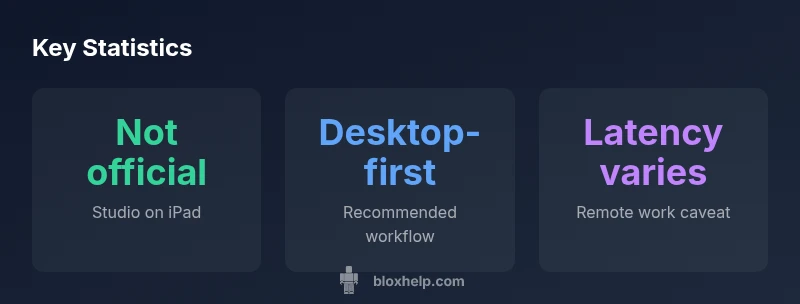
If you’re asking can you use roblox studio on ipad, the short answer is no—Roblox Studio isn’t officially available on iPad. Roblox Studio runs on Windows and macOS, and iPad users can’t install the desktop editor directly. Workarounds exist (remote desktop to a PC, cloud PC services, or mobile-friendly Roblox creator tools), but they involve latency and setup trade-offs. For serious development, a PC or Mac remains the recommended path.
What this means for creators
The question can you use roblox studio on ipad is more about workflow than one-off features. Roblox Studio is a desktop application designed to run on Windows and macOS, leveraging a traditional keyboard/mouse workflow and GPU-accelerated rendering. For many Roblox developers, starting a project on a desktop is not just about compatibility—it’s about access to the full toolset, faster iteration times, and reliable performance. On iPad, you can still access Roblox as a player and view assets, but the core editor remains out of reach. This creates a practical divide: tablet-friendly learning resources and community tutorials on iPad-friendly topics can bridge some gaps, but the actual studio work happens on a supported desktop environment. In Blox Help’s experience, most successful creators keep a desktop ready for development and use mobile devices for inspiration, testing, and light collaboration when a desktop isn’t available.
Official support status and platform requirements
As of 2026, Roblox Studio remains desktop-only. The official Roblox documentation emphasizes Windows and macOS compatibility, with no published plans for an iPad-native editor. That means core tasks such as scripting with Lua, compiling, and asset management require a supported PC or Mac. If you’re on a tablet, you’ll commonly rely on the Roblox mobile app for playback and quick checks, but not for building. The desktop requirement also implies that hardware considerations (RAM, GPU, CPU) play a role in performance, especially for large projects or complex scenes. For educators and learners, it’s essential to align curriculum with desktop availability to avoid gaps in practice time.
Workarounds and practical testing on iPad
Despite the lack of an official iPad version, many users explore workarounds. Remote desktop solutions can let you control a Windows or Mac computer from an iPad, allowing you to edit Studio projects indirectly. Cloud PC services can also provide a browser-based desktop environment, though latency and input lag can hinder coding precision. If you pursue a remote setup, prioritize stable Wi‑Fi, low-latency peripherals (mouse/keyboard support), and a plan for regular syncing of files to Roblox cloud storage. While these methods can help for light editing or conceptual testing, they won’t match the performance and reliability of a native desktop installation. Always test with a small project first to gauge responsiveness on your network.
Alternatives for iPad users
No substitute equals Roblox Studio for feature parity on desktop, but iPad users can leverage complementary approaches. Use Roblox's mobile app to preview assets and iterate on ideas, watch tutorial content designed for concept development, and practice Lua scripting in other lightweight editors to prepare for Studio work. Additionally, engage with the Roblox developer community to learn about best practices for cross-device workflows, such as planning project structure, asset organization, and version control that gear toward desktop use when possible. These strategies keep you productive while you’re away from a computer.
Cross-device project management and workflow
To minimize friction between iPad usage and desktop development, implement a shared workflow. Create a clear project skeleton on the PC/Mac, then use cloud services to keep references, assets, and notes accessible on iPad. Version control concepts (even if not using a formal VCS for Roblox projects) help track changes, allowing you to resume work on a desktop without losing context. When using remote access, keep your asset pipeline simple and modular, so you can re-create scenes quickly on a real desktop. Scheduling regular sessions on a supported computer ensures you maintain a smooth development rhythm.
Practical steps to get started if you have a desktop
If you can access a desktop, follow these practical steps: 1) Install Windows or macOS on a suitable machine that meets Roblox Studio’s recommended specs. 2) Install Roblox Studio from the official site. 3) Create a local project folder with a consistent naming convention. 4) Enable Roblox Team Create for collaborative work with other developers. 5) Regularly back up projects to Roblox cloud storage. 6) Script in Lua, test in Studio, and iterate. 7) Use export/import to move assets between projects. 8) Document your workflow for easier onboarding when you switch devices.
Future outlook and best practices
While there is no official iPad Studio, staying engaged with Roblox’s roadmap and developer forums helps you anticipate changes. Best practices include prioritizing desktop-based development, validating concepts on iPad during ideation, and keeping backups to prevent data loss. For learners, use iPad sessions to study Lua patterns, UI design principles, and asset creation techniques outside Studio, so you can resume productive work quickly on a desktop once you’re ready.
Platform accessibility status as of 2026
| Aspect | Status | Notes |
|---|---|---|
| Official support | Not available on iPad | Roblox Studio is desktop-only as of 2026 |
| Device requirements | PC or Mac | Desktop-grade hardware recommended |
| Workarounds | Remote desktop / cloud PC | Latency varies by network; not ideal for heavy projects |
| Future outlook | Unconfirmed | Monitor Roblox roadmap for any updates |
Questions & Answers
Is Roblox Studio available on iPad?
No official iPad version exists as of 2026. Roblox Studio is desktop-only and requires Windows or macOS to run. The Roblox mobile app can be used for playing and light content creation, but not for full Studio work.
No—Roblox Studio isn’t available on iPad; you’ll need a desktop to edit and build.
Can I edit Roblox Studio projects on iPad via a browser?
Roblox Studio is not browser-based. It must be installed on a supported desktop OS. Browsers can show preview content but cannot run the full Studio editor.
No, you can’t run Roblox Studio in a browser.
What are the best ways to work on Roblox Studio from an iPad?
The primary workaround is using a remote desktop or cloud PC to access Studio from iPad. This may work for light editing but can introduce latency and input lag that affect scripting and design precision.
Use a remote PC with caution; expect some lag.
Will Roblox release Studio for iPad in the future?
There is no official information confirming an iPad version. Monitor Roblox’s roadmap and official announcements for any updates.
No official word yet; keep an eye on Roblox updates.
Can I transfer projects from iPad to desktop?
Roblox projects are desktop-based; you can move assets and references via Roblox cloud storage and local transfers, but active editing must occur on a desktop system.
You can sync assets, but editing must be on desktop.
Are there learning options on iPad to prepare for Studio work?
Yes. Use iPad to study Lua scripting concepts, UI design, and asset creation principles. When possible, practice on a desktop with Studio to apply those concepts directly.
Use iPad for theory and planning; switch to desktop for hands-on Studio work.
“"Roblox Studio on iPad isn't officially supported yet, so developers should plan for a desktop workflow."”
The Essentials
- Confirm official status before planning projects
- Prioritize a desktop setup for Studio work
- Explore remote-desktop options with caution
- Stay updated on Roblox roadmap for iPad news