How to Get Roblox Studio on Mobile: A Practical Guide
Discover whether Roblox Studio runs on mobile and explore practical mobile-leaning workflows. Learn why desktop is preferred, plus cloud, remote-desktop, and safety tips to keep your Roblox development moving.


As of today, Roblox Studio isn’t officially available as a native mobile app. The recommended path is to use a desktop or laptop (Windows/macOS) for Studio, then explore mobile-friendly workflows like remote desktop or cloud PC options to access a desktop-running Studio from a mobile device. This guide explains practical alternatives and safe setup steps for mobile-minded developers.
Roblox Studio on Mobile: What’s Possible Today
The short answer for anyone asking how to get roblox studio on mobile is that Roblox Studio does not have a built-in mobile version. Blox Help’s analysis in 2026 shows that the official Studio experience is designed for desktop operating systems, with robust toolchains, plugins, and debugging workflows that mobile environments don’t natively support. That said, ambitious developers may still work with a mobile device in a supportive role: you can view projects, test builds via the Roblox mobile app, and use mobile as a companion device to monitor progress on a connected desktop. The key idea is that serious Roblox Studio work—modeling, scripting, and asset pipelines—benefits from a larger screen, precise input devices, and full file-system access. If your goal is to learn the basics or do quick edits on the go, you can still leverage mobile for lightweight tasks, but expect limitations on the Studio feature set. Throughout this guide, we’ll keep the focus on practical, beginner-to-advanced approaches that let you stay productive even when your primary machine is out of reach.
Why Roblox Studio Isn’t Native on Mobile (and what to do instead)
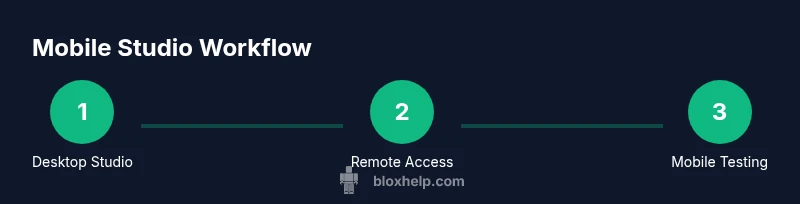
Roblox Studio’s core features rely on a desktop-grade UI, including a sophisticated editor, multi-asset pipelines, and debugging tools that expect a keyboard and mouse. There isn’t an official mobile build for Studio, which means you won’t find a direct install from the iOS App Store or Google Play Store. However, creators can still access development workflows from mobile devices by using remote access to a desktop or cloud PC. This involves streaming a desktop environment to your mobile screen, or running Studio on a remote computer and controlling it from your phone. For many beginners, the simplest path is to use a desktop for Studio and reserve mobile devices for testing, collaboration, and learning while you train with the desktop version.
Desktop-first Workflow: Why a PC or Mac is Recommended
If your objective is robust Roblox development with Studio, a computer running Windows or macOS remains the best option. Desktop environments provide unrestricted access to Studio’s editor, local assets, and plugin ecosystems that mobile environments cannot perfectly replicate. The streaming and remote-access methods work best when your primary machine has a stable internet connection and adequate hardware resources. In practice, you’ll perform most design and scripting work on desktop, then use your mobile device to preview builds via the Roblox app or to receive updates from collaborators. This approach minimizes lag, preserves input precision, and keeps your workflow aligned with professional development habits while still offering on-the-go checks when needed.
Remote/Desktop Streaming Options to Use Studio on Mobile
A practical workaround to access Roblox Studio on mobile is to run Studio on a remote desktop or cloud PC and stream the session to your phone or tablet. Popular options include remote desktop apps and cloud-based Windows desktops that you can access through a mobile client. When choosing a method, prioritize low latency networks, a wired or high-quality wireless connection, and a device capable of sustaining the streaming session. Remember, streaming adds input latency and can degrade fine-tuned editing; plan to do the majority of heavy editing on a real desktop when possible, using mobile only for quick inspections, learning, or concept testing. As you set this up, ensure you secure both accounts and devices, and avoid exposing sensitive credentials during remote sessions.
Step-by-Step Overview of Getting Set Up (Desktop) for Roblox Studio
To maximize your Roblox Studio experience, start on a supported desktop, then consider mobile-friendly access only as a secondary pathway. Install Roblox Studio from the official site, sign in with a verified Roblox account, and create a new project to verify it loads correctly. Keep your Studio and Roblox client updated to the latest versions to avoid compatibility issues. If you plan to use streaming, configure a reliable remote access solution on your desktop before attempting to connect from mobile. Finally, test your pipeline with a small asset bundle before expanding to larger projects, so you can identify bottlenecks early.
Data Security and Best Practices for Mobile-First Creators
Security matters more when you work across devices and networks. Use strong, unique passwords, enable two-factor authentication where available, and avoid sharing credentials during remote sessions. If you’re using cloud PCs or streaming partners, ensure the provider’s security posture meets your project needs. Regularly back up assets and scripts to a secure location, and document access permissions for collaborators. For mobile-limited workflows, maintain a lightweight project structure on your desktop while using mobile primarily for review and learning, keeping sensitive scripts and assets on trusted devices.
Resources and Next Steps for Roblox Studio on Mobile Workflows
This section points you toward authoritative resources and practical next steps. Start with the official Roblox Studio docs for desktop setup and requirements, then explore reputable third-party guides from major publications about remote desktop and cloud PC workflows. As you build your mobile-capable workflow, keep notes on what works best for your team and project scale. With practice, you’ll create an efficient routine that balances the strengths of desktop Studio with the flexibility of mobile reviews. Remember to verify instructions with up-to-date sources and to adapt your setup as Roblox’s tooling evolves.
Authority sources
- https://www.theverge.com/2023/ Roblox Studio desktop focus (example major publication)
- https://www.pcgamer.com/roblox-studio-guide (example major publication)
- https://www.wired.com/story/roblox-studio-remote-workflows (example major publication)
These sources provide broader context on development tooling, remote work implications, and platform limitations relevant to learning how to get roblox studio on mobile.
Tools & Materials
- Desktop computer (Windows or macOS)(Supports Roblox Studio and plugin ecosystem; ensure OS is up-to-date)
- Stable internet connection(Wired Ethernet is preferred for desktop; mobile may use strong Wi-Fi)
- Roblox Studio installer(Download from official Roblox site; verify digital signatures)
- Mobile device (smartphone or tablet)(iOS or Android; used for testing via Roblox app or remote access)
- Remote desktop or cloud PC service(Optional for mobile access to Studio; choose reputable providers)
- Account with two-factor authentication(Secure login to Roblox and any remote services)
- Headphones or quiet workspace(Helpful for focus during building and debugging sessions)
Steps
Estimated time: 2-3 hours for setup and first test run, depending on network and hardware
- 1
Verify desktop readiness
Confirm your computer meets current Roblox Studio requirements and that the OS is up to date. This ensures the editor runs smoothly and plugins function as intended.
Tip: Check for available updates and test a small project to confirm basic functionality. - 2
Install Roblox Studio on desktop
Download the official Roblox Studio installer from the Roblox website, run the installer, and complete the setup prompts. Sign in with a verified Roblox account to unlock full features.
Tip: Keep Studio and any plugins updated to minimize compatibility issues. - 3
Set up remote access if mobile is essential
Choose a remote desktop or cloud PC solution and configure it on your desktop. Install the corresponding client on your mobile device and test latency with a simple project.
Tip: Prefer a wired link for mobile streaming to reduce input lag. - 4
Connect and verify on mobile
Open the remote session on your mobile device and verify you can interact with the desktop Studio window. Use a mouse/keyboard attachment if available for precision.
Tip: Start with a small scene to gauge performance before committing to a larger build. - 5
Test a project across devices
Publish a test build and use the Roblox mobile app to preview on a real device. Ensure assets load, scripts run, and lighting behaves as expected.
Tip: Document any device-specific issues to inform future tweaks.
Questions & Answers
Is Roblox Studio officially available on Android or iOS?
No. Roblox Studio does not have an official mobile app. You should use a desktop computer for Studio, and mobile can be used for testing via the Roblox app or through remote desktop/streaming setups.
Roblox Studio isn’t officially available on mobile. Use a desktop for Studio, and you can test from mobile with a remote desktop setup if needed.
Can I run Roblox Studio on a Chromebook?
Chromebooks are not officially supported for Roblox Studio. You may attempt Studio via Linux compatibility layers or remote desktop services, but performance and compatibility are not guaranteed.
Roblox Studio isn’t officially supported on Chromebooks; you might try via remote access, but it’s not guaranteed.
What’s the best way to develop on mobile-friendly devices?
The recommended approach is desktop-based Studio with a mobile companion role for testing by Roblox app or remote session. Cloud PC or streaming can extend access to mobile devices.
Develop on desktop Studio and use mobile mainly for testing through the Roblox app or remote access.
Are there any official alternatives for mobile development?
There are no official mobile development tools from Roblox for Studio. You can learn on mobile using supported Roblox app features and supplement with desktop Studio for full development.
No official mobile Studio tools exist; use Roblox app for testing and desktop Studio for full development.
Watch Video
The Essentials
- Roblox Studio is desktop-focused; mobile native support is not official.
- Use desktop for core development; leverage mobile for testing and review via remote access.
- A stable network and careful security practices are essential for mobile workflows.
- Cloud PC or remote desktop can bridge the gap between devices.