How Do You Use Roblox Studio: A Comprehensive 2026 Guide
Learn how to use Roblox Studio to build, test, and publish Roblox games with a practical, beginner-friendly approach. This step-by-step guide covers installation, interface basics, parts, Lua scripting, debugging, and publishing, with insights from Blox Help.


How do you use Roblox Studio? This quick answer previews a practical, step-by-step approach to install Studio, start a new place, navigate the interface, build with parts, script in Lua, test, and publish your game. By the end, you'll be ready to begin creating and sharing your Roblox experiences. Along the way, you’ll gain actionable tips for organization, scripting basics, and iterative development tailored for beginners and aspiring developers.
What Roblox Studio is and why it's essential
Roblox Studio is the official development environment used to design, build, and publish Roblox games. If you're wondering how to approach Roblox game creation, the journey starts here. How do you use roblox studio? The answer begins with understanding that Studio combines modeling, scripting, testing, and collaboration in one powerful tool. According to Blox Help, mastering the core workflows of Studio unlocks faster iteration—you can prototype a world, script interactions, and immediately see results in a live test environment. This makes Roblox Studio more than a drawing board: it is a living platform where ideas become interactive experiences. In practice, you’ll learn the file structure (Places, Workspace, ServerScriptService, ReplicatedStorage, StarterGui) and how to keep projects organized as they grow. We’ll also explore how to move from a blank scene to a functional prototype, layer in UI, and prepare assets for testing.
Plan ahead: name conventions, asset organization, and a simple versioning strategy will save you headaches later.
Based on early projects, you’ll realize the importance of keeping your hierarchy clean and readable. This foundation helps teams collaborate and accelerates learning for new developers.
How do you use roblox studio in practice
In practice, you begin by understanding your core workflow: build, script, test, and publish. Start small: a single scene with a few interactive elements; then scale to a complete game. You’ll quickly see that the real value comes from iteration—making tiny changes, testing, and learning from results. According to Blox Help, consistent practice with structured tasks improves retention and confidence. Use this mindset to map out a 1-2 week plan: daily micro-goals, a shared checklist, and a clear sandbox for testing ideas. The practical takeaway is that Studio isn’t just a tool; it’s a platform for turning creativity into playable experiences.
Getting started: installing Roblox Studio
To begin, download Roblox Studio from the Roblox website and install it on your computer. You don’t need a separate license to get started; a Roblox account suffices. After installation, sign in with your Roblox credentials to access your projects and ensure syncing across devices. The setup wizard explains the initial workspace layout and prompts you to customize themes or fonts if you prefer. For new users, this is a good moment to create a dedicated project folder and turn on autosave so you never lose progress. In this guide you’ll see how to opt into the beta features that improve performance, but you can always toggle them off if you encounter stability issues. As you begin, remember that you’ll be practicing by building small, repeatable tasks to reinforce learning rather than attempting a large, unmanageable project.
Understanding the Studio interface
Roblox Studio’s interface is composed of several core panels that you’ll rely on constantly. The Viewport is your 3D workspace where you place parts and models. The Explorer shows the hierarchical structure of your game, including Workspace, Lighting, and various services. The Properties panel lets you adjust the selected object’s attributes, such as size, color, and behavior. The Output window reports errors and prints messages from scripts, while the Toolbox gives quick access to models, decals, sounds, and assets. Keyboard shortcuts, like F, G, and P, speed up navigation. Pro tip: customize your layout by docking essential panels for easy access, and save your layout as a preset for future projects.
Creating your first place
Create a new place to begin your Roblox Studio journey. Choose a base template (Baseplate is a common starting point) and rename the place to reflect its purpose. Save early and often, using a versioned filename such as ProjectName_v1.0. Use the Explorer to organize folders like Parts, Models, and Scripts. Add a simple object, such as a block, and position it in the Workspace. Then insert a basic light to illuminate the scene and check how visuals translate in different viewing angles. This initial setup gives you a tangible starting point and a repeatable workflow for future projects.
Building with parts and models
Roblox Studio lets you construct environments using built‑in parts (blocks, wedges, cylinders) and imported models. Use the Part tool to create basic geometry, then apply materials, colors, and collision properties. For larger projects, organize content into the Workspace and Prefabs to reuse structures. Modeling tips: align objects with the grid, use grouping (Model) for complex assemblies, and leverage snapping to keep geometry consistent. Practice assembling a simple scene—a street, a park, or a room—before moving to more ambitious layouts. As you gain confidence, introduce more complex shapes, hinges, and constraints for dynamic elements.
Working with the Toolbox and assets
The Toolbox offers ready-made assets you can drop into your scene, including characters, buildings, and environmental props. Always verify licensing and attribution requirements for assets you don’t create yourself. To keep your project lean, clone essential assets rather than duplicating large models, then customize them to fit your aesthetic. Start with a modest collection to avoid clutter, and create a personal asset library for frequently used items. If an asset doesn’t load correctly, check the asset’s source, clear the cache, or replace it with a similar item. Organizing assets in a dedicated ReplicatedStorage folder helps scripts locate resources efficiently.
Scripting with Lua: basics
Lua is the scripting language used in Roblox Studio. Begin with a simple script attached to a part to respond to events, such as a touch or a click. A classic starter script prints a message to the output console when a player greets a block, establishing console feedback as you test. Example:
print('Hello, Roblox!')As you grow, you’ll learn about functions, events, and remote events for client-server communication. Always test scripts frequently and use descriptive variable names. Keep scripts modular by placing related functions in ModuleScripts, and document your decisions with comments to help future you and teammates.
Debugging and testing your game
Testing is where ideas become playable experiences. Use Play Solo to test in a single-player context and Start to test with others in a live session. The Output window will display errors and print statements, helping you trace issues to their source. For networked features, use RemoteEvent and RemoteFunction calls to simulate client-server interactions. Debug step by step: reproduce the issue, isolate the offending script, read the error line numbers, and add print statements to confirm assumptions. Iterative testing is crucial; plan a checklist of test cases (physics, UI, interactions) and run them after each meaningful change.
Publishing and monetization basics
Publishing turns your local project into a Roblox game accessible by the community. Choose File > Publish to Roblox and complete the required fields: game name, description, and thumbnails. Set privacy options (Public or Private) and configure basic settings like game icons and thumbnails. Monetization is an advanced topic; you can enable in-game purchases, game passes, or developer products once your game is stable and engaging. Review Roblox’s publishing guidelines to avoid common violations, and consider building a small, polished prototype before attempting a broader release. Consistent updates and feedback loops with players help sustain long-term interest.
Common pitfalls and quick fixes
New developers encounter recurring issues such as missing assets, naming collisions, misconfigured scripts, or misaligned anchors. Start by checking the Output window for precise error messages and line references. Verify that object names match in scripts and that assets exist in expected locations. If you import assets and they don’t render, re-check their parent containers and ensure proper parenting. Avoid overusing extremely large models; optimize by using simpler geometry and LOD (level of detail) techniques. Finally, back up frequently and maintain clear version control by saving incremental copies of your project.
Advanced tips for performance and collaboration
When you’re ready to scale, enable Team Create to collaborate in real time with teammates across locations. Use Roblox’s built-in version history to revert changes if something breaks. Optimize performance by profiling scripts and minimizing expensive operations inside RenderStep or RunService loops. Learn to leverage Plugins for automation—custom tools that streamline repetitive tasks, such as object alignment, color schemes, or asset validation. Establish naming conventions and a central asset library to keep everyone aligned. Regularly test on target devices to ensure cross‑platform compatibility and smooth performance.
Next steps and learning paths
Your journey doesn’t end with a single project. Continue with small, focused projects to reinforce concepts, then graduate to small multiplayer experiences to practice client/server scripting. A recommended path includes: mastering Lua fundamentals, building a few polished prototype games, exploring Roblox Developer Hub tutorials, and participating in the Blox Help community for feedback. Create a learning plan that blends theory with hands-on tasks, and schedule time for problem-solving and reflection. By staying consistent, you’ll steadily advance from beginner to capable creator.
Tools & Materials
- A computer capable of running Roblox Studio(Windows 10+ or macOS; at least 8GB RAM recommended)
- Roblox account(Needed to access Studio and publish games)
- Stable internet connection(For downloading assets, saving projects, and publishing)
- Mouse and keyboard with standard precision(Precise mouse control helps with modeling and navigation)
- Optional: Lua editor or IDE (for advanced scripting)(Helpful for larger scripts or multiple files)
Steps
Estimated time: Total time 60-120 minutes for a basic prototype; longer for a polished game
- 1
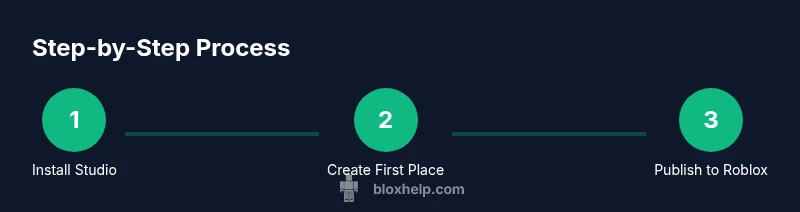
Install Roblox Studio
Visit the Roblox site, download Roblox Studio, and run the installer. Sign in with your Roblox account and complete any setup prompts. This step establishes your working environment and ensures Studio is up to date.
Tip: Enable automatic updates to keep Studio current without manual checks. - 2
Create a new place
Open Studio and select New to create a blank place or choose Baseplate as a starting template. Rename the project to reflect its goal and save early to establish your project folder.
Tip: Use a version suffix like _v1.0 to track progress over time. - 3
Explore the interface
Familiarize yourself with the Viewport, Explorer, Properties, and Output. Move panels to suit your workflow, and practice selecting objects to modify their properties.
Tip: Dock essential panels together and save the layout as a custom preset. - 4
Add basic parts
Use the Part tool to add blocks, wedges, and spheres. Adjust size, color, and material in the Properties panel, then group related parts into a Model for clarity.
Tip: Snap to grid and align objects to maintain consistent geometry. - 5
Introduce scripting basics
Attach a Script to a part and write a simple Lua snippet to produce a visible effect or message. Run the game to see your script in action and iterate.
Tip: Comment your code to explain what each section does. - 6
Test your game
Use Play Solo to test locally and Start to simulate a multiplayer session. Check for errors in the Output window and verify gameplay behavior.
Tip: Test early, testing often helps catch issues before they compound. - 7
Debug and refine
Address errors by tracing stack traces, verifying object paths, and ensuring assets exist. Remove unused scripts to simplify troubleshooting.
Tip: Add temporary print statements to confirm variable values during runtime. - 8
Publish your project
Choose File > Publish to Roblox, fill in metadata, and select Public or Private visibility. Set a thumbnail and gameplay description to attract players.
Tip: Prepare a simple, appealing thumbnail; visuals influence clicks.
Questions & Answers
What is Roblox Studio and what can I do with it?
Roblox Studio is the official development environment for creating Roblox games. It provides tools for building environments, scripting interactions with Lua, testing in real-time, and publishing experiences to Roblox.
Roblox Studio is the official tool for building Roblox games; you design, script, test, and publish.
Do I need coding experience to start?
No prior coding is required to begin. You can start with basic Lua scripts and gradually learn more complex concepts as you build.
You don't need prior coding experience to begin; you can start with simple scripts and learn as you go.
Can I publish my game for free?
Yes, Roblox Studio allows you to publish games on Roblox for free; monetization options are available later if you choose.
Yes, you can publish for free; monetization comes later.
Is Roblox Studio available on Mac?
Roblox Studio runs on Windows and macOS; ensure your device meets the minimum system requirements.
Yes, Mac is supported; ensure you meet system requirements.
How do you fix common errors in Studio?
Check the Output window for error messages and line references, verify object names, and ensure assets exist in the expected locations.
Read the error messages, use the Output pane, and search the Roblox developer forums for solutions.
Do I need internet after installing?
An internet connection is helpful for asset access and publishing, though you can work offline on local tasks.
Internet helps for asset access and publishing.
The Essentials
- Master the Studio interface: Explorer, Properties, Viewport, Output.
- Build small, test often: incremental prototyping beats big leaps.
- Learn Lua basics: start with event-driven scripts and simple interactions.
- Publish with intention: plan metadata and visuals before releasing.