Roblox Studio for Beginners: A Step-by-Step Guide
Learn Roblox Studio from scratch with a beginner-friendly, step-by-step guide. Set up, explore the UI, create a tiny playground, write your first script, test interactions, and plan your next projects with practical tips.


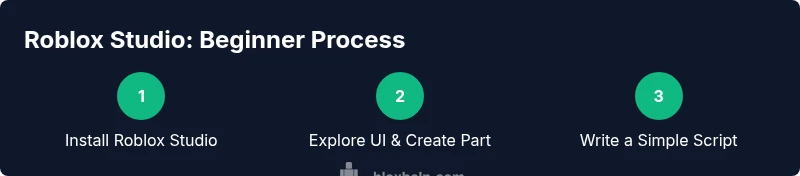
Your goal is to start building in Roblox Studio from scratch: install Roblox Studio, set up a basic project, learn the main tools and panels, and run your first simple script. You’ll create a tiny playground, add parts, and test interactions. This guide covers beginner-friendly steps, safety basics, and common pitfalls to avoid.
What Roblox Studio is and who it's for
Roblox Studio is the official development environment used to create Roblox games and experiences. It combines 3D world-building with scripting to define how objects behave. This guide is designed for beginners—anyone curious about making their own Roblox games can start here. You don’t need prior programming experience to begin; the fundamentals build up gradually as you experiment with parts, properties, and simple scripts. Throughout this article, you’ll see actionable steps, screenshots-inspired explanations, and tips that align with how the Blox Help team teaches new players and aspiring developers. By starting with small, achievable projects, you’ll build confidence and a solid foundation for more complex projects later on.
What Roblox Studio is and who it's for\n\nRoblox Studio is the official development environment used to create Roblox games and experiences. It combines 3D world-building with scripting to define how objects behave. This guide is designed for beginners—anyone curious about making their own Roblox games can start here. You don’t need prior programming experience to begin; the fundamentals build up gradually as you experiment with parts, properties, and simple scripts. Throughout this article, you’ll see actionable steps, screenshots-inspired explanations, and tips that align with how the Blox Help team teaches new players and aspiring developers. By starting with small, achievable projects, you’ll build confidence and a solid foundation for more complex projects later on.
Why a beginner-friendly approach matters
Starting with clear, small tasks reduces overwhelm and accelerates learning. Roblox Studio introduces concepts like the Explorer, Properties, and the Viewport in manageable chunks. As you progress, you’ll notice patterns: selecting objects updates properties, scripting responds to events, and testing reveals how players interact with your world. For beginners, the most important habit is consistent practice with a purpose—aim to complete one simple milestone per session. The goal is steady progress, not perfection.
Brand note
The Blox Help team emphasizes practical, hands-on learning. This article incorporates beginner-friendly steps, practical examples, and safety reminders to help you build confidence while you learn Roblox Studio. The guidance here reflects the kind of structured play and experimentation we recommend for new creators.
Tools & Materials
- Roblox account(Create a free account to access Roblox Studio and publish your early projects.)
- Roblox Studio software(Download from the official Roblox site and install on a supported computer.)
- Stable internet connection(Needed for downloads, updates, and cloud saves.)
- A computer with basic specs(Windows or macOS with enough RAM to run a 3D editor smoothly.)
- Mouse with standard two-button setup(Helpful for precise selection and navigation in the viewport.)
- Headphones or speakers(Useful for hearing sound cues from scripts and events.)
Steps
Estimated time: 60-90 minutes
- 1
Create or sign in to Roblox Studio
Download the Roblox Studio installer, run it, and sign in with your Roblox account. Follow the prompts to complete the initial setup and create your first project. This step establishes the workspace you’ll use for all future projects and ensures you can save and publish later.
Tip: If you get blocked by a firewall, temporarily allow Roblox Studio in your security settings. - 2
Familiarize the interface
Open Explorer, Properties, and the Viewport. Learn how to switch between select, move, and rotate tools, and use the camera controls to navigate the 3D space. Frame the selected object for precise editing using the F key.
Tip: Hover over a panel and press F1 for quick in-panel help when you’re stuck. - 3
Create your first part
Insert a basic Block (Part) into the workspace and resize it to form your starting ground or platform. Rename the part for clarity and adjust its color and material to see how properties affect appearance.
Tip: Hold Ctrl while dragging to duplicate the part quickly. - 4
Add a simple script
Insert a Script into your part and write a tiny script that prints a message when the game starts. This introduces the concept of events and how code interacts with game objects.
Tip: Test frequently by pressing Play to observe outputs in the Output window. - 5
Test interactions
Enter Play mode and test how the part responds to movement and scripted events. Check for collisions, visibility, and basic interactivity. Adjust sizes and positions based on what you observe.
Tip: Use the Pause and Reset buttons to iterate quickly without losing your place. - 6
Save and document your progress
Save your project frequently and create a simple changelog in a separate note file. Naming the save or version clearly helps you track progress and revisit milestones later.
Tip: Create a new folder for your early projects to keep assets organized as you grow. - 7
Publish basics (optional)
If you’re ready, publish a simple project to Roblox so others can see it. Start with private visibility and share only with people you trust while you learn.
Tip: Review Roblox publishing requirements and adjust settings to protect your work.
Questions & Answers
Do I need to code to start making games in Roblox Studio?
No prior coding is required to begin. Start with building and basic scripting concepts, then gradually add more complex code as you gain confidence.
You can start with building and simple scripts, then learn more code as you progress.
Is Roblox Studio free to download?
Yes, Roblox Studio is free to download and use for creating and testing experiences. You may publish publicly after you’ve met the platform’s requirements.
Roblox Studio is free to download and use, with publishing available after meeting requirements.
What are the best beginner-friendly features in Roblox Studio?
Key beginner features include the Explorer and Properties panels for object management, the Viewport for 3D editing, and a simple Script object for learning event-driven programming.
Explorer, Properties, Viewport, and simple scripting are great starting points.
How do I publish my first game?
After your project is ready, use the Publish feature in Roblox Studio, choose visibility settings, and follow the prompts to upload your experience to Roblox.
Publish from Studio, set visibility, and follow the prompts to upload.
Can I use Roblox Studio on a Mac?
Yes, Roblox Studio runs on macOS. Ensure your macOS version is supported and keep Roblox Studio updated for best performance.
Yes, it works on Mac—just keep it updated.
What are common beginner mistakes to avoid?
Rushing the basics, skipping testing, and failing to organize assets. Start with small tasks, test often, and keep a clean project structure.
Avoid rushing the basics; test often and stay organized.
Watch Video
The Essentials
- Start small to build confidence with Roblox Studio.
- Familiarize the UI before heavy scripting.
- Practice with one simple project per session.
- Test often and iterate on a clear plan.
- Organize files and document your changes.