Does Roblox Work on Windows 7: Compatibility Guide 2026
Discover whether Roblox runs on Windows 7, why compatibility is limited, and practical steps to improve or upgrade for a smoother Roblox experience on legacy PCs.


Roblox does not officially support Windows 7. The current guidance emphasizes Windows 10 or newer as the baseline for a smooth experience, while ongoing updates can cause install or runtime issues on Windows 7. If upgrading isn’t feasible, you may encounter limited compatibility and potential security concerns, so plan an OS upgrade when possible. For the best Roblox experience, switch to a supported OS or device.
Does Roblox work on Windows 7?
The question does roblox work on windows 7 is common among players with aging PCs. In 2026, Roblox increasingly aligns its testing and support with newer operating systems. The short answer is that Roblox does not officially support Windows 7, and users may encounter installation hurdles, driver conflicts, and unstable performance. The game client and its dependencies rely on modern system libraries and security features that Windows 7 does not consistently provide. This reality underscores the importance of evaluating system compatibility before trying to play. According to Blox Help, the majority of documented fixes and optimizations assume Windows 10 or newer, making Windows 7 a precarious choice for long-term Roblox use. If upgrading is not immediately possible, proceed with a cautious, trial-based approach to determine whether Roblox runs at all on your specific configuration.
Windows 7: Official stance and reasons for limited support
Roblox’s official stance is clear: Windows 7 is not listed among the supported operating systems for ongoing, reliable Roblox play. The reasons are technical and security-related. Microsoft ended mainstream support for Windows 7 years ago and stopped security updates, which means TLS/SSL versions, driver frameworks, and DirectX capabilities become unreliable for modern games. Roblox also updates its anti-cheat and DRM components, which require newer security libraries. As a result, even if you manage to install Roblox on Windows 7, you may face frequent compatibility prompts, crashes, or blocked features. The bottom line is that Windows 7 is out of scope for the modern Roblox experience, and users should plan to upgrade to a supported OS to ensure a stable, secure session.
Minimum system requirements and recommended OS
For Roblox to run smoothly, the recommended base is a 64-bit edition of Windows 10 or newer, with current GPU drivers and DirectX support. In practice, Windows 7 users should expect at least the following hurdles: outdated security libraries, TLS protocol changes, and limited driver updates. If your hardware meets the bare minimum but the OS is Windows 7, you may still encounter unreliable performance or failed updates. For anyone planning to play Roblox regularly, upgrading to Windows 10 or 11 is the most reliable path, followed by ensuring your PC has adequate RAM, a capable GPU, and a recent graphics driver. Prioritize a 64-bit OS, as 32-bit builds are widely insufficient for modern Roblox features and shaders.
Common issues reported on Windows 7
Users on Windows 7 frequently report installation failures, missing or outdated graphics drivers, and errors related to secure connections. You may also hit problems with in-game overlays, in-app purchases, or cross-platform features that require current browsers or system libraries. Another frequent problem is performance instability, including stuttering frames during action scenes or loading delays when joining large Roblox games. Some hardware configurations with older GPUs struggle with new shaders and effects, leading to reduced frame rates. While some workarounds exist, none guarantee a consistently smooth Roblox experience on Windows 7, and you should treat any attempt as a potential stopgap rather than a long-term solution.
Step-by-step: How to check your system and Roblox status
- Verify your OS version and edition to confirm if you’re on Windows 7 SP1 or older. 2) Review Roblox’s official system requirements page to confirm current OS guidance. 3) Check for the latest graphics drivers from the GPU vendor and ensure DirectX support. 4) Test Roblox by running a basic game in a limited session to assess stability. 5) Enable TLS 1.2 and ensure your browser components are up to date. 6) Run Roblox as an administrator and use compatibility settings sparingly if you must try it. 7) If you encounter persistent errors, consider upgrading or using an alternate device for Roblox gameplay.
Safe workarounds if you must stay on Windows 7
If upgrading isn’t possible, you can explore safer workarounds, though they’re not guaranteed to work. Virtualization or dual-boot configurations with a supported OS can isolate Roblox from the host OS, reducing compatibility risks. Cloud gaming services may offer a way to stream Roblox on your Windows 7 machine, though not all providers support Roblox natively. Another option is using a refurbished or second-hand PC that already runs Windows 10/11 to avoid significant hardware upgrades. Remember that these are temporary solutions and come with trade-offs in latency, performance, and potential driver issues.
How to upgrade: plan and costs
Upgrading to Windows 10 or 11 is the recommended path for Roblox. The upgrade plan should account for licensing costs (if applicable), the required hardware compatibility (RAM, CPU, and GPU), and backups before migration. Create a checklist: verify device eligibility, compare edition SKUs, back up data, and ensure apps you rely on remain compatible. If you’re on a budget, consider gradual hardware improvements alongside the OS upgrade to minimize disruption. The goal is a stable, supported environment that unlocks Roblox features and reduces debugging time.
Alternative platforms or devices
If upgrading isn’t feasible, consider alternative devices or platforms that support Roblox with better reliability, such as newer PCs, laptops, or compatible consoles. Roblox’s mobile versions offer cross-play with PC players, though performance may vary on phones or tablets. Depending on your setup, streaming Roblox from a more capable device or using family/shared devices may be practical temporarily, but for long-term reliability, transitioning to a supported OS is the preferred approach.
Final checks and next steps
Before making any changes, document your current setup and game preferences. Run a quick compatibility test on your current Windows 7 machine with a low-graphics Roblox game to gauge responsiveness. If issues persist, the prudent next step is OS upgrade. The Blox Help team recommends moving to Windows 10 or 11 to minimize risk and maximize access to Roblox features, security, and support. Regular system maintenance, driver updates, and staying informed about Roblox’s requirements will help you keep your Roblox experience smooth in the years ahead.
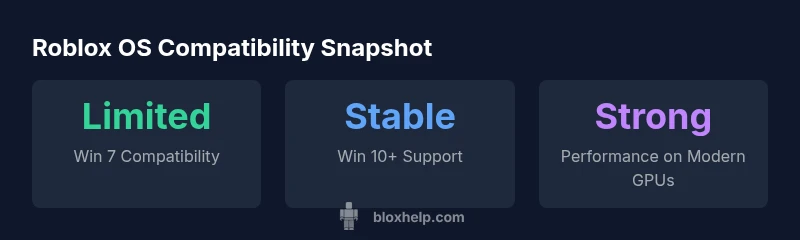
Roblox OS compatibility overview
| OS | Official Support | Roblox Runability |
|---|---|---|
| Windows 7 (SP1) | Not officially supported | Limited; may fail to install or run |
| Windows 10 | Officially supported | Stable and reliable |
| Windows 11 | Officially supported | Strong performance |
Questions & Answers
Is Roblox officially supported on Windows 7?
No. Roblox does not officially support Windows 7. Players on this OS may encounter install issues and unstable performance, and certain features may be unavailable. Upgrading is strongly recommended for a stable experience.
Roblox doesn't officially support Windows 7; upgrading to a newer Windows release is recommended for a reliable experience.
What are the minimum requirements for Roblox?
Roblox requires a modern 64-bit operating system (typically Windows 10 or newer) with current drivers. On Windows 7, even minimum expectations may not be met due to outdated libraries and security features.
Roblox needs a newer 64-bit OS and current drivers; Windows 7 often falls short on minimum requirements.
Can I run Roblox on Windows 7 with compatibility mode?
Compatibility mode can sometimes allow basic launches, but it does not fix underlying security and library gaps. Expect limited functionality and frequent issues.
Compatibility mode might help you start Roblox, but it won't fix the underlying problems.
Should I upgrade my OS to improve Roblox performance?
Yes. Upgrading to a supported OS (Windows 10 or 11) gives you access to current DirectX features, security updates, and Roblox optimizations, resulting in a smoother experience.
Upgrading to a supported OS is strongly recommended for best Roblox performance.
What alternatives exist if I cannot upgrade immediately?
You can explore a newer device, cloud gaming options, or family PCs that already meet the requirements. These are temporary workarounds and may introduce latency or other trade-offs.
If upgrading isn’t possible now, consider a newer device or cloud options as a temporary fix.
Is Roblox compatible with Windows 7 through legacy browsers?
Roblox relies on updated browser components and security features; legacy browsers on Windows 7 are unlikely to provide reliable support. It’s best to avoid relying on outdated browsers.
Legacy browsers on Windows 7 aren’t reliable for Roblox; use a supported OS for best results.
What about Roblox on other devices like Mac or mobile?
Roblox supports macOS in newer builds and has mobile apps for iOS and Android. Performance varies by device, but these platforms generally offer a smoother experience than Windows 7.
Roblox on Mac or mobile is supported in recent builds and often runs more reliably than Windows 7.
“Roblox performance on legacy Windows builds is unpredictable; upgrading to a supported OS is the most reliable path for long-term play.”
The Essentials
- Upgrade to Windows 10+ for best Roblox experience
- Windows 7 compatibility is limited and not officially supported
- Keep OS and drivers updated to reduce issues
- Consider virtualization or new hardware if upgrade isn’t immediate
- The safest long-term path is moving to a supported OS