How to Get Out Roblox VNG: Safe Sign-Out Guide
Discover how to get out roblox vng safely on mobile or PC with a clear sign-out flow, account switch tips, and security best practices from Blox Help.


If you're asking how to get out roblox vng, the core method is to log out of the Roblox VNG app or switch accounts on mobile or PC. This quick guide covers where to sign out, what you’ll need (device, internet, and your Roblox credentials), and tips to avoid losing progress during sign-out. Use this flow to exit VNG safely and return to the main Roblox launcher when you're ready.
Understanding Roblox VNG logout and why it matters
Roblox VNG is the Vietnam-focused version of Roblox, designed for players in Southeast Asia with localized language and services. Signing out of Roblox VNG is not just about ending a session; it protects your account on shared devices, helps you switch between family or friend accounts, and reduces the risk of automatic sign-ins on public networks. If you’re wondering how to get out roblox vng, the fundamental idea is to perform a secure sign-out and then re-authenticate when you’re ready to play again. This section clarifies what signing out does, when you should do it, and what difference it makes for session management, cloud saves, and cross-device play. Regional variations in the VNG app can occur, so expect small differences in the sign-out flow. The goal is to make the process intuitive, even for beginners, while maintaining account privacy and data integrity. Throughout this guide, we’ll reference best practices from Blox Help, so you can trust the guidance as you learn to sign out safely.
Sign-out locations and device-specific tips
Signing out from Roblox VNG depends on your device and app version. On mobile, you’ll typically find the sign-out option under your profile or settings, often within a gear or account menu. On desktop, you may access sign-out from the avatar menu or the account area of the Roblox site or VNG launcher. If you cannot locate a dedicated Sign out button, you can log out by switching accounts or by clearing saved sign-in data on the device. Always perform sign-out from a secure session and verify you’re redirected to the login screen. Keep in mind that some regions receive UI tweaks, so look for a label like Sign out, Log out, or Sign-off. If you’re signing out to switch accounts, be prepared to re-enter credentials for the new account.
Quick steps overview for sign-out on popular devices
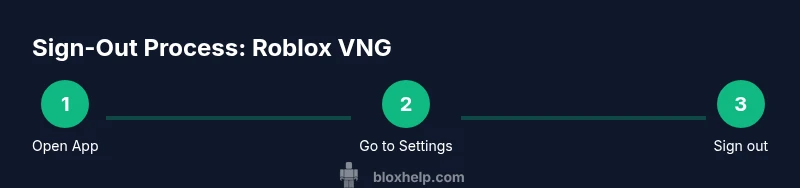
- Mobile: Open the Roblox VNG app → go to your profile/settings → select Sign out → confirm. If present, you may see an account switch option instead. After signing out, you’ll reach the sign-in screen.
- Desktop: Open the Roblox VNG launcher or site → access your avatar or account menu → click Sign out → confirm. You may be prompted to re-enter credentials when logging back in or switching accounts.
- Shared devices: Use a quick sign-out, then avoid saving passwords in the browser or app if you’re using a public device. This reduces the risk of someone re-accessing your account.
- If you still see auto-sign-in after signing out: clear cached data or sign out from all devices from your account security page, then sign back in on the device you want to use.
Troubleshooting common sign-out issues
If sign-out doesn’t work, try these steps: refresh the app, force-close and reopen, or sign out from the web version if available. Updating the app can also fix sign-out glitches. If you still can’t sign out, consider removing the device from the account’s trusted devices list or contacting support with your device details and account email. Be cautious of phishing prompts asking for your password; Roblox will never ask for it via urgent messages.
Switching accounts after sign-out and re-login tips
Signing out is a common first step when you want to switch to a different Roblox VNG account. After sign-out, you’ll be presented with the login screen where you can enter another account’s credentials. If you use multiple devices, consider signing into the desired account on each device rather than sharing credentials. For an easier re-login, enable password managers or save credentials only on trusted devices. If you forgot the password, use the Roblox password recovery flow through your registered email or phone number.
Security best practices after signing out
Signing out is a good practice for privacy, especially on shared networks. After signing out, review your security settings: enable two-factor authentication (2FA) if available, update your password to a strong, unique one, and verify your linked email and phone number. Regularly check active sessions in your account settings and revoke access to any unfamiliar devices. If you suspect unauthorized access, report it immediately and reset your credentials.
Authority sources and further reading
To reinforce the guidance, you can consult official and reputable sources on online safety and account security:
- U.S. Cybersecurity and Infrastructure Security Agency (CISA): https://www.cisa.gov/
- Federal Trade Commission (FTC) consumer education on online safety: https://www.ftc.gov/
- StopThinkConnect online safety tips: https://www.stopthinkconnect.org/
Tools & Materials
- Roblox app or Roblox VNG launcher(Ensure you have the latest version for the sign-out options)
- Stable internet connection(Wi-Fi or mobile data; avoid sign-out on unstable networks)
- Login credentials for the account you want to sign out from or switch to(Have the username/email and password handy)
- Optional alternate device(Useful to verify sign-out on another device)
Steps
Estimated time: 5-10 minutes
- 1
Open Roblox VNG on your device
Launch the Roblox VNG app on mobile or open the desktop launcher/site. Make sure you’re connected to the internet and ready to sign out the current session. If you’re switching accounts, plan to re-enter credentials after signing out.
Tip: If the app is unresponsive, force close it and reopen to access the sign-out option. - 2
Navigate to account settings or profile
From your main screen, locate the profile or settings area. This is typically represented by a profile avatar or a gear icon. Access the account options where sign-out is usually listed.
Tip: UI locations vary by version; if you don’t see Sign out, look for related options like Account, Security, or Log out. - 3
Select Sign out or Log out
Tap the Sign out/Log out option and confirm when prompted. If you want to switch accounts, choose Sign out to reach the login screen where other accounts are selectable.
Tip: On some devices you may need to choose Sign out from a sub-menu; follow the prompts carefully to avoid signing out the wrong account. - 4
Confirm sign-out
Ensure you are redirected to the login screen or the main launcher without auto-signing you back in. Confirm that the session has ended on the device.
Tip: If you’re not redirected, force close the app and reopen to see the sign-in screen again. - 5
Sign in to the desired account (optional)
If you’re switching accounts, enter the new account credentials. If you’re staying signed out, simply close the app or leave the login screen.
Tip: Consider using a password manager for quick yet secure sign-in on trusted devices. - 6
Verify sign-out on the main Roblox launcher
Open the Roblox launcher or site and verify you’re not automatically signed in. If you see an active session, sign out again or manage sessions in your account settings.
Tip: Testing on a second device can help confirm sign-out success across platforms.
Questions & Answers
What is Roblox VNG and how does sign-out differ from standard Roblox?
Roblox VNG is the Vietnam-based regional version of Roblox with localized features. Signing out from VNG works similarly to standard Roblox, but the path to the sign-out option may vary by region and version.
Roblox VNG is the Vietnam version of Roblox, and signing out generally follows the same steps as the global app, though the menu locations can differ by version.
Where is the sign-out option on mobile vs desktop?
On mobile, look in your profile or settings menu for Sign out. On desktop, check the avatar or account menu. If the option isn’t visible, try switching accounts or using a web sign-out.
Mobile usually has Sign out under profile or gear settings; on desktop, check the avatar menu. If not visible, sign out via the web version.
Will logging out affect my saved progress or cloud data?
Logging out terminates the current session but does not delete your progress or cloud saves. When you sign back in, your data should be available from the cloud.
Signing out stops the current session, but your progress and cloud saves stay intact when you sign back in.
What if I can’t sign out even after trying steps?
If sign-out fails, refresh the app, force-close, or sign out from the web version if available. Ensure the app is updated and consider clearing cached data on the device.
If sign-out doesn’t work, try refreshing, force-closing, or signing out on the web; update or clear cache if needed.
How do I switch accounts after signing out?
After signing out, you’ll see the login screen where you can enter a different account’s credentials. You can also add multiple accounts in some devices’ sign-in options for quicker switching.
Sign out, then sign in with another account on the login screen; some devices let you switch accounts quickly from saved options.
Is it safe to sign out on a public device?
Sign out after using a public device and avoid saving passwords or enabling auto-fill. If possible, use the browser’s private/incognito mode to prevent data retention.
Yes, sign out after using public devices, and avoid saving passwords; consider private browsing to protect your data.
Watch Video
The Essentials
- Sign out to protect your account on shared devices.
- Device-specific menus are common; look in Profile or Settings.
- If sign-out fails, update the app or try a web sign-out.
- Switching accounts is safer after signing out.
- Enhance security with 2FA and strong passwords.