How to Log Out Roblox: A Complete Step-by-Step Guide
Learn how to log out of Roblox across PC, mobile, and consoles. A thorough, beginner-friendly guide with troubleshooting tips and security best practices from Blox Help.


Why Logging Out Matters
For Roblox players, logging out is a simple security habit that protects your avatar, progress, and purchases when you share devices or access Roblox from public networks. According to Blox Help, logging out of Roblox is especially important on shared computers, school devices, or family devices where others could access your account. A quick logout can prevent unauthorized sessions from remaining active and reduce the risk of someone else jumping into your games with saved credentials.
Beyond safety, logging out can also resolve session issues. If you recently changed your password or enabled new security features, signing out and back in ensures those changes take effect. In practice, many users forget to log out after using a friend’s device and then wonder why they’re still signed in. Getting into the habit of signing out after use is a straightforward, low-effort security practice.
Where to Find the Log Out Option
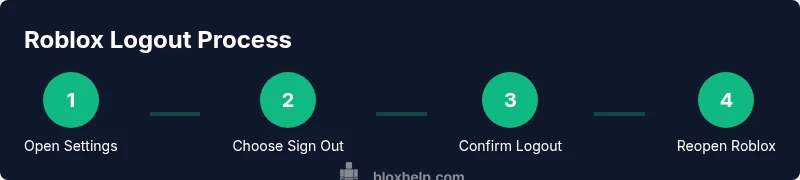
The logout option lives in the Roblox interface across platforms, but the path differs by device. On PC or in a web browser, look for the gear icon or your avatar in the top-right corner, then choose the option that says Log Out of Roblox. On mobile, open the side menu (the three-line hamburger icon or your profile image), go to Settings, and select Sign out of Roblox. On consoles, you’ll typically find the Sign out of Roblox option within the Roblox app, normally under your profile or settings menu. If you don’t see the button, try updating the app or switching accounts to refresh the menu.
If you’re unsure, a quick search within the app’s help or a Browser’s Roblox support page can confirm the exact label for your version.
Logging Out on PC or Web Browsers
Sign out steps on a computer are straightforward but can vary slightly by browser. Start by loading Roblox in your browser, then click the gear icon labeled Settings in the upper-right corner. From the drop-down, click Log Out of Roblox and confirm when prompted. After you sign out, you’ll be redirected to the Roblox login page. If you use a password manager, decide whether to save your credentials for convenience on this device—keeping security in mind, you may choose not to save them on shared machines.
A successful sign-out ends the current session on that device. If you had multiple tabs open or you were logged into other devices, those sessions will remain active until you log out from those devices as well.
Logging Out on Mobile (iOS/Android)
Mobile logout flows hinge on the app’s side menu and Settings. Open the Roblox app, tap the three-line menu icon (or your avatar) to open the side panel, then select Settings. Scroll to the bottom and tap Sign out of Roblox. If prompted for confirmation, confirm to end the session. Returning to the login screen will require re-entering your credentials when you want to play again. If you’re on a shared phone, consider turning off Auto-fill or saving credentials after you logout.
On mobile, logging out should disable any active session on that device, including in-app games and inventory access.
Logging Out on Consoles (Xbox/PlayStation)
Consoles rely on the Roblox app’s profile or settings menu for logout. Launch Roblox on your console, navigate to the profile icon or Settings, and select Sign out of Roblox. Confirm when prompted. If you use multiple consoles or devices, you may need to repeat this process on each device. After logout, you’ll be returned to the Roblox login screen on that console.
Note that some consoles retain a temporary session for convenience; for complete security, log out from every device you’ve used recently.
What Happens After You Log Out
Logging out ends your current Roblox session on the active device. It does not delete your account, progress, or purchases. If you have active saved carts or items, those remain tied to your account and will be accessible once you log back in on any device. Some devices can still show a login prompt if they cached credentials; opening Roblox again should require you to enter your username and password. If you recently enabled two-factor authentication (2FA), you’ll be prompted to verify your identity when you sign back in.
If you use Family Sharing or shared devices, you might notice earlier login prompts on those devices after you log out on your primary device. This behavior is normal and reflects how each device handles session cookies and tokens.
Security Tips After Logout
Enhance your Roblox account security after logging out: enable two-factor authentication, review connected devices, and consider signing out from all devices from your account security page if available. Regularly updating your password and avoiding password reuse across sites add extra layers of protection. If you’re using a public or shared device, never save your Roblox credentials and consider clearing browser data or app caches after logout. For added protection, set a strong, unique password and update it periodically.
Blox Help analysis shows that using multi-device logout hygiene reduces the risk of unauthorized access on shared devices and helps maintain account integrity across platforms.
Common Pitfalls and Quick Fixes
A common pitfall is assuming you’re logged out when you’re not. Always verify you’ve reached the login screen after Sign out, and if you still see your username on the top-right or a quick auto-login prompt, repeat the logout process or clear the app cache. If you cannot locate the Log Out option, update the Roblox app or browser, or consult the Roblox help center. Another issue is signing back in on a shared device and leaving credentials cached; remember to disable auto-fill or save credentials only on private devices.
If you experience persistent sessions, try signing out from other devices you control. In some cases, removing the Roblox app and reinstalling it can resolve button labeling or menu layout changes after an update.
Cross-Device Session Management and Account Safety
Managing sessions across devices is a core security practice. Make a habit of logging out after each gaming session on public or shared devices. If you suspect someone else accessed your account, change your password immediately and enable 2FA. Regularly review active sessions in your Roblox account settings and revoke access to any unfamiliar devices. The goal is to minimize continuous background access and ensure you’re in control of every login instance.
Final Quick Reference and Best Practices
- Always sign out on devices you don’t own or share with others.
- Use Settings or the profile menu to log out; expect different paths by platform.
- After logout, close apps and clear caches if you used a public device.
- Enable two-factor authentication for stronger protection across platforms.
- If you can’t find the logout option, update the app or try a different device.