How to Exit Roblox VR Mode: Quick & Easy Steps for 2026
Master how to exit Roblox VR mode with practical steps for PC, Quest, and SteamVR. This guide covers toggles, headset settings, and common troubleshooting tips to keep Roblox in standard display.


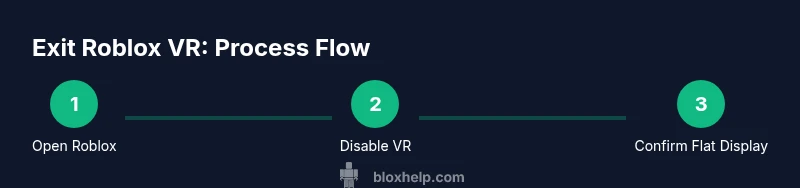
To get Roblox out of VR mode, start by turning off VR in Roblox: click the gear icon (Settings) in the Roblox app and set Enable VR to Off. Then exit any VR platform software (SteamVR or Oculus/Meta) or quit the headset app. If Roblox re-enters VR on launch, recheck the Enable VR toggle before starting Roblox again. For VR headset-specific quirks, follow platform prompts.
What VR mode is in Roblox and why it matters
VR mode in Roblox lets you explore games with motion controls and headset immersion, but it can complicate standard gameplay if you prefer a flat screen. If you’re asking how to get roblox out of vr mode, you’re not alone—many players want a simple, reliable path to non-VR display. According to Blox Help, most players can disable VR with a straightforward toggle in the Roblox settings and by cleaning up the headset software that might re-enable VR on launch. In this section we’ll cover the core concepts of VR mode, how Roblox handles it across platforms, and why a clean exit is worth the few steps it takes. The goal is to give you a consistent non-VR experience without surprises during a game session.
In Roblox, VR support is integrated at both the application level and the headset layer. When you power on a VR headset, some platforms automatically switch Roblox into VR mode unless you’ve turned off the feature. The Blox Help team found that the most common culprits are SteamVR, Windows Mixed Reality, or the headset’s own runtime re-enabling VR upon startup. Understanding these layers helps you create a reliable routine to exit VR mode every time.
Key takeaway: expect two toggles to manage VR—one inside Roblox and another in the headset/VR software. If you only flip the in-app switch, a headset driver or launcher could still place Roblox into VR mode when you launch the game. A robust exit involves both sides.
Tools & Materials
- Roblox app installed on your device(Ensure you’re on the latest Roblox version)
- VR headset(Any supported headset (Quest, Rift, Windows Mixed Reality, etc.))
- VR platform software (SteamVR / Oculus / Meta / Windows Mixed Reality)(Installed and updated)
- Computer or device with internet access(For toggling and verification)
- Optional gamepad or controller(Useful for some navigation in non-VR mode)
Steps
Estimated time: 20-30 minutes
- 1
Close Roblox and prepare your environment
Exit Roblox completely and shut down any VR apps or runtimes. This helps prevent background processes from forcing VR when you relaunch. If you’re on a PC, save your progress in any open games before quitting.
Tip: Quitting Roblox and VR software together reduces the chance of re-entry into VR on startup. - 2
Turn off VR in the Roblox in-game settings
Launch Roblox, click the gear icon to open Settings, locate the Enable VR toggle, and switch it to Off. This is the primary in-game method to exit VR mode for most users.
Tip: If the option is greyed out, ensure Roblox has permission to access headset hardware in your operating system settings. - 3
Quit or pause VR platform software
Fully exit SteamVR, Oculus/Meta software, or Windows Mixed Reality before relaunching Roblox. VR runtimes can re-enable VR automatically when they detect a running Roblox process.
Tip: If you use SteamVR, you can disconnect from the headset when not in use to avoid auto-reentry. - 4
Re-launch Roblox and validate the mode
Open Roblox again and confirm that the VR toggle remains Off. If the game starts in VR, perform a full restart of the Roblox app and the VR runtime.
Tip: Avoid using launch options that force VR; stick to the standard launcher. - 5
Check OS and headset defaults
Some OS-level or headset defaults can re-enable VR on startup. Review headset settings (default display mode, safe mode, or auto-launch) and set them to off or non-VR when not using VR.
Tip: On Quest, ensure your device isn’t set to auto-launch games in VR mode after boot. - 6
Test with a non-VR scene
Join a non-VR Roblox game to ensure your screen display is flat and non-immersive. If you still see VR visuals, repeat the steps and verify there are no background processes re-enabling VR.
Tip: If a game stores its own VR setting, adjust it within that game's menu as needed. - 7
Keep a quick-access checklist
Create a small, repeatable checklist: (1) Roblox off, (2) VR toggle Off, (3) VR software exited, (4) Roblox Relaunch. This reduces errors when you switch devices or platform.
Tip: Post this near your computer as a reminder before launching Roblox.
Questions & Answers
Why does Roblox keep starting in VR after I disable it?
VR can re-engage if the headset runtime or launcher automatically enables VR on startup. Ensure both Roblox and the headset software are set to off and quit any VR runtimes before launching Roblox again. Some games also remember a VR preference after the first use, so verify the in-game settings as well.
VR can auto-enable on startup through headset software; disable it in both Roblox and the headset, then relaunch.
Is Roblox VR supported on Mac or other non-Windows platforms?
Roblox VR support varies by platform and may depend on the hardware and drivers. On Macs, VR support is generally limited compared to Windows. If you’re unsure, check Roblox’s official platform compatibility pages and ensure your VR runtime supports macOS.
VR on Mac can be limited; check Roblox compatibility and headset support for macOS.
How do I disable VR in SteamVR when playing Roblox?
Quit SteamVR and ensure SteamVR is not set to auto-launch Roblox. In SteamVR, go to Settings and disable Auto Start or deselect Roblox as a default game. Then re-launch Roblox and confirm VR is Off in Roblox settings.
Turn off SteamVR auto-launch, then start Roblox with VR off.
Will turning off VR affect saved Roblox settings?
Disabling VR at the in-game level stores the preference for that session. If you reinstall or reset Roblox, verify VR settings again. Generally, preferred display mode remains consistent across sessions if the platform and headset are not forcing VR.
VR preference is session-based; verify it after resets.
What steps should I take if VR keeps re-enabling after a game update?
After an update, re-check the VR toggle in Roblox and the headset runtime. Update all apps, then go through the step-by-step routine to ensure VR is Off before launching future sessions.
Update everything and recheck VR toggles after updates.
Watch Video
The Essentials
- Toggle VR off in Roblox settings first
- Quit all VR software before relaunch
- Verify display mode after startup
- Check OS/headset defaults if VR reappears
- Test with non-VR content to confirm off mode