How to Exit Roblox Fullscreen: Quick Fixes and Step-by-Step Guide
Learn practical steps to exit Roblox fullscreen on PC, Mac, and consoles. This guide covers keyboard shortcuts, in-game options, and OS tweaks with safety tips and troubleshooting.


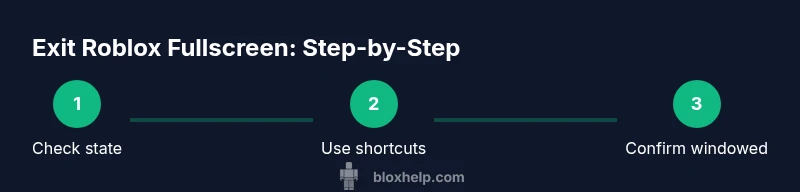
To get Roblox out of fullscreen, use a mix of keyboard shortcuts, in-game controls, and OS/window settings. Start with Escape, then toggle fullscreen with F11 or Alt+Enter on Windows, or Command+Control+F on Mac. If Roblox remains fullscreen, open the in-game menu and select Exit Fullscreen, or adjust your display mode from your computer’s display settings and try restarting Roblox.
What Roblox fullscreen means for your game and why it matters
Full-screen mode in Roblox expands the game to fill your screen, often hiding the operating system's taskbar and leaving little room for on-screen controls. For many players, this isn’t just about aesthetics—it affects input responsiveness, chat visibility, and how you switch between apps. If you’re streaming, recording, or using a second monitor, fullscreen can complicate window management and border overlays. According to Blox Help Analysis, fullscreen glitches are common but typically solvable with a small set of actions. A quick explanation: fullscreen is generally initiated by a hotkey, a toggle in Roblox’s settings, or the OS’s own display mode. If the game ends up stuck in fullscreen, you may be dealing with a stuck hotkey, a misconfigured display mode, or a lingering overlay from another application. By understanding where the fullscreen status is controlled—within Roblox, the operating system, or the graphics driver—you can apply targeted fixes rather than trial-and-error.
Quick checks before attempting fixes
Before diving into steps, confirm whether the issue is truly Roblox-specific or OS-wide. Check if other apps are in fullscreen or borderless window; if so, you might be in a system-wide fullscreen mode. Verify Roblox shows a window title and borders in the title bar; if the window has no borders, you’re likely in a borderless fullscreen mode controlled by Windows or the GPU driver. Ensure your monitor’s refresh rate and resolution match Roblox’s recommended values; mismatches can make the game feel stuck. If you are playing on a laptop with multiple displays, try disconnecting secondary screens to see if Roblox reverts to a standard window on the primary display. Finally, ensure you’re running the latest Roblox client and that your graphics card drivers are up to date. These pre-checks save time and often identify the source of the problem quickly. According to Blox Help, most fullscreen hiccups resolve with simple toggles rather than deep system changes.
Keyboard and mouse tricks you can try right now
If you want a quick, low-friction reset, try these actions in this order:
- Press Escape to show the in-game menu and restore focus to the game window. This step often clears any overlay bugs that trap Roblox in fullscreen.
- Then press F11 or Alt+Enter on Windows to toggle fullscreen off. Mac users can try Command+Control+F to exit fullscreen if Roblox detected a system-level fullscreen state.
- Right-click the Roblox taskbar icon and choose Restore or Move to bring the window onto your screen if it’s partially off-screen. These keyboard and mouse shortcuts are safe and reversible, so you can experiment without risking your progress.
Tip: If you use multiple monitors, ensure Roblox is focused on the primary display before applying shortcuts.
Exit fullscreen on Windows: step-by-step
- Focus the Roblox window. 2) Press Escape to exit in-game UI. 3) Press F11 to toggle fullscreen; 4) If fullscreen persists, press Alt+Enter to toggle windowed mode. 5) If still stuck, right-click the Roblox icon on the taskbar and select Restore or Move. 6) If nothing works, reboot Roblox or the computer and retry. You can also adjust Windows display settings by right-clicking the desktop, choosing Display settings, and setting the window mode to Windowed (Borderless Window preferred for some GPUs).
Tip: Avoid forcing a windowed state with third-party tools; these can interfere with Roblox settings.
Exit fullscreen on macOS: step-by-step
- Click the Roblox window to ensure it has focus. 2) Press Command+Control+F to toggle fullscreen off. 3) If not working, press Esc to reveal the menu, then select Exit Fullscreen from the View menu. 4) Go to System Preferences > Displays and ensure the resolution and refresh rate are compatible with Roblox. 5) Quit Roblox and relaunch in windowed mode if necessary.
Tip: Mac fullscreen toggles are often controlled by the window manager; ensure Roblox is not in a separate Space.
Using Roblox in-game menu to exit fullscreen
The in-game menu is your most reliable path back to windowed view. Press Escape to reveal the menu, navigate to Settings or View, and toggle Fullscreen off. If you don’t see a Fullscreen toggle, look for the option to switch between Windowed, Borderless Window, or Fullscreen. Saving the change immediately applies it to the next game session.
Tip: If the menu is unresponsive, try clicking outside the Roblox window and then re-opening the menu.
Adjusting your OS display settings to windowed mode
Sometimes the OS controls the fullscreen state more than Roblox does. On Windows, open Settings > System > Display and switch the Display mode to Windowed or Borderless Window for the Roblox session. On macOS, use Mission Control to ensure Roblox isn’t locked into a separate Desktop, then adjust the Mission Control or System Preferences to disable full-screen apps by default. After changing settings, relaunch Roblox to confirm the change.
Tip: After changing display modes, test by launching Roblox in a new session to confirm the setting sticks.
What to do if fullscreen reappears after you exit
If Roblox returns to fullscreen after you exit, you might be hitting a persistent hotkey, a misconfigured GPU setting, or a conflicting overlay from another application. First, check for any background apps that may use overlays (recording software, chat apps, or GPU utilities) and quit them. Then, reset Roblox’s video mode by selecting a windowed or borderless window state in the in-game Settings and restarting the client. If the problem persists, disable hardware acceleration in your browser or Roblox launcher, restart, and reapply the preferred window mode. According to Blox Help, standardized fixes reduce recurring occurrences across devices.
Tip: Keep a small checklist handy to quickly verify conflicts from other software before deeper resets.
Step-by-step robust exit method when all else fails
- Close all overlays and background apps that may force fullscreen. 2) Ensure Roblox is the active window, press Escape, then Alt+Enter (Windows) or Command+Control+F (Mac). 3) If lingering, reset the game window to Windowed in Roblox Settings and relaunch. 4) If problems persist, reset graphics preferences and reinstall Roblox as a last resort after backing up your saves. 5) Test on a fresh user profile or a different device to determine if the issue is account- or device-specific.
Tip: Back up progress before reinstalling; this prevents data loss.
Best practices to prevent fullscreen issues in future sessions
- Save progress before toggling display modes to avoid losing work. - Keep graphics drivers and the Roblox client up to date to minimize glitches. - Use a stable resolution that Roblox recommends and avoid frequent changes during play. - If you use multiple monitors, set Roblox to launch on the primary display and disable conflicting overlays at startup.
Note: Consistency reduces the chance of accidental fullscreen toggles during intense gameplay.
Troubleshooting across devices: PC, Mac, and consoles
PC: Follow the Windows steps and in-game options first. Mac: Use Command+Control+F and verify Spaces usage in Mission Control. Consoles: Xbox or PlayStation versions typically rely on the console’s display settings and system-wide fullscreen controls; use the system menu to exit fullscreen, then relaunch Roblox. If problems persist, seek help from official Roblox Support and device-specific guides.
According to Blox Help, cross-device consistency is achievable with a standard exit protocol and minimal tweaking.
Tip: Document which device you used last and which fixes worked for faster future troubleshooting.
Quick reference: commands, shortcuts, and settings at a glance
- Keyboard: Escape, F11, Alt+Enter, Command+Control+F.
- Roblox settings: Fullscreen toggle; Windowed or Borderless Window options.
- OS settings: Display mode (Windowed/Borderless), resolution, refresh rate.
- When in doubt, use the in-game menu to Exit Fullscreen and then cycle through the window modes until one sticks.
Tip: Memorize a single reliable combo for your primary device to speed up exits during sessions.
Tools & Materials
- Keyboard with Escape key(Essential for quick in-game exits)
- Mouse or trackpad(Needed to interact with menus and dragging windows)
- Roblox client installed and updated(Ensures standard fullscreen controls are available)
- Display with adjustable resolution(Aids in testing windowed modes)
- Access to OS display settings (Windows/Mac)(Needed to switch to windowed or borderless modes)
- Internet connection (optional for re-downloads)(Only if reinstalling Roblox)
Steps
Estimated time: 25-40 minutes
- 1
Check current fullscreen state
Focus the Roblox window and verify whether you are in Fullscreen, Windowed, or Borderless Window. This helps determine the best next step and prevents unnecessary toggling.
Tip: Look for window borders and the presence of the taskbar to gauge state. - 2
Try basic exit shortcuts
Hit Escape to reveal any in-game UI. Then test OS-level toggles: F11 or Alt+Enter on Windows, Cmd+Ctrl+F on Mac. These shortcuts resolve most accidental fullscreen activations.
Tip: If a shortcut doesn’t work, ensure Roblox has focus. - 3
Use in-game Exit Fullscreen option
Open the in-game menu (Esc) and look for a Fullscreen toggle or a View option. Selecting Windowed or Borderless Window here usually overrides OS states.
Tip: If you don’t see the option, scroll or resize the menu to reveal it. - 4
Adjust Windows display settings to windowed
Right-click the desktop, choose Display settings, and set the Roblox window to Windowed or Borderless Window. Apply, then restart Roblox to confirm.
Tip: Borderless Window can be more stable on some GPUs. - 5
Adjust macOS display settings to windowed
Go to System Preferences > Displays, ensure the resolution/refresh rate matches Roblox’s compatibility range, and exit any full-screen apps from Mission Control.
Tip: Closing extra Space can prevent re-entry into fullscreen. - 6
Restart Roblox (and optionally the device)
Close Roblox completely, relaunch it, and immediately try a windowed mode before resuming gameplay.
Tip: A clean restart clears stuck state. - 7
Test on a single monitor first
If you have multiple displays, disconnect others to confirm the issue isn’t caused by a monitor arrangement.
Tip: Some multi-monitor setups trigger borderless fullscreen automatically. - 8
Verify persistence by re-testing
Play a few minutes, then intentionally toggle fullscreen off and on again to ensure the setting sticks.
Tip: Document the steps that consistently work.
Questions & Answers
What causes Roblox to stay in fullscreen after exiting?
Stuck hotkeys, misconfigured display settings, or overlays from other apps can keep Roblox in fullscreen. System-wide fullscreen modes can also cause this behavior across applications.
Stuck hotkeys or display settings are usually the culprit; try the standard exits first and then adjust your display mode.
Will exiting fullscreen affect my gameplay?
Exiting fullscreen simply returns Roblox to a windowed or borderless view; your progress and game state remain the same.
Exiting fullscreen doesn’t affect your game progress; only how you view and interact with the window changes.
How do I exit fullscreen on consoles?
Use the console's system menu or the game’s pause menu to exit fullscreen, then re-launch Roblox in the desired window mode.
Use the system menu to exit fullscreen, then reopen Roblox in windowed mode.
Can I prevent fullscreen from happening again?
Lock in a windowed or borderless mode in Roblox settings, keep OS display defaults stable, and avoid last-minute mode changes during play.
Set a stable window mode and keep system display settings consistent to prevent repeats.
Is there a universal key to toggle fullscreen?
No universal key exists; shortcuts differ by OS and Roblox version. Try Escape + OS-specific toggles, then use the in-game menu if needed.
There isn’t a universal key—use Escape plus your OS toggle and the in-game menu.
Does fullscreen impact performance?
Fullscreen itself generally does not degrade performance; some systems may experience minor differences due to how the GPU handles window modes.
Performance usually stays similar; if you notice stuttering, check drivers and test window modes.
Watch Video
The Essentials
- Identify whether fullscreen is game- or OS-driven
- Start with Escape and OS-specific shortcuts
- Use in-game menu to exit fullscreen when possible
- Adjust display settings to windowed/borderless when needed