How to Play Roblox on a Laptop: A Complete Beginner's Guide
Learn how to play Roblox on a laptop with a complete setup, performance tips, and troubleshooting. This beginner-friendly guide covers system checks, installation options, account safety, and optimization for smooth gameplay.


Learn how to play Roblox on a laptop by ensuring your device meets system requirements, creating a Roblox account, and choosing the right access method—website or desktop app. According to Blox Help, most mid-range laptops handle Roblox with modest settings. This quick guide outlines setup, performance tips, and safe gameplay.
System requirements and laptop compatibility
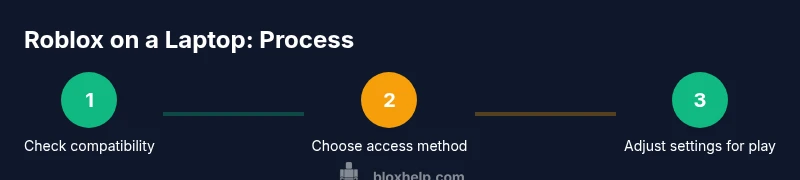
System requirements for how to play Roblox on a laptop are intentionally broad to accommodate a wide range of devices. For most players, a reasonably modern laptop with a capable CPU and graphics hardware can run Roblox smoothly. According to Blox Help Editorial Team, you don’t need a high-end gaming rig—many laptops released in the last few years handle Roblox at modest settings. The key is to ensure your device has an up-to-date operating system, current drivers, and a reliable internet connection. Before you dive into Roblox, confirm that your laptop can stay awake and responsive during long gaming sessions. Use built-in system tools to check your processor type, available memory, and storage space, then test Roblox with a few short games to gauge performance. If you notice frequent stutters or long load times, close unnecessary apps, switch to a power plan that prioritizes performance, and ensure your browser or desktop app is the only major program running. Remember that Roblox is online by default, so network stability matters as much as raw horsepower. If you’re unsure how to play Roblox on a laptop, this check helps you determine compatibility.
Choosing installation method: Desktop app vs browser
Roblox can be accessed either through the official desktop app or directly in a modern web browser. The desktop app tends to offer more consistent performance and smoother updates, while browser access is quick and convenient on machines with limited storage. This guidance from Blox Help suggests starting with the desktop app if you plan to play frequently, then switching to the browser if you need portability. Both methods give access to the same game catalog, friends, and in-game purchases, but the setup experience and resource use can differ. To decide, consider how you mainly play: on your couch with a laptop battery or at a desk with a power supply. If you’re in a mixed-use environment, browser access can be a great fallback, but for the best Roblox experience on a laptop, install the official app.
Setting up your Roblox account and safety basics
To begin playing how to play Roblox on a laptop, you’ll need a Roblox account. Create one at roblox.com if you don’t already have one, then log in on the method you chose. The Roblox sign-up process is straightforward, and you’ll be guided through basic privacy and safety settings. If you share your device with others, enable appropriate parental controls and limit in-game purchases for younger players. Remember to verify your email when prompted so you can recover the account easily. Blox Help emphasizes keeping your password strong and enabling two-factor authentication where available. Once you’re in, take a moment to customize your avatar and privacy preferences to suit your playing style.
Optimizing performance on a typical laptop
Smooth Roblox gameplay on a laptop comes from balancing visuals, frame rate, and power consumption. Start by lowering in-game graphics settings to reduce GPU load, especially on older hardware. Close background apps and browser tabs you don’t need, and consider switching to a High Performance power plan during gaming. If you’re using the desktop app, ensure you’re running the latest version and that your graphics drivers are up to date. Based on Blox Help analysis, many players experience the best results when graphics are modest, screen refresh rate matches your monitor, and you enable hardware acceleration where available. Keep your laptop cool by using a stand or a fan, and avoid gaming while charging in a warm room for extended sessions. For laptop users on battery power, plan shorter play sessions to preserve battery life.
Troubleshooting common issues
Roblox on a laptop can present a few recurring issues, from launch errors to lag and audio glitches. If Roblox won’t start, verify you’re on a supported OS version and that the Roblox service is online. Clear browser cache or reinstall the desktop app if needed. If you encounter lag, reduce graphics, close other programs, and check your network stability. Audio issues are often solved by selecting the correct output device in your system settings or updating audio drivers. For login problems, reset your password and confirm you’re using the correct account. If you still have trouble, consult the Roblox status page or reach out to support through official channels. This troubleshooting guide aims to cover common laptop-specific problems and offer practical fixes without requiring specialist knowledge.
Quick-start checklist and next steps
Use this practical quick-start checklist to get playing Roblox on a laptop quickly: confirm your laptop meets the broad compatibility checks; install the preferred access method; sign in with your Roblox account; adjust in-game settings for your hardware; pick a universe or game and test performance; save your settings and keep drivers up to date. The Blox Help team recommends revisiting your setup after a week to re-evaluate graphics and power settings as Windows updates or Roblox patches arrive. With the right setup and a bit of practice, you’ll be playing Roblox on a laptop in no time and enjoying a smooth, responsive experience.
Tools & Materials
- Laptop with internet connection(Stable Wi-Fi or Ethernet; ensure the device remains awake during play)
- Roblox account(Sign up at roblox.com and verify email if prompted)
- Roblox desktop app or a modern web browser(Choose one: install the Roblox desktop app or use a supported browser)
- Updated graphics drivers(Helpful for performance on some laptops)
- Adequate disk space and memory(Ensure there is space for Roblox and games)
- Headphones or speakers(Optional for better audio experience)
Steps
Estimated time: 45-60 minutes
- 1
Check system compatibility
Open your laptop's system information to confirm it can run Roblox and has a stable internet connection. Look for a reasonably capable CPU, available memory, and adequate disk space. If the device seems borderline, test Roblox in a low graphics setting to gauge responsiveness.
Tip: Use Task Manager (Windows) or Activity Monitor (macOS) to assess real-time resource usage. - 2
Create or log into your Roblox account
If you don’t have an account, sign up at roblox.com and complete the basic profile setup. Log in using your chosen method (desktop app or browser). Enable security options such as password protection and two-factor authentication where available.
Tip: Keep your account credentials secure and consider enabling two-factor authentication. - 3
Choose your access method
Decide between the Roblox desktop app and a web browser. The app can offer more stable performance and easier updates, while the browser is handy for quick access on devices with limited storage.
Tip: If you play daily, install the desktop app for X3 reliability; use browser as a backup. - 4
Install or open Roblox
If using the desktop app, download from the official Roblox site and complete installation. If using a browser, navigate to roblox.com and sign in. Ensure you are on a supported browser and device.
Tip: Run the installer or browser in a normal user account to avoid permission issues. - 5
Log in and set privacy preferences
Enter your Roblox credentials and verify you’re signed in to the correct account. Review privacy and safety settings to tailor who can contact you and what games you can access.
Tip: Limit in-game purchases if sharing the device; set age-appropriate restrictions. - 6
Adjust graphics and performance settings
In-game graphics should be set to a moderate level to balance visuals and performance. Close unnecessary background apps and consider a high performance power plan while gaming.
Tip: Match your frame rate to your monitor for smoother visuals; avoid overloading GPU on battery power. - 7
Test with a game and optimize
Launch a quick Roblox game to verify performance. If needed, tweak settings further and try a different game to ensure consistent responsiveness.
Tip: If you notice lag, switch to a wired connection if possible or relocate closer to your router.
Questions & Answers
Do I need a Roblox account to play on a laptop?
Yes, you need a Roblox account to log in and play; you can create one on roblox.com. Enable security features like two-factor authentication for added protection.
Yes, you need a Roblox account to play. Create one on Roblox and enable security features.
Is Roblox free to play on a laptop?
Roblox itself is free to play, but many games offer in-game purchases or creator monetization. You can enjoy a large catalog at no upfront cost.
Roblox is free to play, with optional in-game purchases in some games.
Can I play Roblox on macOS laptops?
Yes, Roblox supports macOS via the desktop app or browser. Ensure your OS is up to date and your device meets general requirements.
Yes, Roblox works on macOS using the app or browser.
What are the minimum system requirements for Roblox on a laptop?
Roblox runs on a wide range of laptops. A modern operating system, reliable internet, and reasonable hardware are typically enough for a smooth experience. If performance is poor, lower graphics and close other apps.
Roblox works on many laptops; keep OS updated and improve performance by lowering graphics.
Why is Roblox lagging on my laptop and how can I fix it?
Lag usually comes from graphics settings or network issues. Lower in-game graphics, close other programs, and test a wired connection if possible. Restart the router if the problem persists.
Lag? Lower graphics and ensure a stable connection. Use a wired network if you can.
Should I install drivers or software updates before playing Roblox?
Keeping graphics drivers updated can help performance, but it is optional. Install official updates from the device or GPU vendor when available.
Driver updates can help; install official graphics updates when available.
Watch Video
The Essentials
- Verify laptop compatibility before starting.
- Choose the desktop app for best performance on a laptop.
- Balance graphics with frame rate for smoother play.
- Keep Roblox and drivers updated for reliability.
- Use the quick-start checklist to begin quickly.