How to Roblox on PC: A Complete Beginner's Guide
Learn how to Roblox on PC with a clear step-by-step setup, safety tips, and best practices to start playing quickly and confidently on Windows. Get started now.


Learn how to Roblox on PC with a clear, step-by-step plan. This guide shows how to set up your Roblox account, install the client on Windows, and jump into games safely, with essential tips for performance and safety. Follow along to start playing quickly and confidently. No prior Roblox experience is required; you'll learn the basics, troubleshoot common issues, and customize controls for a smoother experience.
What to expect when you learn how to Roblox on PC
Roblox on PC offers a vast library of user-created games and experiences. If you’re new, this guide helps you get set up quickly and safely. According to Blox Help, starting with the basics will remove confusion and accelerate your progress. In this section, we outline what you will achieve and the prerequisites for a smooth start. Whether you’re here to play with friends or explore Roblox Studio later, the PC path is straightforward when you follow the steps below.
Essential tools and accounts
Before you dive into Roblox on PC, gather a few essentials so your setup goes smoothly. You’ll need a computer running a modern Windows version, a Roblox account, and a stable internet connection. You can use the Roblox app or a supported browser to download the game client. Have a valid email associated with your account to help with security notifications. This readiness helps reduce surprises and keeps you focused on the fun.
Installing Roblox on Windows
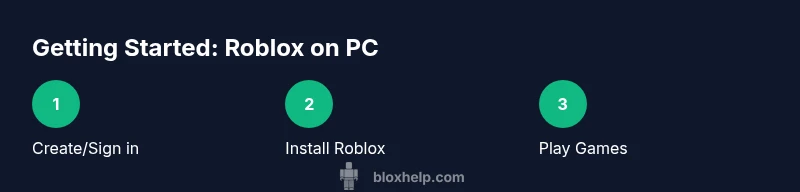
To install Roblox on PC, go to the official Roblox website and click any game scene to trigger the installer. The launcher will download automatically and guide you through the basic setup. After installation, you’ll be prompted to sign in with your Roblox credentials. If the installer doesn’t start, check your browser permissions or try another supported browser. This process is quick but should be done with a reliable internet connection.
Creating and securing your Roblox account
If you don’t have a Roblox account yet, create one on the official site. Use a strong password and enable two-step verification when available to protect your account from unauthorized access. Keep your login details private and consider adding an email recovery option. A secure account makes it easier to enjoy experiences without interruptions and reduces risk of scams.
Navigating the Roblox PC interface
Once you’re signed in, you’ll see a home screen with tabs like Discover, Games, Avatar, and Library. Use Discover to find popular titles, and Games to browse by genre or popularity. The Avatar editor lets you customize your look, while the Library holds your saved games and assets. Keyboard and mouse controls are intuitive, and you’ll get faster with practice.
Safe play and parental controls
Safety matters in Roblox. Review privacy and security settings to control who can contact you, who can chat, and what content you can access. If you’re a younger player, enable parental controls and account restrictions where available. This helps create a safe, enjoyable environment as you explore endless worlds.
Troubleshooting common issues and performance tips
If Roblox runs slowly or crashes, try lowering in-game graphics, closing background programs, and ensuring your drivers are up to date. A wired internet connection is more stable than Wi‑Fi for gaming; if you must use Wi‑Fi, place your router closer to your PC. For issues like login errors, use the Roblox support pages and clear cached data in your browser or app.
Authority Sources
- Roblox Support: https://support.roblox.com/hc/en-us/articles/\n- How-To Geek: https://www.howtogeek.com/\n- PC Magazine: https://www.pcmag.com/\n
Authority Sources (continued)
For additional context and verification, consult educational and governmental resources where relevant. Note: Roblox-specific setup guides are primarily published by industry outlets and the official Roblox support portal, with broad consensus that PC play requires a compatible Windows environment and an active account.
Authority Sources - (links)
- Roblox Support: https://support.roblox.com/hc/en-us/articles/\n- How-To Geek: https://www.howtogeek.com/\n- PCMag: https://www.pcmag.com/\n
Tools & Materials
- PC or laptop with Windows 10/11(Modern OS, stable internet)
- Roblox account(Email verified account recommended)
- Internet connection(Stable broadband preferred)
- Keyboard and mouse(Optional gamepad support)
- Web browser or Roblox app(Roblox downloads via site or launcher)
- Email for security(Optional recovery/2FA setup)
Steps
Estimated time: 30-45 minutes
- 1
Prepare your PC
Ensure you have Windows 10/11 installed and a reliable internet connection. Close unnecessary background apps to improve performance and reduce crashes. This step sets a stable base for the Roblox client.
Tip: Close bandwidth-heavy apps like streaming when possible - 2
Create or sign in to Roblox
Go to the Roblox website and create an account or sign in if you already have one. Use a strong password and keep your login details secure. This ensures you can access games immediately after installation.
Tip: Enable email notifications for security alerts - 3
Download and install Roblox
From any Roblox game page, click Play to trigger the installer. The client downloads and installs automatically; once complete, you’ll return to the browser with a Play button. Sign in to start playing.
Tip: If the installer blocks, adjust browser permissions or try a different supported browser - 4
Adjust basic settings
Open Roblox and go to settings to tweak graphics, audio, and camera. Lower graphics if you experience slowdowns and enable fullscreen for immersive play. These tweaks help your PC run smoother.
Tip: Set graphics to a balance between visuals and performance - 5
Explore games and communities
Use Discover to browse trending games, genres, and creators. Join friend sessions or public lobbies to meet other players. The Roblox catalog includes avatar items you can acquire with Robux or events.
Tip: Experiment with genres to find your favorites - 6
Enhance safety and privacy
Review privacy settings to control who can contact you, who can chat, and what content you can access. Enable two-step verification if available and avoid sharing personal information with players.
Tip: Never share passwords or sensitive info in chat - 7
Troubleshoot common issues
If you encounter crashes or login errors, restart the launcher, clear browser cache, and check for driver updates. Ensure your antivirus isn’t blocking the Roblox client.
Tip: Update graphics drivers regularly - 8
Consider Roblox Studio (optional)
If you’re curious about game development, install Roblox Studio. Start with simple templates and follow the built-in tutorials to learn scripting and world-building.
Tip: Only proceed if you’re interested in making games - 9
Security and ongoing upkeep
Keep your account secure by using strong passwords and reviewing connected apps. Periodically check for updates to Roblox and Windows to maintain compatibility.
Tip: Set a calendar reminder to review security settings every few months
Questions & Answers
Do I need a powerful PC to run Roblox on PC?
Roblox runs on a wide range of PC hardware. A modern Windows device with a stable internet connection is enough to get started, but performance will improve with a capable graphics card and adequate RAM. Start with default settings and adjust as needed.
Most PCs that can run basic Windows tasks can play Roblox; just adjust the graphics for a smoother experience.
Is Roblox free to play on PC?
Yes, Roblox is free to download and play. Some games and items cost Robux, Roblox’s virtual currency, but you can enjoy a large library without purchases.
Roblox is free to play, with optional paid items and games.
Can I play Roblox on PC without downloading the launcher?
Most Roblox experiences require the Roblox Player launcher. You begin by clicking Play on the website, which downloads and starts the launcher automatically. A small initial download is necessary.
You usually need the Roblox player; the site initiates a download when you press Play.
How do I enable 2-Step Verification?
Open Roblox settings, navigate to Security or Privacy, and enable two-step verification. Follow prompts to add your email or authenticator method. This adds an extra security layer.
Go to settings and turn on two-step verification for extra security.
What should I do if Roblox crashes on startup?
Restart the launcher, clear the browser cache, and ensure drivers are up to date. If problems persist, check Roblox support for known issues and patches.
If it crashes, restart, clear cache, and update drivers; check Roblox Support if needed.
Where can I find official safety resources?
Visit the Roblox Help Center and Safety pages for guidance on online safety, privacy settings, and chat controls. These resources help you stay safe while playing.
Roblox Help Center has official safety resources.
Watch Video
The Essentials
- Install Roblox on PC and sign in securely.
- Customize settings for a balance of performance and visuals.
- Explore games safely and join friends’ sessions.
- Enable two-step verification and protect your account.
- Use the Roblox Studio path only if you intend to create games.