How to Roblox Emote: A Practical Guide for Beginners
Discover how to use Roblox emotes across games, access the Emotes menu, unlock more gestures, and follow best practices for respectful play. This step-by-step guide from Blox Help helps you master emotes in 2026.


In this guide you will learn how to use Roblox emotes across games, access the Emotes menu, earn or purchase more, and follow best practices for respectful play. This how to roblox emote guide lays out the exact steps, from locating emotes to equipping and using them in real play. This quick answer sets up the step-by-step sections that follow and includes safety tips from Blox Help for 2026.
What is a Roblox emote?
Roblox emotes are animated gestures that players can perform to express themselves in-game. They range from simple dances to expressive hand signals and are a core part of avatar interaction across many Roblox experiences. This guide focuses on how to use emotes effectively, including where to locate them, how to equip them, and how to unlock more options over time. According to Blox Help, understanding the basics of emotes is the first step toward smoother social play and better communication in 2026. In Roblox, emotes are not just cosmetic—they help convey tone, mood, and personality during matches, roleplays, and social hangouts. To get started, you should know that most emotes live in two places: the Emotes menu (a wheel or panel you open during gameplay) and the Avatar Editor where you can browse, preview, and equip specific emotes. Some emotes are free, while others are purchasable or require Robux. In this section we’ll cover the differences between “built-in” emotes and those you unlock, plus how to tell which games support emotes. By the end, you’ll know how to locate and try your first emotes in a friendly, step-by-step way.
How to access emotes in Roblox
Accessing emotes is straightforward once you know where to look. Start by launching Roblox and signing into your account. From the home screen, open the Avatar Editor or the Emotes wheel; depending on your platform you may access this from your character panel or a quick-access menu. In most cases, you’ll see a grid of emotes with previews; select one to equip it. If your game uses a custom emote system, you’ll see a separate panel that lists which emotes are allowed for that title. The Emotes wheel is the fastest way to perform a gesture; you can bind your favorite emotes to quick keys or taps for one-handed play on mobile. Remember to test the emote in a safe, non-competitive environment to avoid disrupting other players. The goal is to communicate intent—joy, surprise, cheer—not to troll. In addition to built-in emotes, you can unlock more by earning rewards, completing challenges, or purchasing from the Avatar Shop. As you gain familiarity, you’ll learn which emotes work best in different communities.
Earning and buying more emotes
Roblox provides a mix of free and paid emotes. Many emotes come pre-installed with your account, especially basic gestures that are useful in everyday play. To expand your collection, visit the Avatar Shop or in-game catalog; you can preview emotes before buying and compare animations to ensure they fit your avatar style. Prices vary widely depending on rarity, creator, and popularity; some emotes might be free during promotions or events, while others require Robux. If you’re new, start with the free options and gradually acquire a couple of signature emotes that match your style. For developers seeking to design unique emotes, Roblox Studio allows you to author animations and publish them as assets; just be mindful of game restrictions and community guidelines. After purchasing or unlocking an emote, return to the Emotes menu to equip it; you can rearrange the order for easy access. Keep in mind that some games place restrictions on emotes to preserve balance or avoid crowding in crowded scenes.
Custom emotes and restrictions for developers
Developers have powerful tools to craft animations, but there are limits. In Roblox Studio you can build custom animations and attach them to avatar rigs, then publish as Animation assets that players can unlock or purchase if the game allows it. Not every title supports custom emotes; some developers disable emotes to protect performance or to avoid abuse. If you’re designing an experience, decide early whether you’ll let players use only built-in emotes or offer a marketplace for custom gestures. When creating custom emotes, follow Roblox's animation guidelines, test across devices, and verify compatibility with both R15 and R6 rigs. Test emotes in a controlled studio environment before publishing, and collect feedback from players on how the emotes feel in real gameplay. If your emotes rely on timing (for example, synchronized team gestures), include spawn delays and fallback options so players without emotes aren’t left out. For players, be mindful of the rules and avoid creating content that could be offensive.
Tips & best practices for using emotes
- Use emotes to enhance communication, not to disrupt gameplay. Choose emotes that fit the situation and respect other players.
- Practice timing and pacing; some emotes work best in social spaces, others in cooperative games.
- Check game-specific rules before using emotes; some experiences restrict gestures to reduce lag or avoid crowding.
- Keep your emote collection organized; map your favorites to quick-access slots for fast reactions.
Troubleshooting common emote issues
If emotes don’t appear in a game, verify that the title supports emotes and that your avatar isn’t restricted. Sign out and back in to refresh assets, try a different game, or update Roblox to the latest version. If purchases aren’t showing up, ensure your account balance and parental controls (if any) don’t block transactions. For mobile users, confirm you’re using the Emotes wheel correctly and that the in-game controls aren’t hidden by accessibility settings.
Safety and account considerations
Emotes are a fun way to express yourself, but always follow Roblox’s community guidelines. Avoid sharing personal information while using emotes, and be mindful of age-appropriate content. If you encounter harassment related to emotes, report it through the platform’s safety tools. Regularly review account privacy settings to control who can interact with you in games.
Tools & Materials
- Roblox account(Sign in to access Emotes and Avatar Editor)
- Stable internet connection(Essential for real-time emote updates and purchases)
- Device with Roblox app installed(PC, console, or mobile)
- Avatar Shop / Catalog access(To preview, unlock, and buy emotes)
- Roblox Studio (optional)(For developers creating custom emotes)
Steps
Estimated time: 60-90 minutes
- 1
Open Roblox and sign in
Launch Roblox on your device and log into your account to access the Avatar features and emotes.
Tip: Use a stable internet connection to avoid mid-session reloads. - 2
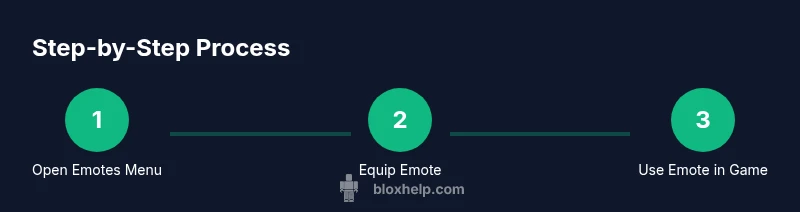
Open the Emotes menu
Access the Emotes wheel or Emotes tab via the Avatar panel to view available options.
Tip: If you don’t see Emotes, verify game support or platform compatibility. - 3
Choose and equip an emote
Browse emotes, preview animations, and select one to equip so it appears in your Emotes wheel or quick bar.
Tip: Start with a simple, non-distracting emote to test responsiveness. - 4
Perform the emote in-game
Activate the emote from the wheel or quick bar during gameplay to see it animate on your avatar.
Tip: Coordinate with teammates for synchronized gestures. - 5
Unlock more emotes
Visit the Avatar Shop or catalog to unlock or purchase additional emotes and add them to your collection.
Tip: Preview animations before buying to match your avatar style. - 6
If you’re a developer, create custom emotes
Use Roblox Studio to build and publish custom animations if your game supports them.
Tip: Test in a controlled environment before public release. - 7
Test across games
Try emotes in multiple Roblox games to verify compatibility and performance.
Tip: Some titles disable emotes; adapt usage accordingly.
Questions & Answers
What is a Roblox emote and how does it work?
A Roblox emote is an animated gesture players perform to communicate in games. Emotes are accessed through the Emotes menu or Avatar Editor and can be free or bought with Robux. They add personality and are widely supported across experiences.
Emotes are animated gestures you use from the Emotes menu. They help you express yourself in many games.
How can I get more Roblox emotes for free?
Some emotes come free with your account or during promotions. You can also earn emotes by completing in-game challenges or events. Check the Avatar Shop regularly for free drops or trials.
Some emotes are free or given during events; check the Avatar Shop for promos.
Are emotes restricted in some games?
Yes. Some games disable or limit emotes to protect performance, balance, or to maintain a specific vibe. Always check the game’s rules before using emotes.
Some games don’t allow emotes or limit when you can use them.
Can I create custom emotes in Roblox?
Developers can create custom animations with Roblox Studio and publish them as assets if the game supports it. End users typically rely on built-in emotes or those unlocked via purchases.
Developers can craft custom animations via Roblox Studio and publish them where allowed.
Do emotes require Robux?
Some emotes are free, others require Robux. The price range varies by rarity and creator. Always preview the emote before purchasing.
Some emotes are free, others cost Robux.
Why can’t I see emotes in my inventory?
If emotes don’t appear, verify game support, ensure you’re logged in, and refresh assets. Some devices may require updates or re-binding of the Emotes wheel.
If you don’t see emotes, refresh, check the game supports them, and update Roblox.
Watch Video
The Essentials
- Identify emotes and where to access them
- Equip and trigger emotes in-game
- Unlock or purchase more emotes via Avatar Shop
- Practice etiquette to avoid disrupting others
- Test emotes across games for compatibility