How to Roblox Inventory: A Practical Guide
Learn how to roblox inventory, view items, equip gear, organize collectibles, and understand trading rules with step-by-step guidance from Blox Help.


Learn how to roblox inventory by locating, organizing, and using your items across Roblox games. This quick guide covers where to view your inventory, how to equip gear, manage accessories, and understand tradeable items and restrictions. According to Blox Help, following these steps will help you stay organized and maximize in-game comfort and performance.
What is Roblox inventory and why it matters
Your Roblox inventory is a collection of items that your avatar can wear or use inside games. It includes hats, faces, accessories, gear (tools), and limited items. Understanding how to access and organize these assets helps you customize your avatar, improve your in-game experience, and participate in trades more confidently. This guide uses the term inventory to refer to the complete set of owned items and the tools you use to equip them across different experiences. Blox Help’s approach is practical, focusing on hands-on steps you can perform in minutes rather than theoretical advice. It’s designed for beginners while offering insights for staying organized, secure, and ready for action.
Where to view and access your inventory
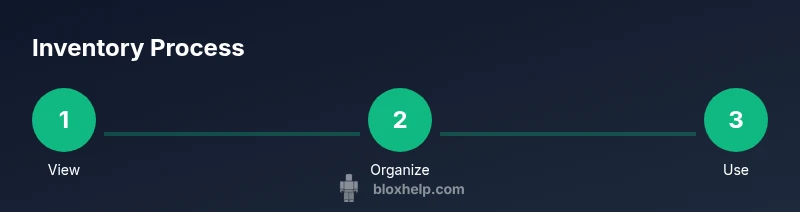
To view your Roblox inventory, start by signing in to your account and opening the avatar editor or the main inventory panel. On PC and Mac, you’ll typically find inventory options on the left side of the screen within the avatar editor. On mobile devices, tap the gear icon to access your avatar and item lists. The inventory is organized into categories such as Hats, Faces, Accessories, Gear, and Bundles. Each category shows how many items you own and offers quick actions like Wearing, Unequipping, or deleting items. Regular checks ensure you know what you currently possess and what you might rotate into outfits for different games. If you own a lot of items, use search and filter features to locate specific items quickly. Blox Help recommends keeping a short list of frequently used items for fast access during play.
How to equip items to your avatar
Equipping items is straightforward. Open the inventory, select the item you want, and click Wear (or drag the item onto your avatar in the editor). Some items change your avatar’s appearance permanently in games that support customization, while others merely affect the current session. If you switch games, the equipped items typically persist if they are stored in the inventory and not restricted to a single experience. It’s a good idea to preview changes in the avatar editor before joining a game to ensure your look matches your intent. If an item cannot be worn, check the item’s details for compatibility notes.
Organizing for quick access
A tidy inventory makes life easier during long gaming sessions. Start by using categories to group items (hats, accessories, gear) and consider marking frequently used items as favorites if your platform supports it. Use the search bar to locate items by name or type and take advantage of any sorting options (alphabetical, recently acquired, or rarity). Periodically prune duplicates or items you no longer use to keep the collection manageable. If you use multiple devices, ensure your items are synced with your Roblox account so changes appear on all devices. Blox Help emphasizes a routine audit: review your most worn items monthly and adjust your catalog accordingly.
Trade rules, limitations, and safety tips
Trading can expand your collection, but not every item is tradeable. Always check the item details to confirm whether it can be traded and what a fair trade might look like. Be mindful of scams and only trade through Roblox’s official interfaces. Verify that another player’s offer is legitimate before accepting, and never share your account credentials or two-factor codes. Two-factor authentication adds a layer of protection against unauthorized access. Blox Help Editorial Team notes that many players underestimate tradable items and trading windows, so take time to learn the rules before proposing swaps.
Common mistakes and best practices
Common mistakes include neglecting to organize, attempting to trade untradable items, and ignoring security features. A simple routine—sign in securely, review inventory, equip only what you plan to use, and keep your account protected—can prevent headaches. Create a short wishlist of items you want and set aside time for periodic inventory reviews. Remember to back up your progress across devices by using a single linked account and enabling two-factor authentication. By following these practices, you’ll enjoy a smoother Roblox experience and a more powerful avatar toolkit.
Tools & Materials
- Roblox-enabled device (PC, Mac, iOS, or Android)(Stable internet connection; Roblox app or browser access)
- Roblox account login credentials(Keep credentials secure; never share)
- Web browser or Roblox app(Used to access inventory and avatar editor)
- Two-factor authentication (2FA)(Adds security against unauthorized access)
- Notes or screenshot tool(Optional for tracking item lists or favorites)
- A short list of frequently used items(Helps speed up equipment in games)
Steps
Estimated time: 20-35 minutes
- 1
Sign in to Roblox
Open the Roblox app or website and sign in with your username and password. This step unlocks access to your inventory and avatar editor so you can start organizing.
Tip: If you forget your password, use the official reset flow and never share credentials. - 2
Open the Inventory/Avatar Editor
Navigate to the avatar editor or inventory panel to view your current collection. This is where you’ll see all item categories and wearing options.
Tip: On mobile, tap the gear icon for quick access to avatar customization. - 3
Browse item categories
Explore Hats, Faces, Accessories, Gear, and Bundles. Use search/filter features to pinpoint items by name, type, or rarity.
Tip: Sorting by recently acquired helps you prioritize newer gear. - 4
Equip items to your avatar
Select an item and click Wear or drag it onto your avatar in the editor. Preview changes before joining a game to ensure the look matches your intent.
Tip: If an item won’t wear, check compatibility notes in its details. - 5
Organize for quick access
Group items into categories, mark favorites if available, and prune duplicates. Use search to locate items instantly during gameplay.
Tip: Regular cleanups prevent clutter and speed up setup. - 6
Understand trade rules and safety
Check item details to confirm tradability and use Roblox’s official trading interface for swaps. Enable 2FA and avoid sharing credentials or codes.
Tip: Learn which items are tradable to avoid failed trades. - 7
Review and maintain
Periodically audit your inventory, refresh your outfit, and sync across devices by staying logged into a single account.
Tip: Set a monthly reminder to reassess your favorites.
Questions & Answers
Can I trade all items in Roblox inventory?
Not every item is tradable. Check the item's details to confirm tradability and any trade limits.
Not all items can be traded; check the item details for tradability.
Where can I see if an item is tradable?
Open the item’s detail page in your inventory; tradability is listed there along with any restrictions.
Open the item details to see if it’s tradable.
How do I organize inventory across devices?
Your inventory is tied to your Roblox account and syncs across devices when you stay signed in.
Your inventory syncs across devices as long as you’re signed in.
Why can’t I wear certain items in a game?
Some items are game-specific or limited by the game’s rules; check compatibility notes in the item’s details.
Some items only work in certain games due to compatibility rules.
What security steps should I take for my Roblox account?
Enable two-factor authentication and never share login details to reduce risk of unauthorized access.
Enable 2FA and keep your password private.
Watch Video
The Essentials
- Organize inventory by category for quick access
- Equip items to customize avatars effectively
- Check tradability before trading to avoid scams
- Protect your account with two-factor authentication
- Regularly audit and sync your inventory across devices