Texture IDs for Roblox: Find, Apply, and Optimize Guide
Explore texture ids for roblox, how to locate reliable texture IDs, apply them safely with rbxassetid://, and optimize textures for performance. A practical, data-driven guide by Blox Help.


Texture IDs for Roblox are numeric asset IDs you reference with the rbxassetid:// prefix to apply textures to decals, surfaces, GUI, or 3D models. You locate IDs on the Roblox catalog or asset pages and then paste the ID into your object's Texture or Image properties. Use IDs from trusted sources and respect licensing to avoid issues in your games.
What texture ids are in Roblox and why they matter
Texture IDs for Roblox are the numeric asset identifiers you attach to textures in your game. They let you reference external images—such as decals, surfaces, or GUI textures—without embedding the image data directly in your model. The IDs are resolved by the in-game client to fetch the image from Roblox servers. In practice, you’ll see developers use the rbxassetid:// prefix followed by the numeric ID in texture fields like Decal.Texture or ImageLabel.Image. For creators, knowing how to locate and verify texture IDs is essential for consistency, licensing compliance, and performance. According to Blox Help, sticking to verified IDs from official sources reduces risk and makes collaboration smoother. Texture IDs are a powerful but careful tool: they unlock a broad library while requiring attention to permissions and attribution.
How to locate texture IDs safely and reliably
Finding texture IDs starts with the Roblox catalog or Creator Marketplace. Each texture asset page displays the numeric ID in the URL and sometimes in the details section. When you copy an ID, you format it as rbxassetid://<ID> and paste it into the Texture or Image property of the target object. To avoid broken textures, confirm the asset status is public, and ensure licenses permit reuse in your project. The Blox Help team recommends validating that an ID points to a texture you’re allowed to use and testing in a minimal scene before integrating into a larger project.
Applying texture IDs to decals, surfaces, and GUI
Applying a texture ID involves setting the correct property on the target object. For decals, use the Texture property (or Decal.Texture if using a Decal object) and assign it to 'rbxassetid://<TextureID>'. For surfaces, you can overlay a texture on a part using SurfaceAppearance or a GUI element via a Frame with an ImageLabel. In practice, it’s common to group assets and reuse texture IDs across multiple parts to maintain a consistent look. Always verify that the texture loads correctly in-game and that it complies with your project’s licensing requirements. The use of a consistent naming scheme in your project files helps teammates locate and swap textures quickly.
Best practices for organizing and reusing texture IDs
Create a centralized texture library within your project. Use a naming convention that includes the texture type, style, and version, e.g., “env_wood_rust_v2” or “char_ribbon_gold_v1.” Maintain a spreadsheet or wiki page with each ID’s asset URL, license, and usage notes. For teams, assign ownership and review permissions to prevent unauthorized or outdated IDs from slipping into builds. Blox Help emphasizes documenting provenance and licensing so that future updates stay compliant and traceable.
Performance-aware texture management
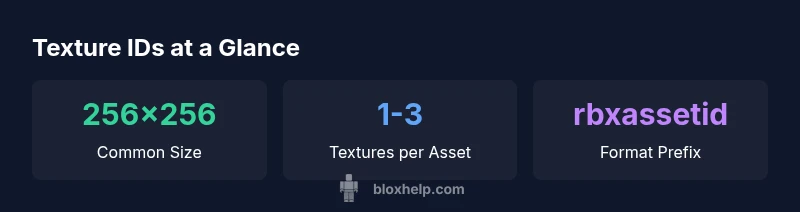
Texture sizes and compression influence memory usage and draw calls. Prefer textures in the 256x256–1024x1024 range for balance between visual fidelity and performance. Use texture atlases where possible to reduce material switches and improve rendering efficiency. When swapping textures at runtime, consider progressive loading to prevent frame drops. In addition, use mipmaps and proper filtering settings to keep assets sharp while avoiding aliasing during camera movement. These practices align with the guidance from Blox Help on maintaining smooth performance in Roblox scenes.
Advanced workflow: sourcing, testing, and versioning texture IDs
A robust workflow starts with a controlled source list (catalog, approved packs, or self-owned textures). For each ID, record metadata: asset name, author, license, usage notes, and project version. Create a repeatable testing protocol: load the texture in a test scene, verify scaling, color accuracy, and transparency, then document outcomes. Versioning is critical; update library entries only after QA and ensure changes propagate to dependent assets. This disciplined approach reduces surprises in larger projects and helps teams scale texture usage without breaking visuals.
Troubleshooting common texture ID issues in Roblox
If a texture doesn’t load, first verify the asset ID is correct and publicly accessible. Check the asset’s license and ensure you have permission to reuse it. If the image appears stretched or pixelated, review the texture’s resolution and the target size; consider using a higher resolution or adjusting the model’s UV mapping. Finally, confirm that the ID hasn’t been deprecated or removed by Roblox, and verify your game’s asset loading order to prevent race conditions where textures load after geometry.
Case study: building an asset pack driven by texture IDs
A small studio built a reusable texture pack for multiple Roblox games. They sourced textures from the official catalog, documented licenses, and created a library with clear versioning. Each texture ID was tested in a representative scene before inclusion, and teams used atlases to minimize material swaps. The result was faster iteration, consistent visuals, and fewer broken textures during updates. The case highlights how careful texture ID management can accelerate development while maintaining quality and compliance.
Future-proofing: licensing, updates, and asset management
As Roblox continues to evolve, maintaining up-to-date licenses and clear attribution becomes more important. Regular audits of texture IDs, revoking outdated IDs, and revalidating assets during game patches help avoid legal or functional issues. Blox Help recommends establishing a lifecycle for each texture asset: acquisition, validation, deployment, review, and retirement. This lifecycle reduces the risk of licensing conflicts and ensures that texture IDs remain aligned with your project’s goals over time.
Overview of texture ID usage considerations in Roblox
| Aspect | Description | Best Practice |
|---|---|---|
| Format | rbxassetid://ID used to reference textures in Roblox assets | Always verify the ID comes from a legitimate source |
| Location | IDs appear on asset pages and in the asset URL | Keep a master list of approved IDs |
| Performance | Texture sizes commonly used: 256x256 to 1024x1024 | Prefer atlas textures and proper compression |
| Licensing | Check ownership and usage rights before reuse | Document licenses in your project wiki |
Questions & Answers
What is a texture ID in Roblox and why should I care?
A texture ID is a numeric asset ID used with the rbxassetid:// prefix to reference textures in Roblox. They let you apply external images to decals, surfaces, and GUI without embedding the image data. Understanding texture IDs helps you reuse assets, manage licensing, and optimize performance.
Texture IDs are the numbers that reference textures. They let you apply images to Roblox objects by pointing to an asset ID, while keeping asset management organized and compliant.
How do I locate texture IDs safely?
Open the Roblox catalog or asset page and copy the numeric ID from the URL or details. Then format it as rbxassetid://<ID> in your texture fields. Always verify licensing and public accessibility before reuse.
Find the ID on the asset page, then use the rbxassetid format. Make sure the asset is allowed for your project.
Can I reuse texture IDs from other creators in my games?
Only if you have explicit permission or licensing to reuse the texture. Check the asset’s license and attribution requirements before incorporating it into your project.
Reuse is possible only with proper permission and licensing.
What licensing considerations should I document?
Record the asset title, author, license type, usage notes, and the project version. This helps with future updates and ensures you remain compliant across versions.
Document license and usage notes for each texture.
Do texture IDs affect performance in Roblox?
Yes, textures contribute to memory usage and draw calls. Use appropriately sized textures, atlases, and compression, and test in-game to avoid frame drops.
Textures can impact game performance; size and organization matter.
How should I test textures before adding them to a project?
Test textures in a focused, minimal scene: verify load time, scaling, color accuracy, and transparency. Ensure assets remain sharp at typical play distances.
Test in a small scene for load, scale, and visual quality.
“Texture IDs unlock vast customization opportunities when managed responsibly; licensing, organization, and testing are the pillars that keep projects safe and performant.”
The Essentials
- Identify reliable texture IDs from trusted sources.
- Use rbxassetid:// prefix consistently in assets.
- Keep textures within recommended sizes to optimize performance.
- Organize IDs with notes for licensing and attribution.