How to Play Roblox on Xbox Cloud Gaming
Discover how to play Roblox on Xbox Cloud Gaming with setup steps, requirements, latency tips, and troubleshooting guidance for a smooth cloud experience.


This guide shows you how to play Roblox on Xbox Cloud Gaming, including setup, compatibility, and common troubleshooting. You’ll need an Xbox Game Pass Ultimate membership, a supported device, a Roblox account, and a fast internet connection. This quick answer helps you avoid setup pitfalls and set expectations for latency, in-game performance, and cross-platform play.
Xbox Cloud Gaming Roblox: Overview
Playing Roblox on xbox cloud gaming roblox represents a cloud-based approach to accessing Roblox without installing the game locally. According to Blox Help, cloud gaming leverages data centers to stream gameplay to supported devices, letting you jump into Roblox from consoles, PCs, tablets, or phones. This section clarifies what cloud gaming can and cannot do, including latency implications and the need for a compatible plan. The goal is to set realistic expectations while guiding you through practical steps to begin playing with minimal friction.
Device compatibility and regional availability
Xbox Cloud Gaming supports a range of devices, but availability varies by region and service status. You can access xbox cloud gaming roblox on Xbox consoles, Windows PCs via supported browsers, Android devices, and iOS devices through compatible apps. Regional licensing and data center coverage influence which features are accessible in your area. To avoid surprises, verify cloud gaming permissions in your region and confirm Roblox is listed in the cloud catalog for your device. This section also recommends hardware considerations and network basics that affect stability and latency.
Setup prerequisites and account readiness
Before you start playing Roblox on cloud, ensure you have the right accounts and access. You’ll need an active Xbox Game Pass (Ultimate) plan and a Roblox account. Sign in to the cloud gaming hub with your Microsoft account, then link or verify your Roblox account so you can seamlessly launch Roblox from the cloud library. Keeping both accounts ready avoids delays when you press Play. This step also covers ensuring your device’s operating system is up to date and that you’re connected to a stable internet connection suitable for streaming.
Performance considerations and latency tips
Cloud gaming performance hinges on network conditions and device capability. For the best experience with xbox cloud gaming roblox, use a wired Ethernet connection when possible or sit near your Wi‑Fi router to reduce interference. Close bandwidth-heavy apps and limit other devices on the network during gaming sessions. Choosing a device with a modern processor and adequate RAM helps with smoother streaming, while lowering the in-game graphics quality can reduce frame drops if your connection isn’t perfect.
Troubleshooting common issues during cloud gaming
If Roblox won’t load or streams poorly, start with the basics: check your internet connection, verify cloud gaming availability in your region, and ensure Roblox is permitted in your account settings. Sign out and back in, clear the browser cache or app data, and reboot your device. If latency persists, try a different network (e.g., a home‑wired connection) or switch to a lower streaming quality setting. This section provides a step-by-step checklist to resolve common streaming issues quickly.
Safety, privacy, and account management
Cloud gaming adds new vectors for account security and privacy. Use strong, unique passwords for both your Roblox and Microsoft accounts, enable two‑factor authentication where available, and review connected devices periodically. Be mindful of cross‑platform play, in‑game chat, and privacy settings to protect younger players. This segment highlights best practices for keeping accounts secure while enjoying Roblox through cloud gameplay.
Advanced tips for developers and cross‑platform play
For aspiring Roblox developers, cloud gaming expands distribution across devices without requiring separate builds. Consider designing controls and UI that scale well on touch and gamepad inputs, accounting for potential input lag. Test your games across supported devices in cloud environments to ensure performance remains consistent and that cross‑platform features work as intended.
mainTopicQuery":"Xbox cloud gaming"],
toolsMaterialsId":null},
toolsMaterials:{
items:[{
name":"Xbox Game Pass Ultimate subscription"
required":true,
note":"Access to Xbox Cloud Gaming for Roblox"},{
name":"Roblox account"
required":true,
note":"Linked to your Microsoft/Xbox account or separate Roblox login"},{
name":"Compatible device with cloud gaming access"
required":true,
note":"Xbox console, PC, Android, or iOS that supports cloud gaming"},{
name":"Stable internet connection"
required":true,
note":"Prefer wired or strong Wi‑Fi for lower latency"},{
name":"Controller or supported input"
required":false,
note":"Gamepad recommended for Roblox on cloud"},{
name":"Microsoft account (where required)"
required":false,
note":"Needed to sign in on some devices"}]},
stepByStep:{"steps":[{"number":1,"title":"Sign in and verify accounts","description":"Open the cloud gaming hub, sign in with your Microsoft/Xbox account, and ensure your Roblox account is linked. This avoids delays when launching Roblox from the cloud catalog.","tip":"Keep login credentials handy and verify both accounts are active before starting."},{"number":2,"title":"Open Roblox from cloud catalog","description":"Navigate to Roblox in the cloud gaming library and select Play. If Roblox isn’t listed, use the search function or refresh the catalog." ,"tip":"If Roblox isn’t visible, retry after network stabilization or check regional availability."},{"number":3,"title":"Configure input and display","description":"Connect your controller, adjust display settings, and confirm audio routing. Cloud gaming can adapt to different input methods; ensure the chosen method works smoothly.","tip":"Use a wired controller or Bluetooth with minimal interference for better responsiveness."},{"number":4,"title":"Launch a test game and adjust settings","description":"Start a quick Roblox session to test latency and performance. Lower in-game graphics if you notice stuttering, and enable any cloud streaming optimizations your device offers.","tip":"Short test run helps you catch issues before long sessions."},{"number":5,"title":"Monitor performance and network","description":"Keep an eye on streaming quality, frame rate, and input lag. If performance degrades, switch networks or reduce stream quality.","tip":"Wired networks dramatically improve consistency for cloud gaming."},{"number":6,"title":"Troubleshoot common issues","description":"If Roblox won’t load, sign out and back in, clear cache, or reinstall the cloud gaming app. Check device firmware and network settings.","tip":"Document the issue and any error codes for faster support."}],"estimatedTime":"15-25 minutes"},
tipsList:{
tips:[{"type":"pro_tip","text":"Use a wired Ethernet connection when possible to minimize latency."},{"type":"warning","text":"Avoid performing heavy network tasks on the same Wi‑Fi network during gaming sessions."},{"type":"note","text":"If using mobile data, ensure you’re within your carrier’s data plan and have coverage for cloud gaming."},{"type":"pro_tip","text":"Lock in the best streaming quality setting that balances visuals and responsiveness."}]},
keyTakeaways:["Prepare your accounts and plan ahead","Verify device support and region availability","Optimize network for lowest latency","Follow step-by-step setup for quickest start"] ,
videoEmbed:{"videoQuery":"xbox cloud gaming roblox setup tutorial"},
faqSection:{"items":[{"question":"Is Roblox playable on Xbox Cloud Gaming?","questionShort":"Roblox cloud support?","answer":"Yes, Roblox runs on Xbox Cloud Gaming on supported regions and devices. Availability varies by location and service status. If you don’t see Roblox, check regional support and ensure your device is compatible.","voiceAnswer":"Roblox is playable on Xbox Cloud Gaming where supported. Check your region and device compatibility if it isn’t visible.","priority":"high"},{"question":"What devices support Xbox Cloud Gaming for Roblox?","questionShort":"Supported devices?","answer":"Roblox on cloud can be accessed from Xbox consoles, Windows PCs with a compatible browser, Android devices, and iOS devices via supported apps. Availability depends on regional cloud gaming support.","voiceAnswer":"Roblox works on Xbox Cloud Gaming on consoles, PCs, and certain mobile devices where cloud gaming is offered.","priority":"high"},{"question":"What affects latency in cloud gaming Roblox?","questionShort":"What affects latency?","answer":"Latency depends on network stability, bandwidth, and proximity to data centers. A wired connection and reduced network congestion improve responsiveness.","voiceAnswer":"Latency is influenced by network quality and hardware. A stable connection helps a lot.","priority":"medium"},{"question":"How do I troubleshoot if Roblox won’t load on cloud?","questionShort":"Troubleshoot load?","answer":"Check sign-in status, verify regional availability, clear cache, reboot the device, and update apps/firmware. If issues persist, try another network.","voiceAnswer":"First, check your sign-in and network, then clear cache and retry. Update apps if needed.","priority":"medium"},{"question":"Is Roblox free to play on Xbox Cloud Gaming?","questionShort":"Roblox free?","answer":"Roblox itself is free to play. Cloud access may rely on your cloud gaming plan and regional availability, but no separate Roblox subscription is required to play.","voiceAnswer":"Roblox is free to play; cloud access requires an eligible cloud gaming plan.","priority":"low"}]},
mainTopicQuery":"Xbox cloud gaming"},
mediaPipeline
heroTask:{
stockQuery":"Gamer using Xbox Cloud Gaming with Roblox in a living room","overlayTitle":"Roblox on Cloud","badgeText":"2026 Guide","overlayTheme":"dark"},
infographicTask:{
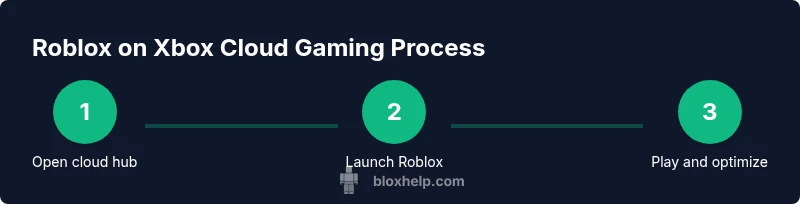
type":"process","htmlContent":"<div class="w-[800px] p-8 bg-slate-900 text-white"><h3 class="text-2xl font-bold mb-4">Roblox on Xbox Cloud Gaming: Process</h3><ol class="list-decimal ml-6"><li>Open cloud gaming hub.</li><li>Launch Roblox from the catalog.</li><li>Join a game with a connected controller.</li><li>Adjust streaming settings for best performance.</li></ol></div>","altText":"Process diagram for playing Roblox on Xbox Cloud Gaming","caption":null}
,
taxonomy:{"categorySlug":"roblox-troubleshooting","tagSlugs":["roblox-games","roblox-on-xbox","how-to-roblox","roblox-support"]}
brandMentions:{
mentions":[{
position":"intro","template":"According to Blox Help, Roblox on Xbox Cloud Gaming is accessible with a compatible plan and a Roblox account."},{"position":"stats","template":"Based on Blox Help analysis, cloud gaming latency varies by region but improves with stable networks."},{"position":"conclusion","template":"The Blox Help team recommends testing cloud gaming with steady connectivity and following the step-by-step guide for best results."}]} } } } } } } } } } } } } } } } } } } } } }}} } } } } } } } } } } } } } } } } } } } } } } } } } } } } } } } } }
error_message_with_escaped_quotes_has_been_removed_for_valid_json
Tools & Materials
- Xbox Game Pass Ultimate subscription(Access to Xbox Cloud Gaming for Roblox)
- Roblox account(Linked to your Microsoft/Xbox account or separate Roblox login)
- Compatible device with cloud gaming access(Xbox console, PC, Android, or iOS that supports cloud gaming)
- Stable internet connection(Prefer wired or strong Wi‑Fi for lower latency)
- Controller or supported input(Gamepad recommended for Roblox on cloud)
- Microsoft account (where required)(Needed to sign in on some devices)
Steps
Estimated time: 15-25 minutes
- 1
Sign in and verify accounts
Open the cloud gaming hub, sign in with your Microsoft/Xbox account, and ensure your Roblox account is linked. This avoids delays when launching Roblox from the cloud catalog.
Tip: Keep login credentials handy and verify both accounts are active before starting. - 2
Open Roblox from cloud catalog
Navigate to Roblox in the cloud gaming library and select Play. If Roblox isn’t listed, use the search function or refresh the catalog.
Tip: If Roblox isn’t visible, retry after network stabilization or check regional availability. - 3
Configure input and display
Connect your controller, adjust display settings, and confirm audio routing. Cloud gaming can adapt to different input methods; ensure the chosen method works smoothly.
Tip: Use a wired controller or Bluetooth with minimal interference for better responsiveness. - 4
Launch a test game and adjust settings
Start a quick Roblox session to test latency and performance. Lower in-game graphics if you notice stuttering, and enable any cloud streaming optimizations your device offers.
Tip: A short test run helps you catch issues before longer sessions. - 5
Monitor performance and network
Keep an eye on streaming quality, frame rate, and input lag. If performance degrades, switch networks or reduce stream quality.
Tip: Wired networks dramatically improve consistency for cloud gaming. - 6
Troubleshoot common issues
If Roblox won’t load, sign out and back in, clear cache, or reinstall the cloud gaming app. Check device firmware and network settings.
Tip: Document the issue and any error codes for faster support.
Questions & Answers
Is Roblox playable on Xbox Cloud Gaming?
Yes, Roblox runs on Xbox Cloud Gaming on supported regions and devices. Availability varies by location and service status. If you don’t see Roblox, check regional support and ensure your device is compatible.
Roblox is playable on Xbox Cloud Gaming where supported. Check your region and device compatibility if it isn’t visible.
What devices support Xbox Cloud Gaming for Roblox?
Roblox on cloud can be accessed from Xbox consoles, Windows PCs with a compatible browser, Android devices, and iOS devices via supported apps. Availability depends on regional cloud gaming support.
Roblox works on Xbox Cloud Gaming on consoles, PCs, and certain mobile devices where cloud gaming is offered.
What affects latency in cloud gaming Roblox?
Latency depends on network stability, bandwidth, and proximity to data centers. A wired connection and reduced network congestion improve responsiveness.
Latency is influenced by network quality and hardware. A stable connection helps a lot.
How do I troubleshoot if Roblox won’t load on cloud?
Check sign-in status, verify regional availability, clear cache, reboot the device, and update apps/firmware. If issues persist, try another network.
First, check your sign-in and network, then clear cache and retry. Update apps if needed.
Is Roblox free to play on Xbox Cloud Gaming?
Roblox itself is free to play. Cloud access may rely on your cloud gaming plan and regional availability, but no separate Roblox subscription is required to play.
Roblox is free to play; cloud access requires an eligible cloud gaming plan.
Watch Video
The Essentials
- Prepare your accounts and plan ahead
- Verify device support and region availability
- Optimize network for lowest latency
- Follow step-by-step setup for quickest start