How Roblox Works on Xbox: A Practical Guide
Learn how Roblox works on Xbox, from setup and controls to cross‑platform play and safety. This comprehensive guide covers installation, performance tips, and troubleshooting for a smooth Roblox experience on Xbox.


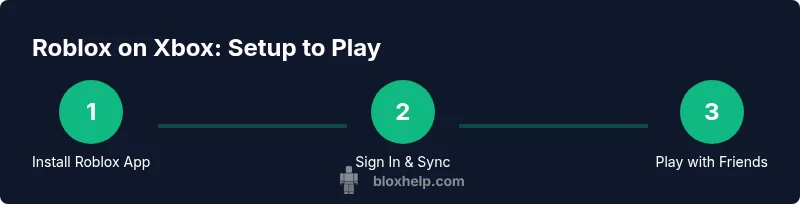
How does roblox work on xbox? Roblox runs on Xbox by launching the Roblox app, signing into your Roblox account, and playing games alongside players on other platforms. You’ll use the Xbox controller, navigate with the home/dashboard controls, and rely on your internet connection for multiplayer. This quick answer covers setup, basic controls, and what to expect across platforms.
What to Expect When You Run Roblox on Xbox
According to Blox Help, Roblox on Xbox brings your existing Roblox account into a familiar, controller-friendly environment. The experience mirrors other platforms in terms of game selection, in-game purchases, and avatar customization, but the input method, user interface, and menus are optimized for the console. You will still access the same player-created experiences, social features, and progression tied to your Roblox account. The key differences lie in navigation, latency considerations, and the expectations of couch‑cozy play versus precise mouse control. Understanding these nuances helps you manage expectations and pick games that map well to a controller. This section also highlights how cross‑platform play works and what you should know about safety and privacy on Xbox while enjoying Roblox.
Cross-Platform Experience and Progression
Roblox uses your Roblox account to synchronize progress, items, and avatar customization across devices. When you sign in on Xbox, your purchases and avatar persist, so you can continue where you left off on PC, mobile, or other consoles. Not all games support every feature or controller layout, but most popular titles in Roblox’s catalog are designed to work well with a gamepad. If a game offers keyboard support, you may still use a connected keyboard for chat or text input, but primary gameplay is designed for the controller. This cross‑platform consistency is a major advantage for players who switch devices, and it aligns with Roblox’s broader ecosystem strategy as explained by the Blox Help Editorial Team.
Prerequisites: What You Need Before You Start
Before you dive into Roblox on Xbox, confirm you have a compatible Xbox console with internet access and an active Roblox account. Install the Roblox app from the Microsoft Store, ensure you’re signed in, and verify your privacy and safety settings are appropriate for your age. The setup flow is designed to be straightforward: install the app, sign in, and browse the catalog using the controller. If you encounter a sign‑in issue, checking your network status and ensuring the Roblox server status is online can save you time. This stage sets the foundation for a smooth, uninterrupted gaming session.
Navigating the Roblox App on Xbox: Controls and UI
The Xbox version of Roblox is designed for controller navigation, with users moving through menus using the left stick and selecting options with the A button. The interface mirrors the on‑screen layout you’d expect on other platforms but is tuned for a living room setup. You’ll use the Xbox Guide button for quick access to friends, chat, and system settings. If you encounter UI lag, ensure you’re using a supported display resolution and that the console has the latest system and Roblox app updates. This section emphasizes practical navigation tips to reduce friction during gameplay.
Safe Play: Privacy, Chat, and Safety Settings on Xbox
Roblox on Xbox integrates Roblox’s safety features with Xbox’s built-in privacy controls. It’s important to review and customize who can chat with you, who can add you as a friend, and what game content is accessible. For younger players, enable stricter chat filters and review the guardian settings if you’re a parent. The Xbox parental controls can also influence what content is visible and how in‑game communication works. This combination of controls helps create a safer, more comfortable experience while you explore Roblox worlds.
Performance and Connectivity: Getting the Best Experience
Stable performance on Xbox depends on a good network connection and a quick hardware refresher. Use a wired Ethernet connection when possible to reduce latency and packet loss, especially for fast‑paced games. If wired isn’t possible, place the console close to your router and use 5 GHz Wi‑Fi for lower interference. Keep the Roblox application and the Xbox system up to date to ensure compatibility with the latest features and bug fixes. For players encountering lag, restarting the app and checking your NAT type can resolve common connectivity issues.
Troubleshooting Common Xbox Roblox Issues
If Roblox on Xbox isn’t loading, try the simplest fixes first: restart the Roblox app, reboot the Xbox, and verify your internet connection. If a game fails to load or keeps disconnecting, check for server status advisories and update the app. Clearing the console cache can resolve stubborn performance hiccups, and reinstalling the Roblox app is a last resort for persistent problems. Keeping a short list of known working settings for your home network can help you quickly reapply stable configurations after a problem arises.
Advanced Tips for Xbox Players: Quick Wins
To optimize your Roblox experience on Xbox, consider a few practical enhancements. Use a wired connection to minimize latency, enable performance modes that reduce background activity, and configure chat filters to reduce interruptions. If you play with friends, coordinate through Roblox groups or party chats to minimize in‑game chaos. Keeping your storage tidy and free of clutter ensures updates and new experiences install without delay. These small changes can dramatically improve stability and enjoyment over longer sessions.
Tools & Materials
- Xbox console with internet connection(Ensure you have an active internet connection and Xbox Live service for multiplayer features.)
- Roblox account(Use the same account across devices; if you don’t have one, create it on a PC or mobile device and sign in on Xbox.)
- Xbox controller(Any official wired or wireless controller works.)
- Roblox app on Xbox(Install from the Microsoft Store and sign in after installation.)
- Stable network (Wi‑Fi or Ethernet)(Wired Ethernet provides the best stability for multiplayer games.)
- Optional headset for voice chat(Headset enables party chat and in-game communication if desired.)
Steps
Estimated time: 20-30 minutes
- 1
Power on console and sign in
Turn on your Xbox and sign in with your profile. This ensures you can access multiplayer networks and synchronized settings. If you’re sharing a console, confirm you’re using your own profile to keep progress and purchases separate.
Tip: Use the Quick Resume feature to jump back into Roblox faster after you test settings. - 2
Install and launch the Roblox app
Open the Microsoft Store, search for Roblox, and install the app. Once installed, launch Roblox from your home screen. If you already have Roblox installed on another device, you’ll sign in to access your account data.
Tip: Ensure you’re on the latest Roblox build by checking for updates before starting. - 3
Sign into Roblox
Enter your Roblox username and password, or use a linked account method if available. Signing in grants access to your avatars, clothing, and game progress across devices.
Tip: If you forget your password, use the account recovery flow on the Roblox site to regain access quickly. - 4
Browse and select a game
Navigate the Roblox catalog using the controller, select a game, and press A to start. Some games are optimized for controllers, while others may play best with keyboard input if you have one connected.
Tip: Look for games with high player counts and recent updates for a smoother experience. - 5
Adjust in-game controls and settings
Once in a game, open in‑game settings to tailor controls, graphics, and audio to your preference. Controller sensitivity and camera options often improve comfort and responsiveness.
Tip: If you have lag, lower the graphics setting slightly to improve frame rate. - 6
Enable cross‑platform features
Many Roblox experiences support cross‑platform progression. Ensure you’re signed into the same Roblox account and check game settings for cross‑play options.
Tip: If a game doesn’t show cross‑play options, it may be limited to a single platform. - 7
Join friends and manage privacy
Use Roblox’s in‑game friends tool or party system to play with friends. Review privacy settings to control who can contact you and what you can share in chat.
Tip: Protect younger players by enabling strict chat filters and friend approval requirements. - 8
Troubleshoot connectivity
If you encounter disconnects, check your network status, ensure your NAT type is open, and verify Roblox server status. A quick router reboot can fix many common issues.
Tip: Prefer a fixed Ethernet connection over Wi‑Fi for best reliability. - 9
Optimize performance
Close unused apps, keep the console updated, and clear cache periodically to prevent slowdowns. Regular maintenance helps Roblox run smoothly during long sessions.
Tip: Restart the console after major updates to apply changes properly. - 10
Sign out securely when finished
Return to the Roblox home screen and sign out if you’re finished playing. This helps protect your account on shared consoles.
Tip: If you’re sharing a device, use a guest account to keep your data separate. - 11
Document issues and next steps
If problems persist, capture screenshots or notes about the issue and refer to official support pages for Roblox and Xbox. This helps when reaching out for help.
Tip: Keeping a brief log of steps you tried saves time when contacting support.
Questions & Answers
Do I need Xbox Live Gold to play Roblox on Xbox?
Roblox on Xbox primarily requires an active Xbox account and internet connection. While Roblox itself is free-to-play, some platform features may rely on Xbox services that are managed through your account status. Check current Xbox policy pages for any region-specific requirements.
You mainly need an active Xbox account and internet. Some platform features depend on your account status, so check your region’s Xbox policies for details.
Can I play with friends on different devices?
Yes. Roblox uses account-based progress, so you can play with friends across PC, mobile, and Xbox as long as you’re signed into the same Roblox account. Availability may vary by game, but most popular titles support cross‑platform play.
Yes. If you’re signed into the same Roblox account, you can play with friends across PC, mobile, and Xbox in supported games.
How do I install Roblox on Xbox?
Open the Microsoft Store on Xbox, search for Roblox, and install the app. After installation, sign in with your Roblox account to access your library and continue progress.
Open Microsoft Store, search for Roblox, install it, then sign in with your Roblox account.
Is cross‑platform progression saved?
Progress, avatars, and purchases are tied to your Roblox account, so they sync across devices when you sign in. Not every game supports every feature, but most core progression persists.
Your Roblox progress is saved to your account and syncs across devices in supported games.
What should I do if Roblox crashes on Xbox?
Restart the Roblox app and the Xbox console, check for updates, and verify your network status. If problems persist, reinstall the Roblox app or contact Roblox support with details.
If Roblox crashes, restart the app and console, check for updates, and consider reinstalling if needed.
Do parental controls affect Roblox on Xbox?
Parental controls can influence chat and privacy settings. Review both Roblox account protections and Xbox privacy settings to ensure appropriate access for younger players.
Parental controls can limit chat and privacy settings; review both Roblox and Xbox settings for safety.
Watch Video
The Essentials
- Sign in on Xbox to sync Roblox progress.
- Install the Roblox app from the Microsoft Store and launch it.
- Use a controller for navigation; expect cross‑platform play.
- Review privacy and safety settings for a secure experience.
- Troubleshoot network and app updates for stability.