How to Block a Roblox Account: A Step-by-Step Guide
Learn how to block a Roblox account safely with practical steps, privacy tips, and when to report abuse. Blox Help provides beginner-to-advanced guidance for Roblox players seeking control over who can interact with them.


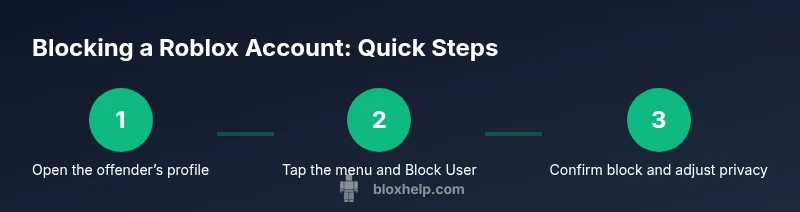
To block a Roblox account, open that user’s profile, click the ellipsis or three-dot menu, select Block User, and confirm. Blocking stops messages, friend requests, and interaction from that account, and it helps keep your experience safe. For stronger safety, review your privacy settings and report serious violations when needed.
Why blocking matters in Roblox safety
Blocking a Roblox account is a straightforward safety tool that puts you in control of your online space. According to Blox Help, using the block feature effectively reduces unwanted contact and helps keep your Roblox experience focused on play and creativity. In Roblox, blocking prevents the other user from interacting with you in most common ways, including messaging, following, and attempting to join your experiences. This is especially important for younger players or anyone who has encountered persistent harassment, scams, or attempts to extract personal information. The block action is reversible, and you can review your blocked accounts list at any time to adjust preferences. Remember, blocking is just one part of a broader safety toolkit that also includes reporting violations, tightening privacy settings, and discussing concerns with a trusted adult if needed.
When blocking is the right move vs. when to report
Not every negative interaction requires a formal report, but certain behaviors deserve a report in addition to blocking. If you see harassment, threats, scams, doxxing attempts, or persistent personal data requests, blocking alone may not stop the behavior. In those cases, use the report feature to alert Roblox’s safety team so they can investigate and take action. Blocking is immediate and private; reporting can trigger a review that may protect other players as well. For ongoing safety, combine both strategies: block first to stop contact and file a detailed report for violations of Roblox rules. If you’re a minor, involve a parent or guardian when you’re unsure how to proceed.
How blocking works: what it changes and what it doesn’t
Blocking affects your direct interactions with the other account. The blocked user can’t send you messages through in-game chat or private messages, can’t follow you, and can’t interact with your profile in most contexts. Blocking does not automatically ban the offender or remove any content they’ve already created or sent to you. It also doesn’t erase past interactions from your own chat history or game logs. Think of blocking as a shield for future interactions, while reporting handles accountability. If you share mutual friends or appear in shared spaces, you may still encounter them in the game world, but direct contact options are substantially reduced.
Platform-specific nuances: blocking on PC, mobile, and consoles
The exact steps to block someone can vary slightly by platform. On PC or Mac, you typically visit the offender’s profile, click the three-dot menu, and choose Block User. On mobile devices, open the user’s profile, tap the menu (often shown as three dots or More), and select Block User from the options. Console versions of Roblox generally align with in-game account safety controls, but the interface may differ by system. Regardless of platform, the key actions are locating the user’s profile, initiating the Block option, and confirming your choice.
Privacy settings you should review to reinforce blocking
Blocking alone may not stop everything; privacy settings let you tailor who can contact you and view your content. In Roblox, check Settings > Privacy to limit who can message you, who can chat with you in experiences, who can join your games, and who can see your avatar and inventory. Activate higher privacy defaults like “Only friends” or “No one” for direct messages if available, especially for younger players. Regularly review these settings after a block, as platform interfaces can evolve. Consider enabling two-factor authentication if available to further secure your account.
Common mistakes and how to avoid them
One common mistake is blocking the wrong account—double-check the username before confirming. Another pitfall is relying solely on blocking without reporting when there’s rule-breaking or harmful behavior. Some players forget to review their blocked list, allowing a blocker to re-contact them via different accounts. Finally, not adjusting privacy settings after blocking can leave room for indirect contact or spam. To stay safer, verify account details, combine blocking with reporting for serious offenses, and routinely audit your privacy controls.
Practical tips for ongoing safety in Roblox
Maintain proactive safety habits alongside blocking. Keep your in-game chats clean by using moderation features and reporting tools whenever you encounter threats. Share parental controls or guardian controls if you’re a minor. Document incidents with dates and screenshots when possible and store them securely. Regularly update your Roblox password and enable two-factor authentication if the option exists. By staying vigilant and using the full suite of safety features, you can enjoy Roblox with reduced risk of unwanted contact.
Tools & Materials
- Device with Roblox access(PC/Mac, iPhone/Android, or tablet; ensure you can access the offender’s profile)
- Updated Roblox app or browser(Use the latest version to access current blocking options)
- Notepad or notes app(Optional to record incidents and dates for reporting)
- Guardian presence (if minor)(Have a parent or guardian review steps if needed)
Steps
Estimated time: 5-12 minutes
- 1
Open the offender’s profile
Navigate to the Roblox profile of the user you want to block. Verify that you have the correct username and view their profile page before taking action.
Tip: Take a moment to confirm the account ID to avoid blocking the wrong person. - 2
Open the menu and select Block User
Click the three-dot menu (or More options) on the profile page, then choose Block User from the list of actions.
Tip: If you don’t see Block User, try refreshing the page or use the in-game safety tools from your profile menu. - 3
Confirm the block and review privacy
Confirm your choice to block the account. Then navigate to Settings > Privacy to reinforce contact limitations (e.g., messages).
Tip: Make a quick note of the block in your records for future reference. - 4
Check the blocked list
Open your privacy or safety settings and locate the blocked users list to ensure the account is listed there.
Tip: If the account isn’t listed, repeat the steps and verify the correct profile was blocked. - 5
Report if needed
If the user has violated Roblox rules (harassment, scams, or threats), use the report function to notify Roblox Safety.
Tip: Attach any evidence (screenshots) when you submit the report.
Questions & Answers
How do I block a Roblox account on mobile?
On mobile, open the offender’s profile, tap the menu (three dots), select Block User, and confirm. The steps are similar to desktop, just adapted to mobile interfaces.
On mobile, open the profile, tap the menu, then Block User, and confirm.
Will blocking someone remove messages they've already sent?
Blocking stops future messages from that account. Previous messages may remain in your chat history, depending on how Roblox stores chat logs.
Blocking stops future messages; past messages may stay in history.
Does blocking hide my profile from the blocked user?
Blocking limits direct contact and interaction, but exact profile visibility depends on your privacy settings. You may still appear in searches or lists in some contexts.
Blocking reduces contact, but visibility depends on settings.
Can I block multiple accounts at once?
No. Roblox requires you to block each account individually from their profile.
You must block accounts one by one.
What should I do if blocking doesn’t stop harassment?
Block the user and file a formal Roblox safety report if they violate rules. Consider adjusting broader privacy settings and consulting a guardian if needed.
If harassment continues, block and report, and adjust privacy settings.
Is blocking permanent or reversible?
Blocking is reversible. You can unblock later if you change your mind, and you can block again as needed.
Blocking can be undone; you can unblock later.
Watch Video
The Essentials
- Block quickly and verify the target account first
- Combine blocking with reporting for rule violations
- Review and tighten privacy settings after blocking
- Keep records of incidents for accountability