How to Unblock a Roblox Player: A Step-by-Step Guide
Learn how to unblock a Roblox player with a clear, beginner-friendly guide. We cover device differences, parental controls, safety tips, and troubleshooting to ensure you can reconnect safely.


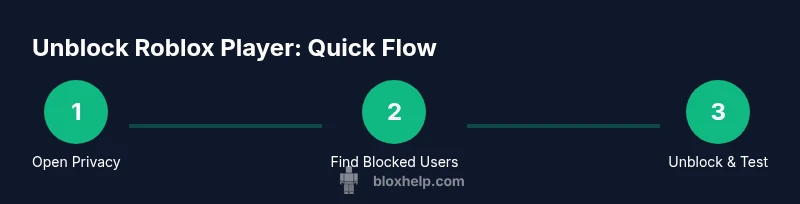
Unblocking a Roblox player involves opening your privacy or blocking settings, locating the blocked user, and selecting Unblock. The process is similar across PC, mobile, and tablet, with minor interface differences. You’ll need a Roblox account and permission to adjust privacy settings. This quick guide from Blox Help shows you exactly how to do it and verify the unblock action.
Why Roblox Player Unblocked Matters
The decision to unblock a Roblox player can re-open lines of communication and restore cooperative gameplay, especially when the person in question is a friend or active team member. For many players, a block was a temporary safeguard during a stressful moment, and unblocking helps reset interactions to a normal, playful rhythm. In practical terms, unblocking removes the restriction on chat, friend requests, and in-game collaboration with that specific user. From a safety perspective, you should re-evaluate ground rules and mutual expectations after unblocking to keep your Roblox experience positive. Remember, the goal is healthier, safer play for everyone involved, not to simply erase a past conflict. As you navigate this, the Blox Help team recommends clearly setting expectations for respectful communication and reporting any continued issues.
How Blocking and Unblocking Works in Roblox
Blocking is a privacy tool that prevents another player from contacting you or joining your gameplay sessions. Unblocking reverses this action, restoring the ability to communicate and play together. It’s important to note that unblocking does not automatically re-add someone as a friend; you may need to send a friend request again if you want that level of access. Different platforms (PC, iOS, Android, consoles) may present slightly different navigation paths, but the core concept remains the same: locate the person in your Blocked Users list and choose Unblock. This distinction is critical for managing your social graph and maintaining a positive community vibe.
Device Variations: Unblocking on PC vs Mobile
On PC, you’ll typically access the unblocking option through your account settings or privacy menu, then scroll to Blocked Users. Mobile apps often place Blocked Users under Privacy or Security in the menu, and you may unblock by tapping the user and selecting Unblock. The exact wording can differ, but the steps are straightforward: open Roblox, navigate to Blocking/Privacy settings, locate the user, and confirm Unblock. If you use a shared device, sign out after completing the action to prevent unauthorized changes by others.
Parental Controls and Account Safety Considerations
If a guardian or parental control setting restricts a user from unblocking, you’ll need to coordinate with the account owner or guardian to adjust permissions. In family-linked accounts, the guardian can restrict certain social features, so unblock actions may require consent or a temporary allowance. Always review your privacy and safety settings after unblocking to ensure new interactions align with your boundaries. For young players, keeping age-appropriate chat filters and reporting tools enabled is essential for ongoing safety.
Best Practices for Future Interactions
Unblocking is only part of the equation. To keep Roblox experiences positive, set clear expectations about communication, consent, and boundaries with others you unblock. Consider establishing a short mutual agreement about chat etiquette, reporting anything that feels unsafe, and using friend requests sparingly to maintain a healthy social circle. Regularly review your Blocked Users and privacy settings to ensure they still reflect your preferences and safety needs. Consistent check-ins, especially after updates or new game releases, help preserve a friendly gaming environment.
Troubleshooting Common Issues
If you can’t find the blocked user, try searching by their display name or user ID, and confirm you’re in the correct account’s settings. If unblocking doesn’t seem to take effect, log out and back in, or try uninstalling and reinstalling the Roblox app. In some cases, a guardian’s controls or a temporary moderation action might override your settings, requiring patience or direct support from Roblox or a trusted guardian. Keep records of any persistent issues to share when seeking help.
Real-World Scenarios: When Unblock Is the Right Move
Consider a scenario where you blocked a teammate after a heated debate during a raid. After cooling off, unblocking can re-enable cooperative play if you both agree to keep conversations constructive. Another common case is unblocking a friend you met in a game session who shares a positive gaming vibe. In each case, the key is to reestablish respectful communication and leverage the reporting tools if conflicts reappear. The goal is to reclaim enjoyable play while maintaining personal boundaries.
Safety, Community Standards, and When to Seek Help
Unblocking should align with Roblox’s community standards. If you notice persistent harassment, bullying, or unsafe behavior, use the reporting tools, mute features, and block options as needed. When in doubt, consult trusted guides like those from Blox Help and Roblox Support to confirm the correct steps and best practices for keeping your account secure and your gameplay fun. Continuous education on safety features helps everyone enjoy Roblox more responsibly.
Tools & Materials
- Roblox account(Ensure you know your username and password)
- Device with Roblox access(PC, tablet, or smartphone; stable internet)
- Access to account security settings(Email or authenticator app if two-factor is enabled)
- Guardian or parental control access (if applicable)(Needed if a guardian manages privacy or blocks)
Steps
Estimated time: 5-10 minutes
- 1
Open Roblox and sign in
Launch the Roblox app or website and sign in to your account. Verifying you’re on the correct profile helps prevent accidental unblocks on the wrong account. If you’re using a shared device, sign out after completing the unblock.
Tip: Use a strong password and enable two-factor authentication where possible. - 2
Navigate to Privacy or Blocking settings
From your profile or account menu, locate the Privacy or Blocking section. This is where you manage who can contact you and who you’ve blocked. If you don’t see it, try searching for Privacy in the settings search bar.
Tip: On mobile, the path may be under a different submenu; look for something labeled Privacy or Security. - 3
Open the Blocked Users list
Within Privacy/Blocking, find Blocked Users. This list shows everyone you’ve blocked. If you don’t see the list, ensure your app is up to date and you’re using the account with blocking history.
Tip: If you have many blocks, use the search function to locate the username quickly. - 4
Select the username and unblock
Tap or click the username you want to unblock, then select Unblock. Confirm when prompted to finalize the action. The user will regain the ability to contact you.
Tip: Double-check the exact spelling of the username to avoid unblocking the wrong person. - 5
Test the unblock action
Have a quick test by sending a friendly message or attempting to join a game together. Ensure chat and gameplay features work as expected. If issues persist, sign out and back in.
Tip: If the other person still can’t interact, they may need to accept friendship or you may have additional restrictions. - 6
Review safety and privacy settings
After unblocking, review your chat filters, friend requests, and reporting options. Reconfigure any settings to reflect your current comfort level and safety needs.
Tip: Set boundaries early to prevent repeat issues; consider muting or reporting if needed.
Questions & Answers
How do I unblock a Roblox player?
Open Roblox, go to Privacy or Blocking settings, find Blocked Users, select the user, and choose Unblock. Confirm to complete the action. Then test messaging or joining a game to confirm it worked.
Open Roblox, go to privacy settings, locate blocked users, tap unblock next to the username, and confirm. Test by chatting or joining a game together.
Does unblocking automatically re-add the user as a friend?
No. Unblocking only restores contact ability; you must send a friend request again if you want to reestablish that connection.
Unblocking doesn’t automatically re-add them as a friend; you’ll need to send a new friend request if desired.
Can I unblock someone if parental controls block me?
If guardians restrict blocking features, you may need their permission to make changes. Check with the account owner or guardian before proceeding.
If parental controls block you, ask the guardian to adjust permissions or unblock the user together.
What happens after I unblock someone?
The unblocked user can contact you again and join your games. If issues recur, use reporting tools or consider muting to manage interactions.
Once unblocked, they can interact with you again. Use reports if problems come back.
How long does it take for changes to apply?
Unblock changes usually apply immediately, but in some cases you may need to sign out and back in to see updates.
Most changes take effect right away, but you might need to sign out and back in.
What if I can’t find the Blocked Users list?
Ensure you’re using the correct account, update the app, and check both Privacy and Security sections. If still missing, contact support.
If you can’t find the blocked list, update the app and verify you’re on the right account. Contact support if needed.
Watch Video
The Essentials
- Unblock via Privacy/Blocking settings across devices.
- Unblock does not auto-refriend; you may need to reconnect as a friend.
- Check parental controls if you can’t access unblocking options.
- Review safety settings after unblocking to maintain a positive experience.