How to Chat in Roblox: A Practical Guide for Beginners
Learn how to chat in Roblox with step-by-step instructions, privacy controls, and safety tips. This educator-friendly guide covers desktop and mobile chat, direct messages, and reporting abuse to help newcomers communicate confidently.


To chat in Roblox, first verify your age-based privacy settings, select an appropriate chat mode, and open the chat box in-game. You’ll learn how to message friends, join group chats, and use direct messages on desktop or mobile. This guide also covers safety tips, reporting harassment, and how to adjust controls so you can communicate confidently while staying safe.
Understanding Roblox Chat: What’s Allowed and Why It Matters
Chat in Roblox adds social and collaborative features to the gameplay, but it is also tightly regulated to protect younger players. How to chat in roblox safely begins with understanding two things: the different chat modes (All Players, Friends, and No Chat) and the privacy settings that govern who can message you. According to Blox Help, most players start with default chat enabled in regions where age restrictions permit, but they may adjust to more restrictive modes when younger siblings use the same device. In this guide, you will learn how to verify your account, how to access the chat box, and how to tailor your experience so you can communicate effectively without compromising safety. The first step is to confirm your age and privacy settings in the account page, because those controls determine which chats you can participate in and who can contact you. By understanding these basics, you’ll avoid common friction points and prioritize a friendly, constructive Roblox community.
Choosing the Right Chat Mode: All Players, Friends, and More
Roblox offers multiple chat modes to accommodate different ages and comfort levels. The common options include All Players (open chat with anyone in-game), Friends (messages limited to your friends), and No Chat (disables chat entirely). Selecting the right mode affects who can initiate conversations with you and who you can message. As you explore, test each mode in a safe game environment to see how it feels in practice. If you’re new to Roblox, starting with Friends can reduce exposure to strangers while you learn the UI and etiquette. Remember, you can switch modes when you’re in Settings or on the in-game privacy panel; changes can take effect immediately in many cases, but some games may require a rejoin to apply.
Enabling and Managing Privacy Settings
Privacy controls are the backbone of safe chat usage on Roblox. Before you chat, visit your account’s Privacy settings and configure who can chat with you, who you can message, and whether direct messages are allowed. Customizing these options helps you avoid unwanted messages and keep conversations within your comfort zone. If you’re under 13, Roblox may enforce stricter defaults; parents or guardians should review these settings together, and you should be mindful of sharing personal information. Based on user activity patterns, keeping your default to Friends only with occasional exceptions for trusted groups is a solid starting point. Periodically review who can contact you and which apps or devices have chat permissions to maintain control as you grow more confident in the platform.
Desktop vs Mobile: Where to Find the Chat Box
The chat box location and behavior differ slightly between desktop and mobile. On PC, press the T key (or click the chat bubble) to bring up the input field, scroll through recent messages, and type your message. On mobile, tap the chat icon in the screen HUD to reveal the input area. In both cases, you’ll see the message history, and you can quickly respond to teammates in the same lobby. If the chat box is hidden, check game-specific settings or accessibility options in the Roblox app to re-enable it. Remember that some games may disable chat entirely for safety or design reasons, so you might need to switch games to test chat features.
Crafting Safe, Respectful Messages
A positive Roblox chat experience starts with thoughtful messages. Keep conversations focused on gameplay, friends, or productively sharing tips. Never reveal real names, addresses, or other personal data, and avoid sensitive topics that could lead to discomfort. Using a friendly tone and simple language helps prevent miscommunication, especially in cross-cultural groups. If you’re unsure about a message, pause before sending, reread, and consider how others might perceive it. For aspiring developers, modeling respectful chat behavior in your games sets a great example for your players and reduces moderation overhead for your team.
Troubleshooting Common Chat Issues
If you encounter issues with Roblox chat, first verify your chat mode and privacy settings. If you can’t message anyone, the problem is likely privacy-related or game-specific. Network problems can also cause chat lag or message dropouts; ensure you have a stable internet connection and reduce bandwidth-heavy activities during play. If you’re blocked by someone, use the in-game menu to mute or report, then reconnect to ensure your settings are applied correctly. In persistent cases, check Roblox’s official status pages or user forums for outages or known issues in your region.
Parental Controls and Safety Tools
Parental controls can help guardians tailor chat access for younger players. When a child uses Roblox, parents can enable stricter chat modes, review contact requests, and monitor messages through linked accounts. If you’re a creator or parent, consider implementing age-appropriate chat features in your games, such as automatic content filtering or a reporting workflow for harassment. Regular conversations about online behavior and privacy hygiene reinforce safe habits and empower players to enjoy Roblox without compromising safety.
Getting the Most From Roblox Chat: Tips for Players and Developers
Chat within Roblox is as much about community design as it is about messages. For players, practice consistent etiquette, avoid sharing personal data, and report problematic behavior promptly. For developers, build in-chat moderation tools, provide clear guidelines in-game, and offer opt-in voice chat only after robust age verification and safety checks. As chat evolves, keep an eye on changing policies and platform updates to stay compliant and create a welcoming environment for new and veteran players alike.
Authority Sources and Safety Guidelines
To support safe online communication, consult official safety guidelines and privacy resources from trusted institutions and game publishers. This section provides a curated list of references that discuss privacy, online etiquette, and reporting mechanisms across platforms.
Best Practices for Community Interaction
A thriving Roblox community depends on respectful dialogue and proactive safety measures. Encourage users to engage constructively, set expectations for tone and content, and practice active moderation in any community you help manage. By modeling responsible chat practices, you contribute to a healthier, more welcoming Roblox ecosystem for everyone.
Tools & Materials
- Roblox account(Create and verify a Roblox account.)
- Stable internet connection(Wi‑Fi or Ethernet with reliable speeds.)
- Device with Roblox access(PC, tablet, or mobile device with Roblox installed.)
- Guardian consent (if under 13)(Check local laws and Roblox policies for your region.)
- Headset or microphone (optional)(Voice chat features depend on age and permissions.)
Steps
Estimated time: 15-30 minutes
- 1
Open Roblox and sign in
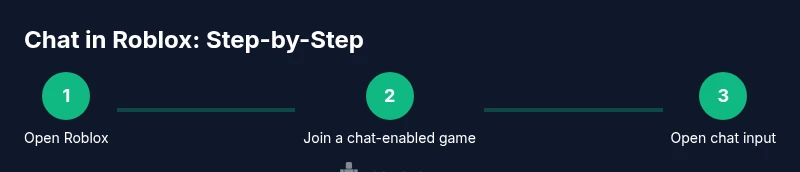
Launch the Roblox client or website and log in to your account. This prepares you to access games and the chat UI. If you’re on mobile, open the Roblox app and navigate to your game library. Best practice is to verify you’re using the latest app version to avoid compatibility issues.
Tip: Keep your login credentials secure and don’t share them with others. - 2
Find a game with chat enabled
Join a game where chat is available in the lobby or game world. Some titles disable chat for safety or gameplay balance. If chat isn’t visible, try another game or check the game’s settings to confirm chat support.
Tip: If you’re unsure, start with a friendly, well-known game to test chat features. - 3
Open the chat input
On PC, press T to bring up the chat box; on mobile, tap the chat icon or bubble to reveal the input field. You should see the chat history and a cursor to type your message. If the box doesn’t appear, check your screen layout or accessibility options.
Tip: If you have trouble, use the on-screen chat button instead of the keyboard shortcut. - 4
Set your chat mode
Open Settings > Privacy (or the in-game privacy panel) and choose All Players, Friends, or No Chat. This controls who can message you and whom you can message. Some games enforce their own rules, so you may need to reselect after joining a new server.
Tip: Starting with Friends mode is a gentle way to ease into chat. - 5
Type and send your message
Enter a concise, respectful message and press Enter to send. Be mindful of others and avoid sharing personal information. If you’re unsure, ask a clarifying question about the game to keep the exchange on-topic.
Tip: Use simple language and avoid slang that might be misunderstood. - 6
Direct messages and group chats
To DM a friend, open their profile or the chat list and select Message. For group chats, join a squad or party chat within the game’s UI. This helps you keep private conversations separate from public chats.
Tip: Only message people you know or have agreed to chat with. - 7
Handle harassment calmly
If someone harasses you, use Block or Report from the user menu. Roblox reviews reports and may take action. Document incidents with screenshots if possible and avoid escalating conflicts outside the platform.
Tip: Taking screenshots provides evidence for reports and helps moderators. - 8
Review settings after play
After your session, revisit Privacy settings to ensure they still match your comfort level. Update as needed to balance connectivity with safety. Regular reviews help you stay in control as you grow more confident in Roblox chat.
Tip: Set a reminder to review settings weekly or after adding new friends.
Questions & Answers
What chat features does Roblox offer, and who can use them?
Roblox provides in-game chat, direct messages, and group chats depending on age and privacy settings. Some features may be restricted if parental controls are active or if a game disables chat. Always start with your current settings and adjust gradually as you gain comfort with the platform.
Roblox offers in-game chat, direct messages, and groups, with some restrictions based on age and settings.
Can younger players chat, and how do age restrictions work?
Age restrictions influence chat availability. If you’re under 13, certain chat features may be limited or monitored. Parents can adjust privacy controls to limit contact, while preserving a safe gaming experience.
Age limits affect which chat features you can use; parents can adjust privacy settings to keep things safe.
How do I report abuse or harassment in Roblox?
Open the in-game menu on an offending player, select Block or Report, and provide details. Roblox reviews reports and takes action when warranted. If the issue persists, document with screenshots and repeat the report.
Use the report tool in-game to report harassment and include details or screenshots.
Is voice chat available in Roblox, and who can use it?
Voice chat availability varies by device, region, and age verification. It is not universally available and may require parental consent and specific privacy settings. Always verify permissions before enabling voice features.
Voice chat isn’t available to everyone; it depends on age, device, and region.
What should I do if I see inappropriate content in chat?
Avoid responding, mute the user if needed, and report the behavior. Roblox moderators review reports and can take action. Community guidelines emphasize respectful, safe communication.
If you see something bad, mute, report, and don’t engage.
How can I customize chat language and filters?
Roblox provides text filtering and language options that you can adjust in Settings. These help tailor the chat experience to your language and safety preferences while playing.
Use the language and filtering options in Settings to tailor chat to your needs.
Watch Video
The Essentials
- Know your chat modes and privacy settings before joining a server
- Use Friends mode first to reduce exposure to strangers
- Access the chat via T on PC or chat bubble on mobile
- Report harassment promptly and use Block/Mute as needed
- Regularly review privacy settings to stay in control