How to Get Rid of Roblox Chat: A Practical Guide
Learn practical, beginner-friendly steps to disable or limit Roblox chat across PC, mobile, and console, using privacy settings, parental controls, and safe-chat best practices.


By the end, you will disable or tightly limit Roblox chat for safer play. This involves adjusting privacy and safety settings, enabling chat filters, and using parental controls where available. Follow the step-by-step methods for PC, mobile, and console to control who can chat, what they can send, and when chat is visible.
Understanding Roblox Chat and Safety Basics
If you’re wondering how to get rid of roblox chat, understanding the safety layers and how chat works on Roblox is essential. Roblox organizes chat around user privacy settings, content filters, and parental controls designed to protect younger players. This section lays the groundwork: what chat is, why you might want to limit or hide it, and how to approach changes with confidence. According to Blox Help Editorial Team, starting with the simplest privacy tweak can reduce unwanted messages without removing all social features. The team found that many players overestimate how much control they have in the moment, while in practice, a few core toggles can dramatically reduce exposure. Throughout this guide, you’ll see practical steps you can take on desktop, mobile, and consoles to keep Roblox chat at a level you’re comfortable with.
Quick Wins: Privacy Settings You Can Use Right Now
Before diving into device-specific steps, there are quick privacy adjustments that apply across platforms. Start by inspecting two core options: (1) who can chat with you and (2) who can message you. Most Roblox accounts allow you to set these to “Friends” or “No one,” which immediately reduces unsolicited messages and chat exposure. If you have a younger player in the family, enable content filters and safety prompts so any incoming messages are screened before you see them. For many players, these two toggles alone drastically limit hazardous or unwanted interactions and buy you time to implement more granular controls later. Blox Help analysis shows that most safety gains come from these foundational settings rather than broad, sweeping changes.
Step-By-Step: Desktop (PC) — Disable Roblox Chat
- Open Roblox on a desktop browser or the desktop app, and sign in. This keeps you within the official privacy controls and ensures changes apply to all sessions. Tip: keep a backup of your current settings in case you want to revert.
- Go to Settings (gear icon) > Privacy. This is the central hub for chat controls; adjust “Who can chat with me” to “Friends” or “No one.”
- Change “Who can message me” to either “Friends” or “No one.” This reduces direct messages and casual chats from strangers.
- Review account-wide chat filters and enable automatic moderation if available. Filters help block inappropriate phrases before they appear in chat.
- If you use parental controls, ensure you enable “Require consent for chats” where present.
- Log out and back in to confirm changes have taken effect across sessions. Pro tip: test by asking a trusted friend to try messaging you.
Step-By-Step: Mobile (iOS/Android) — Disable Roblox Chat
- Open the Roblox mobile app and sign in. This ensures you’re adjusting the same account across devices.
- Tap More (three dots) > Settings > Privacy. The mobile path mirrors desktop but is designed for quick adjustments on the go.
- Set “Who can chat with me” to “Friends” or “No one.” Also adjust “Who can message me” to the same option if available.
- Activate in-app chat filters and any safety prompts, so chat content is screened even if someone you know can contact you.
- If you have Family/Parental Controls, enable them for the mobile app to maintain consistent protection.
- Verify changes by starting a test chat with a friend from another account.
Step-By-Step: Using Parental Controls and Family Settings
- Access the family safety or parental controls portal linked to the Roblox account. This centralizes restrictions for multiple devices.
- Enable age-appropriate restrictions and limit chat at the family level, if the option exists.
- Configure a shared verification step to prevent younger players from bypassing protections.
- Use a “pause” or “lock” period for chat during certain times to reduce risk during homework or bedtime.
- Review the activity logs periodically to ensure chat controls stay in place as Roblox updates permissions.
- Communicate the plan with the child or partner, so everyone understands what is blocked and why.
Advanced Tips: Blocking, Reporting, and Moderation
- Use the built-in block feature to prevent individual users from messaging or chatting with you. This is a targeted approach when a specific user is causing issues. Pro tip: keep a short list of blocked users for quick review.
- Learn the reporting workflow for harassment or abuse. Reporting helps Roblox moderators address problems and protects others.
- Combine block and report actions with privacy settings to maximize protection.
- Keep your app up to date; platform updates often include improved safety features and bug fixes that affect chat controls.
- Share the safety strategy with trusted friends or family, so they can assist if you’re not available.
Common Scenarios and Pitfalls
- Scenario: A friend keeps messaging despite privacy settings. Solution: Reiterate the obscured contact rules and consider moving from “Friends” to “No one” if needed.
- Scenario: You want to keep chat for certain players. Use the “Only Friends” setting where supported, then explicitly unfriend or block individuals who disregard boundaries.
- Pitfall: Relying solely on chat filters. Filters reduce explicit content but do not stop messaging abuse or social manipulation; combine with blocks and reports.
- Scenario: You play with younger family members. Establish a family plan with consistent device-level protection and periodic reviews.
- Pitfall: Settings don’t sync instantly across devices. Always re-check on every device after changes.
FAQs and Quick Troubleshooting
- How do I completely turn off chat in Roblox? Question: To turn off chat, set “Who can chat with me” and “Who can message me” to “No one” on all devices. If available, disable in-game chat as well. Quick answer: use privacy settings across desktop, mobile, and console.
- Can I allow chat with friends only? Yes. Choose “Friends” for both chat and messages to maintain social connections while reducing exposure.
- Will disabling chat affect voice chat or other features? Generally not; voice chat is a separate feature and may have its own safety controls.
- Is there a way to disable chat for a specific game? Some games allow per-game settings, but most controls apply to the account level. Check in-game options if available and combine with account-level restrictions.
- What should I do if someone harasses me after I disable chat? Use the report feature, block the user, and adjust privacy settings further. Save relevant chat logs if needed for evidence.
What I Wish I Knew: Best Practices for Safe Chat
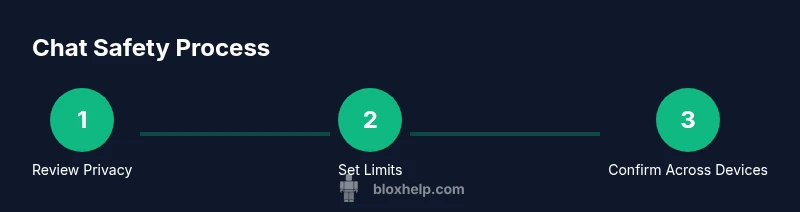
Exploring Roblox chat safety from a planning perspective helps you build a durable protection layer. Start with the two foundational toggles: privacy and messages, then layer in chat filters and parental controls for younger players. Regularly review settings after Roblox updates or new features. Establish a simple ritual to verify protections across devices, and keep a shared “safety plan” with guardians or peers for accountability. Remember that safety is a process, not a one-time setting. By applying consistent checks, you reduce risk and keep play enjoyable for everyone. The Blox Help Editorial Team emphasizes ongoing vigilance and family-aligned routines to maintain a healthy balance between social play and safety.
Putting It All Together: A Safe Roblox Chat Plan
You now have a clear path to how to get rid of roblox chat safely and effectively. Start with core privacy toggles, expand into device-specific steps, and add parental controls to cover family scenarios. Use blocks and reports for ongoing harassment, and schedule periodic reviews to catch updates Roblox releases. The result is a calmer, more controlled chat environment that supports safe social play without sacrificing fun. The Blox Help team recommends keeping harmony between social interaction and protection by revisiting the settings every few months and after major platform updates.
Tools & Materials
- Roblox account(The account you want to adjust the chat settings for.)
- Device with internet access(PC, smartphone, or console where you play Roblox.)
- Privacy settings access(Access via Roblox website or app to adjust chat controls.)
- Screenshots of current settings(Helpful for reference if you plan to revert.)
- Parental control setup (optional)(Useful for family-wide safety planning.)
- Test contact (friend or trusted account)(Use to verify changes across devices.)
Steps
Estimated time: 15-25 minutes
- 1
Open Roblox privacy settings on desktop
Sign in to Roblox.com or the desktop app, then open the Settings menu (gear icon) and navigate to Privacy. This is where you’ll control who can chat with you and who can message you. The action is straightforward and central to your plan.
Tip: Take a quick screenshot of your current privacy settings before changing anything. - 2
Set 'Who can chat with me' to Friends or No one
In Privacy, locate the option for 'Who can chat with me' and select the preferred level of protection. Choosing 'No one' stops new chat from appearing, while 'Friends' limits interactions to known players. This is step one toward a calmer chat experience.
Tip: If you pick 'Friends', ensure your friends list is accurate and up-to-date. - 3
Set 'Who can message me' to Friends or No one
Find 'Who can message me' in the same Privacy area and choose your limit. Messages are a separate channel from in-game chat, so adjusting both is important for comprehensive control.
Tip: Test messaging with a trusted account to confirm the setting took effect. - 4
Enable chat filters and safety prompts
Ensure chat filtering is active and safety prompts are enabled where available. These features help screen content before it reaches you and remind players about appropriate conduct.
Tip: Filters reduce explicit content but do not replace blocking and reporting if problems persist. - 5
Disable or limit in-game chat (where available)
In some games or sessions, you can toggle in-game chat separately from account-wide settings. If present, turn this off or set it to a restricted mode to avoid real-time messages during play.
Tip: Always verify by launching a game and testing chat behavior before proceeding. - 6
Apply parental controls on the platform
If this is a child account, enable family safety settings that enforce chat restrictions across devices. This helps maintain consistent protection even when sibling devices are used.
Tip: Coordinate with guardians to define appropriate boundaries and review them periodically. - 7
Check console-specific options (if applicable)
Xbox, PlayStation, or Nintendo versions may have separate privacy controls. Navigate to the console's privacy or account settings and mirror desktop/mobile changes.
Tip: Consoles often cache settings; re-check after signing out/in. - 8
Test across devices and sessions
Log in on different devices and confirm that the chat restrictions behave as intended. Consistency across platforms is key to real protection.
Tip: Ask a friend to attempt messaging you from another account on a different device. - 9
Document changes and set review reminders
Record what you changed and set a reminder to review settings after platform updates or new features. Regular reviews help maintain a safe environment.
Tip: Keep a simple checklist so you don’t miss any platform changes. - 10
Maintain ongoing safety habits
Establish a routine of checking privacy and chat settings monthly or quarterly. Regular updates help catch new risks and keep your plan effective.
Tip: Pair changes with clear rules for your family or group to maximize safety.
Questions & Answers
How do I completely turn off chat in Roblox?
To turn off chat, set 'Who can chat with me' and 'Who can message me' to 'No one' on all devices. If available, disable in-game chat as well. Always verify by testing from another account.
Go to privacy settings, choose 'No one' for chat and messages, then test with a friend to confirm it's off.
Can I allow chat with friends only?
Yes. Set both chat and messages to 'Friends' to maintain social connections while reducing exposure to unknown users. Remember to review friend lists for accuracy.
Yes—set to 'Friends' to limit interactions to people you know.
Will disabling chat affect voice chat or other features?
Disabling text chat typically does not disable voice chat, but some platforms may separate these features. Check game-specific options if you use voice in Roblox.
Usually unaffected, but check the game’s settings to be sure.
Is there a way to disable chat for a specific game?
Some games offer per-game chat options; if available, use those in addition to account-wide settings. This provides targeted protection while preserving social play in other games.
Some games let you turn off chat without changing overall Roblox settings.
What should I do if someone harasses me after I disable chat?
Use the report feature to document abuse and block the user. Keep screenshots of the interaction if possible and review privacy settings to prevent repeated contact.
If someone harasses you, report them and block, then review your privacy settings.
Watch Video
The Essentials
- Set clear chat/messaging limits per device
- Enable filters and parental controls for comprehensive safety
- Verify changes on all devices to ensure consistency
- Block and report abusive users promptly
- Schedule regular reviews of privacy settings