How to Switch Accounts on Roblox
Learn how to switch between Roblox accounts on desktop and mobile, manage multiple logins securely, and avoid common pitfalls with practical, beginner-friendly steps and tips.


You can switch Roblox accounts by signing out of the current profile and signing in with a different account. This works on desktop or mobile, and you should have the correct username and password for the target account. If you use two-factor authentication, complete that step after signing in. Make sure you’re on a secure device, avoid saving passwords on public or shared devices, and consider enabling two-factor authentication for each account.
Understanding why you might switch accounts on Roblox
There are several legitimate scenarios for switching accounts: you share a family device, you manage separate progress for different players, or you’re testing games as a developer with a separate test account. The process is designed to be simple and quick, but you should treat each account as its own identity with separate credentials and security settings. According to Blox Help, keeping separate sessions helps reduce cross-account mix-ups and keeps progress organized, especially when juggling multiple devices or profiles.
In this guide, you’ll learn how to switch on both desktop and mobile, how to keep accounts secure, and best practices for managing multiple Roblox identities without compromising safety or performance.
Prerequisites and safety considerations
Before you switch accounts, make sure you have the login credentials for the target account and access to a device with a reliable internet connection. Do not save passwords on shared devices, and enable two-factor authentication (2FA) where possible to reduce risk. Use a private browsing window or a dedicated user profile if you’re on a shared computer. If you use Roblox on a mobile device, ensure you’ve updated the Roblox app to the latest version for a smooth sign-in flow.
Desktop: switch accounts on Roblox
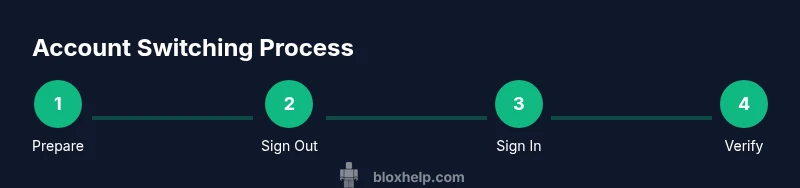
Switching on a desktop is straightforward. First sign out of the current account from the Roblox site or app. Then open Roblox and sign in with the target account’s username and password. If you use 2FA, complete the authentication prompt. Finally, verify you’re logged into the correct account by checking the avatar and user name in the upper-right corner. If you’re using multiple browser profiles, repeat the same steps in the profile you intend to use for that account.
Tip: Use a private window or separate browser profile to avoid cross-session data. Ensure you don’t accidentally save passwords in the browser’s autofill.
Mobile: switch accounts on Roblox
On mobile, open the Roblox app and sign out from the current account through the settings menu. Tap Sign Out, then sign back in with the target account credentials. If 2FA is enabled, complete the two-factor prompt. Confirm you’re viewing the correct profile by visiting the account tab and checking the username and display name. Remember, mobile sessions can differ from desktop, so check each device you use.
Tip: For iOS and Android users, consider enabling biometric login for faster access while keeping security.
Managing multiple Roblox accounts securely
To keep sessions clean, use separate browser profiles or separate devices when practicality allows. Maintain strong, unique passwords for each account and enable two-factor authentication wherever possible. Consider a password manager to store credentials securely and reduce the risk of passwords being exposed. Regularly review active sessions and sign out from devices you no longer use. This habit helps prevent unauthorized access if a device is lost or shared.
Troubleshooting common issues when switching accounts
If you can’t sign in to the target account, use the Forgot Password flow from the Roblox login page and verify access to the linked email or phone number. If you’re signed out unexpectedly, clear cache/cookies or reinstall the Roblox app. For 2FA issues, re-check your authenticator app or backup codes. If progress seems missing, remember each account tracks its own game saves and inventory, so you won’t transfer data automatically.
Best practices for seamless account switching
Plan ahead: know which device you’ll use and ensure credentials are readily accessible in a secure way. Use separate browser profiles or devices for different accounts to prevent cross-session issues. Enable 2FA on all accounts and keep recovery options up to date. Finally, test switching on both desktop and mobile to confirm you’ve set up each account correctly across platforms.
Tools & Materials
- Device with Roblox app or browser(Desktop or mobile device with internet access)
- Roblox account credentials(Username and password for the target account)
- Two-factor authentication (2FA) method(Authenticator app or backup codes (if enabled))
- Password manager (optional)(Helps store and autofill credentials securely)
- Private/secure environment(Avoid saving passwords on shared devices)
Steps
Estimated time: 15-25 minutes
- 1
Prepare credentials and secure environment
Gather the username and password for the account you want to switch to. Ensure you’re on a private device with a stable internet connection and has not saved passwords for public access. If you use 2FA, have your authenticator ready.
Tip: Use a trusted password manager to keep credentials secure. - 2
Sign out of the current Roblox account
Open Roblox and sign out from the profile you’re currently using. On desktop, this is usually in the top-right corner; on mobile, go to Settings and sign out. Signing out ensures the next login can be clean and reduces cross-account data leakage.
Tip: Close all Roblox sessions on other devices if possible. - 3
Sign in with the target account
From the sign-in screen, enter the target account’s username and password. If prompted, complete the 2FA step using your authenticator or backup codes. Confirm the login succeeds and you reach the correct profile.
Tip: If you use a password manager, ensure the correct entry is selected for the account. - 4
Verify you’re on the correct profile
Check the avatar, username display, and any recent activity to confirm you’ve logged into the intended account. This avoids misplacing progress or inventory across accounts.
Tip: Navigate to the account tab to double-check the active user. - 5
Enable or verify two-factor authentication on the new account
If the target account doesn’t have 2FA yet, enable it in the security settings. If it already does, ensure the authenticator is accessible and properly synced.
Tip: Keep backup codes in a secure location separate from the device you use to log in. - 6
Test the session on the current device
Start a quick game or visit a few pages to ensure the session is stable and the account state is preserved. If you plan to switch again soon, consider signing out of other devices for clarity.
Tip: If the session is unstable, restart the app or browser and retry sign-in.
Questions & Answers
Can I switch accounts without closing Roblox completely?
Yes. You can sign out from the current account and sign in with another account without uninstalling or closing Roblox. The sign-in flow is designed to be quick and safe across devices.
Yes, you can sign out and sign back in with a different account without reinstalling Roblox.
What should I do if I forgot my password for the other account?
Use the Roblox password reset option from the sign-in screen and follow the email or phone verification steps to regain access. After resetting, sign in with the new password.
Use the forgot password flow on the sign-in screen, then sign in with the new password.
Is it safe to switch accounts on mobile data networks?
Switching accounts on a secure mobile network is generally safe, but avoid public Wi-Fi for sensitive logins. Ensure 2FA is enabled to add an extra layer of protection.
Yes, but avoid public Wi-Fi and enable two-factor authentication.
Will my progress transfer between Roblox accounts?
No. Progress, inventory, and game saves are tied to each Roblox account individually, so switching accounts will not transfer progress between accounts.
No, each account has its own progress and data.
How many Roblox accounts can I switch between on one device?
You can sign into multiple Roblox accounts on the same device across different sessions or profiles, but you should sign out of each session when finished to avoid confusion.
You can switch between multiple accounts on one device, just sign out of each session when done.
Watch Video
The Essentials
- Sign out before signing in with another Roblox account.
- Use separate devices or profiles to keep sessions clean.
- Enable 2FA on all accounts you manage.
- Store credentials securely with a password manager.
- Test each account on both desktop and mobile to confirm setup.