Logging in Roblox: Safe, Simple Login Guide for Players
Learn how to safely log in to Roblox across devices, troubleshoot common issues, secure your account, and navigate login prompts with practical steps from Blox Help.


You will learn how to log in to Roblox across PC, mobile, and consoles, verify your account, and recover access if you forget your password. Key requirements include a stable internet connection, a verified email or phone, and the correct username. This guide covers common login steps, security tips, and platform-specific tips.
How Roblox Login Works
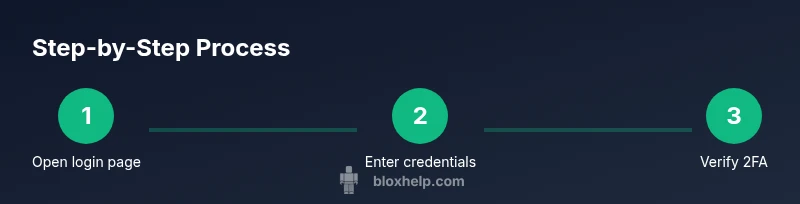
According to Blox Help, logging in roblox is a multi-step authentication that verifies you own the account and protects progress across devices. The core steps are: enter username, enter password, and confirm identity if you have 2FA enabled. On some devices you might also verify via email or authenticator apps. The login flow remains consistent across desktop, mobile, and console, with the interface adapting to each platform. By design, Roblox aims to minimize friction while keeping credentials confidential, ensuring that your game progress and purchases stay securely tied to your account. For players, logging in roblox correctly is essential to access games, inventories, and progress.
Common Login Scenarios
Roblox supports multiple login contexts: desktop browsers, the mobile app, and console interfaces. Desktop sign-in typically uses the official login page on the Roblox site, while mobile users sign in through the Roblox app. Consoles rely on platform-specific sign-in flows, which can differ slightly in layout but share the same underlying security checks. A key distinction to note is usernames versus display names: your login requires your account username, not the name shown to friends. If you enable two-step verification, you may be prompted for codes from an authenticator app or an email link during sign-in.
Troubleshooting Basic Login Issues
Most login problems fall into a few categories: incorrect username or password, missing verification steps, and account status problems. Start by double-checking your credentials for typos and ensuring you’re using the correct login method (username vs. email). If you’ve forgotten your password, use the Forgot Password flow to reset it via email. If you don’t receive a verification code, check your email spam folder or authenticator app, and verify your device’s time is synced accurately. When in doubt, verify Roblox’s service status, as temporary outages can block sign-ins.
Securing Your Roblox Account During Login
Security during login is essential. Use a strong, unique password and enable two-step verification (2FA) so that a compromised password alone cannot unlock your account. Never reuse passwords across different sites, and store them in a reputable password manager. Be vigilant against phishing: never enter credentials on sites that look suspicious, and always bookmark the official Roblox login page. If you’re using shared devices, avoid staying signed in and consider clearing cookies after your session.
Login Across Devices: PC, Mobile, Console
A single Roblox account can be used across multiple devices, but each device should follow the same security practices. On PC, prefer the official Roblox site with a modern browser and enable password management features. On mobile, use the Roblox app for the best experience—keep the app updated and recheck that you’re signed into the correct profile. Consoles follow platform-specific sign-in flows; ensure your profile is the one you intend to play with and that parental controls aren’t blocking login attempts.
Step-by-Step: Desktop Login (Narrative)
- Open a trusted browser and navigate to the official Roblox login page. Ensure the URL is correct and that the connection is secure (https). 2. Enter your Roblox username exactly as it appears on the account, not your display name. 3. Enter your password carefully and verify there are no caps-lock or keyboard layout issues. 4. If prompted, complete the two-step verification using your authenticator app or email. 5. When the session starts, decide whether to keep you signed in on that device, and remember to log out after gaming on shared machines. 6. If you encounter an error, retrace the steps, check your internet, and consider resetting your password if the issue persists.
Tips for a Smooth Login Experience
- Use a password manager to generate and store complex passwords. - Keep your recovery options up to date (email and phone). - Enable 2FA for added protection. - Avoid login on public networks without a VPN. - Always verify you’re on the official Roblox site or app before entering credentials.
Password Recovery and Access Issues
If you forget your password, use the Forgot Password option on the login page and follow the email-based reset flow. If you can’t access the associated email, use recovery options tied to your account (phone number or authenticator). Always confirm you’re using the correct Roblox login page. If you suspect your account is compromised, immediately change your password and review connected devices and recent sign-ins. The Blox Help team recommends proactive security practices to minimize login problems and protect accounts.
Tools & Materials
- Stable internet connection(Wired ethernet or reliable Wi-Fi; avoid public Wi-Fi for security)
- Roblox username(Your account username; not the display name)
- Password(Use a strong password; consider a password manager)
- Two-step verification method(Phone number, authenticator app, or email)
- Device for login(PC, mobile device, or console)
Steps
Estimated time: 10-15 minutes
- 1
Open Roblox login page
Launch your browser or the Roblox app and navigate to the official login page. Check the URL for authenticity (https and correct domain).
Tip: Bookmark the official login page to avoid phishing sites. - 2
Enter your username
Type your account username exactly as created. Display names differ and will not work for login.
Tip: If you’re unsure of your username, check account emails or the profile page. - 3
Enter your password
Enter the password you set for the Roblox account. Watch for keyboard layout or caps lock mistakes.
Tip: Consider using a password manager to ensure accuracy. - 4
Submit and complete 2FA
If 2FA is enabled, enter the code from your authenticator app or email. This step verifies identity beyond the password.
Tip: If you don’t receive codes, check time sync on your device. - 5
Decide on sign-in persistence
Choose whether to stay signed in on this device, especially on shared or public computers.
Tip: Always sign out after playing on shared devices. - 6
Handle sign-in errors
If you see an error, retry after checking internet connectivity. If issues persist, reset your password or contact support.
Tip: Copy the exact error code to speed up support.
Questions & Answers
Why can't I log in to Roblox?
Most sign-in failures come from incorrect credentials, incomplete verification, or account status problems. Start by confirming your username and password, then check whether 2FA is required. If problems persist, check the service status and consider resetting your password.
Common login failures come from wrong credentials, missing verification, or account restrictions. Verify your info first, then try a reset if needed.
What should I do if I forget my password?
Use the Forgot Password link on the login page and follow the email-based reset flow. If you don’t access the email, check spam and ensure your recovery options are up to date.
If you forget your password, use the Forgot Password option and follow the reset steps.
Is two-factor authentication required?
2FA is not required but highly recommended for security. If enabled, you’ll need a code from an authenticator app or email during login.
2FA isn’t mandatory, but it’s strongly advised for extra protection.
How do I log in on mobile vs PC?
Mobile users sign in via the Roblox app; PC users sign in through the official Roblox website. Ensure your accounts are tied to the same login credentials and keep apps updated.
Mobile and PC use different interfaces, but use the same login credentials.
What if my account is hacked?
If you suspect a compromise, immediately change your password, review connected devices, and contact Roblox support if needed. Enable 2FA and secure your recovery options.
If compromised, change password, check devices, and contact support.
How can I verify I’m on the official Roblox login page?
Always access Roblox through the official site or app and bookmark it. Look for https secure connection and correct domain to avoid phishing.
Make sure you’re on the official Roblox site or app and double-check the URL.
Watch Video
The Essentials
- Actively use strong passwords and 2FA.
- Verify you’re on the official Roblox login page.
- Keep recovery options current and secure.
- Logout on shared devices and manage signed-in sessions.
- If issues arise, follow the official Forgot Password flow.