Sign in on Roblox: A Complete Beginner's Guide
Learn how to sign in on Roblox across devices, recover passwords, and stay secure with 2FA. This step-by-step guide covers desktop, mobile, and troubleshooting to keep your account safe.


Sign in on Roblox to access games, avatars, and the Roblox community across devices. This quick guide shows you how to sign in on desktop and mobile, recover a forgotten password, and strengthen your account with basic security steps like enabling two-factor authentication. Follow the steps to avoid common login issues and keep your account safe during each session.
Sign-In Essentials: Why You Need to Sign In
Signing in on Roblox unlocks your personal library of games, saves, outfits, and friend activities. It also links your device and session to your Roblox account, keeping progress consistent across titles. For new players, the sign-in process is the doorway to the full Roblox experience. Before you begin, ensure you have a valid username (or email) and a strong, unique password. In this section we explore the core purpose of sign-in on roblox and how it supports your gaming and development journey.
Desktop Web Sign-In: Step-by-Step
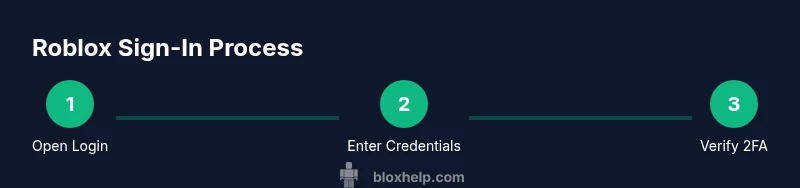
Signing in on a computer gives you the most control and access to Roblox Studio if you’re exploring development. Start by visiting the official login page on a secure browser. Enter your username and password carefully, then click Sign In. If you’ve enabled two-step verification (2FA), you’ll be prompted to enter the six-digit code from your authenticator app. Ensure cookies are allowed and your browser is up to date to avoid common sign-in issues. If you don’t see a Sign In button, refresh the page and try again from a different browser.
Mobile App Sign-In: iOS and Android
Signing in on mobile is designed for convenience while you’re on the go. Open the Roblox app, locate the Sign In option on the home screen, and enter your username and password. Tap Sign In to access your profile, games, and friends feed. If you use 2FA, open your authenticator app to retrieve the verification code and enter it when prompted. If the app remembers your credentials, you may skip re-entry on trusted devices, but never disable 2FA on accounts with sensitive information.
Troubleshooting Common Sign-In Issues
Even with clear steps, sign-in problems happen. Common issues include incorrect username or password, account lockdown after suspicious activity, or expired session tokens. Start by double-checking your credentials, ensuring you’re not using an old password. Clear cache and cookies on desktop, or reinstall the Roblox app on mobile. If you see a specific error code, search Roblox support for that code to find targeted fixes. If you suspect your account was compromised, reset your password immediately and review linked devices.
Password Recovery and Security Best Practices
If you forget your Roblox password, use the Forgot Password link on the login page. You’ll receive a reset link via the registered email or phone, depending on your account settings. After resetting, update your password to a strong combination of letters, numbers, and symbols. Enable two-factor authentication to add a second layer of security. Consider adding backup recovery options and reviewing active sessions to ensure no unknown devices remain signed in.
Sign-In on Other Devices: Console, Chromebook, and More
Roblox supports sign-in across multiple devices beyond PC and mobile, including consoles and Chromebooks. The core flow remains the same: enter your credentials on a secure login screen and complete any 2FA prompts if enabled. On consoles, you may need to link your Roblox account to the platform’s sign-in flow. Always sign out on shared devices to protect your account from unauthorized access.
Quick Security Checklist Before You Sign In
Before you sign in, verify you’re on the official Roblox site or app. Check for HTTPS in the address bar and avoid public Wi-Fi for sensitive logins. Use a unique password and enable two-factor authentication. Regularly review connected devices and recent activity, and beware phishing attempts that imitate the Roblox login page. If something feels off, pause and verify through Roblox support channels.
Tools & Materials
- Device with internet access(Desktop, laptop, smartphone, or tablet with a stable connection)
- Roblox account credentials(Username and password linked to your Roblox account)
- Two-factor authentication method(Authenticator app or backup codes (enable for extra security))
- Secure browser or Roblox app(Keep software up to date for best security and compatibility)
Steps
Estimated time: 15-25 minutes
- 1
Open the Roblox sign-in page
Navigate to the official Roblox login screen on a secure connection. Look for the Sign In button in the top-right corner on desktop or within the app on mobile. Make sure you are on the legitimate site to avoid phishing traps.
Tip: Always verify the URL starts with https://www.roblox.com or use the official Roblox app. - 2
Enter your username
Type the username or email associated with your Roblox account. If you’re unsure which one is linked, check any saved login details in your browser or password manager. Avoid copying from untrusted sources.
Tip: Using your username rather than email can prevent accidental exposure of your email address to phishing sites. - 3
Enter your password
Enter your password carefully. If you suspect someone else knows it, consider changing it immediately after signing in. Do not reuse passwords from other sites.
Tip: If you use a password manager, ensure you’re signing in on a trusted device. - 4
Complete Sign In
Click Sign In to access your Roblox account. If 2FA is enabled, you’ll be prompted to enter the verification code from your authenticator app. Enter the code promptly, as codes rotate quickly.
Tip: Keep your authenticator app accessible but secure; don’t share codes with others. - 5
Handle 2FA prompts
If you don’t have your 2FA device handy, use backup codes if you generated them earlier. If you’re locked out, use the account recovery options in case you can’t access your 2FA methods.
Tip: Set up multiple recovery options (email backup, phone backup codes) for resilience. - 6
Review session and devices
After signing in, review active sessions and recently used devices to ensure no unfamiliar access. Sign out from any devices you don’t recognize.
Tip: Regularly check the account security page to catch unauthorized access early. - 7
Sign out when done
If you are on a shared device, sign out after completing your game session. This reduces the risk of someone else accessing your account.
Tip: On mobile, use the in-app profile menu to sign out; on desktop, log out from the account dropdown. - 8
Optional: enable two-factor authentication
If you haven’t already, enable 2FA for extra protection. This adds an extra step during sign-in and makes it harder for someone to access your account.
Tip: Store backup codes in a safe place—preferably offline or in a password manager you trust.
Questions & Answers
What should I do if I can't sign in because I forgot my password?
Click the Forgot Password option on the Roblox login page and follow the prompts to reset your password via your registered email or phone. After resetting, sign in with the new password and consider enabling 2FA for extra security.
If you forgot your password, use the Forgot Password link on the login page and follow the steps to reset it. Then sign in again and enable two-factor authentication for extra protection.
Why do I get sign-in errors even when my password is correct?
Sign-in errors can stem from expired sessions, cookies, or security settings. Try clearing browser cookies or reinstalling the Roblox app. If the issue persists, check for service status updates from Roblox support.
If you’re seeing errors after entering your password, clear cookies or reinstall the app and try again. If problems continue, check Roblox’s service status.
Is signing in the same on mobile as on desktop?
The basic flow is similar across devices: open the login screen, enter credentials, and complete any 2FA prompts. Some device-specific steps may apply, but the core process remains consistent.
Signing in on mobile and desktop follows the same steps, with minor device-specific differences.
How can I stay secure after signing in?
Keep your password unique and strong, enable two-factor authentication, review linked devices, and sign out on shared devices. Regularly update recovery options in your account settings.
After signing in, use two-factor authentication and review devices to keep your account safe.
How do I sign out when I’m finished?
Open your profile or account menu and select Sign Out. On mobile, use the profile area to log out. If you’re on a shared device, always sign out before leaving.
To sign out, go to your profile and choose Sign Out, especially on shared devices.
Watch Video
The Essentials
- Sign in on Roblox unlocks your personalized content.
- Use desktop or mobile login with the same credentials for seamless access.
- Enable 2FA to dramatically improve account security.
- Always verify the official Roblox portal to avoid phishing.
- Regularly review active sessions for suspicious activity.