How to Follow People on Roblox: A Step-by-Step Guide
Learn how to follow players on Roblox across desktop and mobile. This beginner-friendly guide covers finding profiles, following steps, privacy considerations, and troubleshooting tips for a smoother social experience.


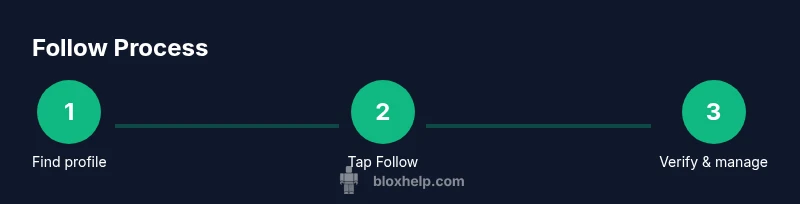
You're about to learn how to follow people on Roblox across desktop and mobile. By following players, you can see their activity and updates in your feed. To get started, sign in to Roblox, locate a user by name or profile, and tap Follow. You can manage who follows you in your privacy settings.
What following means on Roblox
Following someone on Roblox creates a lightweight link between your account and theirs, allowing you to see their public activity, new games, and updates in your feed. It’s a social feature that helps you stay connected with friends, creators, and players you admire without needing to send a friend request. Following is public by default, but you can adjust who can follow you in your privacy settings. As you explore, remember that respectful interactions remain important: only follow people you know or who share content you enjoy. According to Blox Help, building a positive Roblox network starts with intentional following, not random mass following. This keeps your feed relevant and your experience enjoyable while protecting your privacy.
What this means for you: you’ll discover new games, stay updated on collaborators, and build a curated list of players whose content you like. You’ll also gain a better sense of who engages with your own projects if you’re creating content or developing games. In short, following is a lightweight social hook that enriches gameplay without requiring a formal friend request.
Prerequisites before you follow someone
Before you start following people on Roblox, make sure you have a valid Roblox account and an active internet connection. Sign in securely, and consider enabling two-factor authentication for extra security. If you’re using a shared device, log out after your session to protect your account. Familiarize yourself with the basic UI on your platform (desktop or mobile) so you can spot the Follow button quickly. Having a clear goal for who you want to follow—friends, content creators, or builders—helps you curate a meaningful feed and reduces noise from random profiles.
Next, verify your own privacy settings to control who can follow you and who can see your activity. This keeps your Roblox social experience aligned with your comfort level and safety preferences. While following is straightforward, tailoring your settings ensures you’re not overwhelmed by updates you don’t care about. Blox Help’s analysis highlights the value of intentional, privacy-aware social networking in Roblox.
Locating the right profile: friends, creators, and players
To follow someone, you first need to locate their profile. You can search by username using the search bar on the Roblox website or mobile app. If you’re connected as a friend, you might see the person in your Friends tab, where a direct Follow option is often available. For creators or players you discover in games, navigate to their profile by clicking their username in chat, game pages, or group rosters. Profiles display the user’s display name, avatar, and a summary of recent activity. If a profile is private or has limited visibility, you may not be able to follow immediately; respect the user’s privacy settings and try again later if appropriate.
As you search, focus on profiles with public activity you want to follow. Avoid following accounts that appear suspicious or private without a legitimate reason, as this helps keep your feed relevant and safe. Basic due diligence—checking profile pictures, bio content, and recent activity—reduces the risk of following inactive or spammy accounts.
The follow button: where to click and what happens next
On a user’s profile, you’ll usually see a Follow button near the top of the page, often labeled simply as Follow with a small heart icon. Tap or click this button to start following the user. In some cases, you may be prompted to confirm your action, especially on mobile devices where screen space is smaller. After following, the button may change to Following or show an indicator that you’re now following this person. You’ll then see their public updates in your feed. If the user changes their privacy settings or makes their profile private, you may need to return later to re-check your ability to follow.
Pro tip: If you don’t see a Follow button, double-check you’re viewing a public profile and not a restricted or private account. If issues persist, exit and re-enter the profile page to refresh the UI. This small refresh can fix UI hiccups without affecting your account.
Following vs. friending: key differences
Following is a lightweight, non-intrusive way to keep up with a player’s activity, whereas adding a friend creates a stronger link with reciprocal visibility in your network. Following does not automatically grant access to your private games or profile, and it does not require mutual consent. Friends may exchange activities and become visible in both feeds more prominently, but this depends on your respective privacy settings.
This distinction matters when you’re building a Roblox community around creators or teammates. If you primarily want updates from a developer or a friend, following is a fast, low-commitment method. If you want closer collaboration or in-game notifications, sending a friend request and agreeing to mutual terms may be preferable.
Managing your following list and discovery features
Your following list is your curated feed of people you want to keep up with. To manage it, visit your own profile and open the Following tab to review who you’re following and who’s following you. You can unfollow anyone at any time with a simple tap or click on the Following bar and selecting Unfollow. Roblox’s discovery features in Explore or Creator pages can help you discover new players to follow based on shared interests. Regularly reviewing your following list helps keep your feed lively and relevant. If you rely on Roblox for community-building, taking a few minutes each month to refresh this list pays off with a more engaging experience.
Using Roblox on mobile vs desktop
The core steps to follow someone are the same on mobile and desktop, but the UI differs. On desktop, you usually use the profile page with a Follow button at the top. On mobile, the button may appear in a condensed header or within a dropdown menu in the user’s profile. If you’re using tablets or smaller screens, ensure you’ve loaded the latest Roblox app version to access the follow feature reliably. Practice with a couple of test profiles to get comfortable with the flow on both platforms.
Privacy, safety, and etiquette when following
Respect others’ privacy and avoid spamming profiles with follow requests from multiple accounts. It’s best to follow players who clearly share content you enjoy. If a user has restricted profiles, don’t press or try to bypass settings—this can violate platform rules. Maintain a courteous online presence: engage with content thoughtfully, avoid messaging users who do not welcome outreach, and report any harassment or suspicious activity to Roblox Support. Building healthy social habits is essential for a positive Roblox community.
Common issues and troubleshooting when following
If the Follow button doesn’t respond, start with a quick refresh of the page or restart the app. Check your internet connection and ensure you’re signed in correctly. Some profiles may be temporarily inaccessible due to privacy changes or regional restrictions, so try again later. If you suspect a bug, clear cache or reinstall the app on mobile, or clear browser cache on desktop. Finally, consult Roblox Support if you encounter persistent problems.
How following enhances social features in Roblox
Following enhances your social experience by centralizing content from people you care about in one feed. You’ll receive updates about new games, avatar changes, and related activity that aligns with your interests. This feature makes collaboration easier for friends and development teams and encourages exploration of new games based on communities you follow. A well-curated following list turns Roblox into a more personalized social platform without the overhead of managing a large network.
Tools & Materials
- Roblox account(Sign in with your username and password to access the Follow feature.)
- Stable internet connection(Either Wi-Fi or mobile data; avoid flaky connections during profile viewing.)
- Device with Roblox access(Desktop, mobile, or tablet; ensure the app is up to date.)
- Privacy-conscious mindset(Review privacy settings to control who can follow you and what others can see.)
Steps
Estimated time: 5-10 minutes
- 1
Sign in to Roblox
Open Roblox on your device and log in with your username and password. Ensure two-factor authentication is enabled for added security. This establishes your identity so you can follow others and access profile content.
Tip: Use a password manager to keep your login secure. - 2
Find the target profile
Use the search bar to enter the username or navigate via a game or group to the user’s profile. Look for public activity indicators to confirm you’re viewing the right person.
Tip: If you know a creator’s channel or group, start there to narrow results. - 3
Open the profile
Click or tap the user’s name to open their profile page. Ensure you’re viewing a public profile where the Follow option is visible.
Tip: If you don’t see a Follow button, the profile might be private or restricted. - 4
Tap Follow
Click or tap the Follow button near the top of the profile. If prompted, confirm your action. Following creates a feed link without needing a mutual consent.
Tip: On mobile, the button may be tucked into a menu—check the header carefully. - 5
Verify following status
Return to the profile to ensure the button now indicates Following or check your Following list to confirm the new entry.
Tip: If the status doesn’t update, refresh the page or reopen the app. - 6
Manage your Following
Visit your profile and open the Following tab to view who you’re following. Use Unfollow to remove someone if needed.
Tip: Review your following regularly to keep your feed relevant.
Questions & Answers
Can I follow someone who has a private profile?
If a profile is private, the Follow button may be unavailable. Respect the user’s privacy settings and try again later if appropriate.
Private profiles may not allow following; try again later or contact the user through approved channels.
Does following someone notify them?
Following another player generally does not notify them directly. It updates your feed and shows public activity, but it’s not a direct alert or message to the user.
Following is a passive action and usually doesn’t send a notification to the user.
Can I unfollow someone later?
Yes. You can unfollow from the profile or from your Following list at any time. The action is instantaneous and won’t affect friendship status.
Absolutely, you can unfollow anytime from the profile or your Following list.
Is following global or local to my account?
Following is tied to your Roblox account and is visible in your feed across devices. It isn’t public to everyone unless you share posts or profiles.
Following is linked to your account and persists across devices.
What should I do if Follow isn’t working on mobile?
First, refresh the app and check your internet connection. If the problem persists, clear cache or reinstall the app, and verify you’re signed in.
Refresh, check connection, and consider reinstalling if it doesn’t work.
Can I see who follows me?
Roblox primarily shows who you follow and who follows you under your profile. This helps manage your own network and discover new players.
You can view your followers in your profile's follower section.
Watch Video
The Essentials
- Follow players with public activity to stay engaged.
- Differentiate between following and friending for safety and privacy.
- Regularly review your Following list to keep it relevant.
- Use mobile or desktop UI but maintain consistent safety practices.