Roblox Sign In: Complete Guide for 2026
Learn how to sign in to Roblox across desktop, mobile, and console. This guide covers common errors, password recovery, security best practices, and device-specific steps to ensure quick, secure access in 2026.


By the end of this guide, you will confidently sign in to Roblox on any device, recover access if you forget your password, and troubleshoot common sign-in errors. You’ll learn the exact steps for desktop, mobile, and console, plus quick security tips to protect your account. According to Blox Help, a smooth sign-in experience begins with correct credentials and device compatibility.
Why Roblox sign in matters
Signing in to Roblox is the gatekeeper to every game, avatar customization, progress tracking, and access to your purchases. A solid sign-in routine protects your progress across devices and keeps your account linked to your email and recovery options. In 2026, players often switch between desktop, mobile, and console, so a reliable sign-in flow is essential for continuity. When you’re signed in, you can revisit your favorite games, save settings, and sync content across platforms. The security and reliability of the login process affect your entire Roblox experience. This is why understanding the sign-in flow and common pitfalls matters for both new players and aspiring developers. According to Blox Help, a methodical approach to logging in reduces friction and supports a smoother Roblox journey.
Supported sign-in methods across devices
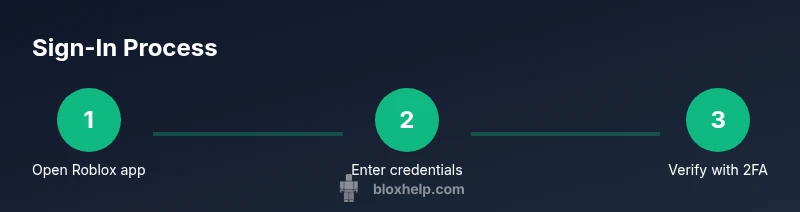
Roblox supports signing in with a username or email along with a password, and in many cases you can opt into two-factor authentication (2FA) for extra security. Across devices, the core flow remains consistent: open the Roblox client or website, choose Sign In, enter your credentials, and complete any identity-step the platform requests. On mobile, use the official Roblox app for your sign-in; on desktop, sign in through the browser or app; and on consoles, you typically sign in via the Roblox app on the console and may be guided through the platform’s authentication prompts. Keeping your recovery email up to date helps with password resets and identity verification if you ever forget your credentials. For developers guiding others, emphasize that device compatibility and a stable internet connection are prerequisites for a smooth sign-in.
Common sign-in errors and causes
Most sign-in issues fall into a few categories: incorrect credentials (username/email or password), an disabled or restricted account (e.g., age restrictions or policy flags), or temporary outages on Roblox’s side. Network problems, DNS issues, or outdated apps can also block login attempts. If you recently changed your password, signs of confusion often come from cached credentials in browsers or apps; clearing cache and signing out of other sessions can fix that. If you still can’t sign in, verify that you’re using the correct email or username and that your account isn’t locked. Remember that time zones and device clocks affecting two-factor prompts can cause mismatches.
Step-by-step: sign in on desktop
- Open your preferred desktop browser or the Roblox desktop app. 2) Click Sign In on the upper-right corner of the page. 3) Enter your Roblox username or email and your password. 4) If 2FA is enabled, enter the verification code from your authenticator app or email. 5) Click Sign In and wait for confirmation. 6) If you encounter an error, use the password reset flow or check Roblox’s status page.
Why this helps: Desktop sign-ins benefit from a larger screen, easier typing, and a straightforward password reset path if needed. Tip: use a password manager to avoid typos and store recovery options securely.
Step-by-step: sign in on mobile
- Open the Roblox app and tap Sign In. 2) Enter your username or email and password. 3) Complete any two-step verification if enabled. 4) Tap Sign In and confirm you’re logged in. 5) If you’re prompted to update the app, follow the on-screen instructions to ensure compatibility. 6) If sign-in fails, try resetting the password from the mobile browser and then attempt again.
Why this helps: Mobile sign-ins require reliable mobile data or Wi-Fi and up-to-date app versions for a smoother experience. Pro tip: enable biometric login if available for one-tap access in future sessions.
Step-by-step: sign in on console
- Launch the Roblox app on your console. 2) Navigate to Sign In. 3) Enter your username or email and password via the on-screen keyboard. 4) Complete any platform-specific verification if prompted. 5) Confirm Sign In and test a quick game to verify access. 6) If you run into issues, sign out from the console and attempt the login again after a quick restart.
Why this helps: Console sign-ins often rely on the platform’s authentication flow; keeping the console OS updated reduces compatibility issues. Pro tip: avoid signing in on shared public consoles to protect your account.
Security best practices for sign-in
- Use a unique, strong password for Roblox and store it in a password manager.
- Enable two-factor authentication (2FA) to add a second verification layer.
- Keep your recovery email and phone number up to date so you can recover access quickly.
- Sign out of Roblox on shared devices and avoid saving credentials in browsers.
- Be cautious of phishing attempts; Roblox will never ask for your password in unsolicited messages.
Why this helps: Strong credentials and 2FA dramatically reduce the chance of unauthorized access, especially when you switch between devices.
Troubleshooting quick fixes for sign-in problems
- Check Roblox’s status page to rule out outages that affect sign-in services.
- Clear cache and cookies (desktop) or clear app data (mobile) if you’re repeatedly prompted for login details.
- Ensure your device time and region settings align with Roblox regional expectations.
- Update the Roblox app or browser to the latest version.
- If needed, reset your password using the official password recovery flow and re-attempt sign-in.
Why this helps: Sometimes the problem is local (cache, clock, or outdated software) rather than account-based; these fixes often resolve the issue quickly.
Keeping your Roblox sign-in experience accessible and safe
Accessibility and account safety go hand in hand. Use screen reader-friendly labels on sign-in fields, enable high-contrast display if you need it, and ensure that you can reach password reset options easily. For developers and players with accessibility needs, test sign-in flows across devices and document any friction points. The Blox Help team emphasizes consistency across platforms and clear guidance in case a user runs into trouble. By following best practices, you ensure not only a smooth sign-in but also a safer, more inclusive Roblox experience for everyone.
Tools & Materials
- Roblox account username or email(Use the email associated with the account if you don't remember the username.)
- Password(Current password for the Roblox account; if forgotten, use password reset.)
- Working device with internet access(PC, smartphone, tablet, or console with Roblox app or browser.)
- 2-Step Verification app or backup codes(If you enable 2FA; have access to authenticator app or backup codes.)
- Access to email or phone for verification(Needed if you reset password or verify identity.)
- Updated browser or Roblox app(Ensure software is up to date to avoid sign-in issues.)
Steps
Estimated time: 15-25 minutes
- 1
Verify credentials
Ensure you’re using the correct username or email and the right password. A simple typo is a common cause of sign-in failures. If you recently changed your password, verify you’re using the new one and not an old cached credential.
Tip: Use a password manager to copy-paste credentials to avoid typos. - 2
Open Roblox sign-in page
Navigate to the Roblox sign-in screen on your device. On desktop, use a browser or the Roblox app; on mobile, open the Roblox app; on consoles, access Sign In through the Roblox app.
Tip: Bookmark the official sign-in page to avoid phishing sites. - 3
Enter credentials and sign in
Enter your username or email and password, then complete 2FA if enabled. Wait for the system to verify your identity and grant access.
Tip: If 2FA codes aren’t arriving, check your authenticator app’s time sync. - 4
Handle 2FA and verify identity
If prompted, enter the 2FA code from your authenticator app or email. This step adds extra security for your account.
Tip: Keep backup codes in a secure location. - 5
Troubleshoot sign-in errors
If sign-in fails, attempt a password reset and retry. Check your internet connection and the device clock, then reattempt.
Tip: Refresh connection and re-enter credentials carefully. - 6
Check device compatibility
Verify your device supports the Roblox app version you’re using and that it’s updated. Incompatibility can block sign-in.
Tip: Update to the latest version to maintain compatibility. - 7
Test another device
If one device fails, try signing in on another device to determine whether the issue is device-specific.
Tip: Sign out from the first device before trying on a second one. - 8
Contact support if needed
If you’re still unable to sign in, contact Roblox Support with details about the error and steps you’ve taken.
Tip: Provide screenshots and error codes to speed up assistance.
Questions & Answers
Why can't I sign in to Roblox?
Common reasons include incorrect credentials, an disabled account, or a temporary service outage. Also check your internet connection and device compatibility. If issues persist, use the password reset flow.
Sign-in issues usually come from wrong credentials, a disabled account, or service outages. Check your connection and try a password reset if needed.
How do I reset my Roblox password?
Click Forgot Password on the sign-in page, enter your username or email, follow the steps sent to your email, and then sign in with the new password. Ensure you complete any 2FA prompts after reset.
Go to the sign-in page, tap Forgot Password, follow the prompts sent to your email, and sign in with the new password.
What should I do if I forget my username for Roblox?
Use the email associated with your Roblox account to retrieve or reset your login details. Check your inbox for any Roblox account lookup messages from Roblox Support.
If you forgot your username, check the email linked to the account for a username lookup message or use password recovery to re-link your account.
Is two-factor authentication available for Roblox sign-in?
Yes, you can enable two-factor authentication in your Roblox account settings. After enabling, you’ll enter a code from an authenticator app or email when signing in.
Yes, Roblox supports 2FA; enable it in your account settings for added security.
Can I sign in on multiple devices at the same time?
You can sign in on multiple devices, but some sessions may require re-authentication. If you sign out from one device, you may need to sign in again on others.
Yes, you can sign in on several devices, but some sessions might require reauth; sign out on one device if you’re done using it.
Watch Video
The Essentials
- Verify credentials before signing in
- Use a compatible device with a stable internet connection
- Enable two-factor authentication for security
- Reset password via official flow if you forget credentials
- Clear cache/app data if sign-in prompts repeat