Roblox with Friends: A Practical How-To Guide
Learn practical, beginner-friendly steps to play Roblox with friends—from setup and inviting teammates to safe group play, cross-device tips, and troubleshooting.


According to Blox Help, playing Roblox with friends boosts collaboration, creativity, and confidence. This guide shows you how to connect with friends, join games, and keep play safe across devices. It covers privacy settings, cross‑platform invites, and quick fixes for common issues so you can start playing together quickly.
Why Roblox with Friends Elevates Play
Playing Roblox with friends is more than just shared screens; it’s an opportunity to collaborate, learn, and practice teamwork in a game environment that rewards creativity and problem solving. Based on Blox Help analysis, group play tends to increase engagement and make problem solving more enjoyable because players communicate ideas, assign roles, and coordinate actions in real time. When you play with friends, you can experiment with game modes, share strategies, and celebrate small wins together. This social dimension is especially helpful for younger players who are building confidence in digital spaces and learning how to work as a team.
Prerequisites for Multiplayer Sessions
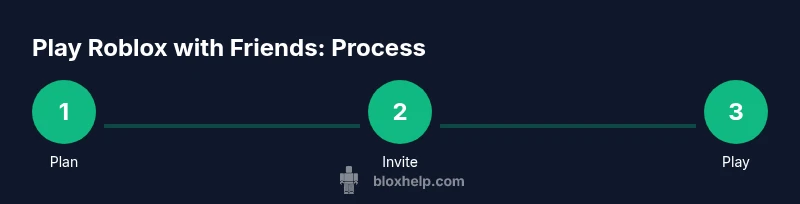
Before you start a multiplayer session, make sure every player has a valid Roblox account and a stable connection. Each player should review privacy settings to match the planned level of interaction—for example, limiting chat to Friends when playing with teammates you know well. Create a simple plan for the session: decide which game to play, set a rough time limit, and confirm everyone’s availability. Having a shared goal and clear expectations helps reduce confusion and keeps the group focused.
How to Invite Friends and Join Games
Start by ensuring all potential teammates are on your Friends list or can tap into your custom group. In the Roblox app, search for each player by username and send a friend request; once accepted, you can invite them to a game directly from the game lobby or from your Friends tab. For cross‑platform sessions, confirm that everyone has access to the same game version and that any required passes or purchases are present on each account. If you run into issues, restarting the game or re-sending the invite often resolves minor connection hiccups.
Communicating Effectively in a Group
Clear communication is the backbone of successful group play. Establish a simple call‑and‑response protocol: one person calls a task, another confirms, and a third executes. Use concise, specific commands rather than open-ended requests to reduce confusion. If you’re using voice chat, agree on duration and muting rules to minimize background noise. For longer sessions, designate a moderator to keep conversations on track and share the session plan at the start.
Handling Cross-Platform Play and Privacy
Roblox supports cross‑platform play, but some games may behave differently depending on device. Check compatibility before inviting teammates on mobile, console, or PC and keep the game’s privacy settings aligned with the group’s norms (e.g., only Friends can chat in some contexts). Encourage all players to disable sharing of personal information and to report any harassment in accordance with Roblox’s safety tools. If someone has a platform limitation, choose a game that runs smoothly on everyone’s device.
Safety, Etiquette, and Responsible Play
Safety and etiquette go hand in hand when playing with friends. Teach younger players to guard personal information, use in‑game reporting when necessary, and respect others’ boundaries. Maintain a friendly, inclusive tone, and establish group rules at the outset—no rude language, no pressuring others to share details, and no sharing of private contact information. Regularly review privacy settings and remind players how to mute or block problematic users. The goal is to enjoy shared experiences while staying safe.
Beyond Playing: Collaborative Fun and Learning
Games that encourage cooperation—like building projects or collective adventures—offer chances to practice planning, task delegation, and creative problem solving. Consider setting a mini‑project for the group: design a simple obstacle course, host a scavenger hunt, or co-create a themed world in Roblox. Such activities teach project management, iteration, and constructive feedback. The Blox Help team notes that structured group play often yields greater learning gains and longer retention in Roblox activities.
Quick-Start Safety and Continuity Tips
To keep sessions smooth and safe, start with a short test run, confirm everyone can join, and agree on a basic chat protocol. Schedule sessions in advance and keep a shared calendar or chat thread for reminders. If a session falls apart due to a connectivity hiccup, pause for 5–10 minutes to reconnect, then resume with a quick recap of the plan. The goal is consistency and positive shared experiences that build tech literacy over time.
Tools & Materials
- Roblox accounts for every player(Each player must have an active, verified Roblox account.)
- Stable internet connection(Reliable network access for all devices involved.)
- In-game privacy settings configured for group play(Set chat and interaction permissions to match the group's needs.)
- Friend list access and established connections(Ensure players can see and invite each other easily.)
- A session plan(Decide on games, objectives, and timeframes before starting.)
- Parental controls configured if minors(Review safety settings and adjust as needed for younger players.)
- Optional voice chat tool(Headset or mic for clearer communication if all players consent.)
Steps
Estimated time: 25-40 minutes
- 1
Create a shared plan
Decide on a game or activity, set a rough timeframe, and assign roles if helpful. Document who is leading, who will join, and what success looks like for the session.
Tip: Put the plan in a common chat thread or calendar reminder to keep everyone aligned. - 2
Invite teammates
Open the game’s lobby or the Friends list, select each friend, and send an invitation. Confirm they have access to the game and any required passes.
Tip: If someone hasn’t accepted yet, send a gentle reminder after a few minutes. - 3
Join together in the same session
Once all invites are accepted, coordinate a join time and use the group chat to announce readiness. Confirm everyone is loaded and ready before starting.
Tip: Use a quick failover plan in case someone’s device is slow to load. - 4
Define roles and rules
Assign roles (e.g., leader, builder, navigator, note‑taker) and set group rules to keep play respectful and organized.
Tip: Roles can rotate in future sessions to keep everyone engaged. - 5
Communicate clearly during play
Keep messages concise, use commands like 'move left' or 'follow me' instead of vague requests, and mute when not speaking to reduce background noise.
Tip: A dedicated moment for feedback after key pulls or rounds helps improve teamwork. - 6
Wrap up and plan next session
Review what went well, note any issues, and schedule the next session. Save any creative ideas for future builds or challenges.
Tip: Document improvements to repeat successful strategies next time.
Questions & Answers
How do I add friends in Roblox?
Open the Friends tab, search for usernames, send a friend request, and wait for acceptance. Once added, you can invite them to games and sessions.
Open the Friends tab, search for usernames, and send a request. After they accept, you can invite them to games.
How can I invite friends to a game?
From your game, use the invite or join options to select friends. Ensure both are on compatible versions and privacy allows invites.
In-game, choose Invite Friends and pick them from the list.
What about cross-platform play?
Roblox supports cross‑platform play, but some games may behave differently by device. Confirm compatibility before inviting everyone.
Roblox supports cross‑platform play, but check game compatibility.
How can I stay safe while playing with friends?
Limit chat to Friends, avoid sharing personal information, and report harassment. Use parental controls if minors are involved.
Limit chat to friends and report anything unsafe.
What should I do if I can't join with friends?
Check your internet, verify you and your friend are on the same server region, and confirm you have access to the same game. Restart if needed.
Check internet, region, and access; restart if problems persist.
How do I plan a long-term Roblox group session?
Set a regular schedule, assign roles, and save session notes. Use a group chat to coordinate future activities.
Schedule sessions, assign roles, and keep notes.
Watch Video
The Essentials
- Plan sessions with friends for better coordination
- Set privacy settings before inviting teammates
- Invite and join games with clear, concise steps
- Define roles to organize teamwork
- Prioritize safety and respectful play