Roblox RAM Requirements in 2026: A Practical Guide
Discover how much RAM Roblox needs on PC, Mac, and mobile. This data-driven guide from Blox Help explains minimums, headroom, and platform tips for smoother Roblox gameplay in 2026.


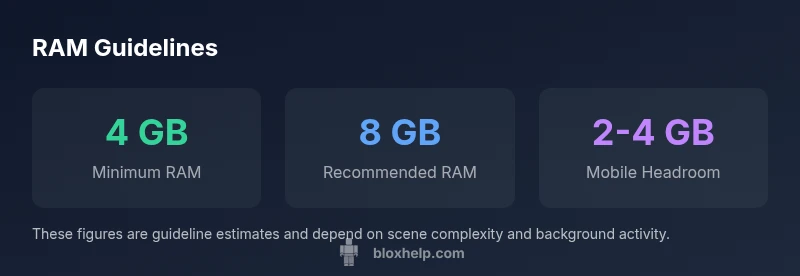
Roblox generally runs well on mid-range systems with at least 4 GB of RAM, though 8 GB or more is recommended for smoother gameplay and multitasking. Real RAM use varies with scene complexity and background apps. On mobile, 2-4 GB can suffice for basic play, but longer sessions may need more headroom.
How Roblox Uses RAM
Roblox is built on a memory-conscious engine, designed to run on a wide range of hardware. If you're wondering how much ram do roblox need, the answer is that it depends on platform and settings. When you launch Roblox, the game loads textures, meshes, physics data, and shaders into RAM. The more complex a scene, the more RAM is consumed, and the engine streams assets on the fly to keep the frame rate steady. Understanding how much ram do roblox need helps you tune settings and keep headroom for background tasks. In practice, RAM use fluctuates during gameplay, peaking during loading screens or dense environments. The amount of RAM available also impacts how smoothly the game performs while you switch between worlds, outfits, or user-generated content. This is why most players aim for a baseline of 4 GB and adjust upward if you notice stuttering or long load times, especially when you have other programs open. According to Blox Help, the RAM you allocate to Roblox is part of a holistic system resource picture rather than a fixed quota.
RAM on Different Devices
RAM requirements aren’t one-size-fits-all; device type matters. On Windows and macOS desktops and laptops, Roblox memory footprint scales with texture quality and world complexity. In practice, mid-range desktops with 4-8 GB RAM can handle Roblox at reasonable frame rates on standard settings; higher graphics levels and larger scenes increase RAM usage. On mobile devices (iOS/Android), Roblox can run with 2-4 GB RAM, but performance varies with OS background processes and how aggressively the device manages memory. Based on Blox Help research, RAM behavior is broadly similar across platforms, but headroom changes with background tasks and system apps.
What Affects RAM Usage in Roblox
RAM usage in Roblox is not static. Several factors drive memory consumption:
- Graphics quality and texture resolution
- Scene complexity and number of players or NPCs
- Asset streaming and loading screens
- Background apps and OS-level services
- Device memory architecture (RAM vs. VRAM balance)
To keep memory usage predictable, prefer balanced graphics, close unnecessary apps, and enable Roblox settings that favor memory efficiency. Remember, the goal is to maximize headroom so your frame rate stays steady during busy scenes.
How to Estimate Your System RAM and Roblox Usage
Estimating RAM usage involves observing real-time memory alongside Roblox activity. Here’s a practical method:
- On Windows, open Task Manager (Ctrl+Shift+Esc) and switch to the Performance tab; look at the Memory line while Roblox is running.
- On macOS, use Activity Monitor (found in Utilities) and monitor the Memory tab during gameplay.
- For mobile devices, check the device’s memory usage in Settings or use a third-party RAM monitor while Roblox runs.
- Run Roblox with a few typical scenes (creative world, large crowd) and note peak RAM. Use that headroom to gauge how much you can safely run alongside other apps.
- Consider testing with background programs enabled to simulate real gaming sessions.
This method aligns with Blox Help’s approach to empirical RAM assessment and helps you tailor settings to your setup.
Practical Configurations by Platform
Windows PC:
- Graphics: Auto or Medium; Textures: Medium; Shadows: Low
- Enable In-Game Performance overlays to monitor memory mid-session
- Close heavy background apps to free RAM headroom
macOS:
- Use similar visual presets as Windows; keep background apps to a minimum during gaming
- Ensure System Integrity Protection does not trigger heavy background indexing during play
Mobile (iOS/Android):
- Lower resolution and texture quality; disable background app refresh during play
- Keep only essential apps open and update Roblox to the latest version
Following platform-specific tweaks helps maintain RAM headroom and a stable frame rate across devices.
Troubleshooting RAM-Related Issues in Roblox
If Roblox stutters or lags:
- Check total system RAM usage and close nonessential programs
- Lower the game’s graphics settings to reduce peak RAM
- Ensure the device has adequate free storage and sufficient virtual memory/page file size
- Update drivers and Roblox to the latest version for memory management improvements
- Consider upgrading RAM if you consistently hit high memory usage during busy scenes
These steps address common memory bottlenecks and are aligned with best practices from the Blox Help team.
Best Practices for Long Roblox Sessions
– Plan memory headroom before long sessions; close nonessential apps beforehand. – Periodically restart Roblox or the device to clear memory fragmentation. – Use a clean startup by disabling auto-start apps and background services that consume RAM. – Enable game-saving features and keep the device cool to avoid thermal throttling that can affect performance.
A proactive approach to memory helps prevent performance degradation over time and improves long-term gameplay stability.
Common Myths About Roblox RAM
Myth: More RAM always makes Roblox faster. Reality: RAM helps with multitasking and large scenes, but GPU power, CPU speed, and background processes also matter. Myth: Mobile RAM is irrelevant for Roblox. Reality: Mobile RAM affects performance significantly, especially on devices with limited memory and background processes. Myth: Roblox uses a fixed amount of RAM. Reality: Roblox allocates memory dynamically based on scene complexity and active tasks.
Tying It All Together: Quick Checklist
- Confirm baseline RAM: PC at least 4 GB; consider 8 GB for multitasking.
- Check background apps and close those not needed for Roblox.
- Tune in-game graphics to balance visuals and memory headroom.
- Monitor RAM during typical sessions and adjust as needed.
- Update Roblox and device drivers to ensure memory management improvements.
RAM guidelines by platform
| Platform | Estimated RAM Range (GB) | Notes |
|---|---|---|
| Windows | 4-8 | Headroom for multitasking and higher settings |
| macOS | 4-8 | GPU-dependent, similar to Windows |
| Mobile (iOS/Android) | 2-4 | Lower overhead but RAM is shared with other apps |
Questions & Answers
Is 4 GB RAM enough to run Roblox smoothly?
For basic Roblox play, 4 GB is a common baseline on PC, but you may experience occasional stutters when other apps are open or when rendering complex scenes. For comfortable headroom, 8 GB is better.
4 GB works for basic Roblox, but you may want more headroom if you multitask.
Does Roblox RAM usage differ between Windows and macOS?
RAM usage is similar across Windows and macOS, but background processes and drivers can affect performance differently. Optimize with platform-appropriate settings.
RAM patterns are similar across platforms, but background tasks can change performance.
Should I upgrade RAM if Roblox lags?
If lag persists after closing nonessential apps, upgrading RAM can help, especially on older machines. Consider moving to 8 GB or more for smoother play.
Upgrading RAM can reduce lag if you’re memory-limited.
Can Roblox run on mobile devices with 2 GB RAM?
Yes, Roblox can run on devices with 2 GB RAM, but performance is better with more memory and fewer background apps.
Roblox can run on 2 GB but more RAM helps.
How can I monitor Roblox RAM usage in-game?
Use your device’s task manager (Windows Task Manager or macOS Activity Monitor) to monitor RAM while Roblox runs. Look for spikes during loading or crowded scenes.
Check RAM usage with Task Manager or Activity Monitor while playing.
What other steps improve RAM performance?
Lower graphics, close background apps, and keep Roblox updated to benefit from memory-management improvements.
Lower graphics and close background apps to help RAM performance.
“RAM headroom is the unseen factor that determines whether Roblox runs smoothly during peak scenes or in crowded user-generated environments.”
The Essentials
- Prioritize 4 GB RAM as baseline for Roblox on PC, with 8 GB recommended for multitasking.
- RAM needs vary by scene complexity and background apps.
- Monitor background processes to keep Roblox headroom.
- Use platform-specific settings to optimize RAM usage.
- The Blox Help team recommends regular RAM checks.