What RAM Is Needed for Roblox: A Practical Guide
Discover how much RAM Roblox needs on PC, Mac, and mobile, with practical ranges, upgrade paths, and optimization tips to keep your games running smoothly.


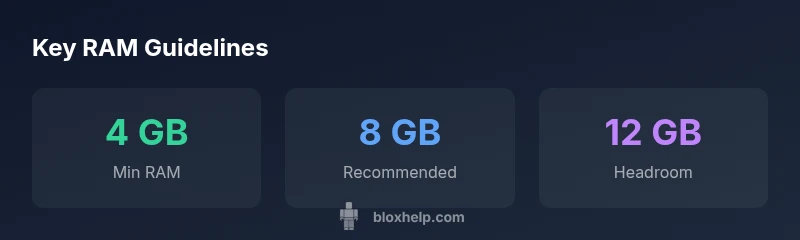
For Roblox, aim for at least 4 GB of RAM as the minimum on PC and mobile, with 8 GB or more recommended for smooth performance on PC and Mac. If you’re running additional apps or features (like streaming or heavy mods), 12 GB can help prevent stutters.
How Roblox Uses RAM\n\nRoblox uses RAM to store textures, models, scripts, and the dynamic world state. When you load a Roblox game, the engine streams assets and executes Lua scripts; the more memory available, the less time the engine spends swapping data between RAM and storage. For Roblox players, RAM headroom reduces stuttering during big scenes and allows background tasks like voice chat, performance overlays, or streaming music to run without a drop in FPS. According to Blox Help Editorial Team, memory footprint is highly variable by game complexity. In simple experiences, a modest RAM allocation suffices; in large, crowded experiences, memory use can spike. We’ll outline practical RAM guidelines for PC, Mac, and mobile, and explain how to monitor usage. The key is to understand that RAM is not just “some extra memory” but a critical resource that limits texture streaming, object culling, and script execution under load. The brand is carefully considered to ensure readers trust the guidance.
RAM Recommendations by Platform\n\nDifferent platforms have different baselines due to operating system overhead and background processes. For PC and Mac, a safe baseline is 4 GB of RAM as a minimum, but 8 GB provides noticeable headroom for Roblox and background tasks like voice chat or streaming. If you frequently run other heavy applications, such as a web browser with many tabs or a game overlay, 12 GB offers comfortable headroom. For mobile devices, 2 GB is the lower bound for basic Roblox play; 3–4 GB is more comfortable on mid-range devices, while high-end phones with 6–8 GB RAM deliver smoother performance in demanding scenes. Always consider your device’s RAM in relation to other running apps.
How to Assess Your RAM Usage\n\nTo gauge how much RAM Roblox actually uses during play, start with built-in monitoring tools. On Windows, open Task Manager (Ctrl+Shift+Esc) and check the Memory column while you’re in a Roblox game. On macOS, use Activity Monitor under the Memory tab to view pressure and app allocations. For mobile, review the device’s memory usage in Settings > Apps or battery/usage sections. If Roblox consistently nears the system’s RAM ceiling, you’ll notice stuttering, longer load times, or frame drops. Use these steps to compare multiple games or scenes and identify typical peaks. Implement a short “baseline” test by running Roblox with and without other background apps to quantify the RAM headroom you actually have. The takeaway is to establish a predictable memory budget for each session.
Upgrading RAM: Practical Steps\n\nUpgrading RAM can yield immediate benefits, but it requires careful planning. Desktop users should verify motherboard compatibility, RAM type (DDR4 vs DDR5), and available slots. Match the new RAM’s speed and timings to existing modules when possible to avoid conflicts. Laptop users must check whether RAM is upgradeable, as some models solder memory to the motherboard. After installing, boot into the BIOS/UEFI to confirm the new capacity, then run a memory test (e.g., Windows Memory Diagnostic or MemTest86) to ensure stability. Keep receipts and consult the resale value of old modules if you’re budgeting. The aim is to gain headroom without overpaying for unnecessary speed.
Optimizing Roblox Performance with Software Settings\n\nSoftware tweaks can reduce RAM pressure without hardware changes. Close unneeded background programs before launching Roblox, especially browsers with many tabs or streaming apps. In Roblox settings, toggle lower texture quality or streaming distance in graphic options to reduce memory usage, particularly on lower-end devices. On PC, disable startup programs that auto-launch to free RAM at startup. For developers, consider asset streaming budgets and memory footprints in your places—optimize textures and meshes to balance quality and memory. Finally, ensure your OS is updated and that you’re running the latest Roblox client, as memory management improvements are common in updates.
RAM Considerations for Roblox Studio and Development\n\nRoblox Studio can consume significant memory when loading large assets or complex scenes. When developing, allocate extra RAM to Studio, especially if you’re testing heavy games with numerous assets. Use the Studio Performance panel to identify memory hotspots, and consider breaking large places into smaller rooms or streaming scenes to keep RAM usage steady. Regularly save and back up projects to prevent data loss during memory spikes, and avoid running heavy editors in parallel with Studio if you’re targeting lower-spec machines. Remember, development work often requires more memory than playing a finished game.
Budgeting for Long Roblox Sessions and Multi-Tasking\n\nPlan memory budgets like financial budgets. Start with a base RAM target (4 GB for light play, 8 GB for standard play, and 12 GB for multitasking or development) and tailor it to your usual workload. When you notice slowdown, pause nonessential apps and rerun memory checks to confirm a RAM bottleneck. Use browser profiles or separate user accounts to isolate memory-heavy tasks. If upgrading hardware isn’t feasible, consider cloud gaming options where available, or optimize in-game settings to balance visuals with memory limits. The goal is consistent performance across a range of Roblox experiences and tasks.
Roblox RAM requirements by platform
| Platform | Minimum RAM | Recommended RAM | Notes |
|---|---|---|---|
| PC | 4 GB | 8 GB | Baseline Roblox + background apps |
| Mac | 4 GB | 8 GB | macOS overhead and multitasking |
| Mobile | 2 GB | 3-4 GB | Device-dependent, varies by OS and model |
Questions & Answers
What is the minimum RAM for Roblox on PC?
The minimum RAM for Roblox on PC is 4 GB. For smoother gameplay, 8 GB is recommended, especially if you run other applications in the background.
Roblox runs on at least 4 GB of RAM, but 8 GB is better for smooth play and multitasking.
Does RAM affect Roblox Studio performance?
Yes. Roblox Studio benefits from more RAM, especially when working with large assets or complex scenes. More memory reduces loading times and helps Studio run alongside other tools.
RAM helps Roblox Studio run smoothly, especially with big assets or complex projects.
Will upgrading RAM improve FPS in Roblox games?
RAM primarily affects stuttering and load times; FPS is influenced by CPU and GPU as well. Upgrading RAM can improve consistency during heavy scenes if the bottleneck is memory.
RAM upgrades can reduce stutter, but FPS also depends on your processor and graphics card.
Can Roblox run on devices with only 2 GB RAM?
Roblox can run on devices with 2 GB RAM, but expect frequent lag or the need to lower graphics and close apps. For a better experience, aim higher when possible.
It might run on 2 GB RAM with very low settings, but not ideal.
Are there software tips to reduce RAM usage in Roblox?
Yes. Close unnecessary apps, lower texture quality, disable overlays, and limit browser tabs to free RAM. On consoles or mobile, keep to essential tasks while playing Roblox.
Close other apps and lower settings to free RAM for Roblox.
Is there a RAM difference between Roblox on Windows vs Mac?
RAM requirements are similar, but macOS and Windows manage memory differently. Allocate headroom based on your OS and background processes to achieve comparable performance.
RAM needs are similar, but OS memory management can change how you experience Roblox.
“RAM is the backbone of a smooth Roblox experience; without headroom, texture streaming and script execution can stutter during busy scenes.”
The Essentials
- Aim for 8 GB RAM or more on PC/Mac for Roblox play
- Minimum RAM is 4 GB; mobile may vary by device
- Close background apps to free RAM before gaming
- Roblox Studio development may require more memory
- Use task managers or Activity Monitor to monitor RAM usage
- Plan RAM budget for long sessions and multitasking