How to Fit Roblox: Practical Guide to Setup, Storage, and Performance
Learn how to fit Roblox on any device with practical steps for setup, storage management, performance tuning, and safety. This guide covers PC, Mac, mobile, and console tips to keep Roblox smooth and fun.


Goal: fit Roblox on your device by balancing performance, storage, and safety across platforms. This guide shows checks for compatibility, installation steps, and practical tips to reduce lag while preserving game quality. By following the steps, you’ll optimize settings, manage space, and enjoy Roblox on PC, Mac, mobile, or console with a smoother, more reliable experience.
Assessing Your Device and Goals
According to Blox Help, fitting Roblox on a device means balancing performance with storage, network usage, and safety. Begin by identifying your primary device (PC, Mac, Android, iOS, or Xbox) and how you plan to play: casual games, intense UGC builds in Roblox Studio, or multiplayer sessions. This helps decide where to optimize first—graphics, data usage, or storage. Consider your daily routines: do you mostly play at home, on the go, or both? A clear goal keeps you from overloading a device with settings that aren’t needed for your use case. Also, verify your device is updated to the latest firmware and OS version, as updates often address performance and security concerns. The goal is a stable, enjoyable Roblox experience without frequent slowdowns or interruptions.
Understanding Roblox System Requirements and Platform Variations
Roblox is designed to run on a wide range of devices, but performance varies by platform. On PCs and Macs, you’ll have more control over graphics and frame rate, while mobile devices emphasize battery life and touch controls. Consoles like Xbox offer a streamlined experience but may have stricter storage constraints and network requirements. Always check the official Roblox support pages for the minimum expectations and any platform-specific notes. In practice, you’ll want to balance resolution, texture detail, and effects to maintain smooth gameplay. If you’re targeting family devices with mixed ages, consider enabling parental controls to keep content appropriate and set daily play limits. The takeaway is to tailor your settings to the platform you use most to maximize comfort and reliability.
Storage and Local Data Management for Roblox
Storage management is a practical first step to ensure Roblox fits comfortably on your device. Start by checking available space and removing unnecessary apps or files. Use built-in tools to clear temporary files and cache associated with Roblox and your web browser if you play through a web launcher. Consider moving large, infrequently played assets to an external drive where possible, and keep Roblox data localized to your device’s primary storage for faster access. Regularly reviewing game downloads and installed assets helps prevent unexpected space shortages that would force performance throttling or install failures. In short, clear space, manage cache, and keep only what you actively use.
Optimizing Graphics and Performance Across Devices
Fine-tuning graphics is one of the most impactful ways to fit Roblox on slower hardware. Start with the in-game settings: reduce texture quality, shadows, post-processing effects, and draw distance. If your device supports it, enable a frame rate cap to prevent the engine from overworking the GPU under heavy scenes. On PCs, updating graphics drivers and ensuring background processes aren’t consuming CPU or memory can yield noticeable gains. For mobile devices, choosing a balance between visual clarity and battery life is key; avoid high-refresh-rate modes if heat or power consumption becomes a concern. The core idea is to adjust until you reach a consistent and comfortable frame rate while preserving enough visual fidelity for an enjoyable experience.
Roblox on Mobile and Console: Tips for Tight Spaces
Mobile gaming demands careful resource management. Install Roblox from the official app store and keep it updated to benefit from performance patches. Close background apps to conserve RAM and battery life, especially during long gaming sessions. On consoles, ensure you have adequate free storage and a stable network; some games may load assets on the fly, so a brief pause at the start of a session can reduce stuttering later. If you use a controller, calibrate it in the device settings to avoid input lag. By prioritizing platform-specific optimizations, you’ll experience fewer performance dips and smoother gameplay across devices.
Networking, Bandwidth, and Stability
Multiplayer Roblox sessions depend heavily on a stable network connection. Use a wired Ethernet connection when possible, or sit close to your Wi‑Fi router to reduce interference. If you’re on mobile, disable other data-heavy apps during play and, if available, switch to a 5G connection for lower latency. Regularly test your internet speed and ping to Roblox servers, and adjust in-game settings if you notice lag during peak times. If you share a network with others, coordinate play windows to minimize contention. The practical approach is to maintain a reliable link and monitor performance cues to decide when to tweak settings or your route.
Safety, Parental Controls, and Age-Appropriate Settings
Protective setups help ensure Roblox fits your family’s needs. Use account safeguards, enable chat filtering, and set age-appropriate content restrictions through parental controls. Review friend requests and privacy settings to limit interactions that may occur in multiplayer environments. If children will be playing, establish time limits and screen breaks to prevent overuse and eye strain. Documented guidance from the Blox Help Editorial Team emphasizes consistent safety practices as part of a fit Roblox experience, particularly for younger players who might be more sensitive to in-game interactions.
Troubleshooting Common Fit Issues: Lag, Crashes, and Unexpected Shuts
When Roblox misbehaves, a systematic approach saves time. Start with the simplest fixes: restart the device, ensure Roblox is updated, and verify your network is stable. If you still see lag, lower in-game settings further and close background apps. Crashes after an update may require reinstalling the game or rolling back to a stable version if available. Check for known issues on Roblox support pages and community forums before attempting advanced changes. A methodical, calm process often resolves most fit-related issues without requiring new hardware.
Planning Your Roblox Play: Schedules and Routines
Fit Roblox into a busy life by building a simple play schedule that aligns with device maintenance windows. Dedicate a half-hour for setup validation each week: check updates, review storage, and adjust settings as needed. Use reminders to prevent forgotten maintenance; when you approach a session, confirm your device is charged and your network is ready. For families, coordinate play times to avoid conflicts with other bandwidth-heavy activities. The result is a predictable, enjoyable Roblox routine that respects your device’s health and your time.
Tools & Materials
- Roblox-enabled device(PC, Mac, iOS, Android, or Xbox with latest OS/game updates)
- Stable internet connection(Wired Ethernet preferred; otherwise strong Wi‑Fi signal)
- Official Roblox app/launcher(Install from official app store or Roblox site)
- Charger or power backup(Keep devices charged during long sessions)
- Headphones or speakers(For audio clarity and social features)
- External storage (optional)(Move large assets or backups if space is tight)
Steps
Estimated time: Total time: 30-60 minutes
- 1
Prepare your device
Check that your device supports Roblox on its current OS version and that you have the official app or launcher installed. Close nonessential apps to free up memory before starting.
Tip: Doing this first prevents background processes from stealing resources during setup. - 2
Free up storage
Review installed apps and large files. Delete or move anything you don’t need. Clear Roblox cache if applicable on your platform to reclaim space.
Tip: Keep a small buffer of free space to allow Roblox to load assets smoothly. - 3
Install and update Roblox
Install from official sources and ensure you’re on the latest version. Run a quick check to verify the install completed without errors.
Tip: Enable automatic updates where possible to maintain compatibility. - 4
Tune graphics and performance
Open in-game settings and reduce texture quality, shadows, and effects. Cap the frame rate if the option exists and enable any platform-specific performance modes.
Tip: Test with a light game first and gradually raise settings until you hit stability limits. - 5
Optimize network settings
Prefer a wired connection or place your router for best signal. Limit other devices’ usage during gaming, especially streaming or large downloads.
Tip: If you notice lag, try a different network channel or restart your router. - 6
Manage background activity
Close apps running in the background that are not essential during Roblox play. Disable auto-updates for non-critical programs if needed.
Tip: Background tasks can cause spikes in CPU or memory usage, impacting Roblox performance. - 7
Test with a simple Roblox game
Launch a lightweight game to verify stability. Observe FPS, load times, and input responsiveness.
Tip: If issues arise, revert to lower settings or retry after a short reset. - 8
Establish safety and parental controls
Set age-appropriate controls and privacy limits. Review chat options and friends lists to protect younger players.
Tip: Document safety configurations and share them with guardians for consistency. - 9
Schedule regular maintenance
Create a weekly routine to check updates, storage, and performance. Keep a log of settings that work well for your setup.
Tip: A predictable maintenance cadence prevents drift and preserves fit over time.
Questions & Answers
Do I need a powerful PC to run Roblox smoothly?
Roblox runs on many devices, but performance hinges on graphics settings and game demands. You can improve experience by lowering details and ensuring drivers are up to date.
Roblox works on many devices, and you can boost performance by lowering graphics and keeping drivers current.
Can Roblox be optimized to run on limited storage?
Yes. Clear cache, remove unused assets, and consider moving large files to external storage if available. Regularly review installed games to keep space available.
Yes, you can optimize for limited storage by clearing cache and keeping only essential data.
What is the best graphics setting for performance?
Lower graphics settings generally yield higher FPS and smoother play, especially on older devices. Start with a medium setting and adjust incrementally while testing stability.
Lower graphics usually improves performance; start medium and test stability as you adjust.
How can I tell if Roblox is using too much bandwidth?
Monitor data usage on your router or device during play and note any spikes during multiplayer sessions. Adjust settings or limit other devices if lag appears.
Watch for data spikes during multiplayer and adjust as needed.
Are parental controls easy to configure?
Yes. Roblox offers configurable privacy and safety options. Set age-appropriate limits, restrict in-game chat, and review friend requests regularly.
Parental controls are straightforward to set, including chat and privacy options.
What should I do if Roblox crashes after an update?
Try restarting the device, reinstalling Roblox, or rolling back to a stable version if available. Check official channels for known issues and fixes.
If Roblox crashes after an update, restart, reinstall, or roll back if possible, and check for official fixes.
Watch Video
The Essentials
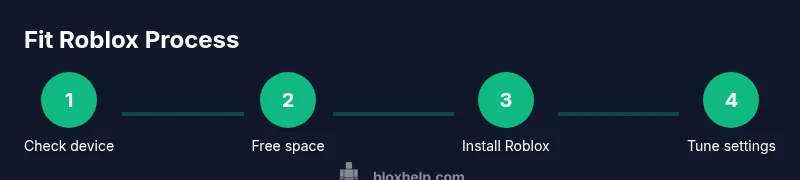
- Check device compatibility and platform usage first.
- Free up storage and manage cache to fit Roblox data.
- Tune graphics and network settings for stable performance.
- Use parental controls and safety features from the start.
- Implement a small weekly maintenance routine.