Can You Age-Restrict Roblox? A Step-by-Step Guide
Explore whether Roblox supports age restrictions and how to safely manage access with parental controls, account restrictions, and device-level settings for a child-friendly Roblox experience in 2026.


Roblox does not offer a global age lock for every account. You can still protect younger players by enabling parental controls, turning on Account Restrictions, using a PIN, and pairing device-level safety features. This approach tailors Roblox to a child’s age, limits chat and purchases, and reduces exposure to age-inappropriate content. The aim is safer play, not a universal lock.
Understanding age-restriction vs safety controls
The question can you age restrict roblox is common among parents who want to balance exploration with safety. Roblox does not offer a global, platform-wide age lock for every account. Instead, safety relies on a layered approach that combines account-based settings with device-level controls. According to Blox Help, there isn’t a single switch you flip to limit Roblox purely by age; you tailor protections to the individual account and the family’s rules.
This distinction matters because age-appropriate play is best achieved by combining several tools: per-account restrictions, chat filtering, purchase limits, and the parent’s oversight. In 2026, families increasingly expect flexible controls that adapt as a child grows. The rest of this guide explains how to implement these layers, what each one protects, and where to focus your attention to create a safer Roblox experience without blocking healthy exploration.
Roblox safety features today
Roblox offers several built-in safety features to help parents tailor experiences. Core options include Account Restrictions, Parental Controls, and privacy settings. Account Restrictions restrict access for younger players and require a PIN to adjust major settings; Parental Controls let guardians customize who can chat, who can be added as a friend, and what type of purchases are allowed. Roblox also provides content filters and safety prompts intended to reduce exposure to inappropriate material. While these tools are valuable, no system is perfect, and ongoing supervision remains important. In practice, families often combine Roblox safety features with device-level controls to cover behavior, content, and screen time across multiple devices.
Understanding how these features interact will help you design a safer Roblox experience that aligns with your family rules and your child’s maturity. This guide will outline practical configurations, common pitfalls, and real-world steps you can take today.
How to enable Account Restrictions (overview)
Account Restrictions is a guardian-facing safety setting designed to limit access for younger players and require parental authorization to adjust critical controls. When activated, it helps block chat features, restricts access to some experiences, and helps ensure purchases are screen-verified with a PIN. This section outlines how the feature fits into a layered safety strategy and what to expect when you enable it for a child’s account.
As you plan the setup, remember that Account Restrictions works best when paired with the other safety measures described in this article. The goal is to create a consistent, age-appropriate Roblox experience that feels natural for your child while offering strong protection for younger players.
Creating a child-friendly Roblox experience
A child-friendly Roblox setup goes beyond toggling a single switch. Start by limiting chat features, blocking conversations with strangers, and restricting friend requests to approved contacts. Use privacy settings to control who can join games with your child, disable in-game chat if needed, and review the default game recommendations to avoid experiences that lack clear content guidelines.
Also consider limiting the types of experiences your child can access. Some games may be tagged with age ratings or content warnings; prioritize those designed for younger players. Finally, establish family rules around how much time is spent in Roblox and what kinds of in-game purchases are acceptable. A thoughtful, layered approach yields a safer environment without stifling creativity.
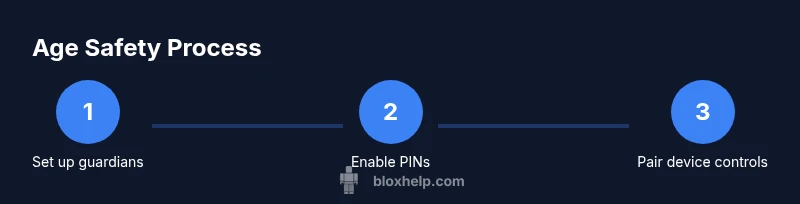
PINs and securing parental controls
A strong parental control strategy relies on a secure PIN that only guardians know. Use a unique PIN for Roblox settings so your child cannot modify restrictions or privacy options without your consent. If you suspect the PIN has been compromised, reset it immediately. Maintain separate device-level access controls to prevent bypasses that could come from sharing devices or credentials.
Regularly review who can access the PIN and consider rotating it periodically, especially after changes in family routines or when students advance to older ages. The goal is to create a dependable safeguard that remains effective as your child’s Roblox use evolves.
Pairing Roblox safety with device-level controls
Device-level controls offer a powerful layer of protection that complements Roblox’s in-app safety features. Use parental control settings on iOS (Screen Time), Android (Google Family Link), Windows, and macOS to set app limits, content filters, and time boundaries. These controls are particularly useful for younger children who use shared devices or multiple platforms.
When you pair device-level restrictions with Roblox Account Restrictions, you create overlapping protections that reduce the risk of circumvention. Regularly review device restrictions across all family devices and adjust as needed when your child’s responsibilities or school demands change.
Common myths and misunderstandings
A frequent misconception is that turning on one setting automatically makes Roblox perfectly safe for kids. The reality is that safety is a multi-layered practice requiring ongoing attention and updates as games and features evolve. Another myth is that age means a one-size-fits-all approach; age-appropriate content can vary widely by region, device, and game. Remember, even with restrictions, active parental involvement remains crucial.
Blox Help emphasizes that the most effective safety strategy combines Roblox’s built-in controls with thoughtful parenting practices and external device protections. By demystifying these tools, you can tailor your approach to your child’s needs.
Real-world examples and scenarios
Consider a family with a 9-year-old who uses a tablet for Roblox after school. They enable Account Restrictions, set a PIN, and restrict in-game purchases. They also enable Screen Time limits on the tablet to cap daily playtime and require a password for app installs. On weekends, they review friend requests and periodically test the setup by using a test account to ensure protections remain intact.
For an older child, say 12, the same family may relax some controls while keeping a capped chat filter and a review process for new friends. The key is clear, documented family rules and regular check-ins to adjust settings as the child demonstrates increased maturity.
Monitoring and adjusting safety settings over time
Safety is not a one-and-done task; it requires ongoing attention. Schedule periodic reviews of Roblox safety settings, especially after updates to the platform or changes in your child’s activities. Track screen time, chat activity, and the types of games your child enjoys to determine if any adjustments are needed. Engage your child in conversations about online safety to help them understand why certain controls are in place and how to report concerns.
By combining Roblox safety features with device-level controls and family guidelines, you can keep pace with the platform’s growth while maintaining a secure and enjoyable experience for your child.
Tools & Materials
- Smart device (phone, tablet, or computer)(Ensure Roblox is installed or accessible via the web and that you can access parental controls on this device.)
- Guardian/parent account(Used to configure and manage Account Restrictions and PINs.)
- Child Roblox account(The account to be protected with the safety settings.)
- PIN or passcode(For locking changes to restrictions; keep it private.)
- Internet connection(Needed to apply settings and verify changes.)
- Documentation or notes on family rules(Helpful for references during reviews.)
Steps
Estimated time: 30-60 minutes
- 1
Prepare guardian and child accounts
Log in with the parent/guardian account and verify the child’s Roblox account is linked to your family safety plan. Gather all required credentials and confirm you have access to both accounts for future adjustments.
Tip: Have a printed or saved checklist of family rules to refer back to during setup. - 2
Enable Account Restrictions
Access the child’s Roblox account or Family Safety Center and enable Account Restrictions. This limits access to certain features and games and will require a PIN to modify later.
Tip: If you cannot find the setting, use the Help Center search with keywords like Account Restrictions. - 3
Create and secure a PIN
Set a PIN that locks changes to safety settings. Memorize it or store it securely in a password manager so kids cannot guess or bypass protections.
Tip: Use a PIN that is not easily guessable and consider two-factor authentication for the guardian account. - 4
Review chat and privacy settings
Configure who can chat, who can follow or befriend, and what kind of messages are allowed. Ensure privacy settings align with your child’s age and comfort level.
Tip: Test with a sample account to confirm settings apply as intended. - 5
Limit purchases and in-game items
Disable or constrain in-game purchases and ensure that any credits or items require PIN approval. This reduces accidental or impulsive buys.
Tip: Review linked payment methods and remove saved cards if necessary. - 6
Enable device-level controls
Activate parental controls on the child’s device (Screen Time, Family Link, or equivalent) to enforce time limits and content restrictions beyond Roblox.
Tip: Synchronize device limits with Roblox settings for consistency. - 7
Test and verify setup
Have the child attempt to access various game types and chat features to ensure restrictions hold. Use a test account to verify you can regain access if needed.
Tip: Document any gaps and adjust settings accordingly.
Questions & Answers
Can you age restrict Roblox for all family accounts at once?
No single global age restriction exists for Roblox. You must apply per-account safety settings and family rules. This means each child’s account gets its own configuration.
There isn’t a universal age lock for Roblox; you set safety options per account.
What Roblox features help enforce age limits?
Account Restrictions, Parental Controls, and PIN-based changes help enforce safer play. Pair these with device-level controls for extra protection.
Key safety features include account restrictions and parental controls, plus a PIN to lock changes.
Will enabling restrictions affect in-game purchases?
Yes, you can disable or require PIN approval for purchases to prevent unexpected charges by young players.
Restrictions can require a PIN for purchases to prevent accidental buys.
Can kids bypass these controls by creating a new account?
It’s possible if devices and networks aren’t properly restricted. Use device-level controls and monitor new account activity.
A new account can bypass some bounds if devices don’t have proper controls.
What should parents monitor beyond restrictions?
Chat activity, friend requests, time spent, and the types of games played. Regular check-ins help adapt safety settings.
Monitor chat, friends, time limits, and game choices; talk with your child about online safety.
Watch Video
The Essentials
- There is no global Roblox age lock; use layered safety controls.
- Enable Account Restrictions and a guardian PIN to protect young players.
- Pair Roblox safety with device-level controls for stronger protection.
- Regularly review and adjust settings as children grow and platforms update.
- Use official guides from Roblox and COPPA guidance for best practices.