How to Remove Chat Box in Roblox: A Beginner's Guide
Learn how to remove the chat box in Roblox with a step-by-step guide, platform-specific tips, and safety notes. This beginner-friendly tutorial covers PC, mobile, and Studio workflows to help you customize your UI.


By following this guide, you will learn how to remove the chat box in Roblox across PC, mobile, and console. You’ll access in-game settings, use parental controls where appropriate, and verify changes with a quick test. The steps cover both player settings and Studio previews, plus safety considerations to keep your experience respectful and secure.
Understanding the chat box and why removal matters
The Roblox chat box is a core communication tool that appears across most experiences. It helps players coordinate, trade, and socialize, but it can also be distracting in fast-paced games or sensitive in shared spaces. If you want a more minimal UI, removing the chat box can reduce on-screen clutter and improve screen real estate for complex UI elements. This section explains practical reasons to hide chat and the limits you should know before proceeding. Remember: some games enforce chat or require it in certain modes, so always verify game-specific rules. The process to remove the chat box in Roblox varies by device and by game permissions, so treat this as a flexible workflow rather than a single universal toggle. We’ll cover platform-specific steps, Studio previews, and best practices to ensure you retain safety features like reporting and blocking in-game abuse.
In addition, know that the decision to remove chat should balance privacy with community guidelines. For some players, hiding chat helps focus on building or exploring, while others rely on chat for coordination in team modes. The keyword here is control: you control when and where chat appears, and Roblox offers multiple pathways to tailor your UI to your preferences.
Platform-specific considerations: PC, Mobile, and Console
Roblox supports hiding or disabling chat in different ways depending on your device. On PC and Mac, you typically access chat settings from the in-game menu and the Roblox settings panel. On mobile, the path is usually in a compact overlay accessed via a three-dots menu or a dedicated UI button within the game. Console versions may rely more on the system or parental controls, with fewer direct toggles inside Roblox. Across platforms, the general aim is the same: reduce visual noise without eliminating essential safety features.
Before you start, check whether the game you’re playing imposes its own chat rules. Some titles require chat in certain modes, while others allow complete hiding. If you manage a family account, parental controls can help apply consistent rules across devices. When removing chat, test in a safe environment to ensure you don’t break core UI elements or critical notifications that some games rely on.
Step-by-step approach to removing the chat box (PC and mobile)
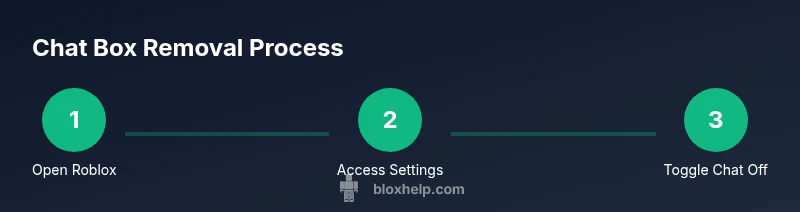
- Open Roblox and enter a game to access the live UI. This ensures the UI elements you adjust reflect the current session.
- Access the settings menu from the top-right corner (gear icon on PC or the in-game menu on mobile).
- Locate Chat, UI, or Privacy options. Look for terms like Chat, Show Chat, Enable Chat, or similar toggles. The exact wording can vary by game and update.
- Toggle off or disable the chat box. If the option is unavailable, explore the Privacy or Parental Controls path.
- Save or apply changes if required by the game settings, then restart the game if prompted.
- Re-enter the game and verify that the chat box is hidden. If it reappears, re-check the relevant menus or look for per-game overrides.
- For testing, try a quick message in a controlled environment to confirm that chat is hidden without breaking essential UI elements.
If you don’t see a direct chat toggle, use the parental controls or privacy settings as an alternative route. These steps cover most common Roblox builds and updates.
Platform-specific: Roblox Studio and advanced users
For developers using Roblox Studio, you might want to hide chat during previews or test sessions. In Studio, go to Game Settings, then under Client, disable Chat or set a master UI layout that hides the chat area. Note that these changes are preview-mode only and do not affect live players unless the game is exported with the new configuration. When testing, always use a private server to avoid disrupting others.
Pro tip: Always test in Studio using a private session before publishing changes publicly. If you persist in hiding chat for all testers, ensure you have clear communication channels for feedback and collaboration.
Safety and accessibility considerations
Hiding chat can reduce exposure to abusive messages, but it can also remove essential collaboration features for teams. If you rely on chat for coordination, consider using in-game team channels, voice chat where available, or limited chat with filters. For younger players, enabling safety settings, restricting friend requests, and using parental controls is strongly recommended. Remember to respect community guidelines and game-specific rules, even when chat is hidden.
The balance here is to protect players while maintaining a healthy social environment. If you enable chat in some modes, consider setting up moderation, reporting, and blocking features to keep the experience safe. This ensures you retain control without losing access to useful communication when it’s appropriate.
Troubleshooting common issues when removing the chat box
If the chat box stubbornly remains visible, start with the most common culprits: per-game overrides, recent updates that reset settings, and conflicts between device-level parental controls and in-game options. Try toggling chat off in the main Roblox settings, then verify within the game. If it still shows up, check for a game-specific toggle or a reset applied by the developer. When testing across devices, ensure you are using the same game version and account. Finally, consult the game’s support pages or Roblox Help for any platform-specific quirks that could affect chat visibility.
Tools & Materials
- Roblox account with settings access(Some games require admin or creator permissions to change the UI)
- Device with Roblox installed (PC, mobile, or console)(Ensure you are logged into the account you want to adjust)
- Stable internet connection(Needed to apply changes and sync settings in real time)
- Optional: screenshots of your current UI(Helps you revert changes if needed)
- Parental controls access (if applicable)(Useful for accounts belonging to younger players)
Steps
Estimated time: 20-40 minutes
- 1
Open Roblox and select a game
Launch Roblox, choose a game where you want to hide the chat, and enter it to access the live UI. This ensures the UI changes apply to the current session and reflect in-game context.
Tip: Make sure the game is fully loaded before changing settings to avoid missing UI elements. - 2
Open the in-game settings
Click the gear icon or open the main menu to reach the settings hub. This is where most chat-related options live, especially on PC and mobile.
Tip: If you don’t see a gear, look for the three-dots menu or a smaller settings icon depending on your device. - 3
Navigate to Chat or UI options
Find the section labeled Chat, Show Chat, Enable Chat, or a similar UI toggle. Wording varies by game and Roblox version, so scan both UI and Privacy sections if needed.
Tip: If you’re unsure, use the search within settings (if available) to locate 'Chat'. - 4
Toggle off or disable the chat box
Switch the option to off or hide the chat feature. Some games require you to confirm changes or apply them, so follow prompts carefully.
Tip: In some cases, you may need to restart the game to apply changes fully. - 5
Apply changes and restart if required
Save any changes and restart the game if the UI requires a refresh. This helps ensure the chat box remains hidden in subsequent sessions.
Tip: If you see the chat reappear, recheck for per-game overrides or reapply the toggle in settings. - 6
Test and verify the chat is hidden
Re-enter the game, try a quick chat, and confirm the chat box does not appear. Check that other UI elements are intact.
Tip: Use a private server or a test session to avoid impacting other players while testing. - 7
Studio users: adjust for previews
In Roblox Studio, open Game Settings, go to the Client tab, and disable Chat for preview sessions. This setting affects previews, not live players unless exported.
Tip: Always test changes in Studio with a private session before sharing publicly.
Questions & Answers
Can I completely disable chat for all Roblox games?
Disabling chat at the account level is not universal across all games; some titles override local settings. Use game-specific options or parental controls to limit chat exposure, and respect game rules.
You may be able to hide chat in many games, but some titles override settings. Check per-game options and parental controls.
Will hiding the chat box affect in-game communication?
Hiding the chat box will prevent text communication in the game UI. Consider using alternative channels or in-game voice chat if supported by the game and your account settings.
Hiding chat hides text messages, so plan alternative ways to communicate in-game.
Do these steps work on mobile devices?
Yes, the steps adapt for iOS and Android, but the menu paths may differ slightly. Look for the in-game settings or three-dot menus to access chat controls.
Mobile devices follow the same idea, but menu paths may vary slightly.
Can Roblox Studio users disable chat during testing?
In Roblox Studio, you can disable chat during previews via the Client settings in Game Settings. This does not affect live players.
Yes, Studio lets you disable chat during previews.
What safety considerations should I keep in mind?
Disabling chat can reduce exposure to abuse, but you may miss moderation signals. Always balance privacy with safety features and parental controls.
Disabling chat can curb abuse, but monitor safety features.
Will changes persist after restarting Roblox?
Some settings persist per session or per game; others may reset after restarting. Always recheck settings after updates or reloads.
Settings can reset after updates; verify after restart.
Is there a way to customize who can chat?
Yes, you can use parental controls or player lists to limit who can chat, depending on your account type and game settings.
You can limit chat access with parental controls.
Watch Video
The Essentials
- Hide chat to reduce distraction and UI clutter
- Platform paths differ; adapt steps per device
- Test changes in a controlled environment before going live
- Balance privacy with safety features and moderation