How to Turn Off Chat on Roblox: Safe, Focused Gaming
Learn how to turn off chat on Roblox across PC, mobile, and consoles. This step-by-step guide covers parental controls, per-game options, and safety best practices to create a safer, distraction-free Roblox experience.


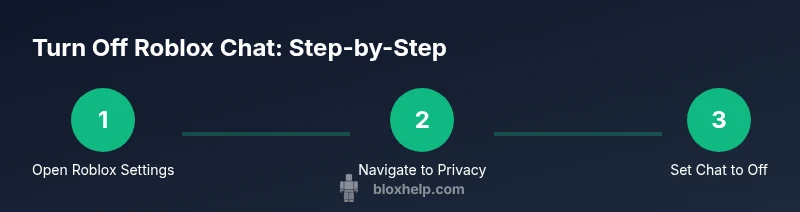
To turn off chat on Roblox, open the Roblox app or site, then go to Settings and locate the Chat or Privacy controls. Choose the Off option (or disable chat entirely) to stop in-game messages. The exact labels depend on your platform (PC, mobile, or console). Changes apply to new chats immediately, though some per-game chat features may remain in a game-specific menu.
Why turning off chat matters
In Roblox, chat can be distracting or unsafe for younger players. Turning off chat reduces exposure to unwanted messages, bullying, and spam. This is especially helpful for newcomers who are still learning the game. By disabling chat, you can focus on building, exploring, or reconnecting with friends without reading every message. However, note that some in-game elements may still allow players to communicate through pre-set prompts or in-game menus. You should weigh the benefits against potential social losses, such as missing tips from other players or community events. If you decide to turn off chat, you can always re-enable it later from the same Settings area, so it's not a permanent change but a temporary safety adjustment. For guardians, this setting provides peace of mind that younger players won't engage with strangers via chat while using Roblox on shared devices. Remember that privacy and safety depend on a combination of account settings, device controls, and in-game moderation. In summary, turning off chat is a practical first step toward a safer, more focused Roblox experience.
Platform-specific path to disable chat (PC and Mac)
On PC or Mac, start in the Roblox app or website, then access Settings. Look for a section labeled Privacy or Chat. Within that area, select the option that disables chat entirely or reduces chat to a restricted mode. Some players may see options like "Off" or "No one"; choose the one that fits your safety needs. Be sure to save or confirm the change. If you use multiple devices, repeat this process on each device to ensure consistent chat settings across your account. After saving, sign out and back in to ensure the new settings take effect everywhere. If a game overrides chat at runtime, use in-game mute or per-game chat controls where available. This PC/Mac path emphasizes a global change rather than per-game tweaks.
Mobile steps to disable chat in Roblox (iOS/Android)
On mobile, the process is similar but optimized for touch devices. Open Roblox, tap the menu, and select Settings. Navigate to Privacy or Chat, then choose the Off option or set chat to a restricted mode. Mobile devices may present a toggle or a dropdown to limit who can chat. Confirm your choice and return to the game to test. If you switch networks or reinstall the app, verify the setting again since some devices reset permissions when the app updates. Mobile users should also consider enabling parental controls if a parent account manages the device.
Console-specific instructions (Xbox/PlayStation)
Consoles often mirror the in-app settings, but some players report additional parental controls via the console's system menu. After launching Roblox on your console, go to in-game Settings, then to Privacy or Chat. Select the option to disable chat or restrict it to friends. Remember that some in-game modes or third-party games may still allow messaging; use the console's own parental controls to limit overall chat features in Roblox. Always apply the changes and sign out/in if required to ensure the new policy is active across all games.
Per-game chat controls and parental setup
Even with a global chat setting, Roblox titles may implement their own chat options. Look for in-game settings within each game (often found in the pause menu or credits screen) and disable chat there as well. If you manage a child account, use a parent-provided account to set stronger restrictions. Roblox parental controls can restrict who can contact your child and whether they can chat at all. Keeping chat off globally plus per-game adjustments provides a layered safety approach.
Safety-focused alternatives when chat is off
If chat is turned off, you can still communicate through non-text methods where permitted (emotes, pre-set prompts, or private messages if allowed). Consider enabling content filters, enabling alerts for unknown messages, and using the block/report features for any inappropriate behavior. Maintain open lines of communication with younger players about when and how chat is used in Roblox, so they know what to expect and how to stay safe. Finally, save your progress regularly and verify the chat setting remains off after updates or device changes.
Troubleshooting common issues and verification
If chat seems to reappear after a restart or game update, double-check all devices linked to the account, reapply settings, and ensure you’re editing the correct account (child vs. parent). Some games have their own chat channels that persist; in that case, mute or disable within the game if available. If you still see chat prompts, try clearing the app cache or reinstalling Roblox. Testing should involve launching multiple games to confirm global and per-game settings are consistently applied.
How to test and validate your changes
To confirm the chat is off, log in on the device you want to test, navigate to a chat-enabled area of Roblox, and attempt to send a message. If nothing appears or the chat input is disabled, the setting took effect. For a thorough check, test across another device to verify cross-device consistency. If you use family sharing or guardianship tools, perform a final check on the guardian account to ensure restrictions are enforced.
Authority sources and ongoing safety guidance
For comprehensive safety guidance, you can consult official sources such as Roblox's own support pages. Additionally, youth safety guidelines from government and leading public health resources can help inform best practices for online chat controls and parental oversight. See the following for reference: https://en.help.roblox.com/hc/en-us, https://www.stopbullying.gov/, and https://www.ftc.gov.
Tools & Materials
- Roblox account access(You must be signed in to adjust settings)
- Device with internet access(PC, mobile, or console with Roblox installed)
- Official Roblox app or browser(Use the latest version for settings access)
- Parental account (if managing a child account)(Helpful for guardians to apply controls)
Steps
Estimated time: 5-15 minutes
- 1
Open Roblox and access Settings
Launch Roblox on your chosen device and sign in. Tap or click the gear icon (or menu) to open Settings. This is the first step to finding chat-related controls. If you can't locate Settings, use the in-app help search to locate privacy or chat options.
Tip: If you don’t see Settings, ensure you’re using an up-to-date app version. - 2
Navigate to Privacy or Chat controls
Within Settings, look for a section labeled Privacy, Chat, or Communications. The exact label can vary by platform. Open that section to view available chat options.
Tip: On some platforms, you may need to expand advanced settings to see chat options. - 3
Select Off or No One for chat
Choose the option that disables chat entirely or restricts it to no one. Confirm your choice and save the settings. On mobile, you may have a toggle; on PC, a dropdown or radio button is common.
Tip: If you want a temporary safety measure, pick a limited option like 'Friends' only instead of Off. - 4
Repeat on other devices
If you use Roblox on multiple devices, repeat the same steps on each device to ensure consistent chat settings across devices.
Tip: You may need to re-sign in after saving changes to apply them everywhere. - 5
Check in-game and per-game settings
Some games override global chat settings. Review each game's options to disable chat within that title as well. This ensures a truly chat-free experience.
Tip: Look for in-game pause menus or chat tabs specific to that game. - 6
Enable guardianship controls if needed
If you’re managing a child account, use parental controls to enforce stricter chat limits across the Roblox ecosystem. This adds an extra layer of safety beyond in-app settings.
Tip: Guardians should review settings together with the child to explain what changes mean. - 7
Test the new settings
Launch Roblox and attempt to send a message in a chat-enabled area. If the chat input is disabled, the setting has taken effect. Try multiple games to confirm.
Tip: Document any games where chat still appears and adjust per-game settings if needed. - 8
Review periodically and adjust
Routine reviews help you adapt to new features or changes in Roblox. Revisit chat settings periodically, especially after updates or device changes.
Tip: Schedule a quarterly check to keep safety consistent across devices.
Questions & Answers
Is turning off chat permanent or can it be reversed later?
No, turning off chat is not permanent. You can re-access Settings at any time and re-enable chat or adjust the limits as your safety needs change.
You can always re-enable chat later by revisiting Settings.
Will turning off chat affect voice chat or only text chat?
Turning off text chat typically affects in-game text messages. Voice chat options, if available, may be separate and require different controls in the game or platform settings.
Voice chat is a separate option; check game or platform settings for voice controls.
What if a game disables chat despite global settings?
Some games implement their own chat features. In that case, disable chat within the game’s own settings and consider muting players or reporting abuse if needed.
If a game overrides chat, use its own settings and report if needed.
Can parental controls enforce chat restrictions even when a child is logged in with a guardian account?
Yes, parental controls can enforce stricter chat restrictions across Roblox, including per-game limits and contact restrictions.
Guardians can set stricter limits that apply across Roblox.
What should I do if I accidentally disable chat but still see messages?
Double-check all devices, sign out and back in, and verify that global and per-game settings are aligned. If issues persist, reinstall the app or clear cache.
If messages still appear, review all devices and repeat the settings check.
Watch Video
The Essentials
- Turn off chat across all devices to minimize unwanted messages.
- Check both global and per-game chat settings for full control.
- Use parental controls when managing a child account for extra safety.
- Test settings after updates to ensure changes persist.