Parent Controls Roblox: A Practical Step-by-Step Guide
Learn how to set up Roblox parental controls across devices, tailor chat filters, manage playtime, and keep Roblox kids safe with practical steps from Blox Help.


With Roblox parental controls, you’ll manage who can contact your child, what content they access, and when they play. To start, ensure you have a guardian account and your child’s Roblox login. Then configure privacy, chat filters, and time limits across devices. This quick guide points you to practical steps for safer, happier Roblox play.
What are Roblox parental controls and why they matter
Roblox parental controls give guardians a way to limit who can contact a child, what content they can access, and when they play. For families balancing safety with freedom to explore, these controls are essential. This is particularly important for younger players or those who are still learning about online safety. By understanding and using the built-in settings, you help reduce exposure to inappropriate chats, games, or external links, while preserving a positive Roblox experience. According to Blox Help, implementing a thoughtful control strategy early creates healthy online habits and reduces risk of exposure to unsafe interactions. The Blox Help team found that two common gaps are underutilizing privacy options and assuming default settings are enough; proactive configuration is key. In the rest of this guide, you’ll learn practical steps, device-specific tips, and best practices to tailor protections to your child’s age and maturity level.
How Roblox parental controls work across devices
Parental controls in Roblox can be implemented at the account level, and can be reinforced with device-only settings. On the Roblox platform, privacy and chat restrictions control who can interact with your child and how. Across mobile devices, desktops, and consoles, the same account-level rules apply, but the experience and navigation may differ. Based on Blox Help analysis, pairing Roblox’s built-in settings with device-level controls yields the strongest protection without sacrificing a kid's opportunity to learn and create. For example, you can restrict chat to friends, disable direct messages from strangers, and limit the ability to join private servers. Always test each mode in a quiet session with your child so you know what is accessible and what isn’t.
Setting up account level controls (age, privacy, chat filters)
Setting up account level controls begins with age-aware privacy choices and a clear chat policy. Start by ensuring your child’s account is marked with an appropriate age setting and enable content filtering where available. Then adjust who can chat, who can join games with your child, and whether the account can be followed by others. These steps create a baseline that you can expand as your child matures. The more precise your settings, the less room there is for unexpected interactions. Remember to review privacy options monthly or after any account changes.
Device-specific controls: iOS, Android, Windows, Mac
Device-level controls act as a safety net that reinforces Roblox account restrictions. On iOS and Android devices, use the built-in parental controls to limit app usage, restrict in-app chats, and set screen-time limits. On Windows and Mac, leverage system-level controls and family safety features to enforce daily limits and content restrictions. While Roblox settings provide direct controls, complementary device controls help ensure that playtime stays within healthy bounds, even if a child tries to bypass one channel. Regularly verify that the controls apply to the Roblox app as well as the web version.
In-app options and account restrictions
Within the Roblox app, look for parental controls that let you restrict interactions, disable private messages from non-friends, and segment chat by age-appropriateness. If your child uses shared devices, set up a separate, parent-bounded login that you can audit. Consider enabling a guardian notification option if available, so you’re alerted to new devices or login attempts. After enabling these options, run a quick walk-through with your child to confirm what is and isn’t accessible.
Third-party tools and network controls
Beyond Roblox’s built-in settings, you can reinforce protections with router-level controls and third-party parental control apps. These tools can enforce time limits, block explicit content, and provide activity reports across apps, not just Roblox. Use a familiar, simple dashboard so you can monitor and adjust settings without creating conflict. When combining tools, keep a map of which settings come from Roblox versus network or device controls to avoid policy clashes. Always keep software up to date to avoid security gaps.
Safety best practices and ongoing monitoring
Safety is a process, not a one-time setup. Schedule a regular check-in with your child to discuss online experiences, revisit chat settings, and adjust playtime rules as needed. Keep conversations open about what’s okay to share, who can contact them, and how to report abuse. Use Roblox’s built-in reporting tools for incidents and document changes to settings after major updates. The goal is steady, collaborative safety rather than overbearing surveillance.
Troubleshooting common issues
If you find that a setting isn’t applying or a certain feature seems to bypass restrictions, start by confirming you’re signed into the correct guardian and child accounts. Clear cache and re-log into the apps on affected devices, then reapply the controls. Some features may require updates to the Roblox app or the device’s operating system. If a problem persists, consult Roblox help pages or contact support for guidance. In many cases, a simple sign-out and sign-in refresh resolves permission glitches.
Next steps and resources
Now that you’ve set up Roblox parental controls, keep the system current and collaborative. Schedule a 30-day review of settings, adjust time limits as school calendars change, and add new safety rules as your child’s interests evolve. For ongoing guidance, refer to reputable sources on digital safety and Roblox’s official help center. The Blox Help team recommends keeping a proactive stance: educate, supervise, and adapt as needed to keep Roblox a safe, creative space for your child.
Authority sources
- https://www.ftc.gov
- https://staysafeonline.org
- https://www.commonsensemedia.org
Tools & Materials
- Roblox account for the child(Guardian access should be available; consider a separate linked account for family safety.)
- Guardian/parent account with admin access(Needed to adjust settings on behalf of the child account.)
- Smartphone or computer with internet access(For both setup and ongoing monitoring; ensure you can test changes live.)
- Notes on the child’s Roblox username(s)(Helps map settings to the correct account and avoid cross-account issues.)
- Router or network device with parental controls (optional)(Useful for enforcing screen time and content at the network level.)
- A quiet testing environment(Best to verify changes with the child in a safe session.)
Steps
Estimated time: 30-60 minutes
- 1
Create or verify the child’s Roblox account
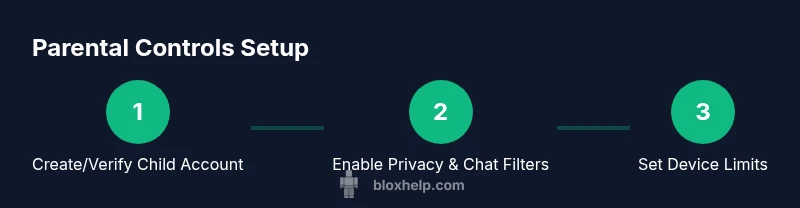
If the child doesn’t already have a Roblox account, set one up using a guardian email and ensure age-relevant settings are selected from the start. If an existing account is used, double-check the age and privacy choices to align with safety goals.
Tip: Use a separate email for parental control communications and avoid sharing passwords. - 2
Enable account security features
Set a strong, unique password for the guardian account and enable two-factor authentication where available. This protects both the child’s account and your family settings from unauthorized changes.
Tip: Do not reuse passwords across services; consider a reputable password manager. - 3
Configure core privacy and chat settings
Navigate to Privacy and Security controls and set who can chat, who can join games with the child, and whether following is allowed. Turn on content filtering and restrict messages from non-friends where possible.
Tip: Test each setting by signing in as the child or using a test account flow. - 4
Apply device-level controls
On iOS, Android, Windows, and Mac, enable the device’s parental controls to cap screen time and enforce content restrictions. Ensure these settings align with the Roblox controls for consistency.
Tip: Review each device after updates to confirm controls still apply to Roblox. - 5
Configure playtime limits
Set daily playtime boundaries using either device-level tools or Roblox’s own scheduling options. This helps balance gaming with school and family activities.
Tip: Document a clear daily/weekly schedule and adjust during holidays or heavy activity periods. - 6
Test and validate with your child
Walk through a test session together to verify what is accessible. Make sure your child understands what is restricted and why.
Tip: Encourage feedback from your child on what feels fair and safe. - 7
Review, adjust, and document
Set a recurring reminder to review settings monthly or after major app updates. Keep notes on changes to avoid confusion later.
Tip: Create a simple change log so guardians can track decisions.
Questions & Answers
Do Roblox parental controls work across devices?
Yes. Account-level controls apply across mobile, desktop, and console versions, though the exact navigation and some device-level features may differ. Always verify on each device your child uses.
Yes. The controls carry across devices, but you should test on each device to confirm.
Can I set playtime limits for Roblox?
You can establish playtime boundaries using device-level parental controls and by applying Roblox's own privacy and access settings. This helps balance play with school and family activities.
Yes, use device limits and Roblox settings to cap playtime.
Is there a family or guardian account in Roblox?
Roblox supports guardian-like controls via a parent/admin account that can adjust settings for a child’s account. Check the official help center for the latest guardian options and workflows.
There are guardian-style controls through a parent account; consult Roblox help for details.
What if my child uses a different account?
Map controls to the child’s actual account by confirming login paths and device usage. Avoid sharing credentials and ensure the child signs in with the intended account for safety settings to apply.
Make sure the child signs in with the correct account so protections apply.
How can I monitor activity without invading privacy?
Use privacy-focused controls that provide alerts and activity summaries. Maintain open conversations with your child about online safety rather than pervasive surveillance.
Use alerts and summaries and talk openly about safety.
Where can I get help if parental controls fail?
Check Roblox’s official help center, the device manufacturer's support pages, and reputable safety organizations. If necessary, contact Roblox support for guidance on applying or restoring controls.
Visit Roblox help, device support pages, or safety organizations for help.
Watch Video
The Essentials
- Identify essential protections and implement them across devices.
- Test settings in real scenarios with your child.
- Review and adjust regularly as your child matures.
- Combine Roblox controls with device and router-level settings for stronger safety.
- Document changes to build a transparent safety routine.