Roblox Without Chat: Safe, Guided Gameplay
Learn how to play Roblox without chat, configure safety settings, and use parental controls. This step-by-step guide covers platform-specific disables, social alternatives, troubleshooting, and guardian tips for a chat-free Roblox experience.


You can play Roblox without using chat by disabling chat in account settings and in-game options, and by enabling safety and parental controls to limit messaging. This quick answer outlines exactly where to flip these switches, how to verify they work on PC, mobile, and console, and what to expect.
What Roblox without chat means
In Roblox, playing without chat means you intentionally limit or disable all text-based communication within the platform. This includes in-game chat messages, party chat, and any direct messages you might receive from other players. For guardians and older players, this can be a conscious safety choice to reduce distractions, minimize exposure to inappropriate language, or simply focus on gameplay. It’s important to understand that Roblox’s chat controls can be adjusted at both the account level and the game level, so you have multiple layers of control. When chat is disabled, you’ll still see game UI prompts, system messages, and essential coordination cues provided by the game itself, but you won’t exchange free-form text with other players. As you plan a chat-free session, keep in mind that some games or experiences may offer their own chat-like features or rely on external communication tools, which are separate from Roblox’s core chat system. The goal is to create a safer, quieter play environment while preserving access to the content you love. According to Blox Help, practical safety features like chat restrictions empower players and guardians to tailor the experience, making chat-free play a realistic option for many users in 2026.
Safety foundations and parental controls
Safety should be the first consideration when deciding to play Roblox without chat. Roblox provides built-in safety features and parental controls designed to protect younger players and give guardians control over how their accounts can interact with others. A solid chat-free setup typically starts with age-appropriate expectations, clear family guidelines for online interaction, and a plan to review settings regularly as the account ages or as Roblox updates.* The guardians’ role is to establish boundaries that align with family rules, while players learn alternative ways to communicate and collaborate in games. In practice, this means enabling privacy settings that limit who can contact you, restricting messaging to friends or disabling it entirely, and turning on any available content filters. Blox Help’s analysis emphasizes that proactive safety planning reduces risk and helps players enjoy Roblox more confidently, especially on shared devices and in households with multiple players. In 2026, safety options continue to evolve, so periodic checks ensure the settings stay aligned with your needs.
Platform-by-platform: disable chat on PC/Web and consoles
Disabling chat on PC or the Roblox web/desktop app generally involves navigating to the account privacy or safety sections and selecting the option to limit or turn off chat. Look for settings such as Privacy, Safety, or Communication, and choose the most restrictive option available (often labeled something like “No one” or “Chat off”). If you use a shared or family device, ensure you’re applying the setting to the right account, then sign out and back in to confirm the changes take effect. On consoles, chat controls may be integrated with the console’s own parental controls, so you may need to adjust family settings or safety profiles on the device as well as in Roblox. After applying changes, test the experience by joining a simple game with a friend who can verify that messages are not delivered. These steps create a robust baseline for a chat-free experience across platforms.
Platform-specific steps for mobile (iOS/Android)
Mobile platforms often funnel chat controls through two paths: Roblox’s own privacy settings and the mobile device’s parental controls. Start by opening Roblox, then access Settings or Privacy. In the Chat and Communications options, select the highest restriction available. It’s common to see choices like “No one” or “Friends only”—choose the most restrictive option that still allows you to play the experiences you enjoy. If your mobile device has parental controls, enable the same restrictions at the device level to prevent profile changes from other apps or accounts. After configuring, run a quick test by joining a mobile experience with a friend and ensuring no chat messages appear. Consistency across devices is the goal, so repeat these steps on any other platforms you use.
How chat-free gameplay changes social aspects and gameplay
Removing chat changes how players coordinate and socialize within Roblox. You’ll rely more on non-text cues, emotes, pre-set in-game signals, and friend lists for teamwork. Some players create shared shorthand, such as visual signals or quick gestures, to communicate without words. You may also notice fewer distractions from chat spam or online toxicity, but you’ll miss direct text-based coordination in some team-based experiences. To keep social aspects alive, use trusted friends and in-game partner systems that do not require chat, or establish in-game voice alternatives if supported by the game itself. It’s important to recognize that chat-free play can alter how you squad up for challenges, so setting expectations with teammates about communication methods is wise. The payoff is a calmer, safer play environment that aligns with the family’s safety goals while preserving core Roblox experiences.
Troubleshooting: chat still appears or chat prompts re-enable
If you still see chat after applying restrictions, double-check both account and device-level settings. Sometimes an app update or a game-specific setting can override general privacy controls. Confirm you’re signed into the intended Roblox account, and test in multiple games to determine whether the issue is platform-wide or experience-specific. Clearing the app cache, reinstalling Roblox, or signing out and back in can help reset settings. If chat persists after all checks, consult Roblox support or your guardian account to ensure no conflicting parental-control profiles are re-enabling chat. Regularly reviewing safety settings helps prevent future re-enablement and keeps the chat-free environment intact.
Guardians’ guide: setting up accounts and privacy
Guardians play a crucial role in a chat-free Roblox setup. Begin by pairing a guardian account with the child’s Roblox account so you can monitor and adjust privacy and communications settings. Establish a simple rule: every time you notice a new game requiring chat, re-verify the chat settings before continuing. Use Roblox’s parental controls to set age-appropriate standards, including who can send messages and which experiences are allowed. Document changes for future reference and schedule periodic reviews aligned with family routines. The goal is to maintain a consistent, safe play environment that remains adaptable as Roblox introduces new features and safety options.
Alternatives to chat for communication in Roblox
When chat is disabled, players can still communicate indirectly. Emotes, in-game signals, and pre-defined messages can convey strategy and coordination. Some experiences provide built-in non-text tools for teamwork, such as ping systems or reaction icons. For longer collaboration, players can use external, non-Roblox channels that guardians approve, like family-approved messaging apps used outside of Roblox sessions. Remember to emphasize safety: never share personal information, stay within approved experiences, and keep communication methods aligned with your safety plan. By focusing on creative, non-text cues, you can still enjoy team-based challenges, social events, and collaborative builds without relying on chat.
Tools & Materials
- Roblox account (child and guardian account)(One account for the player, another for the guardian to manage settings if possible)
- Device with internet access(PC, tablet, or smartphone; ensure it supports Roblox and updates are installed)
- Access to Roblox settings(You’ll need to locate Privacy/Safety options to disable chat)
- Access to parental controls app or family account(Use family accounts or parental-control tools to enforce rules across devices)
- Test friend or guardian(Coordinate with someone you trust to verify chat is disabled in practice)
Steps
Estimated time: 15-25 minutes
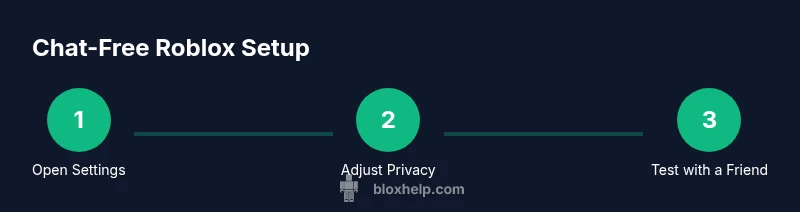
- 1
Open Roblox settings
Launch the Roblox app or website and sign in with the account you want to configure. Navigate to the settings area and locate Privacy or Safety sections where communications controls are managed. This step sets the stage for a chat-free gameplay session by identifying where chat-related options live.
Tip: If you don’t see the Privacy section right away, use the search function in the Settings menu or check the Help/Support area. - 2
Find chat options
Look for options related to chat, messages, or who can talk to you. The goal is to restrict or disable text messaging. If available, select the most restrictive option (often labeled as “No one” or “Chat off”). This action reduces the risk of unwanted messages during gameplay.
Tip: Some games may have their own chat features; note those are separate and may require per-game adjustments. - 3
Apply restrictions across devices
If you use multiple devices, repeat the process on each device. Roblox settings can vary by platform, so ensure consistency by applying the same chat restrictions on PC, mobile, and consoles where applicable.
Tip: Sign out and back in to ensure changes take effect across sessions. - 4
Test the setup with a trusted contact
Join a simple game with a friend or guardian to verify that chat is not delivered. Confirm you’re not receiving text messages and that any prompts requesting messages are absent. This step validates the practical effect of your changes.
Tip: Use a pre-arranged signal or emote to confirm successful chat-free communication. - 5
Review family controls and safety settings
Check any device-level or third-party parental-control profiles to ensure they don’t override Roblox defaults. Update time limits and screen restrictions if needed. This keeps the chat-free environment consistent even after system updates.
Tip: Document your settings for future updates and audits. - 6
Document and share the plan
Create a simple guide for family members describing the chat-free rules and how to re-enable chat if absolutely necessary for a trusted reason. Share this with guardians and older players who might help manage the setup.
Tip: A shared reference reduces confusion during rapid changes or game events.
Questions & Answers
Can I chat with teammates in Roblox when chat is disabled?
When chat is disabled, text messaging is blocked. Some games may offer their own non-chat communication options, but traditional in-game chat and direct messages are not available. You can still coordinate using non-text cues or pre-set signals.
Chat is blocked; you won't be able to send or receive text messages. Use signs, emotes, or pre-arranged signals to coordinate.
Does age automatically determine chat access in Roblox?
Roblox uses age-related safety settings, but guardians can override or reinforce restrictions through parental controls. The chat feature is not automatically enabled by age alone; families should actively configure protections.
Age helps guide defaults, but parental controls determine actual chat access.
How do I re-enable chat if I need it later?
To re-enable chat, go back to your account’s Privacy or Safety settings and adjust the chat options to your preferred level of communication. Save changes and test across devices to confirm the new configuration works.
Open settings, change chat options, save, and test on all devices.
Will disabling chat affect in-game prompts or mission text?
Most in-game prompts that rely on text will be visible as UI cues, but dynamic chat-based communications with other players will be restricted. You may still receive non-text instructions through the game’s UI.
UI prompts stay, but text chats with other players aren’t available.
Are there risks or limits when playing without chat?
Chat-free play reduces exposure to inappropriate language but may limit collaboration in team-heavy games. Keep a safety plan, monitor experiences, and consider alternative communication methods approved by guardians.
Less exposure to chatter, but you may miss some teamwork cues. Use safe alternatives.
Watch Video
The Essentials
- Disable chat across devices before playing
- Use parental controls to lock chat features
- Test changes with a trusted friend to verify
- Understand chat-free play can change coordination methods
- Review settings regularly as Roblox updates roll out