Why Won't Roblox Accept My ID? A Practical Troubleshooting Guide
Urgent guide to fix Roblox ID verification issues. Learn common causes, diagnostic flow, and step-by-step fixes to get your account verified quickly and safely in 2026.


The most likely reason why Roblox won’t accept your ID is a data mismatch, document type issues, or a subpar submission image. Start with a quick check: confirm your name and DOB match your Roblox profile, verify you’re using a supported ID type, and ensure the image is clean and high-resolution before re-uploading. If problems persist, follow the diagnostic flow below for a deeper fix.
Why Roblox Might Not Accept Your ID
If you're wondering why won't roblox accept my id, the root cause often lies in mismatched information between your ID and Roblox account data, or submitting a document that Roblox flags as invalid. Other frequent culprits include an expired ID, blurry or glare-filled images, uploading the wrong document type, or attempting verification from regions with strict restrictions. By starting with the simplest checks—data accuracy, document type, and image quality—you can usually prevent unnecessary reuploads and speed up the process. Throughout this guide, you’ll see practical tips tailored to beginners and seasoned players alike, with clear steps to get past verification hurdles in 2026.
What Roblox Looks For During ID Verification
Roblox uses a verification flow designed to confirm identity while protecting young players. Key signals include a name and date of birth that align with your Roblox account, a readable government-issued or accepted document type, and a visually clear image with no obstructions. The system also flags documents that show signs of tampering or that fall outside regional eligibility. Understanding these criteria helps you prepare submissions that pass the checks on the first try.
Common Pitfalls When Submitting IDs
Many rejections come from tiny mistakes that are easy to fix. Examples include: misspelled names, mismatched middle initials, or DOB typos; submitting a document that is expired; uploading a photo with glare, shadows, or a blurred edge; using an ID type Roblox doesn’t currently accept; or submitting from a restricted region. Double-check every field and inspect the image before you upload to avoid a repeat rejection.
Quick Fixes You Can Try Right Now
Before you panic, try these fast fixes:
- Reconfirm the exact name, DOB, and document type on your ID mirror what appears on Roblox.
- Use a high-resolution photo or scan in good lighting; remove glare and ensure all corners are visible.
- Upload the correct document type Roblox supports for your region.
- Clear your browser cache or try a different device or network in case a submission path is cached or blocked.
- If the system flags something uncertain, prepare a short note for support with your submission details.
How Roblox Verifies IDs (Process Details)
Roblox verification typically involves uploading a government-issued document or an equivalent accepted form, then letting a moderation system scan for authenticity and data consistency. The process can include automated checks and manual review, particularly for borderline cases or regional variations. While the exact timeline isn’t published, you should expect some waiting time after a complete submission, especially if multiple documents or languages are involved. Patience and accuracy are your allies here.
Diagnostic Flow Overview
This section is a mental map you can follow when a submission fails. Start by confirming the basic data alignment (name/DOB) and document type, then move to image quality checks, then to re-upload with the corrected data, and finally to seeking support if the issue remains unresolved. Each step narrows the set of possible causes and keeps you moving forward rather than stuck in a single error message.
Step-By-Step Fix for the Most Common Cause
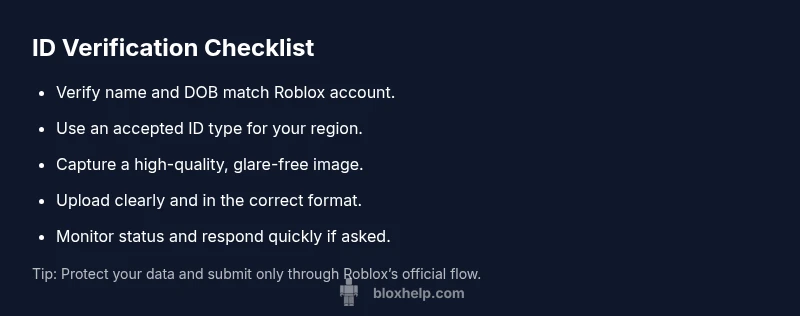
- Verify data consistency: ensure name and DOB exactly match Roblox profile data. 2) Confirm you’re using an accepted ID type for your region. 3) Capture a crisp image: good lighting, no glare, all edges visible. 4) Re-upload and choose the same document type across attempts for consistency. 5) Check status updates frequently and respond promptly if Roblox requests more information. 6) If rejected again, prepare a concise explanation and contact Roblox Support with your evidence.
Tips & Warnings
- Always keep your personal data private and only use Roblox’s official upload flow. Do not share scans or photos through insecure channels.
- Do not blur essential data like your name and document number if Roblox requires them to be visible.
- If you are a minor, involve a parent or guardian when handling sensitive account security steps.
- Be mindful of regional restrictions and ensure the document type is eligible for verification in your country.
Prevention & Best Practices
- Create a checklist before you start: name/DOB match, document type, image quality, and supporting notes for any unusual details.
- Use a single, clear document as your primary proof rather than multiple sources.
- After a successful verification, keep a screenshot or note of the submission reference for future troubleshooting.
Final Thoughts for 2026
Roblox ID verification can be a smooth process when you prepare properly and follow a methodical troubleshooting flow. By eliminating data mismatches, ensuring acceptance criteria, and presenting high-quality documentation, you increase the odds of a successful verification on the first pass. If you still encounter issues, you now have a clear path to escalate with Roblox Support and provide all necessary documentation.
Steps
Estimated time: 30-45 minutes
- 1
Verify data alignment
Cross-check the name, middle name/initial, and DOB on your ID with what you have on your Roblox account. Correct any mismatches or typos before re-upload. Ensure the spellings, date format, and casing match exactly.
Tip: Use the exact spelling from your government-issued ID. - 2
Confirm ID type and region eligibility
Make sure the document you’re submitting is an accepted ID type for your country/region. If Roblox requires a government-issued ID, avoid school IDs unless explicitly accepted in your area.
Tip: If in doubt, check the official Roblox verification page for regional rules. - 3
Improve image quality
Retake the photo with bright, even lighting. Remove shadows, ensure all corners are visible, and avoid reflections on glossy surfaces. Save as a high-quality JPEG or PNG.
Tip: Use a plain background and a steady hand or a scanner for best results. - 4
Re-upload and verify details
Submit the ID again using the same document type. Confirm all fields are populated accurately and that the upload completed without errors. Review instructions on screen before final submit.
Tip: Take a short preview of the submission to confirm nothing is cropped. - 5
Monitor status and respond if asked
Check your Roblox verification status regularly. If Roblox requests more information, respond promptly with clear, organized documentation.
Tip: Keep your submission IDs handy for faster follow-ups. - 6
Escalate if rejected again
If rejections persist, prepare a concise note summarizing the issue and attach clear photos or scans. Contact Roblox Support with your case and any reference numbers.
Tip: Be polite and precise to speed up the review.
Diagnosis: User reports that Roblox won't accept their ID during verification.
Possible Causes
- highName/DOB mismatch between ID and Roblox account
- mediumExpired or invalid ID type for region
- highPoor image quality or glare obscuring key data
- lowSubmitting the wrong type of document for the region
Fixes
- easyDouble-check name and DOB on ID against Roblox account data; correct any typos
- easyEnsure the ID is not expired and that the document type is accepted for your region
- easyCapture a new high-resolution photo or scan with even lighting and minimal glare
- easyRe-upload using the correct document type and verify all fields before submission
- mediumIf issues persist, contact Roblox Support with submission IDs and screenshots
Questions & Answers
What ID types does Roblox accept for verification?
Roblox generally accepts government-issued IDs or official documents that are regionally approved. If a document isn’t accepted in your area, Roblox may flag it during verification. Always check the latest Roblox guidelines for your region.
Roblox accepts government IDs and official documents, but regional rules apply. Check the current Roblox verification guidelines for your location.
How long does ID verification take?
Processing times vary and Roblox does not publish a fixed timeline. It can take additional time if a submission requires manual review or if more information is needed.
Processing times vary; Roblox doesn’t publish a fixed timeline. Some cases may need extra review time.
What should I do if my name on the ID doesn't match my Roblox account?
Align the name exactly as it appears on your government ID with your Roblox account. If there’s still a mismatch, consider updating the Roblox profile where allowed or contact support with documentation showing the official name.
Make the names match exactly as on your ID. If issues persist, contact Roblox Support with proof.
Can I appeal a rejected ID verification?
Yes. You can appeal by contacting Roblox Support and providing a clear explanation along with legible copies of the required documents. Include submission IDs and any reference numbers to expedite the review.
Yes, you can appeal by contacting Roblox Support with clear explanations and documents.
Why was my ID verification blocked for security concerns?
Roblox’s automated checks flag irregularities to protect player safety. If blocked, review your submission for data accuracy, provide any missing details, and reach out to Support for guidance.
Security checks can block edits if something seems off. Review and contact Support for help.
Watch Video
The Essentials
- Check data alignment between ID and Roblox account.
- Use a valid, region-acceptable ID with clear images.
- Re-upload carefully and monitor status updates.
- Escalate to Roblox Support if repeated rejections occur.
- Follow safety practices to protect your personal information.