Why Roblox Won’t Let You Log In: Troubleshooting Guide for 2026
Struggling to log in to Roblox? This urgent, step-by-step troubleshooting guide covers server status, credentials, devices, and account security to get you back in fast.


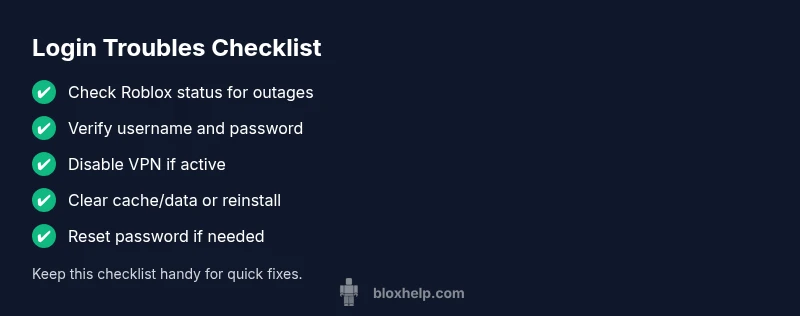
Most Roblox login failures stem from server outages, account security flags, or incorrect credentials. Start by checking status.roblox.com, then verify your username and password, and disable any active VPN. Try signing in on a different device or browser. If it still fails, reset your password and review recent app updates.
Why Roblox login failures happen and how to approach them
If you’re asking 'why is roblox not letting me log in', the answer usually lies in a mix of service status, credential verification, and device factors. According to Blox Help, most sign-in issues can be resolved by a disciplined sequence of checks rather than random fixes. Start with the simplest causes: Roblox's own server status and your network, then move to credentials and account settings. You may encounter messages like "Incorrect username or password" or "Account locked for security". Treating the problem as a flow—check status, then credentials, then device—keeps options open and avoids needless steps. This approach aligns with Blox Help analysis and helps you stay calm under pressure.
Check Roblox System Status and Your Internet Connection
Before diving into account details, verify Roblox’s service status. Visit status.roblox.com to see if login servers are down or undergoing maintenance. If the site shows an outage, you’ll need to wait or check back later. If Roblox reports green lights, test your connection: switch networks (Wi-Fi to mobile data), disable any VPN or proxy, and flush your DNS if needed. A simple browser or app refresh can resolve transient network hiccups. In many cases, login failures are caused by local connectivity rather than your account.
Verify Your Login Credentials and Authentication Methods
Next, confirm you’re using the correct username (or the email tied to the account). Be mindful of recent password changes and ensure you’re not mixing up credentials across multiple Roblox accounts. If you enable two-step verification, have your authenticator app or backup codes ready, and look for verification prompts in your email. Avoid auto-fill that might populate an old password, and try typing the credentials manually to rule out paste errors. If you recently changed your password, sign out everywhere and retry with the new password.
Clear Cache, Update Apps, and Try a Different Device
Cached data can cause sign-in issues after updates. On mobile devices, clear the Roblox app cache or reinstall the app, then restart the device. On a computer browser, clear cookies and cache for the Roblox site, or try a different browser. Ensure the Roblox app is updated to the latest version; developers frequently fix login-related bugs in updates. If possible, sign in on a different device or network to determine whether the problem is device-specific.
Parental Controls, Restrictions, and Age Settings
Parental controls or restricted account settings can block sign-in attempts. Check that the account isn’t placed under parental controls in Roblox or the parent account’s privacy settings. For younger players, confirm the age setting aligns with Roblox terms; some devices enforce stricter login rules. If you’re using a school or public network, restrictions may also block Roblox; switch to a different network when testing.
Reset Password and Account Recovery Steps
If credentials are uncertain or the system prompts for verification you can’t complete, initiate a password reset using the Roblox account recovery flow. Use a secure device and a trusted email to receive the reset link. After resetting, sign out of other sessions and test sign-in again. If you don’t receive the reset email, check your spam folder or the account’s registered email for typos and retries.
When to Contact Roblox Support and What to Expect
If none of the fixes work, contact Roblox Support with detailed information: your username, the exact error message, device type, and the approximate time the issue began. Include screenshots if possible. Support may guide you through security checks or investigate potential account-related restrictions. Expect a response within their stated SLA, and follow up if you don’t hear back.
Prevention: How to Avoid Future Login Problems
Keep Roblox login smooth by maintaining updated apps and browsers, using a single trusted device for sign-ins, and avoiding VPNs or proxies during authentication. Enable two-step verification where available and store backup codes securely. Regularly review account recovery options and test sign-in on a backup device to catch issues early.
Steps
Estimated time: 30-60 minutes
- 1
Check Roblox status
Open status.roblox.com and confirm whether login servers are operational. If there’s an outage, wait until it resolves and retry later.
Tip: Bookmark status.roblox.com for quick checks. - 2
Verify credentials
Re-enter your username and password carefully. Avoid auto-fill that might grab an old credential.
Tip: Type credentials manually to reduce errors. - 3
Test on another device/network
Sign in on a different device (phone, tablet, or PC) and/or a different network. This helps isolate device or network problems.
Tip: If it works on another device, focus on the original one. - 4
Disable VPN/Proxy
Temporarily turn off any VPN or proxy service and attempt login again.
Tip: VPNs can interfere with Roblox authentication. - 5
Clear cache/cookies or app data
Clear browser cache or Roblox app cache; or reinstall the app, then restart the device.
Tip: Fresh data avoids corrupted caches. - 6
Reset password if needed
Use the Roblox password reset flow if credentials might be forgotten or compromised.
Tip: Use a strong, unique password. - 7
Review security prompts and 2FA
If two-step verification is enabled, complete the verification using your authenticator or email.
Tip: Keep backup codes in a secure place. - 8
Contact support if unresolved
Provide your username, device type, and error messages to Roblox Support for escalation.
Tip: Document times and steps you’ve tried. - 9
Document prevention steps
Record the fixes that worked for future reference and prevent reoccurrence.
Tip: Regularly update apps and clear caches periodically.
Diagnosis: User cannot log in to Roblox and sees error messages such as 'Incorrect username or password' or 'Account could not be verified'.
Possible Causes
- highRoblox service outage or login server issues
- highIncorrect username or password
- mediumTwo-step verification or security lock on account
- lowAccount compromised, locked, or suspended
- mediumNetwork issues or DNS blocking
- lowVPN/Proxy interfering with login
Fixes
- easyCheck Roblox status page for outages and wait if needed
- easyDouble-check and re-enter your username and password
- easyTry logging in from a different device or network
- easyDisable VPN/Proxy and retry login
- easyClear app cache or browser data and re-open Roblox
- easyReset your Roblox password if credentials seem wrong
- mediumEnable/verify two-step verification and check related emails
- hardIf issues persist, contact Roblox Support with account details
Questions & Answers
What should I do first when I can't log in to Roblox?
Start by checking Roblox's status page to see if the service is down. Then verify your username and password, and disable any VPN. If needed, reset your password.
Check Roblox status, verify credentials, and try again without a VPN.
Why does my Roblox account say it's locked or requires verification?
An account can be locked after unusual activity or failed logins. Use the verification process or email links to unlock. If you’re unsure, contact support with details.
Your account may be locked; use verification steps or reach out to support.
How do I reset my Roblox password safely?
Use the official password reset flow from the login page and follow the emailed instructions. After resetting, sign in on a trusted device.
Use the official reset flow and follow the email steps.
Can using a VPN cause login issues with Roblox?
Yes, VPNs or proxies can interfere with Roblox authentication. Disable them temporarily and retry signing in.
VPNs can block login; try without the VPN.
What if I can't log in on mobile but it works on PC?
This indicates a device-specific issue. Clear the mobile app cache, reinstall, or check app permissions.
If it works on PC but not mobile, focus on the mobile setup.
Is there an outage I should watch for right now?
Always verify via status.roblox.com or reliable status pages for any ongoing outages or maintenance windows.
Check the status page for outages.
Watch Video
The Essentials
- Verify Roblox status before troubleshooting.
- Double-check credentials and 2FA settings.
- Clear caches and try a different device if possible.
- Reset password only if you’re sure credentials are wrong.