Problem with Roblox: Urgent Troubleshooting Guide
Facing a problem with Roblox? This urgent troubleshooting guide covers quick checks, server status, account considerations, and common error fixes to get you back to gaming fast.


Roblox problems usually come from network issues, server outages, or account problems. Start with quick checks: verify your internet is working, try Roblox on another device, and review the Roblox Status page. If the issue persists, follow the diagnostic flow below to identify the exact cause and solution. According to Blox Help, most problems are resolvable without technical support. This guide provides a step-by-step approach to diagnose and fix it quickly. Proceed to the diagnostic flow if basic checks pass.
Why Roblox problems happen
Roblox issues can crop up for several reasons, from flaky internet connections to platform-wide outages and account-specific restrictions. According to Blox Help, the most common culprits are unstable networks, server maintenance, and local device problems. When a problem occurs, it’s easy to assume it’s your setup, but most of the time the underlying cause is outside your control. Understanding the typical failure modes helps you triage quickly and avoid unnecessary tinkering. In 2026, this approach remains the fastest path back to gameplay. By starting with a broad view of potential causes, you can minimize downtime and stay focused on the actual fix.
Quick checks you can do before diving deeper
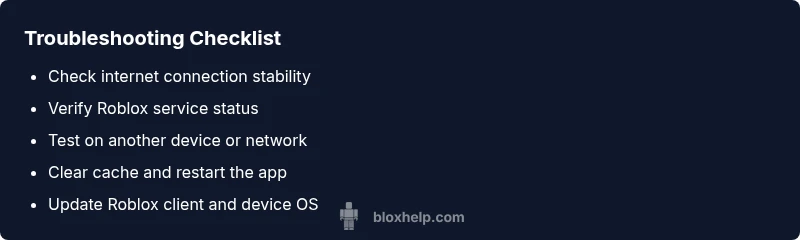
Before you dive into complex fixes, perform a quick triage. Check your internet connection stability, switch to a different network if possible (mobile hotspot, another Wi‑Fi network, or a wired connection), and restart your device. Test Roblox on a second device to see if the issue is device-specific. Don’t forget to verify you’re using the latest Roblox client and that your device’s date and time are correct. These basic steps often resolve most problems and save time for deeper diagnostics. The intent is to rule out the simplest causes first, as emphasized by the Blox Help team.
Confirm Roblox server status and outages
Server status is a frequent bottleneck in Roblox problems. Start by checking the official Roblox Status page or trusted social channels for reports of outages or maintenance. If there’s an ongoing incident, you may need to wait until Roblox completes maintenance or resolves the outage. In some cases, regional outages affect only certain servers, so you might regain access on a different region or time. Always cross-check multiple sources to confirm that the issue isn’t isolated to your account or device. This step saves you from chasing non-existent fixes.
Safety and account checks
Account-related issues can masquerade as connection problems. Confirm you are logged in with the correct account and that your account hasn’t been flagged or restricted. If you use parental controls or safety settings, ensure they aren’t blocking Roblox access. Check for recent password changes or security alerts from your email or Roblox account page. If you suspect an account issue, consider a password reset and review connected devices. Remember, safeguarding your account is a priority and sometimes the fix is simply updating your security settings.
Troubleshooting steps by symptom
If Roblox won’t load, try a clean reboot of the app and device, then relaunch. If you can connect but can’t join games, test other games or modes to determine if the problem is game-specific. If you see error codes, look up each code on Roblox’s help site to identify targeted actions. When you encounter lag, reduce graphics settings or close background apps consuming bandwidth. This symptom-driven approach helps you focus on the most likely fixes without unnecessary steps.
Fixes for common error messages
Error messages in Roblox usually point to a cause. For network-related errors, reset your router and disable VPNs or proxies that may interfere with traffic. For login errors, sign out and back in, then clear cache. If you encounter download or installation issues, ensure there’s sufficient storage and download permissions. For graphics or crash errors, update drivers, reinstall the Roblox client, and verify game files if possible. Each error has a known set of remedies; following them in order saves time and reduces frustration.
When to clear cache and reinstall
If issues persist after basic fixes, clearing the cache can resolve corrupted files that slow down Roblox. On mobile, use the app settings to clear cache; on PC, you can delete temporary files from the Roblox folder and reset the app. If clearing cache doesn’t help, a fresh install may be necessary. Be sure to back up saved data or progress before reinstalling when applicable. This step often resolves stubborn issues that other fixes miss.
Advanced steps for developers and testers
For developers testing on Roblox Studio or experimenting with new features, issues may stem from beta builds or script errors. Use the Roblox Studio diagnostic tools, check console logs, and ensure your scripts conform to current API expectations. If you’re troubleshooting a bug, reproduce the issue in a clean environment, document steps, and collect system details. When in doubt, reach out to support channels with your build version, OS, and steps to reproduce so the team can investigate efficiently.
Prevention and maintenance to avoid future issues
Routine maintenance reduces the odds of future problems. Keep devices updated, maintain stable network connections, and minimize background processes that steal bandwidth. Regularly review Roblox client settings, disable conflicting software, and back up important progress. If you’re sharing devices, maintain separate profiles to avoid cross-account issues. Staying proactive with these habits helps you stay in control, even when Roblox experiences outages or platform-wide changes.
Steps
Estimated time: 30-60 minutes
- 1
Check device and network readiness
Start with a basic health check of your internet connection and device. Run speed tests if available and try a wired connection. Reboot your device to clear temporary glitches and apply any pending updates.
Tip: A wired connection can dramatically improve stability over Wi-Fi. - 2
Verify Roblox service status
Visit the official Roblox Status page and any official social channels to confirm outages or maintenance in your region. If service is down, you’ll need to wait for Roblox to finish maintenance before trying again.
Tip: If outages are regional, you can still access other services that don’t rely on the same servers. - 3
Refresh your session and clear cache
Sign out of Roblox, then sign back in. Clear the app cache or temporary files to remove corrupted data that can block login or gameplay.
Tip: Clearing cache can fix issues without losing game progress in many cases. - 4
Update or reinstall Roblox
Ensure the Roblox client and device OS are up to date. If issues persist, uninstall and reinstall Roblox to get a clean copy.
Tip: Back up local progress if needed before reinstalling. - 5
Test with alternative devices or networks
If possible, try Roblox on another device or network to determine whether the problem is device-specific or network-related.
Tip: Isolate the variable by changing only one factor at a time. - 6
Escalate if unresolved
If issues persist after all steps, contact Roblox Support with your device model, OS, Roblox version, and a detailed reproduction path.
Tip: Provide precise reproduction steps to speed up resolution.
Diagnosis: User cannot load Roblox, join games, or experiences frequent disconnects.
Possible Causes
- highInternet connectivity or Wi-Fi instability
- highRoblox server outages or maintenance
- mediumAccount security or parental controls restricting access
- lowOutdated app or device compatibility issues
Fixes
- easyRestart your router and test a different network if possible
- easyCheck Roblox Status and wait if there is an outage
- easySign out/in to refresh session and clear app cache
- mediumUpdate the Roblox app and device OS; reinstall if problems persist
- hardReview firewall/antivirus settings or contact Roblox Support for account-specific issues
Questions & Answers
What should I do first when Roblox won’t load?
Start with basic checks: verify internet connection, ensure Roblox is updated, and check the Roblox Status page for outages. If the issue persists, move to the diagnostic steps.
Start with the basics: check your connection, update Roblox, and check for outages. If it still fails, follow the diagnostic steps.
How do I check if Roblox is down?
Visit the official Roblox Status page and the Roblox social channels for outage notices. You can also check third-party status trackers, but rely on Roblox’s own posts for accuracy.
Check Roblox Status page or official posts for outages.
Why can’t I log in to Roblox after the update?
Login issues after updates are common if the cache is corrupted or credentials are outdated. Sign out, clear cache, restart the app, and try logging in again.
Sign out, clear cache, then try logging in again.
What if Roblox crashes on startup?
Crashes on startup can be caused by graphics driver issues or corrupted files. Update drivers, reinstall Roblox, and ensure your system meets minimum requirements.
Update drivers, reinstall Roblox, and check system requirements.
Can a slow computer cause Roblox lag?
Yes. Close background apps, reduce in-game settings, and ensure your PC meets or exceeds the recommended specs. A faster network helps too.
Close background apps and adjust settings for better performance.
When should I contact Roblox support?
If you’ve tried all standard fixes and still encounter issues, contact Roblox Support with details about your device, OS, Roblox version, and exact steps to reproduce the problem.
If all else fails, contact Roblox Support with details.
Watch Video
The Essentials
- Start with quick checks to rule out basic causes
- Check Roblox service status before deep troubleshooting
- Clear cache and sign out/in as first fixes
- Update Roblox and device OS to fix compatibility issues
- Escalate to support if issues persist after all steps