How to Create a Custom Roblox Avatar
Learn to build a standout custom Roblox avatar with practical steps, safe sourcing, and design tips. This beginner-friendly guide covers themes, clothing, UGC items, testing across devices, and best practices for a cohesive, safe look.


Goal: Learn how to build a custom Roblox avatar that reflects your style. You’ll choose a cohesive theme, pick clothing, accessories, and UGC items, and test your look across games and devices. The guide covers where to shop safely, how to mix items without clashes, and essential safety tips to avoid scams. By the end, you’ll have a unique avatar ready for Roblox exploration.
Roblox avatar anatomy: parts you can customize
In Roblox, your avatar is more than a single model—it's a composition of many interchangeable parts. By understanding each element, you can craft a look that expresses your personality or brand. The base body forms the silhouette, while clothing items, accessories, hats, faces, and bundles add character. Hair styles, skin tones, and body colors can be mixed and matched on most platforms; however, certain items may be platform-specific. According to Blox Help, starting with a clear theme helps prevent clutter and ensures each addition enhances the overall design. When you choose items, consider how they read at different distances in-game: tiny accessories can become visual noise in fast-paced titles, so prioritize readable shapes and contrast. The goal is a cohesive silhouette where every piece complements the rest rather than competing for attention. If you’re unsure how items will actually look in a game, test them in a neutral space (like a calm studio scene) before committing to a full loadout.
Theme ideas that work: color, style, and mood
Before you buy anything, define a theme. Are you going for a sleek sci-fi look, a retro gamer vibe, or an adorable fantasy style? Decide on a color palette—two primary colors with one accent often reads cleanly. Think about how the avatar will appear in different games and lighting conditions. A dark base with bright accents tends to pop in Roblox environments, while pastel tones suit casual, friendly experiences. The key is consistency: limit yourself to a handful of clothing items that share the same vibe, and avoid mixing three wildly different themes. By setting a mood first, you can curate high-value items rather than accumulating a stash you never wear.
Safe and legit sources for avatar items
In the world of Roblox avatar customization, sticking to official sources reduces risk. The Avatar Shop, the Roblox catalog, and trusted creator pages are your safest bets. Beware of third-party sites offering “free Robux” or downloadable items; these can violate Roblox terms or compromise your account. Based on Blox Help analysis, reputable items usually show clear creator names, consistent item images, and transparent pricing. When evaluating a potential item, check user reviews, item previews, and whether the item is compatible with your platform and version of Roblox. If an item requires additional software or indicates it “uploads” to your avatar, pause and verify with official Roblox channels before proceeding. A well-curated collection uses a few high-quality items rather than a sprawling shelf of low-value gear.
Balance fashion and performance across devices
Performance matters, especially on mobile and older devices. Heavy bundles and textures can slow you down and increase loading times, which hurts the gameplay experience. To balance fashion and performance, prioritize items with smaller texture maps, avoid redundant accessories, and default to a cohesive palette rather than a maximalist fusion. Test how your avatar looks in low-light scenes and at distance, then adjust to maximize legibility. Remember to clear unused items to reduce load times and potential lag in fast-paced titles.
Step-by-step plan overview
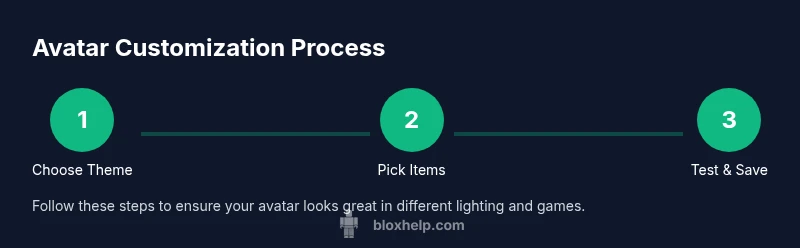
Here is a practical outline to guide your process: (1) Decide your theme and color palette; (2) Open the Roblox Avatar Editor and set a base; (3) Build your outfit with a few high-impact items; (4) Add accessories and UGC pieces that reinforce your theme; (5) Save your look and test it in multiple games; (6) Iterate based on feedback and lighting differences across platforms. This plan keeps changes manageable and helps you avoid overwhelming your avatar with items that don’t fit the aesthetic.
Testing and saving your custom avatar
Test your avatar in a few different Roblox titles to ensure readability and legibility across environments. Check how it looks under various lighting conditions and screen sizes. Save variations as separate outfits so you can switch quickly depending on the game mood. Remember: if an item causes lag or visual distortion, consider swapping it for a simpler alternative. Storing your look in your inventory or a personal wishlist helps you compare options over time.
Common mistakes and how to fix them
Common mistakes include overloading with accessories, choosing colors with low contrast, and ignoring platform differences. Fix by prioritizing a clean silhouette, limiting to 4-6 items per look, and testing in both bright and dim environments. If an item doesn’t complement the theme, remove it and replace with a more cohesive piece. Regularly audit your inventory to remove clutter and keep your avatar streamlined.
Accessibility and inclusive design for avatars
Consider accessibility when choosing colors and shapes. High-contrast palettes improve readability for players with visual differences, while clear, simple shapes maintain recognizability at a distance. Avoid overly busy textures that can obscure facial features or body outlines. A thoughtful avatar welcomes a wider audience and reduces visual fatigue during long gaming sessions.
Getting the most from UGC and bundles
UGC (user-generated content) and bundles offer unique, affordable ways to realize a theme. When evaluating UGC items, check reviews and previews, and prefer creators with a reputable history. Bundles can provide cohesive looks at a lower total item count, simplifying maintenance and future updates. Always ensure you’re buying items from safe, official channels to protect your account.
Quick-start checklist for a custom avatar
- Define your theme and palette.
- Open the Avatar Editor and set a clean base.
- Choose 2-4 standout items that fit your theme.
- Add 1-2 complementary accessories.
- Test in multiple games and lighting.
- Save variations and iterate based on feedback. The Blox Help team recommends revisiting your avatar after testing in different games to refine the look.
Tools & Materials
- Roblox account with access to Avatar Editor(Active account linked to the device you’ll use)
- Device with Roblox app or web browser(PC, Mac, iOS, Android, or console)
- Stable internet connection(Needed for loading items and saving outfits)
- Color palette or mood board(Two primary colors and one accent recommended)
- Access to Avatar Shop / Catalog(Where you browse and equip items)
- Notes app or screenshot tool(Document reference looks or inspirations)
Steps
Estimated time: 45-75 minutes
- 1
Decide your avatar theme
Choose a cohesive theme that matches your personality or brand. Define a color palette with two primary colors and one accent. Gather reference images or screenshots to guide item selection.
Tip: Create a quick mood board to keep your theme consistent across items. - 2
Open the Avatar Editor
Launch Roblox and navigate to the Avatar Editor. Confirm you’re editing your main avatar and set a neutral base body if you want to test multiple looks without affecting your core silhouette.
Tip: Start from a clean base to better judge how items interact with lighting. - 3
Choose a base body and skin tone
Select a base body shape and skin tone that complements your theme. Keep accessibility in mind and ensure contrast remains readable in various games.
Tip: Test color contrast against bright and dark game environments. - 4
Pick primary clothing items
Choose a few key pieces (shirt, pants, or full-body outfit) that define the look. Don’t exceed 4-6 items to avoid a cluttered silhouette.
Tip: Prioritize items with clean shapes and readable silhouettes at a distance. - 5
Add accessories and UGC pieces
Layer hats, glasses, backpacks, or UGC items that reinforce your theme. Check that they don’t clash with the base color and don’t cause performance issues.
Tip: Limit accessories to keep your avatar legible in-game. - 6
Save, test, and refine
Save your look and test across multiple games and lighting conditions. If something reads awkwardly, swap it for a more cohesive option.
Tip: Document variations and compare them to select the best look.
Questions & Answers
What is a custom avatar in Roblox?
A customized character look built from clothing, accessories, and UGC items. It reflects your style and is wearable in most Roblox games. Customization is a mix of art and practicality, requiring balance between aesthetics and performance.
A custom Roblox avatar is your unique character look built from clothes and accessories. It appears in most Roblox games and should balance style with readability.
How do I get custom clothes for Roblox avatars?
Use the Avatar Shop and trusted creators. Many items are free or cost Robux. Always verify the source and previews before purchasing to avoid scams.
You can find clothes in the Avatar Shop or from trusted creators. Some items are free, others cost Robux.
Are there limits on avatar customization?
Roblox supports a wide range of items, but some pieces are platform-specific or may not be compatible across devices. Check item descriptions for compatibility notes.
There are some limits; check each item’s compatibility notes across devices.
Can I use community-created items?
Yes, many community items are available, especially UGC pieces. Ensure they come from safe sources and respect copyrights and creator terms.
Yes, you can use community items, but make sure they’re from safe sources and respect creators’ terms.
Is there a cost to customize avatars?
Some items are free; others require Robux. Build a balanced collection by mixing free basics with a few premium pieces.
Some items are free; others require Robux. Plan a budget for your look.
Which devices support avatar customization?
Roblox supports PC, Mac, iOS, Android, and Xbox. Avatar editing works across these platforms, though item availability may vary by device.
All major Roblox platforms support avatar editing, with some item differences by device.
Watch Video
The Essentials
- Define a theme before buying items
- Prioritize silhouette and readability over quantity
- Use trusted sources and test across devices
- Iterate based on game lighting and feedback
- Save presets for quick updates