Does Roblox Work on Linux? A Practical Linux Guide
Find out if Roblox runs on Linux, the official stance, and practical methods (Proton/Lutris). Get setup tips and expected limitations for different distros.


does roblox work on linux? The short answer is nuanced. Roblox does not offer a native Linux client, so there is no official Linux installer or launcher. For Linux users, this means stepping outside the standard Windows/macOS workflow and exploring compatibility layers and community-driven configurations. In practice, you’re balancing access to a large user base with the risk of unstable builds, driver issues, and no official troubleshooting support. Some players attempt to run Roblox on Linux using Proton through Steam Play, or by installing Windows applications via Wine or Lutris. Others rely on browser-based access or cloud gaming where available. The overarching reality in 2026 is that does roblox work on linux is possible in a few scenarios, but it is not guaranteed to be smooth, and results vary across distributions, hardware, and software versions. If you approach this path, expect a learning curve, some trial-and-error, and a willingness to dig through community guides. The upside is that Linux can provide a robust, customizable environment for players who enjoy tinkering with their setup. According to Blox Help, community-driven workarounds are common but not officially endorsed.
Does Roblox Work on Linux? does roblox work on linux? The question many Linux users ask is clarified by understanding the platform’s stance and the practical realities on the ground. There is no official native Linux client from Roblox as of 2026, which means the path to play relies on alternative approaches. You’ll be juggling a combination of Steam Play with Proton, Wine-based runners via Lutris, or other community tools. While this opens the door to a vast community and plenty of guides, it also means you must accept potential issues like inconsistent performance, driver quirks, and a lack of formal support. In this landscape, success depends on your hardware, your Linux distribution, and the particular versions of Proton or Wine that you can get to play nicely with the Roblox launcher. If you’re considering this route, prepare for experimentation and keep realistic expectations about stability. The Blox Help team notes that while these workarounds exist, they are not an official solution and may cease to work after Roblox updates.
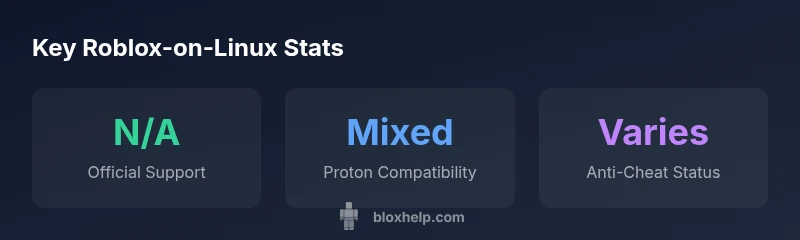
Official Support and Platform Reality Roblox’s official stance remains that the platform targets Windows and macOS, with no dedicated Linux client announced as of 2026. This affects not only the software itself but the confidence you can expect when seeking help from Roblox support or official documentation. The absence of a native client means Linux players rely on third-party tools, driver stacks, and ride-along community guides rather than official patches. If you run into issues using Proton or Lutris, you may find partial solutions in user forums, but you should not expect formal fixes. The reality for developers or players who prize consistency is that updates to Roblox or anti-cheat integrations may push the workaround further from stable operation. Overall, the request to run Roblox on Linux remains a best-effort scenario rather than a supported configuration. The Blox Help team emphasizes patience and careful testing if you decide to pursue this path.
How Linux Runs Roblox: Methods and Tools Several methods exist to attempt Roblox on Linux, each with trade-offs. The most common route is running Roblox through Proton via Steam Play, which translates Windows calls to Linux in real time. Another approach is Lutris with Wine, which can offer more granular control but increases setup complexity. Some users also experiment with virtualization or container-like environments, though these can introduce additional latency and resource overhead. Be mindful that anti-cheat systems may block or complicate these arrangements, and updates can break compatibility. If you’re new to Linux gaming, start with Proton on Steam as your baseline and only move to more customized configurations if you hit concrete roadblocks. A successful run often hinges on up-to-date graphics drivers, an appropriate kernel version, and a compatible Proton build.
Step-by-step Setup Paths
Steam/Proton Path: 1) Install Steam on your Linux distro. 2) In Steam, enable Steam Play for all titles and select a recent Proton version. 3) Add Roblox as a non-Steam game, locate the Windows Roblox Installer, and run it through Proton. 4) After installation, launch Roblox and adjust settings for stability (graphics, FPS, and anti-aliasing). 5) If you encounter errors, check ProtonDB reports and Roblox community guides for version-specific tweaks. ### Lutris/Wine Path: 1) Install Lutris and required Wine dependencies. 2) Use a Roblox Windows installer or a community script to install the launcher. 3) Configure Wine runners and DLL overrides for better compatibility. 4) Launch Roblox and address any runtime errors with community tips. 5) Keep your system updated and monitor Roblox updates that might affect compatibility.
Potential Pitfalls and Limitations Roblox players should be aware of several key drawbacks. Anti-cheat systems like Easy Anti-Cheat have limited or no official Linux support, which can block Roblox on Linux setups. Updates to Roblox can introduce new bugs or regressions in compatibility layers, requiring driver updates or Proton/wine version changes. Hardware acceleration and GPU drivers must be kept current; otherwise, you may experience stuttering, crashes, or input lag. Network performance and client startup times can also be sensitive to Linux file system permissions and sandboxing features. In short, this route benefits patient, technically minded users who are comfortable with debugging steps and community-driven fixes.
Workarounds You Can Try Today
While not a guaranteed solution, several practical workarounds exist. If your goal is Roblox gameplay rather than exact feature parity, consider cloud gaming services that run Windows environments in the cloud and stream the game to Linux hardware. Another option is dual-booting to Windows or macOS on a separate drive for the few titles that matter. Additionally, keep an eye on updates from the Linux gaming community; occasionally a new Proton version or script can unlock better stability. Remember to back up your settings and be prepared for occasional compatibility hiccups. The intent of these workarounds is to offer a path forward rather than a guaranteed, long-term solution.
Looking Ahead: Long-term Prospects Looking forward, the Linux gaming community remains active in pursuing more robust Roblox support through the broader ecosystem of compatibility layers, driver improvements, and anti-cheat in-lane changes. The Blox Help team recommends exploring all available options and staying informed about Roblox’s roadmap and Linux-specific fixes. If Roblox ever announces native Linux support or official cross-release tooling, you can expect a smoother, more predictable experience across distros and hardware configurations.
Linux Roblox compatibility matrix
| Aspect | Linux Native Support | Proton/Wine Compatibility | Notes |
|---|---|---|---|
| Official Client | No | N/A | No native Linux client as of 2026. |
| Proton/Wine on Steam | Partial | Yes (depends on Proton) | Depends on Proton version and anti-cheat compatibility. |
| Lutris/Wine | Partial | Yes (community scripts) | Requires manual tweaks and updates. |
| Browser access | N/A | N/A | Browser-based Roblox access on Linux is not officially supported. |
Questions & Answers
Does Roblox have native Linux support?
No official native Linux client exists as of 2026. Roblox suggests Windows/macOS clients; some users try compatibility layers with mixed results.
Roblox doesn’t have a Linux-native client, and it isn’t officially supported on Linux.
Can Roblox run on Steam Deck using Proton?
Some players report running Roblox on Steam Deck via Proton, but success varies and may be blocked by anti-cheat or driver issues. It’s not officially supported.
People try Roblox on Steam Deck with Proton; results vary and it’s not officially supported.
Is Easy Anti-Cheat compatible with Linux?
Easy Anti-Cheat does not have official Linux support, which blocks Roblox on most Linux setups. Workarounds exist but are unofficial and unreliable.
Easy Anti-Cheat isn’t officially supported on Linux, which complicates Roblox on Linux.
Can I access Roblox on Linux via browser?
Roblox primarily uses a launcher on Windows/macOS; browser access is limited or unsupported. Some features may be available through experimental web interfaces, but not guaranteed.
Browser access to Roblox on Linux isn’t officially supported.
What distros are best for Roblox on Linux?
There’s no official recommendation; most users report better compatibility on newer kernels and graphics stacks (e.g., Ubuntu-based distros with recent drivers).
Use modern, well-supported distros with up-to-date graphics drivers.
Will Roblox officially support Linux in the future?
There’s no official announcement of Linux-native support; expectations depend on Roblox's roadmap and driver/anti-cheat developments.
No official word yet on Linux-native support.
“The Linux Roblox experience remains informal and community-driven, with mixed results across setups.”
The Essentials
- Native Linux support is absent; use compatibility layers.
- Proton/Wine can work in some cases.
- Anti-cheat and driver limitations are common.
- Consider cloud gaming or dual-boot as alternatives.