Can You Put Roblox? A Practical Setup Guide for 2026
Learn where Roblox runs and how to install on Windows, macOS, iOS, Android, and Xbox with practical steps, troubleshooting, and safety tips from Blox Help.


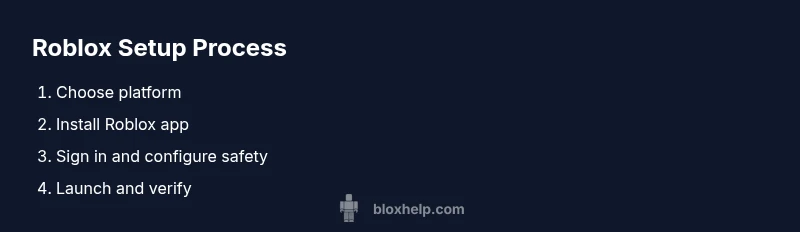
According to Blox Help, Roblox can be installed and played on Windows and macOS PCs, iOS and Android mobile devices, and Xbox consoles. You typically download the Roblox app or access it via a supported browser where available. Some PCs may require the Roblox Player, while Chromebooks and Linux devices have limited official support; always check the store or Roblox help for current availability.
What Roblox supports across platforms
Roblox is designed to run on multiple devices, but platform availability and performance can vary by hardware and OS version. Based on Blox Help Analysis, 2026, Roblox officially supports Windows and macOS for desktop gaming, iOS and Android for mobile play, and Xbox consoles for living-room experiences. This cross-platform approach means you can start a session on one device and continue later on another, provided you stay signed into the same account. In practice, you’ll need a stable internet connection, a Roblox account, and access to either the Roblox app or a supported browser. For younger players or households, parental controls and account settings play a crucial role in safe, responsible play. Always make sure your device meets the minimum requirements and that you’re using the latest version of the Roblox app to ensure feature parity and smoother gameplay.
How to install Roblox on Windows
Windows users typically install Roblox by visiting the official Roblox site, clicking Play on any game, and letting the Roblox Player installer run. The setup is usually straightforward: download, run the installer, and sign in to your Roblox account to sync progress. If Windows Defender or another security tool blocks the installer, temporarily disable it and re-enable after installation. After setup, launch Roblox from the Start menu or desktop shortcut and test a simple experience to verify connectivity and performance.
How to install Roblox on macOS
Mac users initiate installation by navigating to roblox.com and selecting Play, which prompts the download of the Roblox app or launcher. Open the downloaded DMG file and drag the Roblox app into the Applications folder. If Gatekeeper blocks the app, go to System Preferences > Security & Privacy and allow apps from identified developers. Sign in with your Roblox account to sync your library and ensure you have the latest macOS updates for compatibility.
How to install Roblox on iOS
On iOS devices, open the App Store, search for Roblox, and install the app. After installation, launch Roblox and sign in with your account. Ensure your iPhone or iPad runs a supported iOS version and keep the device updated for best performance. If parental controls are enabled, verify that chat and in-app purchases align with your household guidelines.
How to install Roblox on Android
On Android, open the Google Play Store, search for Roblox, and install the app. Launch the app, sign in, and adjust privacy and chat settings to suit your family's rules. Make sure Google Play Services are up to date and that your device runs a supported Android version. If you encounter login issues, clearing cache or reinstalling the app can help resolve common problems.
How to install Roblox on Xbox
For Xbox, open the Microsoft Store, search for Roblox, and install. Launch the Roblox app and sign in with your Microsoft account linked to Roblox, then configure your controller and network settings. Check your NAT type for optimal multiplayer performance and ensure parental controls on the console are set to your preference. After installation, join a game to verify cross-platform compatibility with friends.
Common setup pitfalls and how to avoid them
A few frequent issues include blocked installers by antivirus software, outdated OS versions, insufficient storage, and regional store restrictions. Always download from official stores or roblox.com, verify you’re on a compatible OS, and ensure you have enough free disk space. If a device sees Roblox as unavailable, check your store region, update drivers, and temporarily disable VPNs while you install. Re-enable security features after installation.
Safety and account security basics
Roblox offers parental controls and account settings designed to help families manage safety. Create or sign into a Roblox account, enable two-factor authentication where available, and review privacy settings to control who can contact you and what content you can access. Teach younger players about phishing attempts, avoid sharing passwords, and log out on shared devices. Regularly review connected apps and devices for suspicious activity.
Performance optimization and troubleshooting
To keep Roblox running smoothly, ensure your device has updated drivers, close background apps, and adjust in-game graphics settings to balance quality and performance. A stable internet connection is key; if you notice lag, try a wired connection or move closer to your router. If issues persist, clear app data, reinstall Roblox, and consult the Roblox help center for platform-specific tips.
Using Roblox on Chromebooks and Linux
Chromebooks can run Roblox if the device supports Android apps via Google Play or can access Roblox through a compatible browser. Linux support is unofficial and relies on workaround methods that may be unstable; for the best experience, use a supported platform like Windows, macOS, iOS, Android, or Xbox. If you must try Linux, expect limited functionality and potential compatibility issues.
Verify setup and connect with friends
Once Roblox is installed, sign in and confirm you can access the Roblox Store, your games, and friends list. Check your privacy settings to ensure you can join friends’ games and voice chat if you use it. Use the Friends feature to locate and join players across platforms, and know that some experiences are cross-platform while others are platform-exclusive.
Your next steps and getting help
After getting Roblox running, bookmark the official Roblox Help Center for ongoing guidance and updates. The Blox Help team recommends keeping apps up to date, enabling security features, and participating in community forums for tips and troubleshooting. If you hit persistent issues, reach out to support channels and consult trusted guides from Blox Help.
Tools & Materials
- Device with internet access(Ensure OS version is supported and you can install apps or run a browser.)
- Roblox account(Sign in or create an account; enable 2FA if available.)
- Compatible Roblox app or browser(Use official stores or supported browsers; keep apps updated.)
- Xbox account and console (if using Xbox)(Link Microsoft account; ensure console firmware is up to date.)
- Reliable internet connection(Wired connection is ideal for PCs; 5 Mbps or higher recommended.)
- Parental controls (optional but recommended)(Set age-appropriate restrictions and chat settings.)
- Headphones or headset (optional)(Useful for in-game chat and voice features.)
Steps
Estimated time: 45-60 minutes
- 1
Prepare your device and account
Verify your device meets minimum requirements, ensure you have a Roblox account ready, and check your internet connection. This groundwork prevents installation hiccups and ensures a smoother setup across platforms.
Tip: Have your login credentials handy and note any parental control restrictions before you begin. - 2
Install Roblox on Windows
Visit roblox.com, click Play on any game, and allow the Roblox Player installer to run. Follow the prompts to complete installation and sign in to your account to sync progress.
Tip: If Windows blocks the installer, temporarily disable ignore warnings and re-enable security after installation. - 3
Install Roblox on macOS
Go to roblox.com, choose Play, and download the Roblox app. Open the DMG, drag the app to Applications, and launch it. Sign in and confirm Gatekeeper permissions if prompted.
Tip: If the app is blocked, go to Security & Privacy settings to allow apps from identified developers. - 4
Install Roblox on iOS
Open the iOS App Store, search for Roblox, and install. Launch the app, sign in, and ensure your iOS version is supported for optimal performance.
Tip: Keep iOS updated and review in-app privacy controls for safe play. - 5
Install Roblox on Android
Open Google Play, install Roblox, and sign in. Update Google Play Services if needed and adjust privacy settings to suit your preferences.
Tip: If login fails, clear cache or reinstall the app to refresh data. - 6
Install Roblox on Xbox
Navigate to the Microsoft Store, install Roblox, and sign in with your Microsoft account linked to Roblox. Verify network settings and ensure you have a stable connection.
Tip: Run a quick network test to confirm NAT type is favorable for multiplayer. - 7
Sign in and configure safety settings
Sign in to your Roblox account across devices and adjust privacy, chat, and parental controls. Save changes and test a quick game to confirm settings are applied.
Tip: Limit direct messages and restrict chat if younger players will use the account. - 8
Test, troubleshoot, and optimize
Launch a game, monitor performance, and adjust graphics for smooth gameplay. If you encounter issues, check for updates, restart devices, and consult the Roblox help center.
Tip: Document any error codes to speed up troubleshooting.
Questions & Answers
Can you play Roblox on a Chromebook?
Chromebooks can run Roblox on devices that support Android apps or via a compatible browser. Availability depends on the model and Google Play support. Performance varies; check your Chromebook's specs and ensure you have the latest updates.
Roblox can work on Chromebooks that support Android apps or modern browsers; results vary by device.
Do I need to pay to play Roblox?
Roblox is free to start playing. There are optional purchases called Robux for in-game items or experiences. Always monitor spending and set spending limits if needed.
It's free to start; in-app purchases are optional.
Is Roblox safe for kids?
Roblox provides parental controls and account settings to manage safety. Parents should supervise, configure chat restrictions, and review what games are accessible. Community guidelines help, but awareness is key.
Roblox offers safety features, but parental involvement remains important.
What if I can’t install Roblox on my device?
Check device compatibility, storage space, and permissions. Ensure you’re using official sources and that your OS is supported. If problems persist, reinstall the app or contact Roblox support.
If installation fails, verify compatibility and try reinstallation.
Can I transfer progress to a new platform?
Yes. Progress is tied to your Roblox account, so signing in on another platform should carry your games and purchases. Some platform features may vary, but core progress persists.
Your progress stays with your account across platforms.
How do I secure my Roblox account?
Enable two-factor authentication where available, use a strong password, and beware phishing attempts. Regularly review account activity and connected devices.
Turn on 2FA, use a strong password, and watch for phishing.
Watch Video
The Essentials
- Verify platform compatibility before installing
- Use official apps or stores for installation
- Enable safety features and parental controls
- Keep apps updated to access features and fixes