How to Get Roblox: Quick Setup Guide for Beginners 2026
Learn how to get Roblox with a beginner-friendly, step-by-step guide. Create an account, choose a device, download the Roblox client, and start playing safely.


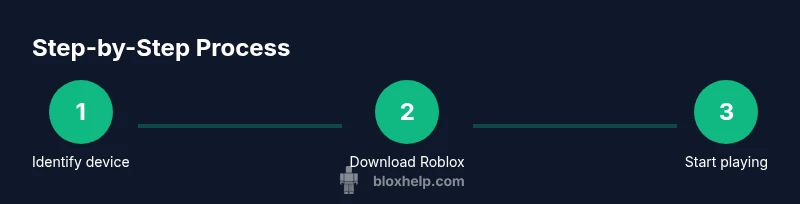
You’ll learn how to get Roblox by creating an account, choosing a supported device, and installing the Roblox client or using the browser. This quick, step-by-step outline covers essential setup, safety practices, and where to download from official sources so you can start playing right away with confidence.
What Roblox Is and Why You Might Want It
Roblox is a free-to-play online platform where players can explore, create, and share games built by the community. If you’re wondering how to get Roblox, this beginner-friendly guide walks you through the simple setup and account creation steps so you can start playing right away. According to the Blox Help team, following official sources and adopting safe practices speeds access and protects your device. Whether you’re here to play or to learn game development with Roblox Studio, you’ll find a clear path forward that respects your time and skill level. Roblox’s vast library of user-generated games means you can jump into experiences ranging from obstacle courses to role-playing adventures, often with new content added daily. The platform also serves as a learning sandbox for aspiring developers who want to experiment with Lua-based scripting and basic game design concepts. By understanding the official download options, privacy settings, and common setup flow, you’ll minimize confusion and avoid potential scams. The goal is to move from curiosity to playing in minutes, not hours, while keeping safety and control intact.
Compatible Devices and System Requirements
Roblox is designed to run on a wide range of devices, including Windows PCs,
How to Create a Roblox Account (Getting Started)
To get Roblox, you’ll first need a Roblox account. Visit roblox.com or open the Roblox app, then submit the signup form with a unique username and a strong password. If your age is requested, select the appropriate category to enable sensible content filters. After submitting, look for a verification email and follow the link to finalize setup. Once your account is active, sign in and explore your home feed, where you can discover popular games, creators, and recommended experiences. As you start, consider adjusting privacy settings to manage who can contact you and what content you see. The signup flow is designed to be approachable for beginners while providing enough options for more advanced users who want to customize avatars and game preferences. This foundation makes it easier to transition into creating your own experiences later, if you choose to explore Roblox Studio and Lua scripting.
Device-Specific Setup Paths
If you’re on Windows or
Safety, Privacy, and Parental Controls
Roblox offers account safety features like two-factor authentication, privacy settings, and parental controls. It’s important to review privacy settings early to control who can contact you, which games you can access, and how you interact with others. Always use a strong password and avoid sharing account information, especially with friends or online communities. For guardians, enable family-friendly controls, set spending limits for in-game purchases, and monitor friend requests and private messaging where available. Keeping your account secure makes the experience more enjoyable and reduces risk of scams or misuse. Regularly review account activity and update security settings as needed.
Quick Troubleshooting Pathways
If you encounter issues, start with the basics: verify you’re on an official Roblox site or app, restart the client, and check your internet connection. Common problems include login failures, slow downloads, or errors when launching Roblox Studio. If you see a specific error code, search the official Roblox help pages for the exact resolution steps. Clearing cache, updating the app, and reinstalling the client can fix many issues, but avoid downloading from non-official sources. If problems persist, consult Roblox’s status page or community forums for known outages and share details about your device and OS version to get targeted help quickly.
Blox Help Analysis and Practical Takeaways
Based on Blox Help Analysis, 2026, Roblox remains broadly accessible across major devices with a straightforward setup. The practical takeaway is to start on an official download, use strong security practices, and tailor privacy settings to your comfort level. For beginners, sticking to the core steps—account creation, device compatibility, and official app installation—reduces friction and helps you reach the fun faster. This section emphasizes practical, repeatable actions rather than one-off tips and highlights common pitfalls to avoid, such as scammy download prompts or sharing credentials.
What to Expect Next (From a Creator’s Perspective)
If you aim to develop on Roblox, install Roblox Studio and begin with beginner tutorials to learn the Lua-based scripting language used in Roblox. Start with small, simple projects to build confidence, then progressively tackle more complex mechanics and user interfaces. Engaging with the community and running through official Creator tutorials can accelerate your learning curve. This trajectory helps you transition from player to creator while leveraging the same account you use for gaming, saving time and avoiding account fragmentation.
Quick Checklist for Getting Roblox Now
- Confirm device compatibility and a stable internet connection.
- Use the official Roblox site or store listing to download the client or app.
- Create a unique username and a strong password; enable 2FA if available.
- Verify your email to enable account recovery and full features.
- Sign in and tailor privacy settings before playing with others.
- Consider trying Roblox Studio later to explore basic game creation.
Final Note: The Road Ahead for Roblox Enthusiasts
As you settle into Roblox, you’ll find a universe of games and a platform that supports budding developers. The steps above are designed to be repeatable and scalable, so you can enjoy current titles and gradually start building your own. The journey from curious player to confident creator is within reach with the right setup, safety mindset, and access to official resources.
Tools & Materials
- Stable internet connection(Broadband recommended; avoid flaky connections during download)
- Device with supported OS(Windows 10+/macOS 10.12+, iOS/Android smartphones, or a compatible console)
- Email address(For account verification and password recovery)
- Web browser or Roblox app(Chrome/Edge/Safari or the official Roblox app)
- Two-factor authentication (optional but recommended)(Adds a layer of security to your account)
Steps
Estimated time: 15-40 minutes
- 1
Identify device readiness
Check that your device is supported and that you have a stable internet connection. If you’re on a shared network, ensure it allows app downloads and game streaming.
Tip: Test a quick web page load to confirm connectivity before starting. - 2
Access official Roblox sources
Open a browser and navigate to roblox.com, or search for the Roblox app in your device’s app store. Always use official sources to avoid scams or malware.
Tip: Bookmark the official site for quick future access. - 3
Create your Roblox account
Fill in the signup form with a unique username and a strong password. You may be asked for age to enable content filters and parental controls.
Tip: Use a password manager to keep your credentials secure. - 4
Verify your email
If you provided an email, verify it to unlock full account features and recovery options. Check spam folders if the message isn’t visible.
Tip: Set up a secondary recovery option if available. - 5
Install Roblox client or launch in browser
Download and install the Roblox client on your device, or start playing directly in the browser if offered. The desktop app generally provides the best performance.
Tip: If download is slow, pause other bandwidth-heavy apps. - 6
Sign in and customize
Sign in with your new credentials and personalize your avatar, privacy settings, and notification preferences. This helps tailor your experience from the start.
Tip: Review privacy settings before adding friends.
Questions & Answers
Is Roblox free to get and play, or are there costs?
Roblox is free to create an account and play many games. Some games and features offer in-game purchases or premium memberships.
Roblox is free to start playing. Some games may offer purchases for cosmetic items or special passes.
Do I need to download the Roblox client or can I play in a browser?
You can usually start in a browser, but for best performance and access to Roblox Studio, install the Roblox client on supported devices.
Most users should install the Roblox client for full access and better performance.
Which devices support Roblox?
Roblox supports Windows, macOS, iOS, Android, Xbox, and some consoles. Check the official site for current device compatibility.
Roblox runs on PC, Mac, mobile, and some consoles. Check your device compatibility first.
How do I create a Roblox account?
Visit roblox.com or open the app, fill in the signup form with a unique username and a strong password, then verify it if prompted.
Go to Roblox, sign up with a username and password, then verify your account if needed.
How can I keep my Roblox account safe?
Use a strong password, enable two-factor authentication, and avoid sharing login details. Regularly review privacy settings.
Keep your Roblox account safe with a strong password, 2FA, and privacy settings.
What should I do first if Roblox won’t load?
Check official channels for service status, verify app integrity, and ensure you’re using the latest version from an official source.
If Roblox won’t load, check the status page and update the app from the official source.
Watch Video
The Essentials
- Install from official sources and verify before signing in
- Create a strong, unique Roblox account
- Enable security features like 2FA
- Customize privacy settings early to control interactions
- Experiment with Roblox Studio to begin creating