How to Put Roblox: Step-by-Step Setup Guide
Learn how to put Roblox on your device with a complete setup guide, from account creation to installation on mobile, PC, Mac, and consoles. Includes safety settings and troubleshooting.


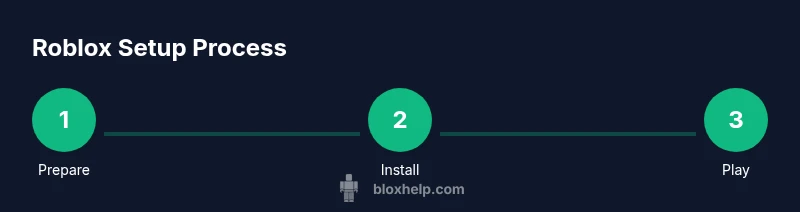
According to Blox Help, this guide will show you how to put Roblox on your device by signing up or logging in, installing the Roblox app (or using a browser), and configuring safety settings. The approach covers mobile, PC, Mac, and consoles, with tips to prevent common install issues. By the end, you’ll be ready to start playing.
Understanding Roblox on Different Devices
Roblox runs on a wide range of devices, including iOS and Android phones, Windows PCs, Macs, Xbox consoles, and compatible tablets. Before you begin, decide which device you’ll use most often and how you want to sync your progress across devices. According to Blox Help, a common pitfall for new users is trying to run Roblox on unsupported hardware or outdated browsers. Check your device's OS version and ensure you have a stable internet connection. If you plan to play on multiple devices, start with one primary device to minimize sign-in friction and keep your password secure.
- Quick tip: make sure your device storage isn’t full and your OS is up to date to avoid install errors.
Device compatibility and platform options
Roblox supports a variety of platforms, but not every device can run every feature. On mobile, install the Roblox app from the iOS App Store or Google Play Store. On PC and Mac, you can use the Roblox website or the standalone app. Console players can access Roblox on Xbox, PlayStation, or Nintendo Switch in some regions. Each platform has slightly different installation steps, but the core process remains the same: create or sign in, install the app, and launch Roblox. For best performance, ensure your device meets minimum RAM, storage, and GPU requirements, and keep drivers updated.
- Supported platforms: mobile, PC, Mac, Xbox, and select consoles.
- Stability factors: network speed, background apps, and recent OS updates.
Creating or signing into your Roblox account
Open Roblox and choose Sign Up or Log In. If you’re signing up, provide a birthday, a username, a password, and an email or phone number for recovery. Verify your account via email or SMS if prompted. Once signed in, you can customize your avatar, adjust privacy settings, and access the Roblox catalog. If you’ve used Roblox before, log in with your existing credentials to sync your progress across devices. Keep your recovery information current to prevent lockouts.
- Pro-tip: enable two-factor authentication if available.
Installing Roblox Across Platforms
Mobile: go to the App Store/Play Store, search for Roblox, and tap Install. PC/Mac: visit the Roblox official site, click Play, and install the launcher. Console: navigate to the Roblox app on your console's store and install. After installation, launch Roblox and sign in. If prompted, grant the app permission to access storage or media. Regularly update the app to access new features and bug fixes.
- Critical step: only install from official stores or the official Roblox site.
Safety, privacy, and parental controls
Set a strong password, enable two-factor authentication if available, review privacy settings, and consider enabling account restrictions for younger players. Parental controls can help limit chat, in-game purchases, and friend requests. Make sure to supervise younger players and discuss online behavior. Roblox also provides reporting and blocking features if you encounter inappropriate content. Review age-appropriate settings and communicate boundaries with younger players.
- Safety first: turn on account security features.
Managing purchases, currency, and budgeting
Roblox uses Robux as currency; you can buy Robux via credit card, gift cards, or mobile payment. Be mindful of in-app purchases and set spending limits if the platform supports them. For safer shopping, enable purchase confirmations and restrict access to your account for younger players. Consider using family accounts or parental controls to limit unexpected charges.
- Quick money-saving tip: look for gift card promotions from trusted retailers.
Finding games, joining experiences, and saving progress
Use the search bar to find games by title or category. Join experiences with server options; some experiences require age verification. Bookmark favorites and track your progress via your profile. Remember to log out on shared devices if you’re concerned about account security. Explore user-created experiences to learn from others while staying mindful of safety settings.
- Explore responsibly: start with kid-friendly experiences to learn the interface.
Troubleshooting common install issues
If Roblox won’t install: check device compatibility, ensure OS version is current, and verify you have enough storage. If you can’t sign in: reset password, verify email/phone, and check for service outages. If a game lags: lower graphics settings, close background apps, and ensure network stability. For crash issues, update drivers and reinstall the app. If problems persist, consult Roblox Support.
- When in doubt, restart the device and clear cache before reinstalling.
Getting started: best practices for a smooth Roblox experience
Stay mindful of safety, use strong passwords, and keep your software updated. Practice responsible play and explain privacy settings. Use the platform's help resources or forums like Blox Help for troubleshooting. The goal is to enjoy Roblox safely and confidently across your devices.
- Final tip: keep a log of issues and resolutions for future reference.
Tools & Materials
- A device with internet access (phone, tablet, PC, or console)(Ensure you have a device capable of running Roblox and an active internet connection.)
- Roblox account (sign-up or existing login)(Needed to access games and experiences.)
- Official Roblox app or browser access(Download from legitimate stores or Roblox site.)
- Stable Wi-Fi or ethernet connection(For smooth downloads and gameplay.)
- Email or phone for account verification(Required if you’re new to Roblox or for recovery.)
Steps
Estimated time: 30-60 minutes
- 1
Choose your primary device
Decide which device you’ll use most (phone, tablet, PC, or console) and ensure it has a reliable internet connection. This helps minimize sign-in friction and keeps your progress synced across other devices.
Tip: Use a stable Wi‑Fi connection during setup to avoid partial installs. - 2
Create or sign into Roblox
Open Roblox and select Sign Up to create a new account or Log In to access an existing one. Fill in the required fields and verify your contact method if prompted.
Tip: Use a unique, strong password and enable two-factor authentication if available. - 3
Install the Roblox app or access Roblox
Mobile users install from App Store/Play Store; PC/Mac users visit the Roblox site and install the launcher; console players run the Roblox app from their store. Launch the app after installation and sign in.
Tip: Always download from official sources to avoid scams. - 4
Adjust safety and privacy settings
Navigate to Privacy Settings and set chat, messages, and sharing options appropriate for your age. Enable account restrictions if configuring for a younger player.
Tip: Limit features that require sharing personal information. - 5
Link devices for cross-progress
If you plan to play on multiple devices, sign in on each one with the same account to sync avatars, inventory, and progress.
Tip: Remember to log out on shared devices to protect the account. - 6
Explore and select games wisely
Use the search and categories to find games that fit your interests. Read game descriptions and ratings to avoid low-quality experiences.
Tip: Start with beginner-friendly titles to learn the controls. - 7
Tweak in-game settings for performance
Inside Roblox, adjust graphics quality, frame rate, and permissions to improve stability on your device.
Tip: Lower graphics if you experience stuttering on older hardware. - 8
Troubleshoot common issues
If you encounter install or login problems, check device compatibility, storage space, and Roblox service status, then retry or reinstall if needed.
Tip: If issues persist, consult Roblox Support or Community guides.
Questions & Answers
Is Roblox free to play?
Yes, Roblox offers free-to-play gameplay with optional in-game purchases. Many games and experiences are accessible without spending money, but certain items and features may require Robux. Always review in-game prompts before buying.
Roblox can be played for free, with optional purchases available inside games.
Can I play Roblox on mobile devices?
Yes. Roblox supports iOS and Android devices. Install the official Roblox app from your device’s app store, sign in, and you’re ready to explore experiences on the go.
Absolutely—Roblox works on most smartphones and tablets.
Do I need an account to play Roblox?
Yes. You need a Roblox account to access most games and experiences, customize your avatar, and save progress. You can sign up quickly or log in if you already have an account.
An account is required to access Roblox features.
What safety settings should I enable for kids?
Configure privacy controls, limit chat, and enable account restrictions if available. Roblox also offers reporting and blocking features to handle inappropriate content.
Use built-in safety controls to protect younger players.
What should I do if Roblox won’t install?
Check device compatibility, ensure OS and drivers are up to date, and confirm adequate storage. If needed, restart the device or reinstall the Roblox launcher/app.
If installation fails, verify compatibility and try again after a restart.
How can I transfer progress between devices?
Sign into Roblox on each device with the same account; most progress, including avatar and catalog items, sync automatically. Ensure you have an active internet connection.
Sign in on each device to sync progress.
Watch Video
The Essentials
- Sign up or log into Roblox on a primary device first
- Install the Roblox app from official sources on all devices you use
- Configure safety and privacy settings before playing
- Link devices to sync progress across platforms
- Stay aware of in-game purchases and manage spending
- If problems arise, check installation steps and service status