How to Install Roblox: A Step-by-Step Guide for Beginners
Learn how to install Roblox on Windows, Mac, iOS, Android, and consoles with clear steps, safety tips, and troubleshooting from Blox Help.


By following this guide, you will install Roblox on Windows, macOS, iOS, Android, and consoles. Learn where to download, how to sign in, and how to troubleshoot common errors. The steps are tailored for beginners and updated for 2026.
How to Install Roblox: An Overview and Platform Variances
If you're exploring how to install roblox, you're in the right place. Roblox supports multiple devices and operating systems, which means the exact installation steps vary a little depending on whether you're on Windows,
Compatibility and System Requirements
Roblox is designed to run on a wide range of devices, but each platform has its own minimum requirements and installation paths. For Windows PCs, a reasonably recent version of Windows with an active internet connection is enough to begin the process.
Install Roblox on Windows or
Install Roblox on
Install Roblox on Xbox and Other Consoles
Consoles like Xbox have a dedicated Roblox app available in the console’s store. Navigate to the Roblox page, select Install, and launch the app once the download completes. Sign in with your Roblox account to import progress and friends. Console installations can differ slightly between models, so refer to the dashboard prompts and ensure your console’s firmware is up to date. Once installed, you can browse games, join friends, and start playing immediately. If you encounter issues, check your console network settings and ensure Roblox servers are online.
Troubleshooting Common Installation Issues
If the download stalls or Roblox won’t install, first check your internet connection and make sure you’re using an official Roblox download source. Try a different browser or device if possible. Clear your browser cache or restart the installer to reset the process. If the installer prompts for administrator permissions, grant them. For mobile, ensure you have enough storage space and that your OS version is supported. If problems persist, consult the official Roblox help pages or the device’s support resources. Remember, most issues stem from insecure sources, insufficient permissions, or outdated software, so updating and using official sources is often the fastest fix.
Security, Safety, and Best Practices
Safety starts with the source. Always download Roblox from the official site or trusted app stores to avoid malware or scams. Use a strong password and enable two-factor authentication if available. Maintain updated devices and apps to reduce exposure to security vulnerabilities. When sharing devices with others, set up appropriate parental controls and privacy settings. Finally, be cautious of links in unsolicited messages or emails that claim to speed up installation. By following these practices, you’ll create a safer, smoother setup experience for everyone involved.
Tools & Materials
- Device with internet connection(Any PC, Mac, phone, tablet, or console with internet access)
- Official Roblox download source(Roblox official site or official app store)
- Web browser or app store(Needed to access the download page and install)
- Admin rights (Windows)(May be needed to run the installer)
- Audio output (optional)(Test sound in-game after install)
Steps
Estimated time: Estimated total time: 20-30 minutes
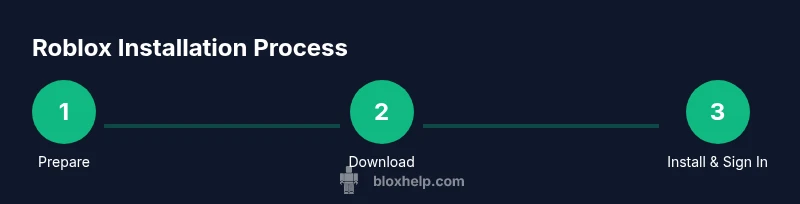
- 1
Prepare your device and network
Power on your device, connect to a stable internet source, and close other bandwidth-heavy apps to ensure a smooth download and install process.
Tip: Use a wired connection if possible for more stability. - 2
Open the official Roblox download page
Navigate to the official Roblox site or your device’s app store. Verify you’re on the legitimate Roblox page before downloading to avoid scams.
Tip: Bookmark the official Roblox page for quick access. - 3
Download the Roblox installer or app
Click the download button to fetch the Roblox launcher or mobile app. Save it to a known location on your device.
Tip: Save location clearly labeled to find it easily. - 4
Run the installer and follow prompts
Launch the downloaded file and complete the on-screen setup wizard. Grant permissions if prompted by your OS.
Tip: If asked for admin access, provide it to continue. - 5
Sign in or create a Roblox account
Open the Roblox launcher or app and sign in with your existing account or create a new one to access games.
Tip: Use a strong password and enable two-factor authentication. - 6
Adjust privacy and security settings
If prompted, configure age-appropriate privacy settings and enable essential security features.
Tip: Review parental controls if you’re setting this up for a child. - 7
Launch Roblox and test
Start a quick game to verify the installation works correctly and the launcher loads games without issue.
Tip: Update graphics drivers if you notice performance issues. - 8
Keep Roblox up to date
Enable automatic updates where possible to ensure you always have the latest features and security fixes.
Tip: Regularly check for updates in the app store or launcher.
Questions & Answers
Is Roblox free to install?
Yes. Roblox is free to install and play. Some games and items may require purchases within the platform.
Roblox can be installed for free and you can start playing right away; some games offer in-game purchases.
Do I need an account to install Roblox?
You can download and run the Roblox launcher without an account, but you’ll need an account to sign in and play games.
You’ll need a Roblox account to sign in and play, but you can install the launcher first.
What if the download doesn't start or fails?
Check your internet connection, try a different browser or device, and verify you’re using the official Roblox site.
If the download doesn't start, verify your connection and use the official Roblox page.
Can I install Roblox on multiple devices?
Yes, you can install Roblox on multiple devices and sign in with the same account across them.
You can install Roblox on multiple devices and sign in with the same account.
How long does installation take?
Installation time depends on your device and connection speed but typically completes within 10-20 minutes.
It usually takes around 10-20 minutes, depending on your device and internet speed.
Watch Video
The Essentials
- Use official sources for safe installation.
- Follow platform-specific steps for best results.
- Test the install by launching a game.
- Keep your account secure with strong passwords and 2FA.