How to Play Roblox on TV: A Complete TV Setup Guide
Learn how to enjoy Roblox on your TV with Xbox, casting from mobile, or streaming devices. This comprehensive guide covers setup, tips, troubleshooting, and safety for a smooth big-screen Roblox experience.


You can play Roblox on a TV by using an Xbox console with the Roblox app, or by casting Roblox from a phone or tablet to a casting-enabled TV. You can also use a streaming device to mirror your PC or mobile device. If you want the simplest TV setup, start with Xbox, then explore casting as needed.
Roblox TV Playback Landscape
Roblox is primarily designed for mobile, PC, and console play, and there isn't a universal built-in Roblox app for every smart TV brand. The most reliable routes to big-screen Roblox are using an Xbox console with the Roblox app, or mirroring/casting from a mobile device to a TV. This setup gives you access to the full Roblox experience on a big screen, including your friends, game menus, and in-game chat. According to Blox Help, many players start on Xbox because it provides native app support and straightforward navigation with a gamepad. If you own a PC or laptop, you can also cast from a browser to a TV, but performance depends on your network and device compatibility. For most families, a living room setup with a gamepad and a stable network makes Roblox on TV feel natural. VR headsets can connect to TVs via display tech, but most players will prefer a traditional console or casting path for comfort and ease of use. When selecting a path, balance input options, access to your Roblox account, and how you’ll manage audio. This landscape means you’ll likely reach a comfortable big-screen setup by choosing a primary route (Xbox) and having a secondary casting option ready.
Getting Ready: Supported Devices and Requirements
Before you start, confirm you have the right hardware and an active Roblox account. The supported paths for TV viewing include an Xbox console with the Roblox app, casting from a mobile device to a TV, or using a streaming device to mirror your computer or phone. A stable home Wi‑Fi network is essential; many players experience smoother gameplay when the console or casting device is on the same network as the TV. You’ll also want a TV with HDMI input and a comfortable seating distance for long sessions. Keep your Roblox login handy, as you’ll sign in on the TV or casting device. If you’re starting with Xbox, ensure the console is updated and you have an HDMI cable ready. For casting, have a compatible phone or tablet, and a casting device (Chromecast, Roku, or similar) that supports screen mirroring. In all cases, a good audio setup and a quiet space improve the experience for you and others around the TV. The goal is a reliable internet connection, clear visuals, and easy navigation using a controller or remote.
Using Xbox: A Clean Setup for TV
Using Xbox to play Roblox on your TV offers the most straightforward pathway. Start by turning on the console and TV, then navigate to the Xbox Store and install the Roblox app. Sign in with your Roblox account, and set up your preferred language, privacy settings, and parental controls if needed. Pair your Xbox controller and calibrate the controller sensitivity to your preference. Launch Roblox and choose a game from your library or the Discover section. For best results, connect the Xbox to the router via Ethernet when possible to minimize latency. Adjust audio output so you hear in-game sounds clearly without disturbing others. If you have a headset, connect it before you start playing to keep voices audible in chat. Once set up, you can switch between games quickly using the Xbox guide and keep your progress synced to your Roblox account. The Xbox path is often the most reliable big-screen option because it’s designed for a TV experience with a gamepad.
Casting Roblox from Mobile or Desktop to TV
Casting Roblox from a mobile device or desktop to a TV is a flexible alternative when you don’t want to install Roblox on a console. Ensure all devices are on the same Wi‑Fi network and that you have a casting device (such as Chromecast on the TV or a compatible streaming stick). Open Roblox on your mobile device, start a game, and tap the Cast icon to select your TV. If you’re using a browser on a desktop, you can cast the Chrome tab or the entire screen to the TV. Keep in mind that casting may introduce a bit more latency, depending on your network speed. For best results, use a 5 GHz network, minimize other bandwidth-heavy activities on the same network, and keep devices close to the router. You’ll control the game with your mobile device’s touch controls or a connected Bluetooth controller if supported by your TV or casting device. This method is excellent for rooms where an Xbox isn’t available or if you want to share Roblox with guests.
Common Issues and Fixes
Roblox on TV can run into a few common hiccups. Ensure your Roblox app is up to date on the Xbox or casting device, and check that your Roblox account is active and correctly signed in on the TV path you chose. If you encounter lag, run a speed test to confirm your internet speed meets Roblox’s general requirements and consider reducing other devices using bandwidth. If you don’t see the Roblox app on Xbox, revisit the store page and verify your account region settings. For casting, ensure screen mirroring is enabled on the mobile device and that you’ve granted permissions for casting to your TV. If audio is out of sync, re-pair the Bluetooth headset or switch to TV speakers. If you experience frequent disconnects, temporarily switch to a wired Ethernet connection or move devices closer to the router. Persistent issues may require rebooting the TV, casting device, or router. By systematically checking hardware, software, and network factors, you’ll identify the bottleneck and restore a smooth Roblox session quickly.
Enhancing the Experience: Controllers, Accessibility, and Settings
To maximize comfort, customize input controls and accessibility options. On Xbox, use the standard controller for precise movement and camera control, and adjust sensitivity in the settings menu. If you cast from a mobile device, consider a Bluetooth controller for a more console-like experience; many games in Roblox are playable with a gamepad, though some control schemes are better suited for touch. Enable captions or transcripts if you’re gaming with friends who use chat, and tweak audio balance so your in-game sound effects aren’t overwhelmed by background music. In terms of accessibility, look for text scale, color contrast options, and simplified UI modes within Roblox and your TV’s accessibility settings. For kids and new players, set up parental controls on the Roblox account and review privacy settings to control who can contact you in-game. By personalizing controls, captions, and safety features, Roblox on TV becomes more approachable for all players in your household.
Safety, Parental Controls, and Privacy on TV
Playing Roblox on a TV involves multiple user profiles and guest access scenarios. If younger players are involved, enable parental controls and restrict in-game purchases to avoid accidental spending. Review chat and friend request settings to reduce exposure to unknown players, especially on shared TV screens. Remember to keep login information secure and log out if sharing the TV with others. When using casting, ensure your mobile device is locked with a passcode and that you’re not sharing your screen in public spaces. Use a secure Wi‑Fi network to minimize exposure to interruptions or potential eavesdropping, and consider using headphones for private audio in shared spaces. Roblox on TV is a social space, so communicate with household members about playing times and in-game etiquette to maintain a positive gaming environment.
Final Tips and Best Practices
Prepare a simple, repeatable setup routine so you can enjoy Roblox on TV without reconfiguring every time. Keep a dedicated HDMI port for the TV console, label cables for easy maintenance, and store your controller and casting device in a visible spot for quick access. If you’re new to Roblox on TV, start with a short session to calibrate audio, video, and controls before inviting friends to join. Regularly update both Roblox and your TV’s firmware to keep performance smooth, and consider using a wired connection for the most reliable experience. By planning ahead and keeping a clean, organized setup, Roblox on TV becomes a seamless part of your gaming ecosystem.
Tools & Materials
- Xbox console(Any Xbox Series X|S or Xbox One model; ensure console is updated)
- TV with HDMI input(HDMI 1.4+ input; supports 1080p/4K depending on TV)
- HDMI cable(High-speed HDMI 2.0+ recommended)
- Roblox account(Use the Roblox account you normally play with)
- Stable Wi‑Fi network(5 GHz preferred; aim for 20+ Mbps for streaming/casting)
- Smartphone or tablet with Roblox app(Needed for casting from mobile to TV)
- Chromecast/Fire TV/Roku or other casting device(Needed for mobile casting to non-Xbox TVs)
- Xbox controller(Basic wireless controller connected to Xbox)
- USB keyboard/mouse (optional)(Useful for navigation in some interfaces)
Steps
Estimated time: 30-60 minutes
- 1
Prepare devices and accounts
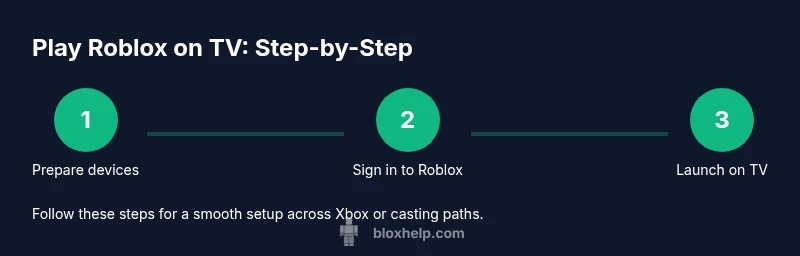
Power on the TV and Xbox (or casting device). Sign in to your Roblox account on the chosen TV path and confirm internet connectivity. Verify your account has access to Roblox content and that your parental controls, if any, are set to your preference.
Tip: Have login credentials handy to sign in quickly; confirm your region supports Roblox. - 2
Connect and power on TV
If using Xbox, ensure the console is connected to the TV via HDMI and the TV input is set to the correct HDMI port. For casting, ensure your TV is ready to receive a cast signal from your mobile device or casting dongle.
Tip: A wired Ethernet connection to the router improves stability. - 3
Install Roblox app on Xbox
Navigate to the Xbox Store, search for Roblox, and install the app. Once installed, launch Roblox from your home screen.
Tip: Keep the app updated to access new features and fixes. - 4
Sign in and customize
Sign in with your Roblox account, then adjust privacy and audio settings to suit your preference. Pair a controller if you plan to play with a gamepad.
Tip: Configure your audio output (TV speakers vs. headset) for comfort. - 5
Launch a game and optimize
Choose a game from your library or Discover feed and start playing. If latency occurs, adjust video quality settings and ensure no heavy network activity is running on other devices.
Tip: Use a wired connection when possible for the best performance. - 6
If casting from mobile
Open Roblox on your mobile device, start a game, and tap the Cast icon to select your TV or casting device. Ensure both devices share the same network.
Tip: Limit other apps on the casting device to improve performance. - 7
Fine-tune controls and accessibility
Adjust controller sensitivity, enable captions, and review accessibility options in Roblox and your TV’s settings for a comfortable experience.
Tip: If a USB keyboard helps, connect it to ease navigation.
Questions & Answers
Can I play Roblox on any smart TV without a console?
Most smart TVs do not run Roblox natively. The common methods are using an Xbox console with Roblox or casting from a phone/tablet to the TV. A streaming device can help, but native support varies by brand.
Roblox isn’t typically native on most smart TVs; you’ll usually use Xbox or casting from a phone.
Is Roblox free to play on TV?
Roblox is free to play across supported devices, but in-game purchases and memberships may apply. The TV setup doesn’t change this, though some platforms may offer different monetization options.
Roblox itself is free to play, with in-game purchases possible.
Do I need internet to play Roblox on TV?
Yes. Roblox requires an active internet connection for game loading, updates, and online play, whether you’re on Xbox or using casting.
Yes, an internet connection is required for Roblox on TV.
Can I use a keyboard and mouse with Roblox on TV?
Some Roblox titles support keyboard and mouse on TV setups, especially when using casting from PC. Xbox controllers remain the most universal option for console-style gameplay.
Keyboard and mouse work with some setups, but a gamepad is typically easier on TV.
How do I fix lag when playing Roblox on TV?
Troubleshoot by testing your internet speed, reducing background network usage, and using a wired connection if possible. Rebooting the TV, casting device, or router can resolve intermittent lag.
Test speed, reduce network load, and reboot devices to fix lag.
Is there a single best method to play Roblox on TV?
The Xbox path is typically the cleanest and most reliable for big-screen Roblox with a gamepad. Casting from mobile is great for guests or shared spaces, but can introduce latency.
Xbox is usually the simplest for a TV setup; casting is handy for flexibility.
Watch Video
The Essentials
- Choose Xbox for the simplest, most reliable Roblox on TV path.
- Casting offers flexibility but depends on network quality.
- Keep software and firmware current to minimize issues.
- Personalize controls and accessibility for comfort and safety.